
ZeroBounce: verify email deliverability before you send
Sending to a stale list is how a good sending domain goes bad. Bounce enough addresses and mailbox providers stop trusting you, and the campaigns that used to land start going to junk for everyone, including the partners who wanted to hear from you. ZeroBounce checks each address before you send. Current brings your own ZeroBounce account into the CRM so that verification happens where the sending happens, applies the results automatically, and doesn't spend a credit on an address it checked in the last six months.
Don't have a ZeroBounce account yet? Sign up with the button below, then come back and connect it.
Connect your ZeroBounce account
This is a bring-your-own-key integration: the credits are yours, the account is yours, and the bill is yours. A Tenant Admin connects it. The Integrations page is where the key lives, and only a Tenant Admin gets that link in the sidebar. Once it's on, everyone with CRM access uses verification everywhere it appears, and sees the connection status if they reach the Integrations page.
- 1Create a ZeroBounce accountGo to https://www.zerobounce.net/members/signin/register?ref_code=aff-f42f7571b72e42d5 and sign up (or sign in to the account you already have). Verification credits are billed to this account.
- 2Create an API keyIn the ZeroBounce dashboard sidebar, open Management → API (https://www.zerobounce.net/members/API), press Create a new API Key, and copy it. An account can hold up to five keys, so you can give Current one of its own. Leave the Whitelisted IP(s) column for that key empty: Current calls ZeroBounce from servers whose addresses aren't fixed, and a key limited to certain IPs would refuse them. The same page links API Usage, where you can see what your checks have spent.
- 3Paste it into CurrentIn the left sidebar, open Integrations (under the Workspace section, Tenant Admins only) → Sales & marketing → ZeroBounce → Manage, paste the key, and press Connect. Current checks it live against your ZeroBounce account before storing anything. The field is write-only. The key is kept server-side and never shown back. If someone without admin rights reaches the drawer, they see "The ZeroBounce connection is managed by a Tenant Admin."
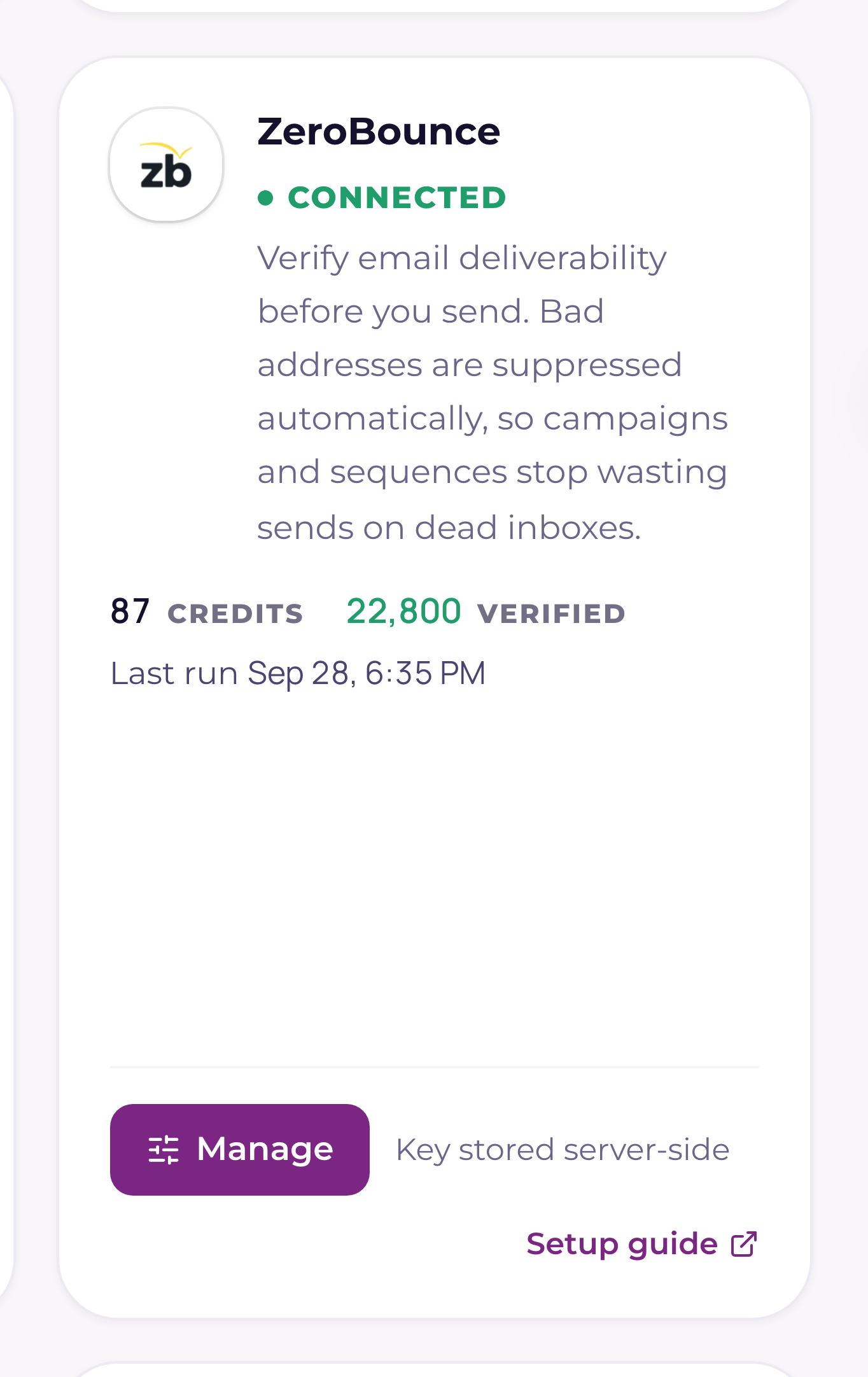
- 4Check the connection cardOnce connected, the drawer shows credits remaining, how many addresses you've verified through Current, and when the last verification run happened.
The 6-month cooldown, why a re-verify usually costs nothing
Current verifies any given address at most once every 180 days. Run a campaign to the same list three times in a quarter and you pay for the addresses once, not three times. Anything whose last result is still fresh is skipped automatically. You only spend a credit when an address has never been checked, or its result is older than six months. ZeroBounce doesn't charge for an Unknown result either, so an address it couldn't reach costs you nothing.
That's why every verification screen shows you an estimate first, and the estimate spends nothing: how many addresses need verification, how many are being skipped as still fresh, how many credits you have available, and how many credits the run will use. Nothing is sent to ZeroBounce until you press the Verify button.
Where you can verify
| Scope | Where to start it |
|---|---|
| A contact list | Sales → Lists → open the list. The Email health strip across the top breaks the list into Valid, Accepts all, Unknown, Needs attention, Stale (> 6 months), and Never verified, with an Enrich list button that opens the estimate. The whole list is read before the estimate, however long it is: a 4,000-contact list is estimated and verified as 4,000, in runs of up to 5,000 addresses each. |
| A campaign audience | The campaign wizard's Verify button. Green Verified when the list is checked, amber Verify recommended when too much of it is stale or unchecked, neutral Verify otherwise. It opens a pre-send report of every address and its verdict (valid, accepts-all, unknown, flagged) with suggested corrections, filter chips, and search. Large audiences show the first 2,000 rows with the full count |
| A sequence audience | The same audience summary appears on a sequence before you enrol anyone |
| A single contact | Partners → Contacts → click the verification badge next to an address. The dialog shows the status and a Re-verify button, greyed out with the next eligible date while that address is still inside its cooldown |
Small runs (ten addresses or fewer) are checked on the spot and applied in seconds. Anything larger becomes a verification run of up to 5,000 addresses. Current sends ZeroBounce up to 100 addresses at a time, works through the run every minute, and applies each batch of results as it comes back, so the progress bar climbs in steps. You can close the screen and the work continues.
What Current does with each result
| Verification result | What Current does |
|---|---|
| Valid | Marked deliverable. Nothing else changes |
| Invalid (shown as "Bad email") | Added to your suppression list, so every campaign and sequence skips it. If there is no suggested correction to try, an active contact on that address is also deactivated, and a note goes on the company timeline |
| Disposable | Suppressed. The contact stays active. A throwaway address isn't proof the person is gone |
| Catch-all (shown as "Accepts all") | Stays sendable. The mail server accepts every address, so nobody can confirm this one specifically. Usually safe |
| Unknown | Stays sendable. No clear answer came back, and ZeroBounce doesn't charge for it. A little riskier, and it's your call per send |
| Spam trap (blocked) | Suppressed. ZeroBounce believes the address exists to catch senders who mail lists they didn't collect, and one hit can land your domain on a blocklist. The contact stays active |
| Known complainer (blocked) | Suppressed. The address belongs to someone known for marking mail as spam. The contact stays active |
| Do not mail (blocked) | Suppressed. ZeroBounce advises against mailing it: a role address such as info@ or sales@, an address on ZeroBounce's own suppression list, or one tied to a known risk. The contact stays active |
| Mailbox full (blocked) | Suppressed, because mail to a full inbox bounces. The contact stays active: a full mailbox is usually temporary, so it is never treated as a dead address |
The four Blocked results are left out of every campaign and sequence exactly like an invalid address, and they show in the Fix-it queue with their reason. Current never deactivates a contact because of one: the address is the risk (or, for a full mailbox, a passing problem), and the person behind it may be a real contact you reach another way. Only a plain invalid address with no suggested correction deactivates a contact.
The Fix-it queue: cleaning up the bad addresses
Verification tells you what's broken; the Fix-it queue is where you fix it. Open a list and go to the Needs attention tab. It lists the still-active contacts whose last verdict was invalid, disposable or blocked, each with its reason, and two moves each:
- 1Apply fix & re-verifyMost bad addresses are typos, and ZeroBounce often suggests the correction ("alex@nrothwind.com" → "alex@northwind.com"). The suggestion is prefilled. Current verifies the NEW address first. If it comes back undeliverable (invalid or blocked), it is refused and the contact is left as-is, so a proven-bad address never replaces the old one. Any other verdict (valid, accepts-all, unknown) is written to the contact. The old address stays suppressed, which is correct: only the person moved.
- 2Mark as deadFor an address with no good fix. The contact is deactivated, a note goes on the timeline so the next person knows why, and (for a PSA-synced contact) the change syncs to your PSA.
On a static list, contacts you already marked dead appear underneath the flagged rows with a Reactivate button. Restoring one keeps the suppression deliberately in place, because reactivating the person doesn't un-break the address that was bouncing. Verify a corrected address to bring them back into sending. A static list also gets a "Remove N bad emails" button, which drops those members from the list only; they stay blocked from every send either way.
The pre-send guard, and what to do when things go wrong
Once ZeroBounce is connected, Current will not let you send a campaign into a fog. If half or more of the audience is stale (last checked over six months ago), or never verified, the send is refused and the campaign is left untouched. You get a choice of Verify first (recommended), or Send anyway; Send anyway re-queues the campaign with the warning acknowledged. Tenants without ZeroBounce connected are never nagged about this.
- +Out of credits, or a key ZeroBounce no longer accepts: Current stops the run and says "ZeroBounce rejected that API key, or the account is out of credits." Addresses already checked keep their results. Check the key under Management → API in your ZeroBounce dashboard (including that its Whitelisted IP(s) column is empty) or add credits, then run it again. The estimate will already have excluded everything still fresh.
- +A run that seems slow: ZeroBounce limits how often it can be called, so when it asks Current to wait, the batch is tried again on the next minute rather than counted as a verdict. The panel shows how many addresses are checked and how many are left, and a background check runs every minute in case the panel is closed.
- +Verification is advisory; the suppression list is the hard wall. Catch-all and unknown addresses are yours to decide on, but a suppressed address is never sent to, by any campaign or sequence, ever.
For the send side of the story, see "Campaigns and audiences: build, approve, and send safely" and "The sequence engine: enrollment, caps, and exits". If you're importing a list from a spreadsheet, verification is part of that flow too, see "Import contacts by CSV: mapping, dedupe, verification".