
Handwrytten: send a real handwritten card from a lead, an opportunity, or a company
Bring your own Handwrytten account: send a real handwritten card from a lead, an opportunity on the board, or a company record, with an AI-drafted note, an automatic follow-up to-do, and test mode on until you go live.
On this page · 8 sections
A real handwritten card cuts through in a way another email never will. Handwrytten writes actual cards with a pen-wielding robot and mails them for you. Current brings your own Handwrytten account into the CRM, so a rep can send a warm, personal card from a lead in the funnel, from an opportunity on the board, or straight from a company record. The note drafted from what you already know about the person, the address filled in when it's on file, and nothing mailed or charged until you're ready.
This is a bring-your-own-key integration: the account is yours, the cards are yours, and the bill is yours. A Tenant Admin connects it once and picks the card design, handwriting, and return address; from then on every rep with CRM access can send a card with two clicks and never has to choose a design.
Don't have a Handwrytten account yet? Sign up with the button below to get started, then come back and connect it. Current partners get 10% off Handwrytten with the code CURRENT.
Connect Handwrytten (Tenant Admin)
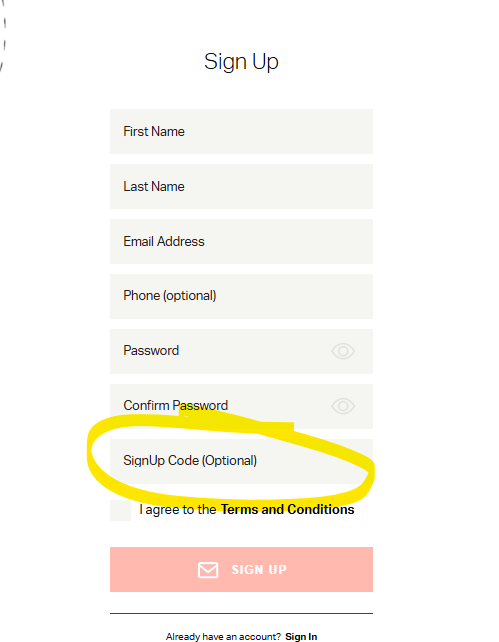
- 1Create a Handwrytten account (use the code CURRENT for 10% off)Go to https://www.handwrytten.com?ref=otfimjl and sign up (or sign in to your existing account). On the sign-up form, enter CURRENT in the SignUp Code (Optional) field to get 10% off. It sits just under Confirm Password, above the Terms and Conditions checkbox. Cards are billed to this account, so it's the one whose credits and plan pricing you'll use.
- 2Open the app dashboardSign in to your Handwrytten account at https://www.handwrytten.com?ref=otfimjl. This is where your account, cards, and integrations live.
- 3Create an API keyIn the dashboard, open Integrations and create an API key. Copy it. You'll paste it into Current next.
- 4Paste the key into CurrentIn Current, open Settings › Integrations (Tenant Admins only) → Sales and CRM → Handwrytten → Manage, paste the key, and press Connect. Current validates it live against Handwrytten before storing anything. The field is write-only. The key is kept server-side and never shown back. If someone without admin rights reaches the drawer, they just see that the connection is managed by a Tenant Admin.
- 5Pick your card, handwriting, and return addressOnce connected, the drawer lets you choose a default card design (with a preview), a handwriting style, and the return address every card is sent from. Reps never pick these. You set them once so every card looks consistent. Save your settings when you're done.
- 6Leave test mode on until you're readyTest mode is ON by default. In test mode, cards are accepted and processed by Handwrytten but never printed, mailed, or charged, so you can try the whole flow end to end for free. Send a test card to yourself to see how it reads.
- 7Go live when you're readyWhen you want real cards to actually mail, flip the Sending mode switch off test mode. The drawer warns you loudly first: while live, every card sent from the funnel is printed, mailed, and billed to your Handwrytten account. Flip it back to test mode any time.
Use your own branded card
You're not limited to Handwrytten's stock designs. You can send a card with your own logo or cover art. You design it once in Handwrytten's dashboard, and it shows up in Current automatically.
- 1Open Handwrytten's card designerSign in to Handwrytten at https://www.handwrytten.com?ref=otfimjl and open the custom-card / design tool. Handwrytten's designer lets you build your own card and upload a logo or cover image for the front.
- 2Design and save your cardAdd your logo or artwork, arrange the front the way you want, and save the card to your account. Give it a clear name (for example, your company name) so it's easy to spot in a list later.
- 3Pick it in CurrentBack in Current, open Integrations → Sales and CRM → Handwrytten → Manage. Your saved custom card appears in the card picker alongside the stock designs, no re-import, no extra key. Select it as your default card and save. Every card your team sends from then on uses your branded design.
Send a card from a lead (any rep with CRM access)
Once Handwrytten is connected, two new columns appear on Sales → Leads between Qualified and Meeting set: Handwrytten, then Follow up. Sending a card is a drag and a dialog:
- 1Drag the lead into the Handwrytten columnA send dialog opens. Nothing is written until the card actually sends. If you cancel, close, or click away, the lead snaps back exactly where it was.
- 2Check the recipient and mailing addressThe recipient's name and address are prefilled when Current knows them, from a card you sent this lead before, from the linked company record, or from the details the lead came in with. Fix anything that's off.
- 3Pick a goalChoose Suggest a next step, Say thank you, or Great talking. The goal shapes the tone of the drafted note; switching it doesn't erase anything you've typed.
- 4Write the note, or let Current draft itType your own message (a live counter shows how much fits on the card), or press Write it for me. Current reads the lead's notes and history and drafts a short, personal note in the chosen tone, which you can edit freely before sending. Press it again to rewrite.
- 5SendPress Send card. The card is stamped on the lead (a small Card sent badge), and logged on the company timeline, and the lead moves itself into the Follow up column, no need to drag it there. It stays in Follow up until you move it onward.
Send a card from the opportunities board
The opportunities board can carry the same drop zone, and unlike Leads it's off until somebody asks for it. A sales manager or an admin with CRM access opens Opportunities, chooses Edit columns, and turns on "Show the Handwrytten column on this board" for the pipeline they want it on. The switch is only there once Handwrytten is connected, and it's per pipeline, so a New Logo board can have it while Renewals doesn't.
- An amber "Drop to send a card" zone appears beside the stage columns while the switch is on.
- Drop an opportunity on it and the same send dialog opens, addressed to that opportunity's company, the same goals, the same Write it for me draft, the same character-counted message box.
- The opportunity does not change stage. It stays in the column it was in, whether you send the card or close the dialog. Sending mails the card, logs it on the company timeline, and creates your five-business-day follow-up to-do.
Send a card from a company record
Cards aren't just for new leads. A handwritten thank-you after a business review, a renewal, or a referral is exactly the kind of touch that keeps a customer for years. When Handwrytten is connected, every company record gets a Send a card button in its header actions.
- Click Send a card on the company you want to reach. The same dialog opens, the same goals, the same Write it for me draft, the same character-counted message box.
- The recipient defaults to the company's primary contact when Current has one, and the mailing address is prefilled from the company record. Adjust anything that's off, or type in an address when there isn't one on file.
- There's no funnel column here. Nothing moves. Sending mails the card, logs it on the company timeline, and (like a lead send) creates your five-business-day follow-up to-do.
Setting a monthly limit
Cards cost real money, so a Tenant Admin can set an optional monthly card cap in the Handwrytten settings (Integrations → Sales and CRM → Handwrytten → Manage). Leave it blank for no limit. When a cap is set, the send dialog shows how many cards have been used this month, and once the cap is reached, sending is refused with a plain message until the next month, or until an admin raises the limit. Test-mode and simulated sends don't count against a live cap.
What a card costs
A live card runs about $3.75 in US dollars, plus postage, or whatever your Handwrytten plan pricing is. It's billed directly to your Handwrytten account, not through Current. If you haven't signed up yet, use the code CURRENT on Handwrytten's sign-up form for 10% off. The send dialog shows the price before you send, and the exact card price follows the design you chose in settings. In test mode nothing is charged at all. Your balance and billing live in your Handwrytten account; the Manage drawer shows your remaining credits so you're never caught short.
Troubleshooting
- The Handwrytten and Follow up columns don't appear on Leads: the integration isn't connected. A Tenant Admin needs to connect it in Integrations → Sales and CRM → Handwrytten. If an admin has connected it and the columns still aren't there, the card service may not be deployed in this environment yet, the connection card will say so; check back after the next backend release. (The company-page Send a card button follows the same rule: it only shows when Handwrytten is connected.)
- There's no drop zone on the opportunities board: that one is opt-in per pipeline, so a connected workspace still has to turn it on. Open Opportunities → Edit columns and switch on "Show the Handwrytten column on this board" for that pipeline. If the switch isn't in Edit columns at all, the integration isn't connected yet. On a computer the zone sits at the right edge of the board and appears once you pick up a card; on a phone it sits under the board.
- An address is rejected when you press Send: Current shows you Handwrytten's exact validation message, the vendor's own words, not a generic error. Fix the flagged part of the address (a wrong ZIP or an unrecognized street is the usual cause), and send again. Nothing is charged or recorded when a send is refused.
- Sending is paused for the whole workspace: if billing is frozen, card sending is refused until billing is sorted. This is a workspace-wide state, not a Handwrytten problem.
- The Write it for me button says it's unavailable: the AI drafting service is briefly unreachable. You can still type your own note and send the card normally, the draft is a convenience, never a requirement.
For how Current keeps your API key safe, see "How Current stores credentials and secrets". For the rest of the lead funnel, see the Sales → Leads walkthrough.