
Connect SuperOps to Current
Connect SuperOps as your workspace’s PSA to bring in customers, sites, contacts, technicians, tickets and time. Supported changes made in Current travel back to SuperOps through the existing permission checks. Your workspace can have one PSA connected at a time.
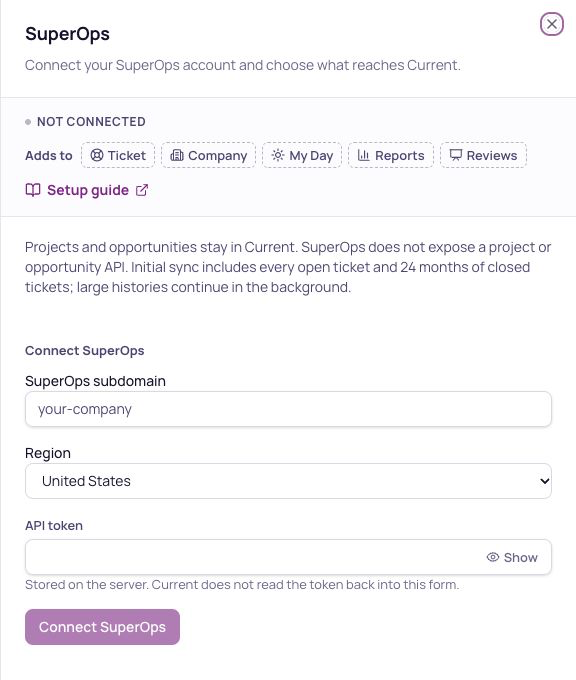
Before you connect
- 1Prepare the accountCreate an API token in SuperOps with access to the customers and records Current should sync. Keep the token in your password manager; do not send it by email.
- 2Check the regionHave your account subdomain and region ready. Choose United States or Europe to match the SuperOps account. The region does not establish the currency.
- 3Connect in CurrentAs a workspace admin, open Integrations, choose SuperOps, and enter the subdomain, region and token. Press Connect SuperOps. A refused or missing permission appears in the connection or sync status.
What syncs
- +Customers and contacts: supported creates and edits travel both ways. Site records are read from SuperOps; supported headquarters address changes can be sent back. Technicians are read from SuperOps and linked to your Current team.
- +Tickets: supported status, priority, requester, assignment, customer and classification changes travel both ways. Notes, replies and eligible time entries use the operations that the API exposes. Attachments currently stay in SuperOps; file transfer still needs live account verification.
- +Contracts, service items and invoices: supported billing records are read into Current. Confirm the currency before financial values are used.
- +RMM: enable SuperOps RMM from its own integration row to read devices, software, patches and active alerts with the same credentials.
What stays in Current
SuperOps does not publish a project, opportunity or quote API. Current projects, scheduling, dependencies and opportunities stay in Current. They are not converted to SuperOps tickets. The SuperOps API supports reading and creating ticket tasks, but has no task update or delete operation. A ticket’s description can be supplied when it is created; the ticket-update API cannot change its description or asset links.
Confirm the currency
SuperOps does not include currency on the supported financial records. After connecting, check the account’s currency in SuperOps, then confirm in Current that it matches the workspace currency shown. The box starts unchecked. Until a workspace admin confirms a match, financial imports remain unavailable; Current does not infer currency from the region or treat missing money as zero.
Your first sync
The first ticket import includes all open records plus 24 months of closed history. Large accounts continue across bounded passes from the last completed page. A queued or partial pass is not a completed import. Open Sync health for the last run, failed areas and any action needed. Sync now requests another pass; it does not mean every record has already arrived.
Edits and conflicts
Current uses the workspace’s existing two-way and CRM write settings. SuperOps remains the source for fields it owns. Current keeps its own scheduling and native records. A missing permission, unsupported field or billing freeze does not become a successful write. An uncertain create is checked before another create is attempted, to avoid duplicates.
Disconnect and reconnect
Open SuperOps, type DISCONNECT and confirm. Syncing stops and imported data stays in Current. Reconnecting uses the saved external identities to match existing records. Changing the PSA after importing records requires a guided migration. Contact Current before switching accounts or providers.