
ScalePad Lifecycle Manager: connect, sync, map clients
API key setup, everything Current pulls from Lifecycle Manager, how ScalePad clients map to your companies, and where warranty, DMI, and budget data shows up.
On this page · 6 sections
Lifecycle Manager knows things about your partners that your PSA doesn't: which machines fall out of warranty next quarter, how each account scores on hardware health, what's on the roadmap and what it's budgeted at. Current pulls all of it in, hangs it off the company record, and feeds it to the Strategic Business Review engine, so your account managers stop assembling that picture by hand.
Out of the box the connection only reads: Current pulls from ScalePad and changes nothing there. The one exception is your roadmap: Current sends roadmap changes to ScalePad unless a Tenant Admin turns that off (see Send roadmap changes to ScalePad below).
Send roadmap changes to ScalePad
Your roadmap works on its own, with or without ScalePad. If you plan in both, Current keeps them in step from the start: Send roadmap changes to ScalePad is on for every workspace. A Tenant Admin can turn it off in Settings › Integrations: press Manage on the ScalePad Lifecycle Manager tile and switch off Send roadmap changes to ScalePad. With it off, changes stay in Current and nothing waiting is sent.
- What goes to ScalePad: a card's title, description, status, quarter and investment (one-time and monthly). A new card on a company that is matched to a ScalePad client creates a ScalePad initiative. Removing a card archives its initiative in ScalePad, where it can be restored.
- What comes back: when someone changes an initiative in ScalePad, the next sync brings the change onto its card, including the status (Approved, In progress, On hold, Declined, Completed), even on a card your customer already decided.
- Whichever side changed last wins. If ScalePad changed an initiative after the last change in Current, Current does not overwrite it, and ScalePad's version comes into Current instead.
- Changes wait about 15 seconds before they go, so an undo in Current never reaches ScalePad. They are sent every few minutes after that.
- Current never wipes or merges a budget you built in ScalePad. ScalePad replaces an initiative's whole list of one-time (or monthly) lines when it is changed, so Current sends the investment only when the total differs and ScalePad has no line or one line of that kind. When ScalePad has several lines, the rest of the card still goes and Settings shows that the investment needs changing in ScalePad. Clearing the investment on a card does not clear it in ScalePad.
- Status words map like this: Proposed and Suggested to Proposed, Approved and Scheduled to Approved, In progress to In progress, Deferred to On hold, Declined to Declined, Done to Completed.
- Anything ScalePad refuses is held, not retried, with the reason in the same Manage panel under need a look. If Current cannot tell whether ScalePad created a new initiative (for example the connection dropped), it holds that card rather than risk a duplicate: check ScalePad first.
- The API key must belong to a ScalePad administrator who can change initiatives.
Connect Lifecycle Manager
- 1Generate a personal API keyIn ScalePad Hub → Personal API keys. The owning user must be an active administrator, if that person later loses administrator permissions, ScalePad starts refusing the key and the sync stops.
- 2Paste it into CurrentConnect is a Tenant Admin action. Open Settings › Integrations (Tenant Admins only), find the ScalePad Lifecycle Manager tile, press Manage, then in the Connection section paste the key into the API key field and press Connect. Current validates it live against Lifecycle Manager before storing it, and tells you how many clients it found. Sales leadership can reach the same tile at /integrations for mapping, Test and Sync now, but Connect answers "Only a Tenant Admin can save credentials."
- 3The first sync starts immediatelyYou don't wait for the next scheduled run. A large estate can take several passes to drain; the tile shows a Syncing pill while any pass is still in flight, and picks up where it left off if a pass runs long.
- 4Map the clients that didn't auto-matchIn the same Manage sheet, work the Company mapping section's Unmatched tab, see "Mapping ScalePad clients to your companies" below. Lifecycle data only appears on companies that are mapped.
What Current pulls, and how often
Everything below refreshes on its own. The scheduled sync runs hourly; "Sync now" in the Manage sheet covers the impatient path, and the "Synced from ScalePad" section shows a live count for each synced record type (clients, hardware assets, assessments, initiatives, goals, meetings, action items, contracts, SaaS assets, insights).
| Data set | What it gives you | Where it lands |
|---|---|---|
| Clients & DMI scores | The account-level lifecycle rollup: DMI score and trend, hardware lifecycle summary, software currency | Header of the Lifecycle card on the company record |
| Hardware assets & warranty | The estate: lifecycle split, warranty risk, replacement opportunity, and the actual at-risk machines (expired, expiring, unsupported OS) | Company record + SBR packs |
| Assessments | Each assessment with its per-category scores | Company record (latest assessment) + SBR packs |
| Initiatives & budgets | The roadmap: named initiatives with status, priority, fiscal quarter, and budget | Company record (Growth & whitespace) + SBR roadmap/budget sections |
| Goals & action items | Client goals with at-risk highlighting, and open action items with due dates (overdue flagged) | Company record + SBR packs |
| Meetings | The next or most recent Lifecycle Manager meeting | Company record only, the SBR pack builds its meeting history from Current activities, not from ScalePad |
| Contracts & SaaS | ScalePad contracts and SaaS subscriptions, surfaced as renewals due within 90 days | Company record |
| Budget forecast | A quarterly forecast per mapped client, including overdue and not-yet-scheduled work | SBR budget sections |
| Insights & warranty pricing | Lifecycle Manager insights, plus monthly pricing for renewable warranties | Mirrored into Current (insights are counted in the Manage sheet) but not yet surfaced on the company record or in SBR packs |
Mapping ScalePad clients to your companies
ScalePad's client list and your Current company book are two different directories, so Current matches them, automatically first, by Autotask id (ScalePad reports Autotask ids, so this tier only fires on Autotask workspaces, on ConnectWise, name and domain matching carry the load), then by company name, then by website domain. The Manage sheet's Company mapping section is where you handle the leftovers.
- Unmatched, ScalePad clients with no Current company yet. Press Map to search your companies and link one, or Ignore if there genuinely isn't a match.
- Mapped. Everything linked, with how it matched (by Autotask id, by name, by website domain, or mapped manually). Unlink reverses it.
- Ignored, clients you've explicitly parked. Restore brings one back into the queue.
Only your real Lifecycle Manager clients appear here, the ones with something behind them in ScalePad: an LMX license, a real DMI score, an assessment, a meeting, or roadmap work (initiatives/goals/action items). Hardware alone does not count. ScalePad mirrors hardware assets for your entire PSA directory, so it can't tell a real Lifecycle Manager client from a directory row. Those directory-only rows. No Lifecycle Manager engagement: no assessment, meeting, DMI, or roadmap work (they may still have hardware mirrored). Are counted separately and hidden from the mapping queue, so you're never nagged to map a thousand records with nothing behind them. They appear on their own if lifecycle work ever starts for them in ScalePad.
Where the data actually shows up
On a mapped company record, a Lifecycle card (headed "Lifecycle", sub-labelled ScalePad) appears with the DMI score and trend, sync freshness, the hardware estate and its at-risk machines, software currency, the latest assessment, open action items, renewals inside 90 days, and the next or most recent meeting. The roadmap initiatives are on the same record but in the Growth & whitespace section, not in the Lifecycle card. Every section renders only when it has data, so a thin client stays a small card.
The same data feeds the Strategic Business Review module, where Lifecycle Manager is one of the sources listed on the pack, see "Strategic Business Reviews: the QBR, rebuilt on evidence" and "Running your SBR program quarter to quarter". A company with no ScalePad mapping simply contributes nothing there; it doesn't error.
When something goes wrong
| What you see | What it means |
|---|---|
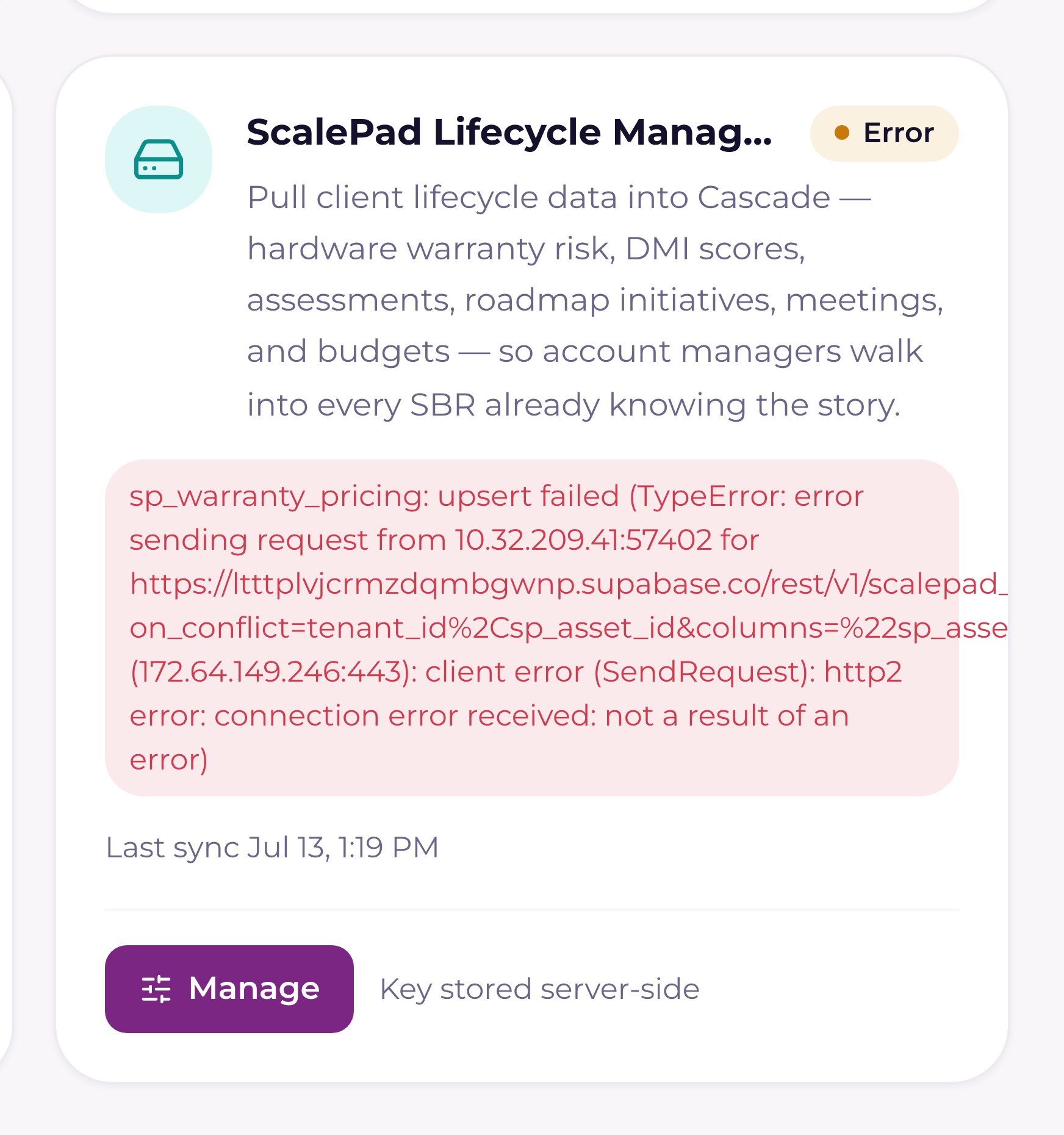
| Tile shows Error, message mentions 401 | ScalePad rejected the key. The owning user most likely lost administrator permissions, or the key was revoked. Generate a new personal API key and use Replace key. |
| Message mentions a subscription tier (402) | That surface isn't in your ScalePad plan. The rest of the sync keeps working. |
| Syncing pill never clears on a large estate | Expected on a first sync of a big book, the run continues in the background across several passes and resumes automatically. Come back later rather than re-clicking. |
| A company shows no lifecycle data | It isn't mapped, or its ScalePad client has no Lifecycle Manager substance. Check the Unmatched tab, and run the matching diagnosis. |
| Rate-limited | Current paces itself under ScalePad's limit and backs off when asked. Nothing to do, the sync resumes on its own. |