
The whitespace grid: find every cross-sell gap
The partner × offering matrix that turns support tickets into upsell evidence.
On this page · 13 sections
- Reading the grid
- Filters
- Discussed-but-not-sold signals
- Mark a red circle seen
- The morning buying-signal email
- Teach the AI your catalog
- What the gaps are worth: the Revenue opportunity band
- Set a target price for an offering
- Starting an expansion opportunity from a gap
- Targeting a campaign by offering coverage
- Exporting
- Managing offerings (leadership)
- The Email seats offering: required, because it defines your seat count
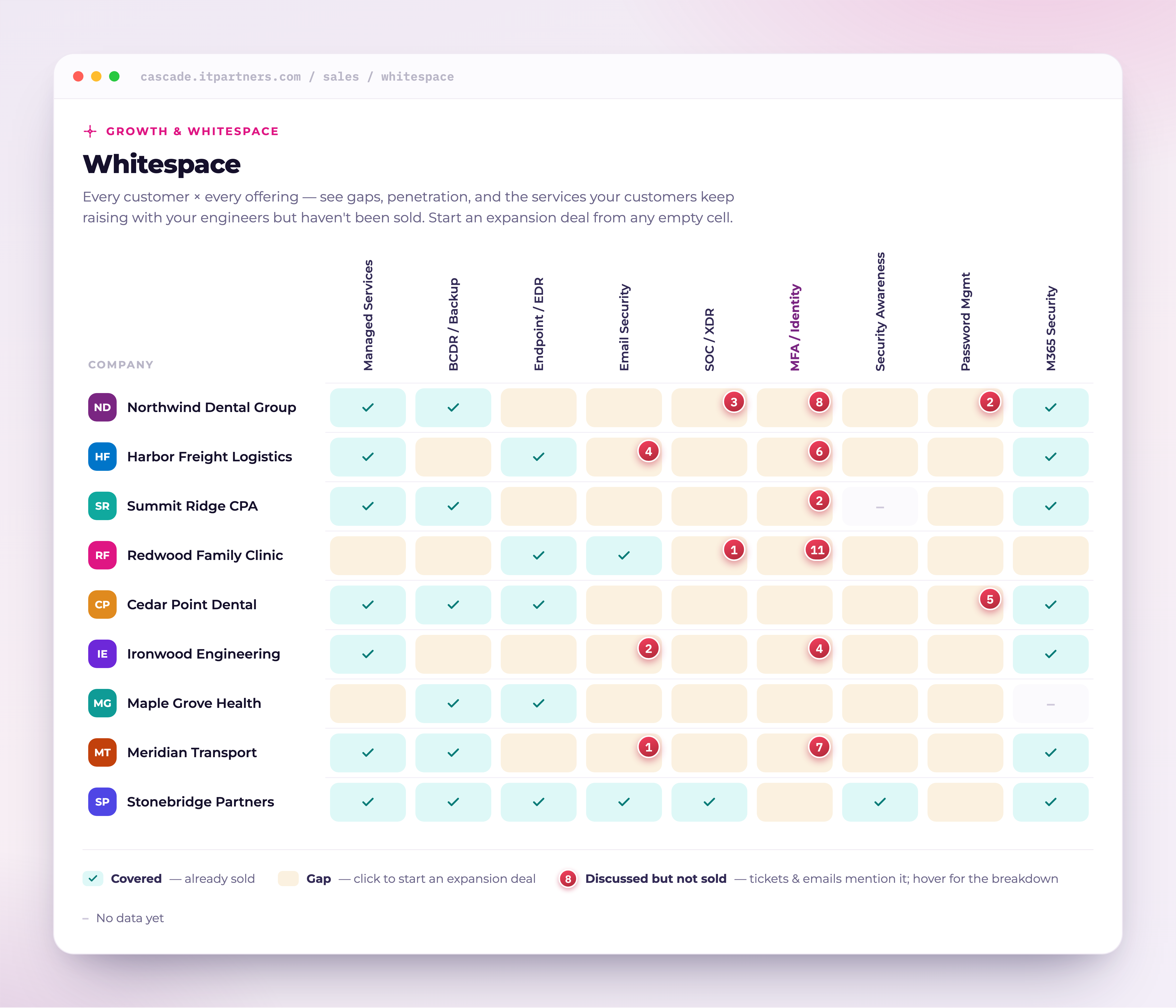
Whitespace is the partner-by-offering coverage grid, every account down the side, every active offering across the top, and every empty cell a potential opportunity. It answers one question fast: which of my customers are missing which service?
Reading the grid
- Covered, the company already buys this offering.
- Gap, a customer who doesn't buy it yet. Click to start an expansion opportunity.
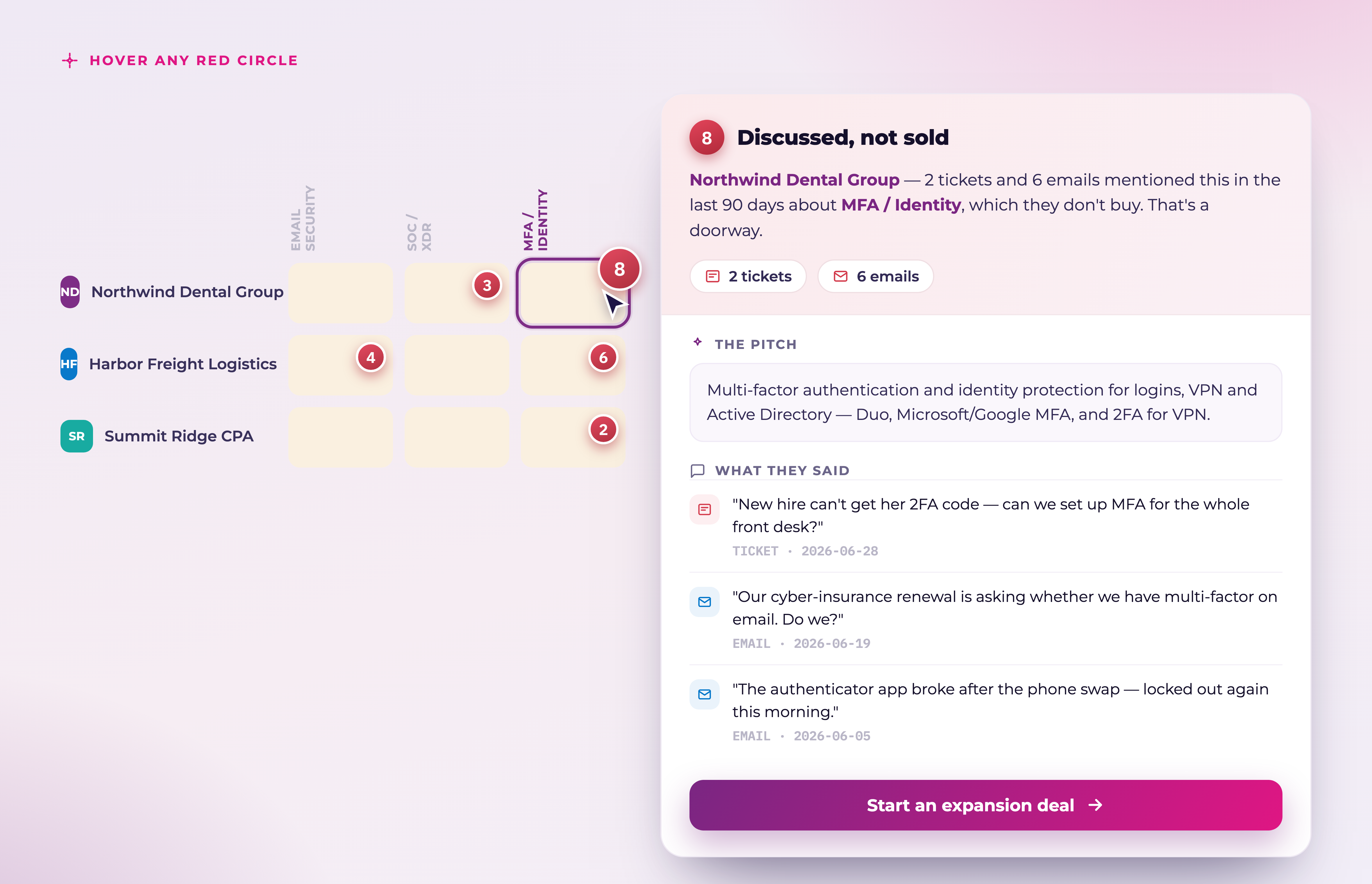
- Discussed-but-not-sold gap: a yellow gap square carrying a red circle with a number. The circle appears when, in the last 90 days, the customer asked about this offering (a buying signal) or raised the same need in at least three separate tickets or emails, even though they don't buy it. The number counts every ticket and email about it in that window. Hover the circle for the breakdown ("2 tickets and 6 emails mentioned this in the last 90 days") and click it to see each item and the reason it counts.
- No data, a prospect, or a customer whose coverage hasn't computed yet.
Filters
Filter the grid by search text, owner (all, mine, unowned, or any specific account manager. Every sales role gets the full people list), classification, minimum MRR (only shown where financials are visible to you), and a coverage lens, all, gaps only, or covered only. Filters apply on the server, so the grid, its per-offering penetration numbers, and CSV exports all stay in agreement.
Discussed-but-not-sold signals
Twice a week, with the Monday and Wednesday insights run, Current's AI reads each customer's recent support tickets and synced inbound emails and flags the ones that are a real sales opportunity for one of your offerings. It sorts each one into a buying signal or a need. A buying signal is the customer asking for a quote, pricing or a proposal, asking whether you offer something, stating a requirement that needs it (a cyber-insurance questionnaire, an audit, a compliance rule), or describing a change that needs it, such as a new office, new hires or an acquisition. A need is a specific problem the offering would solve, raised without an ask. One buying signal lights a red circle; a need lights one only when the same need comes up in three or more separate tickets or emails, so a single passing mention stays off the grid. Monitoring alerts and automated notices are never read: tickets in a queue named for alerts, automation or monitoring, tickets and emails that open as an alert, notification or reminder, "expiring in N days" notices, and mail from noreply-style senders. Routine support on something you already provide (a rule change on the firewall you manage, a restore from the backup you run, a new user's licence) never counts either: the AI reads the service lines each customer is billed for today, so work on those isn't mistaken for a new need. It reads by meaning, not keywords, and it reads your catalog the way your workspace wrote it: each offering's name, category, description, the words customers use for it and the match phrases it is sold as (see "Teach the AI your catalog" below). It reads up to the first 2,500 characters of a ticket's title and description or an email's subject and body. Only inbound emails count, with the quoted reply thread and signatures stripped first, so a topic your engineer raised in a reply is never counted as the customer's. Only the last 90 days count, and only offerings the customer doesn't already buy light up.
Click the cell to open the signal drawer: the ticket/email split, the matched tickets and emails, the offering's pitch, and a "Start an expansion opportunity" button. Each ticket or email shows a two-line preview; click "Show more" and it opens the original item, an email renders as the actual formatted message, a ticket shows its title and full description with its line breaks intact, so you can see exactly what the customer wrote in their own words before you reach out. Above each preview is a one-line reason the AI wrote for you, such as "Asked for a quote on a firewall for the new Dayton office", and items the customer actually asked about carry a Buying signal label and list first. The same red-circle count also appears on each company's own Growth & whitespace card, and the loudest of these gaps are the ones a partner's Strategic Business Review features on its Where you're exposed page, beside a map of every offering marked in place or not covered (see "Strategic Business Reviews: the QBR, rebuilt on evidence"). Counts appear and refresh on the twice-weekly insights run, so a brand-new customer's signals fill in after the next pass rather than instantly.
Mark a red circle seen
Once you've read what a red circle is telling you, mark it seen so it stops taking your attention. Hover the circle (on a computer) and press the check in the bottom-left corner of the cell, or open its drawer and press Mark seen. It clears for everyone in your workspace, on the whitespace grid and on the company's own page, and Current records who marked it and when. The message that confirms it carries Undo for the person who pressed it, in case it was a mistake; pressing Undo on two clears in a row puts back the one before, too. The circle comes back only for a ticket or email it wasn't showing when you cleared it, and then it counts just those, so a returning circle always means something you haven't seen. One is enough, of any kind, even an older message Current only flags later: a ticket from Friday that the Monday run flags after you cleared the circle on Saturday brings it back. A message the circle was already showing never brings it back, even when Current reads it again. A circle nobody has cleared still lights the usual way, with one buying signal or the same need in three separate tickets or emails. Each circle is cleared on its own; marking one seen never touches the company's other offerings. Business reviews and Ask Current still use every ticket and email, because marking seen only tidies the grid for your team. Account executives can mark circles seen on their own accounts, and sales managers, admins and people with Full CRM on any account.
The morning buying-signal email
At 7:00 on weekday mornings, in your workspace's time zone, Current emails the people who should act on new buying signals. A signal goes in when Current found it since that person's last email, the ticket or email itself is no more than 14 days old, and the offering is active and not one the company already buys, so every signal in the email is one the grid also shows. Nothing is sent on a morning with nothing new.
- Each company's owner gets one email listing the new buying signals on the companies they own: the offering, the customer's own words, whether it came from a ticket or an email, the date, and how confident the AI is. The owner is the company's primary owner, or its account manager when no primary owner is set. Co-owners do not get it.
- Your sales leaders (people with the Sales manager role, or anyone marked as a sales manager in Users & roles) get one roll-up for the whole team, with each company's owner named beside it. A sales leader who also owns companies gets both emails.
- A company with no owner goes to the sales leaders only, marked No owner yet, with a link that opens the owner picker. Once it has an owner, its next signals go to that person as well.
- When nobody in the workspace is a sales leader, every tenant admin with CRM access gets the roll-up instead.
- Every email says at the top, and again at the bottom, why you are getting it: you own these companies, you are a sales leader, or you are a tenant admin in a workspace with no sales leader.
- If your workspace sends alerts to Teams, the same morning roll-up can also arrive as a short Teams message: how many signals, up to three companies with what they asked about, and a button to the whitespace grid. The email goes either way.
- Only buying signals are in it. A need, which lights a cell only after three separate tickets or emails, never is. No prices or dollar figures appear in it.
- Only people with CRM access get it, and never a Partner Viewer.
- Each company name opens that company's page, and the button opens the whitespace grid. One email lists up to 40 signals and says how many more are on the grid.
- A signal is announced once. When an offering edit makes Current read the last 90 days again, signals you were already told about are not sent a second time.
Teach the AI your catalog
Every MSP names and groups its services differently, so the AI reads your offerings in your own words, not a generic list. Sales leadership can sharpen what it looks for from Manage offerings.
- 1Open Manage offerings and expand an offeringIt's the button at the top right of the whitespace grid (sales leadership only). Click an offering's name to expand it.
- 2Write the descriptionUnder What the AI looks for, describe what the offering is in a sentence or two, for example "Managed detection and response on every laptop and server, watched by our SOC." The AI treats it as the definition, and the drawer shows it as the pitch. It saves when you click away.
- 3Add the words customers useList the words your customers use for it, separated by commas, up to 12: "antivirus, ransomware, virus protection". The AI also reads the offering's name, its category and its match phrases (the names you sell it as, like a vendor or plan name), so keep those current too.
What the gaps are worth: the Revenue opportunity band
Above the grid, the Revenue opportunity band totals the estimated monthly value of every open gap in your current view. It follows the same filters as the grid, so "Owner: Mine" makes it the value of the gaps in your own book. (One exception: the "My team" owner lens cuts the grid rows in your browser, so the band shows the wider total and says so.) It breaks out the warm subset (gaps with a red circle, where the partner already raises the topic), and lists your three biggest openings by missed monthly revenue. Hover any gap cell and the same estimate appears in its tooltip; the evidence drawer shows it as an "if sold" chip with the arithmetic on hover.
The estimates come from your own numbers, not industry averages. Each offering is priced from what your partners already pay for it: the average monthly per-unit price across every matching active service line in your PSA (Autotask, ConnectWise, HaloPSA, and Syncro all feed this the same way). It is then sized by the company's own footprint, their Microsoft 365 seats, their device count from your RMM, their contact count, or once per company, depending on the offering. A gap with no basis to estimate (nobody buys the offering yet and no target price is set, or the company has no size data) shows no figure rather than a made-up zero, and the band counts how many gaps that applies to.
Sales leadership can tune both halves per offering in Manage offerings: pick the sizing basis (per user, per device, per contact, or per company, Auto follows the offering's category), and set a target price per unit per month, which overrides the book average. A target price is also the way to put a value on an offering you haven't sold yet. Money figures appear only for sales roles, the same visibility as MRR everywhere else.
Set a target price for an offering
A target price is what one unit of an offering is worth to you per month. Set one and it overrides the book average everywhere an estimate appears: the Revenue opportunity band, a gap cell's tooltip, the "if sold" chip in the evidence drawer, and the featured gaps on a Business Review's "Where you're exposed" page. It is also the only way to put a number on an offering nobody buys yet, because there is no book average to read.
- 1Open Manage offeringsIt's the button at the top right of the whitespace grid. Sales leadership only. The whole drawer is, and so are the money figures inside it.
- 2Find the offering and look at Opportunity pricingEach offering in the drawer carries an Opportunity pricing block with two controls: what to count, and what a unit is worth.
- 3Pick what to countCounted by: Auto (follows the offering's category), Per user (seats), Per device, Per contact, or Per company. This is the company footprint the price is multiplied by: Microsoft 365 seats, the device count from your RMM, the contact count, or once per company.
- 4Type the price per unit per monthThe field sits beside it, showing "Book average" until you fill it in. Enter the amount in your workspace's currency. It saves when you click away or press Enter, and a message confirms it. Clear the field to go back to your book's average.
A gap with no target price and no book average (nobody buys the offering yet) shows no figure at all rather than a made-up zero, and the Revenue opportunity band counts how many gaps that applies to. That count is the fastest way to find the offerings worth pricing first.
Starting an expansion opportunity from a gap
- 1Click any gap cellCovered cells and no-data cells aren't clickable, only real gaps open the opportunity dialog.
- 2Review the pre-fillThe opportunity name, company, and offering are already filled in, and when Current has an estimate for the gap, the monthly value is pre-filled too (edit or clear it freely). The opportunity is created in your expansion pipeline's first open stage with its lead source set to whitespace.
- 3SaveThe new opportunity appears on your pipeline immediately, ready to work like any other opportunity.
Targeting a campaign by offering coverage
The audience builder behind campaigns and sequences can filter directly on offering coverage. "has offering" (any/all/only), and "missing offering." That means you can build a campaign audience of exactly the companies missing one service, without ever opening the grid: for example, everyone who has your managed services agreement but doesn't yet have EDR. A prospect with no coverage data on file never matches a "has offering" filter, the filter only ever targets real gaps on real customers.
Exporting
Export the grid to CSV, either everything matching your current filters (walks every page on the server, with a running progress count), or just the rows currently loaded on screen. Columns are Company, Owner, Classification, Customer, then one column per offering marked Y (covered), gap, or blank (no data).
Managing offerings (leadership)
The columns of the grid are your offerings, and sales leadership can edit them from the Manage offerings panel (the gear on the whitespace page). The panel opens with a short note explaining exactly what your keywords match against, worded for your connected PSA. Each offering owns a short list of match phrases, and Current marks a customer covered for that offering when any of their live PSA service lines matches any of its phrases. A phrase is one of three kinds: contains (the service name includes the phrase anywhere, the usual choice), prefix (the name starts with it), or exact (the whole name matches). Everything is case-insensitive. As you type a phrase the panel shows how many of your real service names it would match, so you can see straight away whether a phrase is too broad, too narrow, or dead.
The important thing to know: phrases are matched against the service name exactly as your PSA writes it, and which field that is depends on your PSA. On Autotask it's the Service name on each active recurring contract (Contracts → Services); on ConnectWise it's the product identifier and description on each active agreement addition (Finance → Agreements → Additions); on HaloPSA it's the item name or line description on each active recurring contract line. Only active services on active recurring contracts count. Those names are usually namespaced, "Backup - Datto BCDR - S5-6…", "Managed - RMM Agent", "Security - Fortinet - FortiGate…", so a phrase like "datto bcdr" (contains) catches the whole backup appliance family in one line; you rarely need to list individual products. Aim for the shortest phrase that groups a family without reaching into a neighbour. The live match count is there to help you check.
You don't start from a blank page. Every workspace begins with a default catalog of 29 common MSP offerings (backup and BCDR, endpoint and email security, Microsoft 365 seats and add-ons, VoIP, RMM, cloud, and more) each pre-loaded with generic starter keywords (vendor names and common product words). These are deliberately generic, so your first job is to refine them to match how your own PSA names things: rename or deactivate the offerings you don't sell, and tighten the keywords using the live match count until each column reads true. (Only the default catalog is described here. Once you've tuned yours, the columns are whatever you've made them.)
- A phrase can belong to more than one offering on purpose. A single line that delivers two things (say a combined dark-web-and-email product, or a security bundle whose parts are itemised on the contract) correctly ticks every box it covers. Current never stops you using the same phrase in two places.
- Add or remove a phrase and that one column is rebuilt against your PSA data straight away, the grid behind the panel updates itself within a few seconds, and you'll see a brief "Rebuilding the map…" note while it works. Only the column you touched is recomputed, so editing is fast and safe even on a large book. The full overnight sync still recomputes everything as a backstop.
- A phrase must be at least two characters and can't be only wildcards. A one-letter phrase would match nearly every service and mark everyone covered, so it's refused. (A % inside a longer phrase still works as a wildcard for anyone who wants it.)
- Deactivating an offering removes its column from the grid immediately; reactivating it brings the column back and recomputes it. Renaming or reordering an offering doesn't change any coverage. A rename does change what the signal AI reads, so your last 90 days of tickets and emails are read again on the next Monday or Wednesday run.
The Email seats offering: required, because it defines your seat count
One offering in the panel is special. Current requires an offering that defines what counts as a managed email seat. It's named Email seats out of the box, or, if you already had an offering called M365 Core Seats, Current promoted that one instead, keeping its name and its existing rules. It wears a lock badge (Required · defines email seats), and it can't be deleted: the delete control is disabled, and the database refuses even a direct attempt. Everything else about it stays yours: rename it, deactivate its whitespace column, edit its rules freely.
Its rules feed more than the grid, which is why each rule on this offering is tagged with what it matches. PSA services rules (the tag is named for your provider) work exactly like every other offering's phrases and drive its whitespace column. License pools rules match your ScalePad SaaS license pools instead, and they define what counts as a managed email seat everywhere Current states one, the Strategic Business Review's seat figure, the AI section's per-person at-scale math, and the peer-comparison size bands. A rule either includes or excludes (an excludes tag marks the latter): a license pool counts when at least one include rule matches it and no exclude rule does, and the seat count is the summed licenses of the qualifying pools. License-pool rules never touch grid coverage, the grid reads only the PSA-services rules.
The default rules cover Microsoft's mailbox-bearing base licenses (Microsoft 365 / Office 365 plans, Business Basic, Standard, and Premium, and Exchange Online) with a deliberately broad exclude list (Teams and phone products, Copilot, Defender, Intune, the Power family, storage, and the other add-ons), so an add-on never double-counts a person: someone on E3 plus Teams Phone is one seat. An MSP on Google Workspace just edits the include rules to point at its own license names, no product update needed. And wherever the SBR prints the seat figure, the source label beside it is this offering's name, so a rename follows through everywhere.