
The sequence engine: enrollment, caps, and exits
How a Current sequence enrolls contacts, paces sends, and knows when to stop.
On this page · 13 sections
- Who a sequence sends as
- Send from a shared mailbox instead (send-as identities)
- Manual vs. AI-built, and who can build one
- Auto-enrollment triggers
- Dedupe and suppression
- Pacing: business days and the daily cap
- A picture or a PDF on a step
- A link behind your words
- Who clicked
- The sender's signature
- Exit conditions
- Reuse a sequence: duplicate and templates
- Reporting and deleting a sequence
A sequence is an ordered set of steps (email, delay, task, condition, or one of the LinkedIn touches) that walks a contact through outreach automatically. "AI sequences and campaigns" covers how the AI drafts the content, and "LinkedIn in sequences and Outreach" covers the LinkedIn side; this article covers the mechanics underneath: who can build one, how contacts get in, how sends are paced, and how a contact gets out. A booked meeting now exits a contact as converted, alongside the classic exits (reply, unsubscribe, opportunity won or lost).
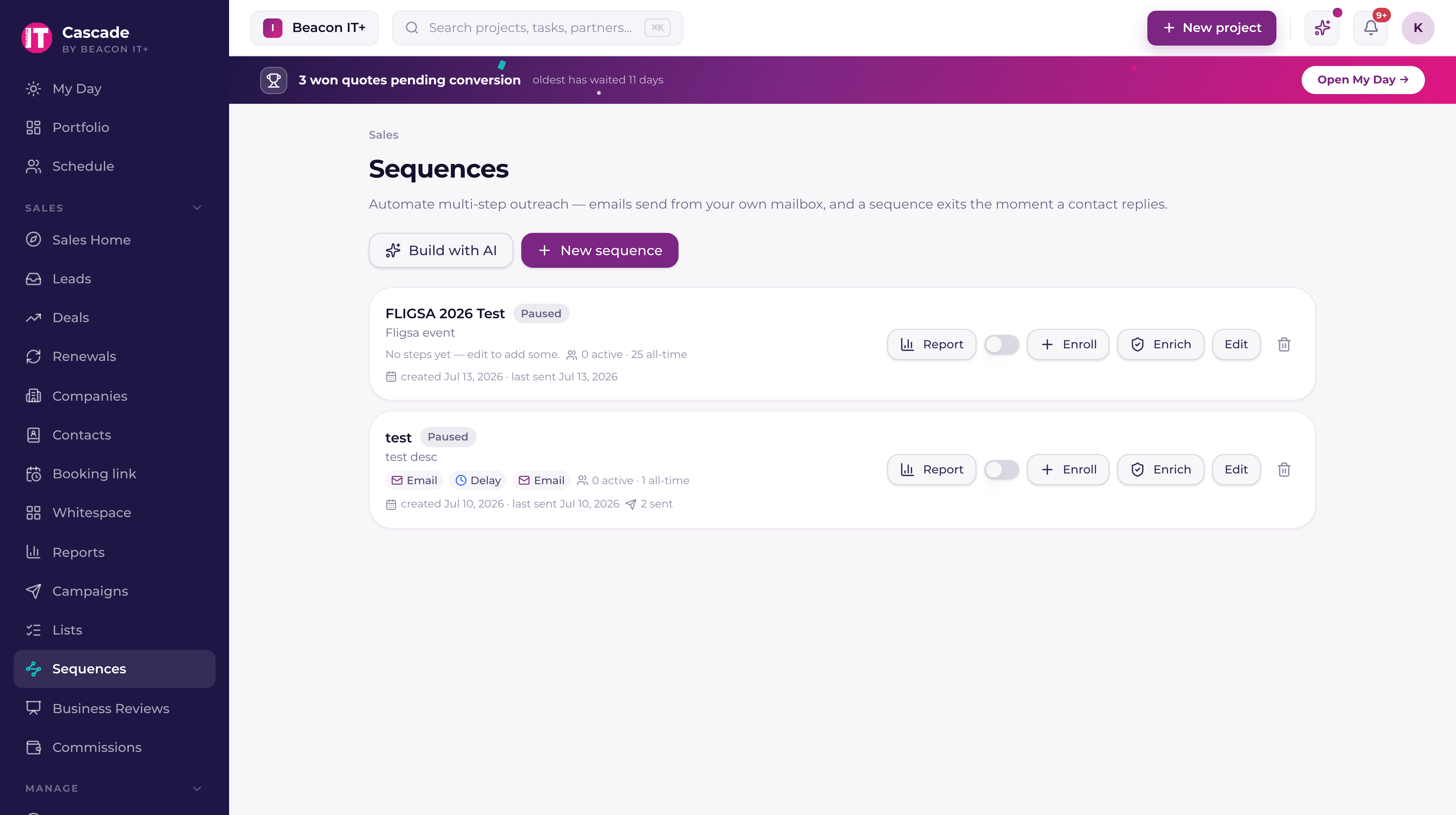
Group the library with folders: click New folder, then drag sequences in by the handle on the left, or use Move to folder in a sequence's ⋯ menu, which can also make the folder for you. Anyone with CRM access can do this, and the same rule applies as for editing a sequence: you can file the ones you created, and a sales manager can file any of them. Everyone sees the same folders. See "Import contacts by CSV" for the full folder rules, which are the same on Lists, Campaigns and Sequences.
Who a sequence sends as
A sequence sends from the mailbox of the person who owns it (the person who built it), and that never changes based on who adds contacts. Their mailbox is the From address, their email signature signs it, replies come to them, and any LinkedIn touches land in Outreach, ready for them to send. Enrolling people into a teammate's sequence simply adds those people; it does not make you the sender. Current states the sender before you enroll and again on the preview before you activate, and warns you there if that person hasn't saved an email signature (the emails still send, just unsigned). To hand a sequence to someone else, a sales manager or admin changes who owns it. The one exception is a sequence set to send from a shared mailbox, covered next.
Some outreach should not come from a person's own address: a second brand you sell under, a sales@ or hello@ inbox the team shares, or a product you market separately from your MSP. For that, a sales manager or admin creates a send-as identity under Settings › Sales and CRM › Send-as addresses. An identity is a shared Microsoft 365 mailbox plus everything that goes with a sender: the From name, a job title and phone for the signature, which logo the signature carries (none, your workspace logo, or the Current wordmark), an accent colour, and its own booking page. Its signature can use the card layout, with the logo beside the words, a vertical rule, a contact line that adds a website and a location, a button whose label you choose ("Grab 30 minutes" reads better than the default for a demo page), and a one-line tagline with a link underneath; the stacked layout is the plain personal look. In the sequence editor, Send from then offers the owner's own mailbox or any identity. A campaign can send as an identity too (the Sender step), and the email it produces wears that identity's logo choice and accent colour with the identity's name in the header and footer, so a second brand never goes out inside your workspace's branding.
When a sequence sends from an identity, every email leaves from that shared mailbox and lands in its Sent Items, the signature is the identity's rather than the owner's, {{sender_name}} and {{sender_email}} name the identity, and the Book time with me button and {{booking_link}} point at the identity's booking page. The owner is still the host: their Microsoft 365 connection does the sending, and the identity's booking page puts meetings on their calendar. Switching a live sequence to an identity takes effect on the next email of every contact already walking it. Replies land in the shared mailbox. When a tenant admin creates the identity, Current starts capturing that mailbox's CRM email at once, so a reply exits the contact; that happens only for a mailbox on one of your own email domains, and never for a person an admin excluded from email sync. When a sales manager creates it, the mailbox is listed under Users & roles › Staff mailboxes with capture off, and its replies are not captured (and do not exit the contact) until a tenant admin switches it on there. Deleting an identity never switches its mailbox's capture back on or off.
Manual vs. AI-built, and who can build one
Every sequence has typed steps under the hood. You can build one from scratch in the sequence builder, or click "Build with AI": describe the goal in plain words and review a full draft (emails, waits, and follow-ups) before anything is saved. Either way, nothing sends until you approve it.
Sales leadership can create, edit, or delete any sequence in the tenant. Anyone with CRM access can build their own. You can only create a sequence under your own name, and you can only edit or delete sequences you created (leadership can touch everything). Your Sequences list shows your own sequences, not the whole team's; sales managers and admins get a Mine/Team switch to see everyone's. Saved templates are shared with everyone either way.
Auto-enrollment triggers
Beyond manually enrolling a contact or an audience, a sequence can auto-enroll on a trigger you arm once and forget:
- A lead is routed, optionally scoped to one named intake form, or any form.
- An opportunity enters a specific pipeline stage, enrolls the company's primary contact and links the enrollment to that opportunity.
- A tag is applied to a contact, fires the moment that exact tag lands, whether applied by hand or by an import.
Triggered enrollments are silent, no separate notification type fires for them; you'll see the activity on the contact's timeline and in the sequence's own report. Emails from a triggered enrollment send from the mailbox of whoever set up the trigger, exactly like a manual enrollment sends from whoever clicked enroll.
Dedupe and suppression
Before anyone is enrolled, manually, by audience, by CSV list, or by trigger. Current checks three things: is this contact already actively enrolled in this sequence (skipped, no duplicate), does this contact have no email on file (skipped), and is this contact's email on the Do not email list for any reason (skipped). A contact who unsubscribes from any sequence is never re-enrolled in that sequence again. If an email bounces mid-sequence, the contact leaves right then with the exit reason Bounced (see "When an email bounces").
Pacing: business days and the daily cap
| Guardrail | Behavior |
|---|---|
| Business days and hours | Every outbound step (an email, a task, a LinkedIn touch) goes out only inside your workspace's desk hours, on your workspace's time zone and working days from Settings › General › Region and words, plus your holiday calendar (the same one the project scheduler uses). A step that comes due before the desk opens waits for opening time that day; one due after it closes waits for the next business morning. The per-sequence Business days switch controls the working-day part; the hours apply to every sequence. Delay and reply-wait timers keep counting around the clock; only the moment something reaches a person is held. |
| Daily send cap | 250 sequence emails per mailbox per calendar day, counted on your workspace's time zone, and never more than five in any one minute from the same mailbox. A steady trickle, not a burst, is what keeps a mailbox's sending reputation up. Send #251 isn't an error. It queues to the next business morning. |
| Sequence size | A sequence holds up to 1,000 people at a time. The count is of people currently in it: anyone who replies, unsubscribes, finishes, or is removed frees their spot, so an evergreen sequence keeps taking new people as old ones leave. The enroll panel shows the room left before you click, and an enrollment that would go past the limit is refused as a whole rather than trimmed. |
A picture or a PDF on a step
Any email step can carry one picture and one PDF. Open the step, use Add a picture or Add a PDF, and they go out below your message and above your signature. Always in that position, on every step that has them.
That fixed position is the one difference from a campaign, where you place a picture anywhere in the block stack. A sequence email is written as plain text on purpose, which is what keeps a template safe to send on someone else’s behalf, so files attach to the step rather than sitting inside the words.
Everything else matches a campaign: pictures are compressed for email automatically (JPG, PNG or WebP, up to 10 MB before compression), a PDF sends as a download button rather than an attachment, and anyone with the link can open the file, so use marketing material only. Save the sequence before adding files; a draft has nowhere to file them yet. Delete the sequence and its files go with it.
A link behind your words
Type [Current](https://current.day) in a step body and the email carries the word Current as the link, no bare address in the sentence for a recipient's mail scanner to rewrite. Select the words, press Link under the body box (or Cmd/Ctrl+K), paste the address, and Current writes the pattern for you. The same works in the editor on Outreach and in the inline reply on a company's Email history.
Only https:// addresses become links; a merge tag can be the address ([Book a time]({{booking_link}})); a subject line never carries one. The AI drafter writes links this way too, and only with an address that appeared in your goal.
Who clicked
Open a sequence's Report and the Link clicks card shows how many people clicked a link in each email step, then who clicked which link and when, each name opening the contact. The first click on a link also appears on the company's activity timeline as "Link clicked", for sequence emails and inline replies alike, naming the contact who clicked it and, on the same line, the teammate whose email they clicked. A link behind words in either goes through a short Current redirect that records the click and sends the person straight on to the page; the address they land on is exactly the one you wrote, and inside Current the sent copy shows that address, not the redirect.
Mail scanners such as Microsoft Defender Safe Links open every link in a message before the person ever sees it. A hit from a known scanner, or within fifteen seconds of the send, is kept but not counted, and the card says how many it set aside. Campaign emails are not touched: they go out through your Resend domain, which already counts their clicks on the campaign report.
The sender's signature
Every sequence email ends with the enrolling person's email signature: name, title, phone, the workspace logo, and a "Book time with me" button when they have an active booking page. Each person sets theirs up once at Settings › Your settings › Profile (Current can fill the fields in from their Microsoft 365 profile), and each email step in the builder has an "Include sender signature" switch, on by default. A sender who hasn't saved a signature, or switched theirs off, sends without one. The signature goes on the email itself; the copy logged to the company's timeline stays just the message, so the record isn't buried under the same sign-off on every step.
Exit conditions
An enrollment exits automatically (never silently stalls) on any of these:
- A reply is detected from the contact.
- The contact unsubscribes, or their address is added to the Do not email list (exit reason Unsubscribed).
- The contact's email bounces, or verification marks it invalid (exit reason Bounced).
- The linked opportunity is won.
- The linked opportunity is lost.
- The contact finishes every step in the sequence (completed).
A condition step can also branch on "no reply after N days", exit the sequence or continue past it, your choice per step.
Reuse a sequence: duplicate and templates
Open the menu on any sequence row and you can copy it without touching the original.
- Duplicate, makes a new sequence called "Copy of «name»" with every step copied across in order, config and all.
- Save as template, files a copy under the Templates tab on the Sequences page. The sequence you saved from keeps running exactly as it was.
- Use template, creates a brand-new sequence from a saved one, named however you like.
- New sequence offers "Start from a template" whenever your workspace has one, next to Build with AI and Build manually.
Every copy is created paused, so nothing sends until you switch it on deliberately. The steps come across; the people do not. Enrollments, send history, and auto-enroll triggers are never copied. A copy that inherited a trigger would quietly start enrolling everyone the original was set up to catch.
Reporting and deleting a sequence
Open a sequence's report for a full-screen view of its funnel (sends, opens, replies, and where every enrolled contact currently sits) with replies called out as the headline metric.