
The company record: your single view of every account
A company alert banner, a tag row you flip from the header, hero stats that change for prospects and that you can choose yourself, a key facts card with the MSP-fit fields, contact links and your own custom fields, editable company type and classification that sync back to Autotask, a Sync & system panel, a Profitability card for accounts on contract, a Needs attention digest, one unified activity timeline with search, a Files lens, and a one-line AI verdict.
On this page · 18 sections
- The hero band
- Tags: label the account, then target it
- Managing the tag list: Settings › Sales and CRM › Tags
- The four tiles change for prospects
- Choosing your own tiles
- Key facts: the card the record opens with
- Your own fields on every company
- Sync & system: what your PSA owns, and how the record syncs
- Profitability: what the account earns you
- The AI relationship read
- Needs attention: the three things to act on
- The company alert banner
- One unified activity timeline
- Files: a company's PSA documents, inline
- The right rail
- Quotes & opportunities in the rail
- Starting an opportunity from the record
- Deleting a company or a contact
Every company in Current's CRM has one page that answers "where do things stand with this account" without you hunting across screens. It's built as a command deck: a hero band up top with the numbers that matter, four tabs under it (Overview, Notes & activity, Profitability, and Business reviews), one activity timeline instead of five separate logs, and a right rail you can collapse down to just what you need. The page always opens on Overview, and the right rail stays in view on every tab.
The hero band
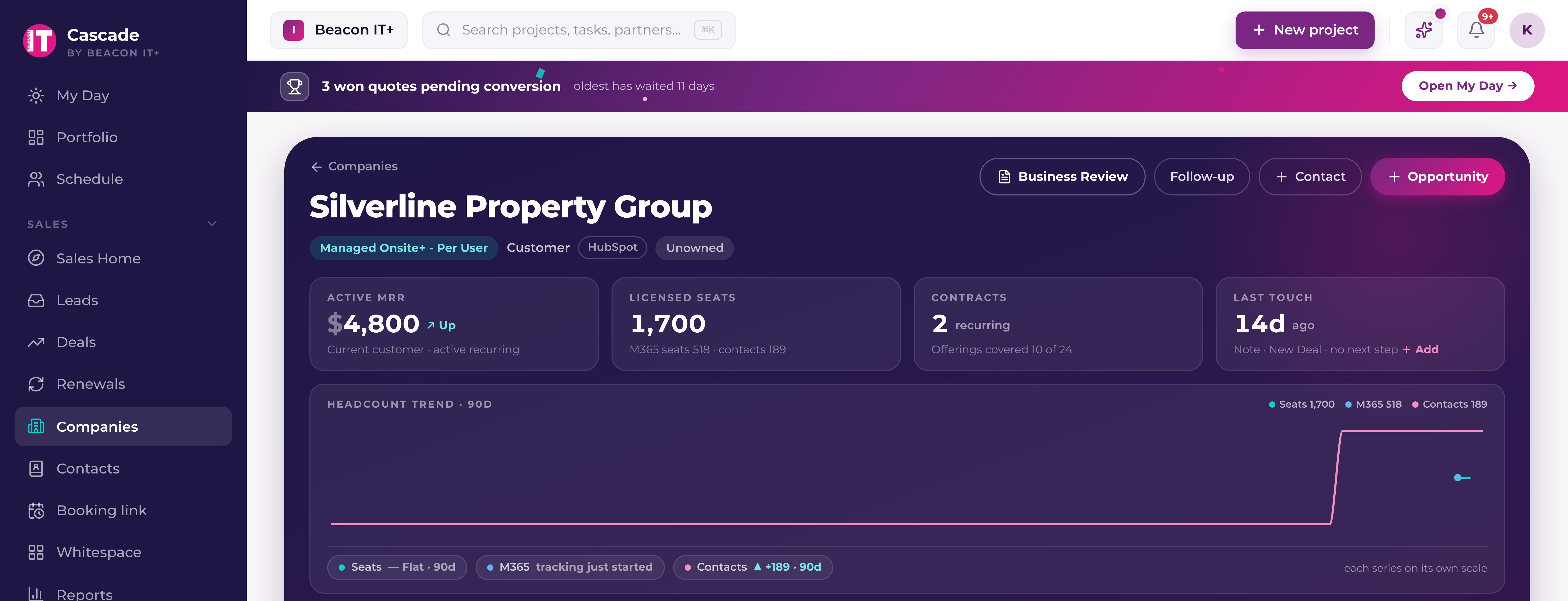
At the top of the page: the company name, its classification and lead-source badges, an owner chip (or a Claim button if nobody owns the account yet, see "Company ownership and the account executive book"), a row of tag chips with a + Tag button (described below), and quick actions to start a Business Review, log a follow-up, add a contact, or start an opportunity. A pencil button next to Business Review adds or edits the company alert. Below that sits a row of four stat tiles. The 90-day headcount trend chart (Devices, M365 seats, Contacts on one shared scale) lives in the body, directly above the activity feed. "M365 seats" counts only mailbox-bearing base licenses (for example 3 Business Basic + 16 Business Standard = 19 seats), classified by your email-seats offering's rules, add-on, backup, or phone lines named after Microsoft 365 never inflate it.
When the company is one site of a customer your PSA keeps as several companies, the labels at the top also carry a "Part of" label naming its customer group, which opens the group's own page with every site added up. Tenant admins and sales leaders get a group action in the same row: add the company to a group or start a new one, or, on a company already in a group, see its sites and take this company out. A group made in Current can also be renamed there and given a different main company; a group that comes from your PSA's parent company follows your PSA. See "Customer groups: one customer with several sites".
Under the company name sits a row of tag chips and a + Tag button. Tags are Current-only labels (M&A Prospect, VIP, a vertical you're building a practice around), and they never touch your PSA, so an acquisition target you tag here shows nothing in your PSA. Click + Tag to search the workspace's tags and flip them on or off; each click applies immediately. The same chips appear beside the company in the Companies list, and every tag is a stackable filter in campaign, sequence, and list audiences, so a label you flip here is a sendable segment with no extra steps. Audiences resolve to people, and the tag filter matches a person whether the tag sits on them or on their company. Tag the company once and every contact there is in the segment.
Applying a tag follows the company edit rule: account executives tag accounts in their own book, anyone with Full CRM tags every account, sales leadership tags anything, and a tag you can't apply says so instead of appearing to work. The tag list itself is curated. Sales managers and admins create, rename, and retire tags (the New tag row at the bottom of the picker is theirs, with a color for each tag), and everyone else picks from what exists. People tag the same way from the contact page header; see "Contacts: find, tag, verify, and email your people".
Sales managers and workspace admins keep the list tidy under Settings › Sales and CRM › Tags. Every tag shows how many companies and contacts carry it and which campaign, list, or segment audiences filter on it. Rename a tag in place (the new name has to be unused, "VIP" and "vip" count as the same tag), pick one of the six colours or none, merge one tag into another, or delete one. Each change is written to the audit log with who made it.
- Merge moves every company and contact from the tag you're retiring onto the one you keep, updates every audience that filtered on the old tag so campaigns and dynamic lists keep their exact reach, and removes the old tag. A record that carried both ends up with one.
- Delete on a tag nobody carries takes one click. A tag still on companies or contacts asks you to type DELETE, because those records lose the label and it can't be undone.
- A tag that an audience filters on can't be deleted. Dropping it would silently change who a campaign or list reaches. Merge it into another tag instead, or take it out of those audiences first.
- Renaming never changes history or reach: the tag keeps its identity, so every record and audience follows the new name.
- HubSpot list and lifecycle tags are a separate thing and are managed on the Lists page.
The four tiles change for prospects
On a customer, the tiles are the four an account manager asks first: active MRR (hidden from anyone without financial visibility), Renewal, how many days until the earliest active recurring contract renews, turning amber inside 120 days, Support this month (ticket count and support hours, with the trend against the prior month), and when your team last touched the account.
A prospect has none of those things, so three of the four used to sit empty. Open a company with no recurring contract and you get a different four instead: Pipeline (how many opportunities are open and what they add up to, linking through to the board), Source & lists (where the company came from, and the marketing lists its contacts sit on. Click one to open it), Owner (who owns the account, with the same one-click claim as the badge above it), and Engagement (how long since anyone touched them, and how many contacts are walking a live sequence). The switch happens on its own: a company is a customer once it has an active recurring contract, and Current already knows that. There is nothing to set.
Choosing your own tiles
The gear under the tiles lets you put any four you like in any of the four slots. The menu offers every standard tile (both the customer set and the prospect set) plus any custom field your workspace has added. One of them is "Gross margin (12 mo)", the same trailing-twelve-month margin as the Profitability card further down the page; it needs financial visibility like the MRR tile does, and it shows a dash with a short reason when the account has nothing to compute from. Your choice is yours alone; it does not change what anyone else sees, and it follows you between browsers. Prospects and customers are stored separately, so you can rearrange the prospect view without touching how customers look. "Reset" puts a view back to its default and keeps it there, so if the defaults improve later you get the improvement.
If a tile you picked stops being available (someone retires the custom field it showed, for example) that one slot quietly falls back to the default tile for that position. Your other three choices stay exactly as you left them, and restoring the field brings your choice back.
Key facts: the card the record opens with
At the top of the record, always open, one card holds what a salesperson comes to the page for, in three bands. Qualifying is the MSP questions: who their current IT provider is, when that contract ends, how many employees they have, what they run, the potential MRR if you win them, and where the lead came from. The contract end date does the arithmetic for you. It shows how far away it is, and turns amber inside 90 days, the window where the account is genuinely in play. Your PSA has no equivalent for any of these, which means nothing overwrites what you type. They stay editable on a company that syncs from Autotask, ConnectWise, HaloPSA, or Syncro.
Reach them is the second band, and its values are things you can act on, not just read: the phone number dials, the website, the company's LinkedIn page and the address open in a new tab, the address as one line, country included, straight into Google Maps. Hover any of them and a pencil appears to change the value; editing the address opens all six boxes, Country among them. The third band is Your fields, described next. An empty field shows a dash rather than disappearing, so you can tell the difference between nothing recorded and nothing to see.
Your own fields on every company
A sales manager can add fields of your own that appear on every company in the workspace. A field holds one of six kinds of value: Money, Number, Percent, Text, Date, or Choice. Use the gear on the "Your fields" band to add, rename, or reorder them. The band is part of the key facts card at the top of the record, so the numbers your team tracks are on screen with the rest of the account rather than at the end of a long timeline. Anyone who can edit the company can then fill them in, and each value saves on its own as you leave the box.
Choice is a dropdown you define. Pick Choice when you add the field and type the options one at a time; the list button on a Choice field lets you add or remove options later. Everyone then picks from the same wording instead of typing their own, which is what makes the field worth reporting on. Removing an option never changes a company that already has it. That company keeps its value, the record still shows it, and the dropdown offers it back marked "not on the list". Lost Reason arrives as a Choice field already filled in with your workspace's lost reasons, the same list the opportunity close dialog and the contact record use.
There is no delete, on purpose. Retiring a field hides it from every company while keeping everything already saved, so a field removed by mistake can be restored with its history intact. Retired fields sit at the bottom of the same menu with a Restore button.
Retiring is workspace-wide, and it is not the same as hiding. If a field is not part of your job, hover it and press the eye to hide it on your own company records. Only you see that change: the field stays on every company, everyone else still sees it, and nothing you or anyone else saved is touched. A "hidden" count appears at the top of the section with a Show button beside each one, so you can bring any of them back. Hiding follows you between browsers and does not affect the company field columns on the Companies list, which have their own column chooser.
What you record here is usable across the CRM, not just readable on this page. Each field is a column you can turn on in Companies and sort by, a filter on both Companies and Contacts, and a condition in a campaign, sequence, or list rule. Conditions read the way the field does. Over, Under, Equals, or Is not on a number or a money field; Equals, Is not, or Contains on text and on a Choice field; After, Before, or On for a date; and Has a value or Is empty on any of them. So a field you fill in on one account becomes the way you find every account like it: companies classified "M&A Prospect", with no open opportunity, annual revenue over 1,000,000 in your workspace currency.
Sync & system: what your PSA owns, and how the record syncs
Just under the key facts card, above the activity feed, a closed Sync & system row opens to the reference half of the record: the figures Current works out on its own (customer or prospect, active MRR, last activity), what came from your PSA, survey signals, the sync plumbing, and HubSpot's own push state. Together with the card above it, that is every field Current stores about the company. The only things left out are internal identifiers (the row ids linking this record to your workspace, your PSA, and HubSpot), and the panel counts them for you at the bottom rather than leaving you to wonder. The people those ids point at are named elsewhere on the page.
Market segment is the field your PSA owns and never accepts back. It carries a lock and the name of your PSA; change it in your PSA and it syncs here. Company type and classification used to work the same way, and on Autotask they are now editable: pick a new value on the record and it travels back to the matching Autotask picklist, with a confirmation first, because retyping a company from Prospect to Customer changes what Autotask itself reports. Phone, website, and the address on the key facts card travel back too, and the field says so underneath while it is on its way. Country travels with the address. Autotask keeps countries as a fixed list, so a value it does not recognize is left off the push and reported rather than guessed at. LinkedIn never syncs anywhere: no PSA has a field for it. On ConnectWise, HaloPSA and Syncro all of these stay in Current (company type and classification keep their lock there), so change them in your PSA as well if it needs to know.
Company type and classification follow the country rule on the way back: both are picklists an Autotask administrator maintains, so a label Current holds that your Autotask zone has never heard of is left off the push rather than invented, and the push report names it, so you know to add the value in Autotask and push again. A company pushed into Autotask for the first time carries its classification across the same way, and companies the M&A import owns carry their Autotask category too. While your edit is on its way, the sync leaves those two fields alone, so your change holds until Autotask has taken it.
Account executives can edit companies in their own book. With Full CRM, which a Tenant Admin turns on per person, an Account Executive, Project Manager or Engineer can edit the details of any account: phone, website, address, LinkedIn, lead source, industry, company type, classification, the MSP-fit fields with potential MRR included, and your workspace's own company fields. On an account they don't own, its owner, customer and active status, revenue figures and PSA link stay as they are. Whoever saves, the fields your PSA shares with Current go back to it with the next sync, and the rest, LinkedIn among them, stay in Current. Opening someone else's account still shows you everything, but a save you are not allowed to make tells you so instead of appearing to work.
Profitability: what the account earns you

A company with an active recurring contract carries a Profitability card under the Sync & system row. It runs the same arithmetic as the renewal dossier over the same trailing twelve months: revenue at the contract pricing you bill today, set against service ticket labor mirrored from your PSA, project time tracked in Current, and the vendor cost on the contract lines, with a verdict against the targets your admins set. That verdict is labeled "Recurring services margin" and reads the recurring contract on its own, and the "Gross margin (12 mo)" hero tile at the top of the record shows the same figure. Having it on the record means you can ask whether an account is worth what it costs without opening a renewal opportunity first.
"Revenue and cost by type" is the table on the card that separates the businesses inside one account. Recurring services is contract MRR at your current pricing, and it carries the verdict alone. Projects is billed project work; when part of that money sits on projects that are not tracked in Current, the row names the amount, because no labor sits behind that part here. One-time & T&M is billed ticket work and charges. Other billed is setup fees and contract-side charges the rules could not place, shown with no margin claimed on them. All in adds the whole account together.
The hours behind those rows are attributed by the billable flag your PSA already holds: covered hours count against recurring services, hours marked billable count against one-time and T&M, hours on Current-tracked projects count against projects, and hours with no flag at all count against recurring services, which is the cautious side of the line and is disclosed in the notes under the table. Under the table the card prints what your PSA billed for recurring services in the window against what current pricing says it should be, since the verdict uses current pricing. Project and one-time revenue come from your PSA's billed items, so until those have been mirrored for your workspace those cells read "Revenue not mirrored yet" rather than a zero, the first mirror walk covers 400 days, then keeps up from there.
The card holds the six tiles, the revenue and cost table, the cost mix, the contract line table behind vendor cost, and the breakdown by technician. Visibility matches the dossier exactly: account executives, sales leadership, and admins see the tiles; the line table is for sales leadership and admins; the technician breakdown is for admins. A company with no active recurring contract shows no card, and when the numbers cannot be computed the card says so rather than showing zeros. Full detail on what each tile means, how a zero cost and a missing cost are treated, and the flagged-line rule is in "Renewals to defend: the Renewal Defense Score and war room".
The AI relationship read
The AI relationship read is now one calm line at the bottom of the hero: a health verdict and score, a one-sentence summary, and the single most useful next action as a button. Click "Full read" to expand everything it used to show, highlights, growth signals, every suggested action, and the refresh control. Nothing was removed; it just stopped shouting. It reasons over your real ticket, project, and contract data for that account rather than guessing.
Needs attention: the three things to act on
Under the hero, a Needs attention card lists at most three items pulled from the same AI read, ranked by urgency: churn risks first, then renewals, then expansion and upsell openings. Each row names the issue, gives the one-line why, and carries the action to take (log a call, set a follow-up, or start the expansion opportunity) using the same flows the rest of the page already has. No signals, no card: an account with nothing urgent shows nothing.
When a company has an alert, it shows as a full-width banner at the very top of the page, impossible to miss before a call. Anyone who can view the company can add, edit, or clear it (the pencil in the header or the Edit button on the banner). On Autotask companies the alert syncs two ways with the Autotask Company Detail Alert, so what your service desk sees on the company is exactly what sales sees here, whichever side wrote it. Companies on ConnectWise or HaloPSA keep the same banner inside Current only, and the banner says so. If an Autotask push is rejected, the banner shows a quiet failed note with a Retry. Nothing is lost.
One unified activity timeline
The Notes & activity tab is a single timeline instead of separate logs for notes, meetings, calls, and tickets. Notes can be long and formatted, and the ones your team pins sit at the top of the tab; see "Notes on companies and contacts: formatting, pins, and what your PSA receives". The timeline merges seven kinds of activity into one feed: notes, meetings, calls, emails, support tickets, opportunity events, and to-dos. Every row names the person it concerns: an email Current sent says who it went to, a meeting or a call says who it was with, and a link click names the contact who clicked along with the teammate whose email they clicked. So when a sequence email shows up on an account, you can tell which of their people got it without leaving the page, and because the search box reads that line too, typing a contact's name pulls up everything that went to them. A search box in the feed header narrows it as you type (by person, subject, body text, or ticket number), and combines with the time range and kind filters. The feed opens on All (the account's whole history, no date limit), and the chips next to the range narrow it to 90, 30, or 7 days when you want the recent picture; pick a range yourself and it stays where you put it. The newest 50 entries load first, and Load earlier activity at the bottom brings in the next 50, so an account with years of captured email opens quickly. Until you load further back, the filter chips and their counts cover what is on screen; the search box always looks through every note, however old. A long email shows its opening lines in the feed, and the full message loads when you open it. Log a new note, meeting, or call straight from the composer at the top. An Account Executive without Full CRM sees the composer only on accounts in their own book; on any other account a line says so in its place, and the Follow up button is still there. A note you have started but not saved is kept in your browser, so you can leave the page, look something up, and come back to the words still in the box; it stays until you save it or empty the box yourself. The Follow up button inside the composer schedules a follow-up in one click. The title and notes are right there to edit, the date is one chip (Tomorrow, In 3 days, Next week), or a picker, and Assign to a teammate opens the full dialog, and it lands in your Microsoft To Do, where checking it off completes it in Current too. Every OPEN follow-up your team has on the record shows in a strip above the feed with its owner's name, so nobody schedules a duplicate; you can check off your own from right there, and To-dos are their own filter chip in the feed alongside emails and meetings. Anything you write here can be changed later: the pencil on a note or a follow-up opens its title and text for editing. You can edit your own notes, and sales managers, admins and anyone with Full CRM can edit anyone's; a follow-up stays with the person who owns it, because it syncs into their Microsoft To Do. If a note has already been filed in your PSA, saving sends the new wording there too, and the note says so before you save. If that write does not go through, your change is still saved here and Current keeps retrying. When an Account Executive with Full CRM edits a note on an account outside their own book, or an Engineer with Full CRM edits any note, the new wording goes to your PSA with the next scheduled sync instead. A note that arrived in Current through an import is the exception for those two: the edit is saved here, and the copy in your PSA is left as it is. An edited note carries a small "Edited" marker showing who changed it and when. Tickets and emails populate automatically from your synced PSA and Microsoft 365 data. Nobody has to copy them in by hand. Click a ticket row, or Open ticket on it, and since September 19, 2026 the ticket opens as a Support ticket tab in the workspace drawer beside your tasks, opportunities and quotes, with its details, a link to it in your PSA, and the notes and time entries read live from your PSA where that read is available; Copy link there gives a link that opens the same ticket on this page. Emails and support tickets carry full detail for the last 100 days; older ones keep their subject, dates, and a short summary forever, and the feed says so at the bottom. Notes, meetings, calls, and quote activity are never trimmed.
- Notes and logged calls/meetings, added by anyone with access to the account
- Tickets, pulled in from your PSA automatically
- Emails, pulled in from synced Microsoft 365 mail
- Opportunity events, stage changes and win/loss on any open or closed opportunity
- Tasks, your own follow-ups tied to the account
Files: a company's PSA documents, inline
The activity panel has a "Files" chip alongside the kind filters. Open it and Current shows the documents attached to this company (and its opportunities) in your PSA (Autotask, ConnectWise, or HaloPSA; Syncro has no company attachments, and Rev.io attachments are not available yet): signed agreements, quotes, scopes, and anything else your team has uploaded there. Sort the list by newest, oldest, name, size, or file type, and click any row to preview it in place, PDFs and images open in an expandable viewer with buttons to open full-size or download; other file types offer a download.
Files are never copied into Current. The list is a lightweight index that refreshes from your PSA when you open it, and the actual file is pulled from your PSA the moment you preview or download it, so your documents stay where they live. Access follows the CRM: only people who can already see the company can see its files, and Partner Viewers can never reach them.
One thing does land here automatically: when you win a quote through the Win Quote wizard, into a project or a post-sale ticket. Current files the signed quote PDF onto the company in your PSA, renamed to the company name, the quote name, and the date you converted. It appears in this Files list right away, so the signed paperwork lives with the account instead of buried on the opportunity. (Live for Autotask and ConnectWise; HaloPSA follows once its attachment API is verified.)
The right rail
The rail on the right leads with an always-open At a glance summary, the handful of questions you'd ask about any account. Every other section now starts collapsed, with its answer right in the header (the monthly figure and the renewal month, "187 contacts"), so the page reads top to bottom without a wall of open cards. Open a section only when you need the depth:
| Section | What's in it |
|---|---|
| Money & renewals | MRR breakdown, contract status, upcoming renewal dates |
| Quotes & opportunities | What is quoted per month and up front beside the MRR on contract, every open opportunity with a link into your PSA, and every quote with its state, expiry and a link into the tool that owns it |
| Payments | Autopay status and stored payment method (if ConnectBooster is connected) |
| Growth & whitespace | Seat trends and unpurchased services worth pitching |
| People & voice | Contacts, owners, and CSAT survey signal (if CrewHu is connected) |
| Signals & lifecycle | Lifecycle Manager hardware/warranty data, profile details, email archive |
| Infrastructure & security | Fleet, network, security, and backup posture from your connected tools |
Quotes & opportunities in the rail
This section answers "what is on the table right now". The three numbers at the top are the MRR quoted across open opportunities and quotes, the one-time money quoted, and the MRR already on contract, with the total you would be billing if everything closed. Money is counted once: an opportunity carries what its quote asks for, so a quote that hangs off an open opportunity never adds again. Only a quote with no open opportunity behind it (a draft not yet pushed to your PSA, say) adds its own totals. Won, lost and expired quotes never count as quoted money.
Under the numbers, every open opportunity is listed with its type, stage, expected close month and an Open in <your PSA> link that lands on the opportunity itself. Its quotes sit indented beneath it, each with the tool that owns it, the quote number, its state (Draft, Sent, Won, Won awaiting conversion, Won converted, Lost, Expired), its expiry, and a link into that tool. Where your quoting tool also pushes a copy of the quote into the PSA (ScalePad Quoter does this with Autotask), the two are shown as one row with a second link to the PSA copy. Quotes with no open opportunity behind them are listed on their own; lost and expired ones sit behind a Show link so the section stays about live work. Workspaces with no quoting tool see exactly their PSA opportunities and quotes.
Starting an opportunity from the record
The "Start an opportunity" action in the hero band opens a quick-create dialog for a new opportunity against this company, no need to leave the page and go to the opportunities board. See "Working opportunities: pipelines, stages, and winning" for what happens next.
Deleting a company or a contact
At the bottom of a company record, and of a contact record, sales leadership and tenant admins find a collapsed Danger zone. Open it and, for a record that lives only in Current (a prospect you added by hand, an imported lead) you can delete it. You'll be asked to type DELETE, because it can't be undone: the company goes along with its contacts, its open and lost opportunities, its notes and activity, its tags, and its place on any list. A contact goes along with its list memberships and tags.
- A company or contact synced from your PSA can't be deleted here, and the Danger zone says so instead of showing the button. The same goes for a record linked to HubSpot while HubSpot is connected. For a company, mark it inactive in your PSA: after the next sync the Companies list stops showing it under Status: Active, and Status: Inactive still finds it. For a contact, deactivate it in your PSA and the next sync mirrors that.
- A company with a won opportunity or an open project is kept, because its history is worth more than a tidy list. Close the project or leave the company in place.
- Every delete writes a row to the audit log (Admin → Audit log) naming who removed what and when.