
Notes on companies and contacts: formatting, pins, and what your PSA receives
A note in Current can be as long as the conversation it records: up to 50,000 characters, with headings, bullets, numbered steps, checklists, and links. You write it once on the company, the contact, or the deal, and everyone who opens the account reads it formatted. Your PSA receives a clean plain-text copy of the same note.
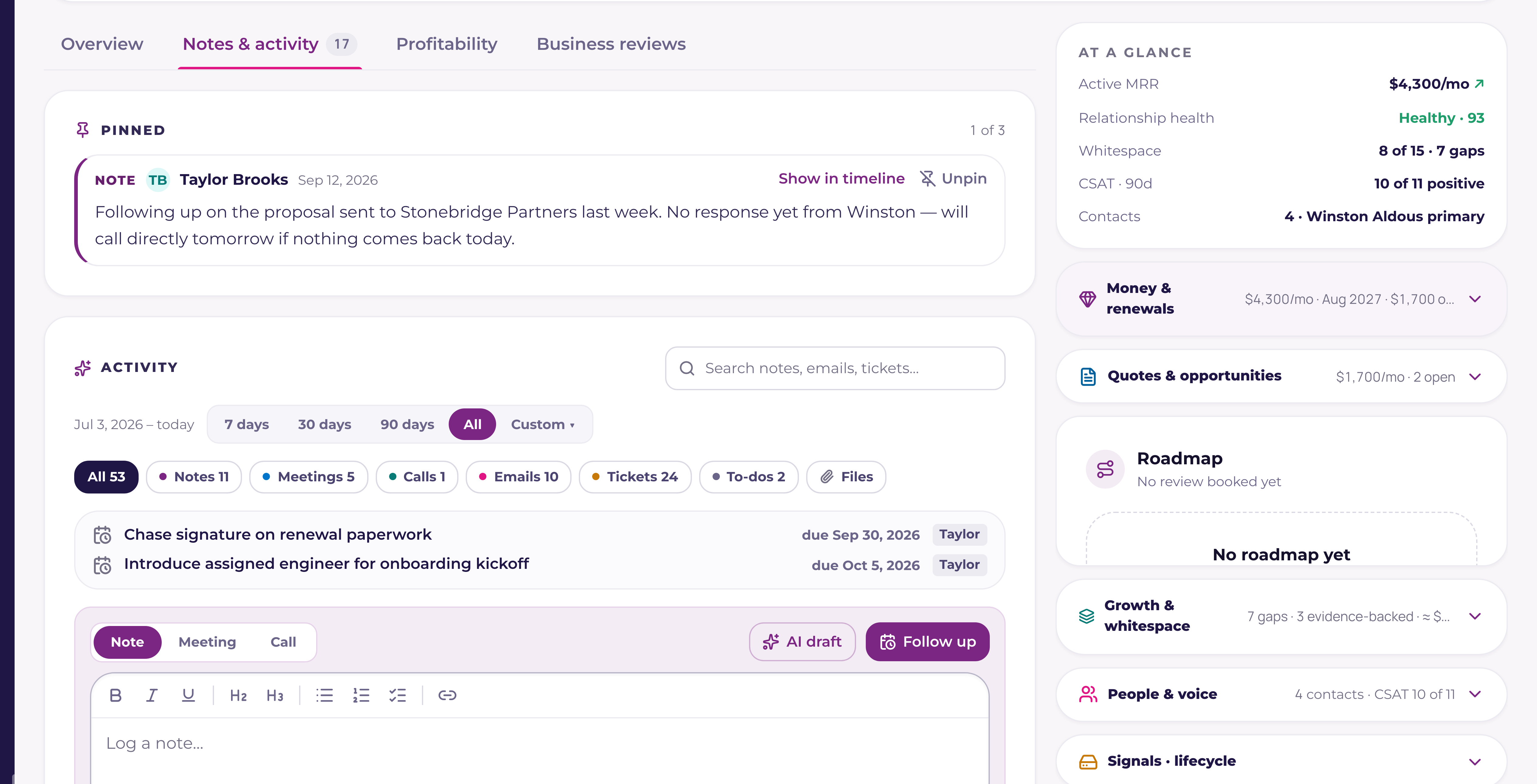
Where notes live
On a company, notes sit on the Notes & activity tab, the second of four tabs under the company header: Overview, Notes & activity, Profitability (shown when the account has one), and Business reviews. The page always opens on Overview. The right rail stays in view on every tab.
On a contact, the Notes card sits under the contact's details. A note written there belongs to the person and to their company, so it shows on the contact's activity and on the company's timeline, and it is filed against the contact in your PSA where your PSA supports that. A deal's Activity section has the same composer, and its notes also show on the company.
Formatting a note
The toolbar above the box has Bold, Italic, Underline, Heading, Subheading, Bulleted list, Numbered list, Checklist, and Link. You can also type the shortcuts you already know:
| Type or press | You get |
|---|---|
| # then a space | A heading |
| ## then a space | A subheading |
| - or * then a space | A bulleted list |
| 1. then a space | A numbered list |
| [ ] then a space | A checklist line |
| **words** | Bold words |
| Tab / Shift+Tab in a list | Nest a line, or lift it back out |
| Cmd+B, Cmd+I, Cmd+U | Bold, italic, underline (Ctrl on Windows) |
| Cmd+K | Add a link to the selected words |
| Cmd+Enter | Save the note |
Pasting from Word, Google Docs, an email, or a web page keeps the headings, lists, bold, and links, and drops everything else. Links work only when they start with http, https, or mailto; anything else is kept as plain words.
A counter appears as a note nears 50,000 characters. Past the limit, Save stays off and the counter says the note is too long to save; nothing you typed is cut. A note you haven't saved yet is kept in your browser, formatting included, until you save it or empty the box.
Tidy: let AI give a rough note some structure
Tidy sits beside Dictate and Enhance on the note box. Press it after typing or dictating a rough note and it comes back with headings, bullets, bolded headlines, and a checklist of what someone agreed to do. It keeps every fact and your own words; it moves and groups them. Undo puts the original back. Enhance rewrites for clarity and keeps your formatting. These tools are for staff only, and a Tenant Admin can turn them off for the workspace.
Pinned notes
Open the menu on a note and choose Pin to the top. A company can have three pinned notes, and so can a contact. Pinned notes show at the top of the Notes & activity tab and as a compact Pinned card on the Overview tab, so the note everyone needs (the escalation contact, the renewal plan, the thing never to say on a call) is the first thing on the page. Unpin one before pinning a fourth. Anyone who may edit a note may pin or unpin it. Pinning never sends anything to your PSA.
Make a to-do from a checklist line
Hover an open checklist line in a saved note and choose Make to-do. Current creates a follow-up assigned to you, linked to the company, contact, and deal the note was written on, with a link back to the note. It lands in your Microsoft To Do like any other follow-up, and shows in the follow-up strip on the record.
Long notes fold
A note longer than about twelve lines shows its opening lines with Show more, so a long meeting write-up doesn't push the rest of the timeline off the screen. Show less folds it again. Copy link on a note's menu gives a link that opens the company on that note, highlighted.
Searching an account's notes
The search box on the Notes & activity tab searches every note, meeting, and call on the company, however old, and shows the ones that contain every word you type, newest first, up to 100. Emails and tickets already on the timeline are filtered by the same words.
What your PSA receives
Your PSA stores notes as plain text, so Current sends a plain-text copy that reads the way the note looks:
- +Headings on a line of their own, with a blank line above.
- +Bullets as "• ", numbered steps as "1. ", "2. ", and so on.
- +Checklist lines as "[ ] " when open and "[x] " when done.
- +Links as the words followed by the address in brackets.
Each note in Current is one note in your PSA, never split into several. When a note is longer than your PSA's note field (for Autotask, the length your Autotask instance reports for notes; 8,000 characters for ConnectWise and HaloPSA), the copy stops at the end of a line or a word and finishes with "Continued in Current:" and a link to the full note. Editing a long note that is already in Autotask updates it the same way. Syncro workspaces keep notes in Current. The whole note, formatting included, always stays in Current.
Notes and HubSpot
With HubSpot connected, a formatted note reaches HubSpot with its headings, lists, bold, and links. A note formatted in HubSpot arrives in Current formatted, with no stray HTML tags, and its copy in your PSA is plain text. Syncing the same note back and forth is not counted as an edit.
Who can write, edit, and pin
The rules are the ones the CRM already uses. Account executives write notes on their own book, and sales leadership and anyone with Full CRM on any company in the workspace. You can edit your own notes; sales managers, admins, and anyone with Full CRM can edit anyone's. Pinning follows the edit rule. Partners in the portal never see CRM notes.