
Running your SBR program quarter to quarter
Where past reviews live, how to start the next one, what the writing run costs you in time, which stage a resumed draft lands on, and how live mode runs as a three-act journey built on the partner's own account plan.
On this page · 11 sections
Once you've generated your first Strategic Business Review, the question becomes how to run the program on a cadence, where past reviews live, how you start the next one for a partner, and how you actually use it in the room. This article assumes you already know how a review gets drafted, see "Strategic Business Reviews: the QBR, rebuilt on evidence" for that part, and picks up from there.
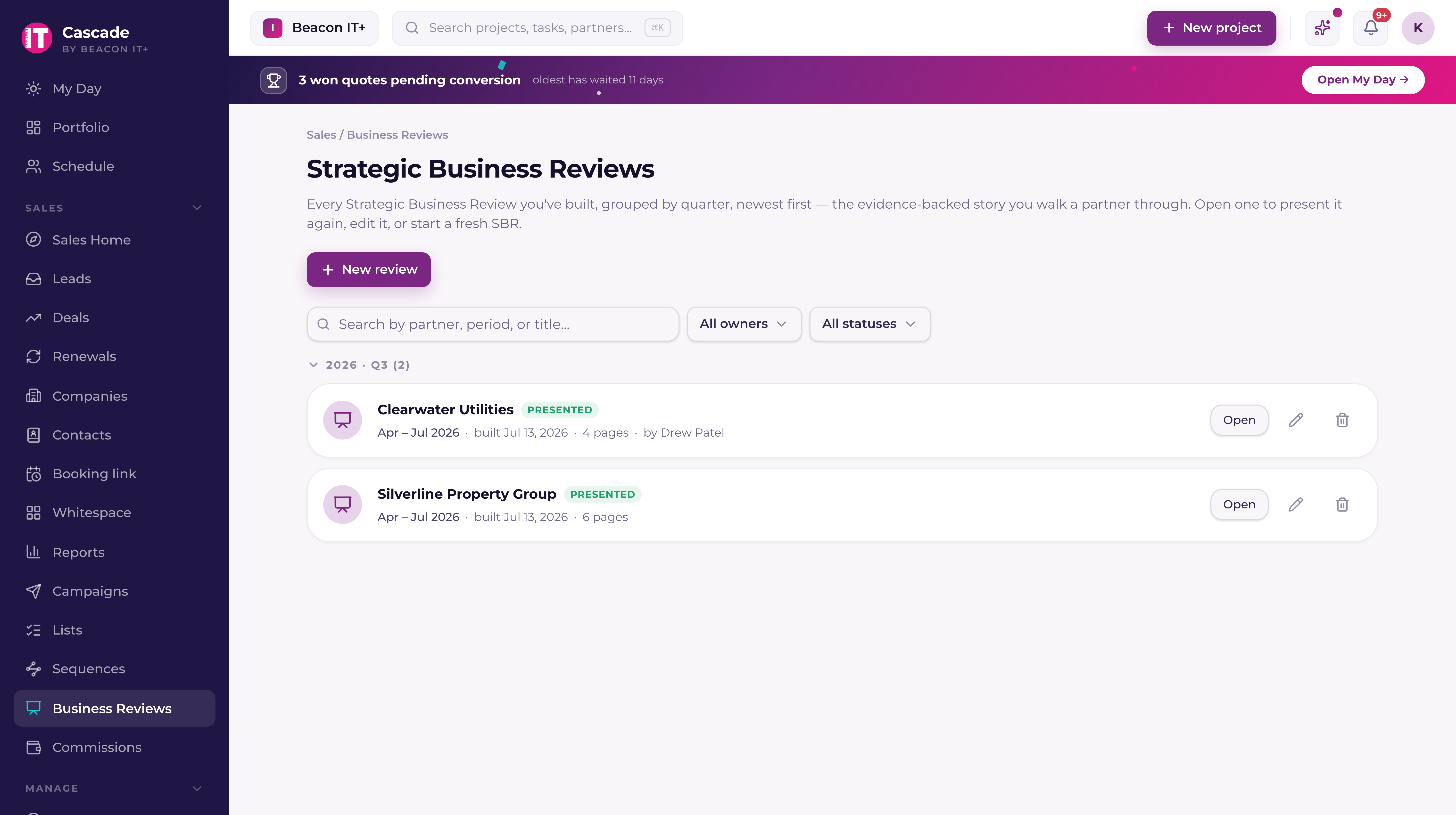
The library
Partners → Business reviews is your library of every review you've ever built, grouped by quarter with the newest quarter expanded first. It is not the only place they live: a company record has a Business reviews section of its own carrying that company's whole history, which is where to look when the partner rather than the quarter is what you have in mind. Each library row shows the partner, a status badge (draft, built, or presented), the period it covers, when it was built, how many pages it runs, and who wrote it, and a review that has been built more than once leads with its newest version and opens to the earlier ones underneath. Remove from the library archives one version rather than losing it, and the Archived filter is where you find it again with Restore. A draft row is an in-progress build. The builder autosaves every choice, so the badge shows when the draft was last saved, and opening it puts you back in the builder. On Your selections, or on Check & adjust when the review has already been written for that window.
Mine and Everyone
The switch at the start of the library's toolbar picks whose reviews you see. Mine, where the page opens, shows the reviews you built and your own drafts. Everyone shows every review in the workspace, so you can read how a teammate ran their last review before you build yours. A review counts as yours when you built any of its versions, and the section counts follow the switch. Current remembers your choice the next time you open the page. On Everyone, a review for a company in another rep's book opens to read, and its card says view only: its account manager, a sales manager, or someone with Full CRM can change it. Sales managers and tenant admins also get an owner filter under Everyone and a status filter on both views.
Starting next quarter's review
There's no calendar or auto-scheduler for SBRs, the cadence comes from you clicking New review each quarter. Pick the partner, and Current starts a fresh draft for that company rather than reopening whatever you built last time, so last quarter's findings don't leak into the new one.
You don't have to finish in one sitting. The builder saves every choice as you make it, and a half-done review sits in the library as a draft with its last-saved time. Open it any day and it picks up at the stage your work had reached.
- 1Open the library and click New reviewPartners → Business reviews.
- 2Pick the partnerYou're routed straight into a fresh builder for that company's next period.
- 3Work the five stagesSet up, then Your selections, where the defaults are already picked. Let it write is the one stage with a clock on it: Current reads the record and writes the chapters one at a time, which usually takes four to eight minutes, with a rail naming each chapter as it lands and a bar showing how far along it is. When the last chapter lands, the builder moves itself on to Check & adjust, where you price the risk cards and rewrite any chapter that missed, and where the pages come up beside the controls, now that the words on them are written. Deliver runs the layout check, carries the Less text switch for live mode, and saves. See "Strategic Business Reviews: the QBR, rebuilt on evidence" for the full walkthrough.
- 4Mark it presentedAfter the meeting, Mark as presented records the day it went out and how it was shared: in the room, by PDF, or by email. The button is on the review you just built and on every row of its history, so a review you emailed last week can still be marked with the day you sent it. Live mode does this for you the first time you move past the cover, which is why a review you walked through on screen is already marked.
- 5Come back later to reopen or editFrom the library, Open re-launches a built review for presenting; the pencil icon reopens it in the wizard if the substance needs to change. For fixing a sentence or catching the pack up to this week's numbers, you don't need the wizard at all, see "Keeping a built review current", below.
Saying how many people you support
Set up has a People you support area, and the headcount it lands on runs through the whole review: the AI opportunity is priced per person, the per-user figures divide by it, and a number that is visibly wrong is the first thing a business owner will pick at. So you choose where it comes from rather than taking whatever Current worked out. The area offers one tile per source that has a figure for this partner, each showing the figure it would use, and you press the one you trust.
- Microsoft 365 seats. Counts the people with a licensed mailbox.
- Support contract. Reads the seats on the agreement.
- RMM endpoints. Counts the machines your RMM watches.
- Contacts on file. Counts the people you have on record.
- Enter it manually. Type the figure yourself when you know the business better than any feed does.
What the writing run costs you
Budget four to eight minutes of wall clock per review, once. The run reads every connected service for that partner and period, then writes the chapters one at a time, and the rail on Let it write shows where it is, how long it has been going, and the percentage done. It saves itself step by step, so you can leave the page or close the tab and come back: nothing already written is lost. While it runs, the company's Business reviews section and the Business reviews library show the review as Writing, with the step it is on and who started it, so nobody starts the same review twice, and the person who started it gets a bell when it is written. A run that stopped part way shows Stopped at step N with Resume, which carries it on from that step and keeps every page already written. Rewriting a single chapter afterwards with Regenerate narration, on Check & adjust, takes seconds, because the evidence is already gathered.
AI features are included in the per-user price. Each review uses the workspace's AI allowance, subject to the usage allowances and add-on terms in the Fair Use Policy at https://current.day/fair-use. A review also counts against the workspace's AI budget for business reviews, and a platform administrator can see exactly what each run used under AI Studio → Usage, which meters every AI call in Current by feature over the last 7, 30 or 90 days.
Keeping a built review current
Three tools keep a built pack fresh between building it and presenting it. First, inline editing: click any sentence on the pack, headings, notes, next steps, custom blocks, the How-you-compare story and its industry-context band, the AI opportunities' value stories, and edit it in place, or ask the AI to rework it. Edited lines carry a subtle dotted underline on screen (never in print) with a one-click revert; numbers and stats aren't editable, by design, so the pack can never contradict its own data. Edits are kept per pack, and only the review's author and sales leadership can make them.
Second, Refresh data, on the pack, next to Live mode and Print. It re-pulls the live numbers and rebuilds the pack in place, keeping your picks, your edited text, your custom sections, and your conversation choices (trend cuts recalculate). The status badge steps back from Presented to Built, because the partner hasn't seen the new numbers yet.
Third, Rewrite this chapter, which takes an instruction rather than rolling the dice again. Reopen the review in the wizard and it lands on Check & adjust; open a page full screen from there and the header carries Rewrite this chapter. A chapter that did not print at all is listed on that stage with its own Retry instead, since there is no page to open. Either one asks the same question first: "What should change on this page?"
Answer it in a line of plain English, up to 400 characters, something like "lead with the phishing catch, drop the vendor mention", then press Rewrite. The chapter is written again with your instruction beside its own evidence, so the second pass answers what you disliked instead of shuffling the same words. Three chips sit with the box for the asks that come up most, Shorter, Plainer and More conservative; press one on its own or alongside a typed line. What you asked for is kept with the review, so the box reopens on your own words next time and a later rebuild can honour them.
Presenting live vs. printing
A built review goes two ways, and the two are built for different jobs. Print produces a branded, letter-format PDF: the whole data report, each chapter in printed order, for the leave-behind and for anyone who could not attend. Live mode is the full-screen, dark presentation you drive with the arrow keys, and it is a journey rather than a copy of the PDF. It used to mirror the pack slide for slide, one slide per printed section; a room reading fourteen chapters aloud is not a conversation, so the deck now walks a story and keeps the rest within reach.
After the cover comes a journey slide, in place of the old table of contents, naming the three acts you are about to walk together. Act 1, Where you are: what has happened since last time, then the quarter, the scorecard, security, backup, the fleet, and how the service compares. Act 2, What you want: their own plan, read back and confirmed line by line. Act 3, The plan: where they are exposed, the road ahead, the budget picture, and the decisions to close on. The rail along the bottom groups its dots by act, and the counter tells you where you are in the story.
The chapters that are not in those three acts are still in the deck. They sit after the last act under "More" in the rail, with the appendix pages behind them, so the value ledger, the fleet comparison, privileged access, what you are watching, the hardware list and the AI pages are one arrow key away when somebody asks. They are backups rather than slides you walk through, which is why the counter leaves them out and reads "More" when you are on one. The printed pack is untouched by any of this: each chapter still prints, in printed order.
The plan, read back in the room
Act 2 is the part of the hour that is theirs, and since September 16, 2026 it reads a record instead of an empty box. The partner's goals, their budget and how often you meet live on the company's account plan, each carrying the date it was last confirmed and by whom, so the slide shows them back and asks whether they still hold. A goal takes a Yes, which re-stamps it as of today, or Update, which opens it so the words can change with everyone watching; the budget carries a "Still true?" prompt once its own stamp is older than your cadence. See "Roadmaps: the account plan and the board" for the record this slide is reading.
Two more slides moved with it. Act 1 now opens on Since last time: what the last review promised and what became of it, delivered, slipped, dropped or still open, with a "Where this plan started" version for a partner you have not presented to yet. And The road ahead, in act 3, is the roadmap board itself, four quarters across with four cards in each and a count of the rest, carrying Approve, Defer and Decline on the slide. A decision stamps the card while the room is looking at it, and an approval opens an opportunity on your Expansion pipeline. You can re-plan there too: drag a card to another quarter, or use its Move button, and the budget strip under the board updates against the figure the partner gave you as you go. What the room approved, deferred, declined or moved is written back onto the review's road-ahead pages with a short Updated in the meeting note.
Carrying the words yourself
The Deliver stage carries a Live mode switch called "Less text on the slides". Turn it on for a review and the written passages come off the slides while the headline, the figures and the pictures stay, so the slide backs you up instead of competing with you. It is set per review, so a partner who wants the detail on screen can have it and the next one can have the short version. The printed pack is unchanged either way.
Three slides are pictures rather than prose whatever that switch says, because they are the ones people believe by looking: backup verification arrives as a wall of dated screenshots, the fleet as a grid of device marks with the share called out beside the count, and the security funnel drawn large on its own. Say the sentence out loud; let the slide be the proof.
The figures the room will test
A business owner picks one number, and if that number is soft the rest of the hour is spent defending it. Two of the review's figures are built to survive that, and both show their arithmetic on the page so you can walk through it rather than assert it.
Downtime avoided counts incidents, not alerts. A ticket qualifies when its priority reads critical or urgent and it names a server, host, domain controller, switch, firewall, router, internet link, site or a backup failure. A workstation, a laptop, a printer, a full disk, a busy processor or a memory alert is left out, and repeated alerts on the same device on the same day count once, so a switch that flapped forty times in an afternoon is one incident. The page prints the chain it used: the alerts seen, the incidents they collapsed to, thirty minutes of downtime averted for each, and the hourly rate. The rate is the one your workspace set, and where nobody has set one the page uses half a published small-business average and names the source and the halving, so the figure reads as a floor rather than a claim.
The AI opportunity is stated as productivity, not as a saving. The hero reads the hours back across a year first and the money second, as a "worth about" figure at the hourly rate, and the line under it prints the whole chain: the people counted, an hour a week each, fifty-two weeks, the hours that makes, and what those hours are worth. That is why the headcount picker in Set up matters. A number nobody chose, multiplied by fifty-two, is the kind of figure the room stops listening after.
Following up on action items
Every review ends with a short list of open decisions meant to be talked through and checked off live, in the room, with the partner. It's printed on the page as something to work through together, not a task tracker, so if an action item needs real follow-up after the meeting, capture it the way you'd track any other commitment: as a task or a note on the company record, so it's visible before you build the next quarter's review.