
Import contacts by CSV: mapping, dedupe, verification
Upload a spreadsheet, let AI map its columns, review duplicates, and see how ZeroBounce checks the addresses you bring in.
On this page · 14 sections
- Run an import
- What you can map a column to
- Company fields, and the ones your PSA owns
- Fields your PSA owns
- What's required, and what wins on a match
- Lists are the same thing as tags
- Do not email: the one list every send checks
- Organizing with folders
- Renaming a list
- Work a list as leads
- Remove several contacts from a static list at once
- Import a CSV into a list that already exists
- Tag several contacts at once
- Verifying the addresses you imported
If you're bringing contacts in from a spreadsheet (a trade show list, a partner's referral sheet, an export from another tool) the import wizard maps your columns to Current's fields, checks for duplicates, and lets you undo the whole batch if something looks wrong. Companies aren't imported separately; they're created or matched automatically from the company name, a website column, or the person's email domain.
Column matching is AI-assisted: when you upload a file, Current reads the header names plus a few sample rows and matches them to its fields, so "Work E-Mail", "Acct Name", or a column in another language still lands in the right place, and confidently matched columns get an AI-matched badge. You always see the full mapping and can change any column before importing; if the AI assist is unavailable, the wizard says so and falls back to keyword matching. Files don't have to be comma-separated, either. Semicolon-separated CSVs (the European Excel default), and tab-separated exports are detected and parsed automatically.
Run an import
- 1Open Partners → Contacts and click ImportAnyone with CRM access can run an import, the same button also lives on Sales → Lists as "Import contacts." An Account Executive's imported companies land in their own book automatically; undoing a finished batch stays a manager action, because undo removes contacts.
- 2Upload your CSVDrag the file onto the dashed box, or click it to browse. Current reads the header row and guesses which column is which, email, first/last name, company, phone. Confidently-matched columns are flagged so you can spot-check them fast. Drop an Excel workbook by mistake and Current tells you to save it as CSV first rather than reading it as gibberish.
- 3Confirm the mappingFields are grouped by what they belong to, the person, their company, and your workspace's own company fields. Search by name, or tick “Unmapped only” to see what still needs a column; the count beside it says how many are mapped. Fix anything Current guessed wrong, and check the live preview of the first few rows before you commit to anything. Any column in your file that lands nowhere is named underneath, with an example of what it holds, so nothing is dropped without you seeing it.
- 4Name the batch or tagGive the import a name. This becomes a tag you can filter by later, so "Spring trade show 2026" stays a distinct group inside your contacts.
- 5Review duplicatesCurrent matches incoming rows against your existing contacts by email. Each row shows what it will do (create, update, tag only, or skip), and you can override any row before running the import.
- 6Run it and check the reportThe import runs in the background with a progress bar. When it finishes you get a batch report, and a one-click Undo if you need to back the whole thing out.
What you can map a column to
Three groups, in the order they appear on the mapping step.
- The person. Email, first and last name (or one full-name column), title, phone, mobile, their own city, state and country, their LinkedIn, and whether they are the primary or the billing contact. The yes/no columns read “yes”, “y”, “true”, “1” and “x” as yes; a blank cell leaves the flag alone rather than saying no.
- Their company, the company name (matched to a CRM company, or used to create one), website, Customer or Prospect, the company's main phone, and the company's city and state. These are separate from the person's own city and state, so a file can carry both.
- Company fields. Every field your workspace has defined, including the ones mirrored from your PSA.
Company fields, and the ones your PSA owns
A company field Current owns is filled once per company, and only when it is blank. That matters on a big file: thirty rows can name the same account, so the first row with a value sets it and the rest leave it alone. Otherwise the last line of a spreadsheet would decide what the account says. Anything already on the company is never overwritten, and the finish screen tells you how many fields were filled. A field your PSA owns works differently, see below.
Fields your PSA owns
A company field mirrored from Autotask, ConnectWise, HaloPSA or Syncro can take a column too, and it is marked on the mapping step with where the value goes, “Written to Autotask”, for instance. Your PSA stays the source of truth: Current does not store the value itself, it sends it to your PSA and shows it on the company once your PSA has accepted it.
- It does not appear straight away. The value is queued and goes out on the next sync of that company, usually within the hour. The finish screen says how many are on their way.
- Undo cannot take one back. Anything still waiting is cancelled, but a value your PSA has already accepted lives in your PSA now, the report says how many, and you change those in your PSA. It is the same rule as a contact that has already pushed.
- ConnectWise needs the field to exist first. A caption ConnectWise does not have on the company is reported rather than created, because a custom field has to be defined in ConnectWise before anything can be written to it.
- Your workspace's write setting still applies. If Current is set to test mode for PSA writes, only a ZZ-Current Test company is ever touched; if it is off, nothing is written at all.
Undo covers this too. Backing out a batch clears exactly the company fields that import filled in, and leaves anything that was already there.
What's required, and what wins on a match
- You need an email address plus a name or a company on each row. That's the minimum Current (and your PSA, downstream) needs to create a usable contact.
- If a row matches a contact that's synced from your PSA, the import only adds a tag. It never overwrites a field the PSA owns.
- If a row matches a contact Current owns outright, the import only fills in blanks. It won't clobber information you already have.
- Company matching tries the company name first, then a website column, then the email domain. The email domain is matched against the websites you have on file and against the addresses your existing contacts already use, which is what most companies synced from your PSA carry.
- Personal email domains (gmail, outlook, yahoo and the like) never identify a company. Neither does a domain claimed by two different companies. Current leaves that row to name-matching rather than filing somebody into the wrong account. The review step counts the rows matched by domain so you can see it before committing.
A list in Current is a tag with a name, importing into a named list, and importing with a batch tag, land you in the same place. Once contacts carry a tag, that tag is one of the stackable filters in the audience builder, so an imported list becomes a targetable audience immediately. See "Campaigns and audiences" for how that filter works in the composer.
Do not email: the one list every send checks
Pinned above your lists is Do not email: the one list of addresses every send checks. Addresses land there when a person clicks unsubscribe, when a Resend or Microsoft 365 bounce comes back, when someone marks a message as spam, when verification says an address is invalid, or when you add them. Everyone with CRM access except Partner Viewers can search it and export it as a CSV whose columns are email, reason, source and added_at. Sales leadership and tenant admins can also add an address by hand, upload a CSV, and remove addresses that were added by hand; an entry that came from a person's own click, a bounce, a complaint or a verification is kept for compliance and cannot be removed by anyone.
- Upload: a .csv with an email column (any other columns are ignored, a header row is optional), up to 5 MB. Addresses are lower-cased and de-duplicated, you see how many are valid, invalid or repeated before anything is written, and the import runs in chunks with a progress bar.
- Adding takes effect right away: anyone on the uploaded list who is in a sequence leaves it as Unsubscribed, their pending Outreach items are cancelled, and a marketing campaign send still waiting to go to them is dropped. An invitation that has already gone out is left alone. The toast tells you the counts.
- Which mail a reason stops: an unsubscribe stops sequences and marketing campaigns only. A bounce, a complaint or an invalid address stops everything, service notices and app notifications included. A service notice (a price change, an outage note) still reaches someone who only opted out of marketing.
Organizing with folders
Lists, Campaigns and Sequences all use folders, and they work the same way on each screen. Once you have more than a screenful, click New folder, name it, then drag rows into it by the handle on the left. Every row's ⋯ menu also has Move to folder if you would rather not drag. A folder is drawn as a card holding its rows, so you can see where one ends and the next begins.
If the folder you want does not exist yet, you do not have to go and make it first. Open the row's ⋯ menu, choose New folder under Move to folder, and type a name: Current creates the folder and files that row into it in one step.
- Folders are shared with your whole team. A list you file under "Trade shows" is under "Trade shows" for everyone. Which folders you leave open or collapsed is yours alone, and follows you between browsers.
- There is one level. You cannot put a folder inside a folder.
- Anything you have not filed sits in Unfiled at the bottom of the screen, so nothing is ever somewhere you cannot find it.
- Deleting a folder does not delete anything inside it. Whatever was in there moves to Unfiled.
- Who can organize is who can already manage the row: a sales manager, or the person who created it. That holds on all three screens.
- Campaign folders cover the working list. The Approvals queue and the Templates shelf stay flat, because both are meant to show you everything at once.
Renaming a list
Open the ⋯ menu on any list row and choose Rename. The name turns into a text field in place: press Enter to save, Escape to leave it alone.
Work a list as leads
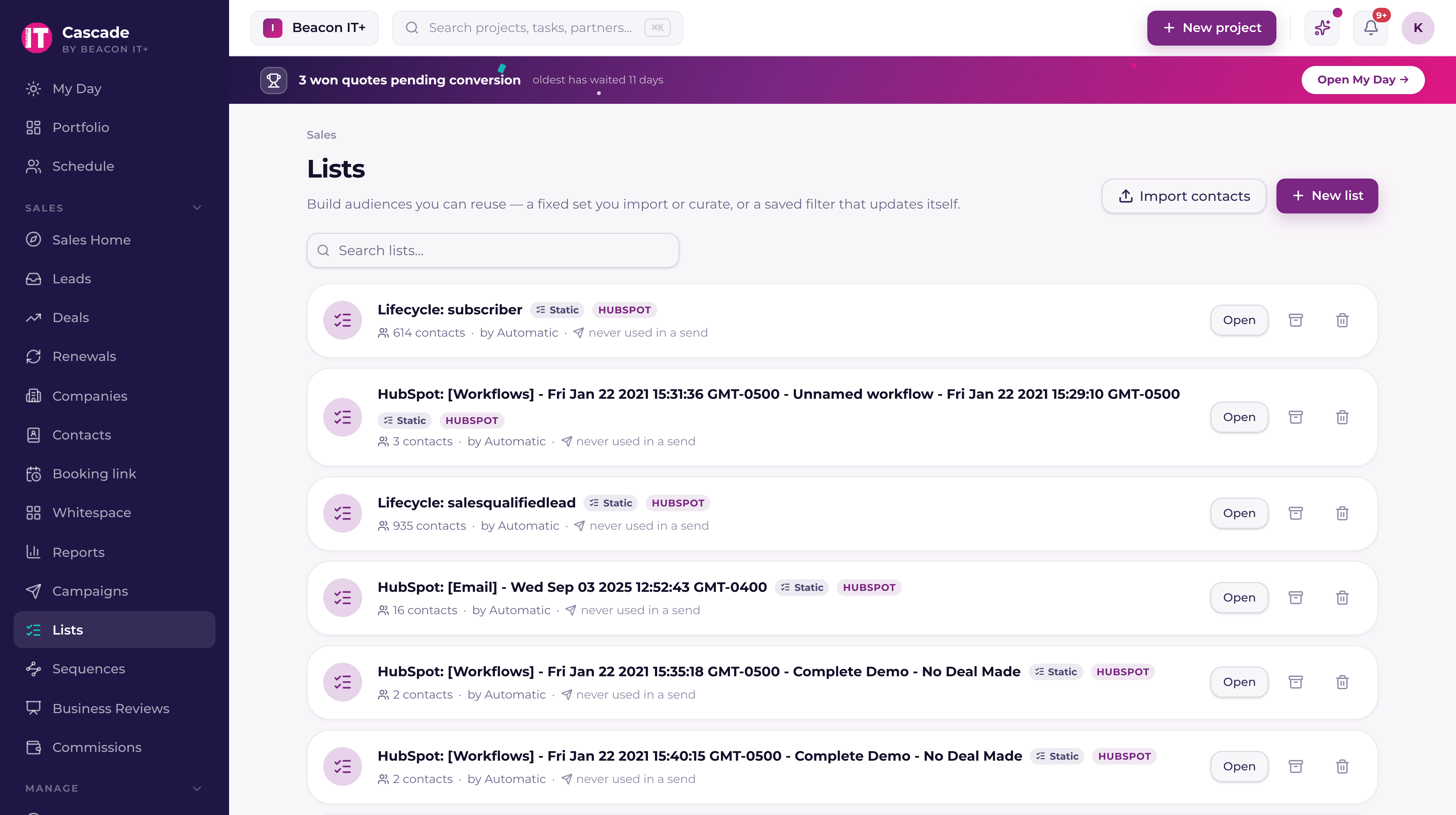
A list isn't only an audience to email. You can qualify its people one by one. On Sales → Leads, click "Import from list," pick the list, and choose some or all of its members. They land on the leads board under the Lists source filter, alongside your website and manual leads.
- Anyone already sitting in the funnel is skipped, shown to you before you commit, and counted in the result. You never quietly create a second lead for the same person.
- Imported leads arrive unrouted with no response timer, because they are people you chose to work rather than an enquiry waiting on a reply. The clock starts when someone routes one.
- Nothing is pushed to your PSA. These contacts and their companies are already in your CRM, which is what made them list members in the first place.
- A dynamic list resolves its filter at import time, so you get who is on it now, not who was on it when you built it.
Full detail on the board, the source filter, and what converting one of these leads does is in "Website leads: intake forms, routing, and SLA timers."
Remove several contacts from a static list at once
Each row on a static list's Members tab has a checkbox. Tick the people you want off the list (the box in the header ticks the whole page you are looking at), and a bar appears above the table with Remove from list. Confirm once and they come off the list together, with an Undo in the toast for a few seconds. Only the membership goes. The contacts stay in your CRM, on any other list, and in any sequence they are enrolled in. The toast reports the number the list actually lost: an Account Executive can only take their own book's contacts off a list, so a mixed selection says how many stayed.
Import a CSV into a list that already exists
Importing from Sales → Lists makes a new list out of the file. When the list is already there (the one you have been building all quarter) open it, click Add contacts, and choose From a CSV. It is the same wizard, aimed at that list: the same column mapping, the same row-by-row review, the same Undo. The only difference is where everyone ends up. Nothing new is created beside your list.
- Somebody in the file who is already in your CRM is matched, not duplicated. They simply join the list.
- Somebody new is created as a contact and queued for your PSA, then joins the list too.
- Undo takes the import back out: contacts it created are removed, and the people it added to the list come off it. Anyone who was on the list beforehand stays on it, and the list itself is never deleted.
- An Account Executive can run it. The rows land in their own book, and undoing a finished batch stays a manager action, because undo removes contacts.
Tag several contacts at once
Tagging people one at a time is fine for one or two. For a list you just imported, or a filtered page of your contacts, there are two faster ways. Both using the tags you already have, and both able to take a tag off as easily as put one on.
- Tick some rows. On a static list's Members tab, or on Partners → Contacts, tick the people you want and choose Tags in the bar above the table. Pick one tag, choose Add or Remove, and it is done for everyone ticked. The header checkbox ticks the page you are looking at, up to 200 at a time.
- Tag the whole list. On a static list, Tag everyone puts one tag on every member, including the ones on pages you never opened. It works on lists of any size and shows its progress as it runs; if it is interrupted partway, the summary says how far it got, and running it again continues from there without tagging anyone twice. Use it when the list IS the group: everyone who came to the trade show, everyone on the renewal run.
Either way the toast says what actually happened: how many changed, how many already had the tag, and how many were skipped. An Account Executive can only tag contacts at companies in their own book, so a mixed selection reports the ones that stayed untouched rather than quietly doing nothing. Sales leadership can also name a brand-new tag right there in the dialog if the one you want does not exist yet.
Verifying the addresses you imported
Import doesn't verify email addresses on its own. Verification is a separate step you run afterward, from the list. Open the list and choose to verify it; Current estimates the cost before it spends any credits, and only checks addresses that are unverified or haven't been checked in the last six months.