
Booking links: let prospects book time on your calendar
Set up a scheduling page for you or your team, share it, and see what happens when someone books, moves, hands off or cancels a meeting.
On this page · 11 sections
- Tag people who book
- Add bookings to your Leads board
- Set up a link
- Share a link with your team
- When you're on a teammate's link
- Share it
- Your link's address
- Make your booking link shorter, or change it
- What happens when someone books
- Invite others after booking
- When a meeting needs to move or come off the calendar
A booking link is a public page tied to your calendar, no login required, just a link. Send it in an email or paste it into a proposal, and a prospect picks an open slot based on your real availability. You can keep more than one link for different purposes, like a quick intro call versus a full review meeting.
A send-as identity (a shared mailbox your sequences can send from, set up under Settings › Sales and CRM › Send-as addresses) can have a booking page of its own. It works like any other link, and the meeting still lands on the host's calendar, but the page and the confirmation and reminder emails carry the identity's name, logo and colour, and those emails come from the identity's address. Identity pages are managed from the identity, not from this page, and they never show up as one of your own links.
Tag people who book
Each link has a Tag people who book setting. Pick one of your existing tags and everyone who books through that page gets it on their company and their contact record the moment the booking lands, so a page you put on a landing page or in a campaign marks where those people came from. Bookings taken before you picked the tag are not tagged after the fact. The same setting exists on a lead funnel (Automatically tag new leads), and both offer only tags that already exist: create the tag on a company or contact record, or under Settings › Sales and CRM › Tags, first.
Add bookings to your Leads board
Each link has an Add bookings to Leads setting. Pick one of your lead funnels and everyone who books through that page becomes a lead in that funnel's first column the moment they book, assigned to you, with everything they typed attached: their name, their email, the company they gave, and their answers to your intake questions. The lead says when the meeting is, so whoever picks it up knows what is already on the calendar. Leave the setting on "Don't add them to Leads" and nothing changes, which is how every link starts.
These leads come in under the Bookings source on the Leads board, so you can look at them on their own or alongside everything else. They go to you rather than through your routing rules, because a booking has already decided who is taking the meeting. If a booking is made but the calendar invite fails to go out, the lead still appears and says so, so nobody is left waiting for a meeting that was never sent.
Set up a link
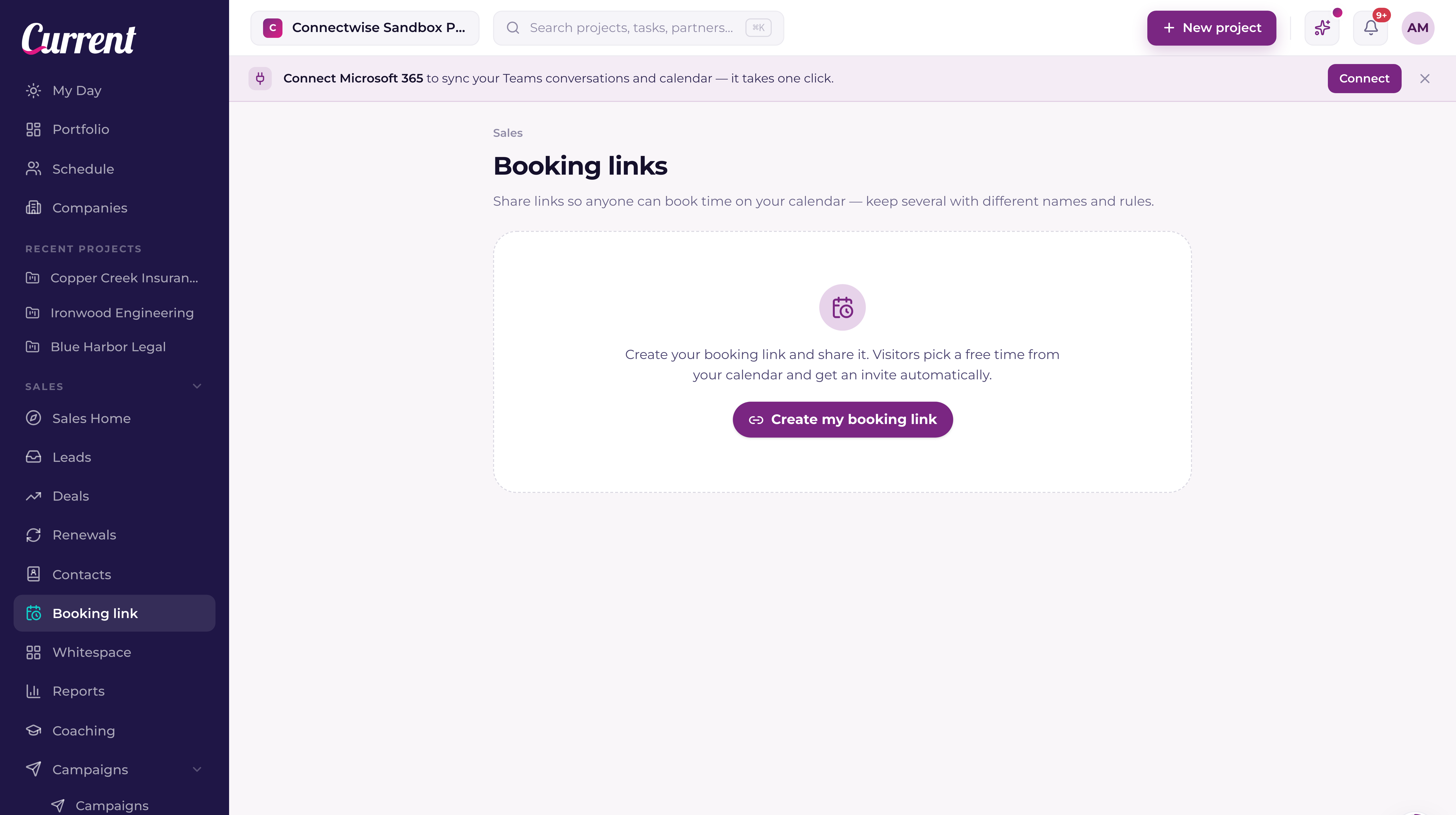
- 1Open Sales → BookingCreate a link and give it a name, "Intro call," "SBR," whatever distinguishes it from any others you keep.
- 2Choose meeting lengthsPick one or more durations (15, 30, 45, or 60 minutes), the prospect selects from whichever you've enabled.
- 3Set your weekly hours and buffersDefine which hours on which days you're bookable, plus a buffer before and after each meeting and a minimum notice period so people can't book you five minutes from now.
- 4Add intake questions (optional)Up to eight questions, each optionally required, useful for capturing what the prospect wants to talk about before the call happens. A question can also carry a list of answers: click Choices beside it, list up to twelve (one per line, up to 80 characters each), and the booking page shows a dropdown instead of a text box; the booking is refused if an answer is not one of them, and clearing the list turns the question back into free text. Whatever they answer comes back to you in the booking email, on your calendar invite, on the company timeline, and on the Booking page under the meeting, with each question in bold and the answer underneath.
- 5Turn on remindersCurrent can email the prospect 24 hours and again 1 hour before the meeting. You get your own reminder too, and so does every guest they invited. Each reminder ends with a friendly Pick a new time and Cancel meeting button, so a prospect whose plans changed can move the meeting in two clicks instead of not turning up.
A link can belong to one person or to a team. Under Who takes these meetings, switch the link from One person to Team and you're added as its first host. Press Add people to add colleagues from your workspace: each one gets a notification and can take meetings right away, with nothing to accept. The list shows whether each person's Microsoft 365 calendar is connected, because nobody is offered until theirs is. Until you add anyone, the link's owner takes every meeting.
- Prospects see every time anyone on the team is free, so one link offers far more times than a single calendar.
- When someone books, Current picks who takes it. A known customer goes to their account manager when that person is on the link and free. Otherwise starred people get first pick, then whoever has had the fewest meetings from this link in the last 30 days.
- The page shows your company's name and logo, never a person's name or photo. The confirmation screen and the confirmation email say who the meeting is with.
- The person who gets the meeting owns it: it lands on their calendar, and the lead, the meeting on the company timeline and a newly created company's account manager are theirs.
- Everyone on the link gets the new booking notification and email, and so do moves and cancellations. Each one opens with Assigned to and the person's name, and the subject ends with who it's assigned to, so the rest of the team can see it isn't theirs.
- If someone's Microsoft 365 calendar can't be read, Current stops offering their times and shows a red Reconnect Microsoft 365 line beside their name. You and they both get one notification about it, and they're offered again as soon as it works.
The link's owner adds and removes people and decides who gets the star. Removing someone stops new meetings; anything already booked with them stays on their calendar. The owner also has their own In rotation, Pause until and My hours settings under the list, the same ones everyone else on the link has.
When you're on a teammate's link
Links a colleague added you to appear in Settings → Your settings → Booking links you're on, and on Sales → Booking under Team links you're on if you work in Sales. The notification that tells you you were added opens that page. Each link has three settings that are yours alone:
- In rotation: switch it off to stop getting new meetings from the link until you switch it back on.
- Pause until: pick a date and you're out of rotation until the start of that day in the link's timezone, then back in on your own.
- My hours for this link: take meetings during part of the link's hours only. You can narrow them, never widen them, and times are in the link's timezone. If some of what you typed sits outside the link's hours, Current shows what would be saved before it saves.
Your upcoming meetings from the link are listed underneath. Hand off moves one to a teammate on the link who is free at that time: it comes off your calendar and lands on theirs, you both get a notification, and the prospect gets the new invite. The link's owner can hand off any meeting on it the same way.
Each link has a Copy button right on the Booking page, copy the URL and drop it wherever you'd share a scheduling link. There's a Preview button too, so you can see exactly what the prospect sees before you send it.
Your booking page also powers two email surfaces automatically: the {{booking_link}} merge tag in campaigns and sequences, and the "Book time with me" button in your email signature (Settings › Your settings › Profile). Both use your active link, so a recipient lands on the same page either way.
Your link's address
Every link has a short address that ends in your name, like current.day/b/7kq2xy-jordan-reyes. The six characters at the front are unique to that link and never change, so each of your links gets its own. If your name changes in Current, the end of the address follows it, and the old address keeps working.
Links you shared before the short address arrived keep working too, so there's nothing to update in old emails or proposals. Booking pages are kept out of search engines, so your page only reaches the people you send it to.
Make your booking link shorter, or change it
You can't type your own address for a booking link, but you can make it shorter and you can change the name at the end. Only the six characters after /b/ find the link; the name after them is there so people can see whose page it is.
- For the shortest link, keep the six characters and drop the rest: current.day/b/7kq2xy opens the same page as current.day/b/7kq2xy-jordan-reyes. Handy in a text message or on a slide.
- To change the name at the end, change your name in Current: open the account menu at the top right, choose Preferences and edit Your name. Every link you own picks up the new name, and the old address keeps working.
- A team link ends in your workspace's name rather than a person's, and a send-as identity's page ends in the identity's name, so those change when the workspace or the identity is renamed.
- The six characters can't be changed or picked. They are made once when the link is created and stay with it, which is why an address you already sent never breaks.
- Want a different code? Create a new link on Sales → Booking. It gets its own six characters, and your old link keeps working until you turn it off or delete it.
What happens when someone books
- A calendar event is created on your Microsoft 365 calendar with the prospect added as an attendee. This needs your Calendar connection from Settings › Microsoft 365.
- Current matches or creates the company and contact in the CRM, so the meeting shows up on a record you already have (or a fresh one, if this is a new prospect).
- A personal address (Gmail, Yahoo, Outlook.com, iCloud, Proton, GMX, an internet provider's mailbox and the like) never decides the company. Current matches the person by their own address, and otherwise creates the company from the name they typed, with no website filled in.
- A meeting activity is logged on that company's timeline, with you as the person who booked it. If it's the first meeting your firm has ever had with them, and they are not already a customer, it counts as a first appointment and you get a bell for it.
- You get a notification that someone booked, and the email carries their name, their company, and their email address, so you can reply straight from your inbox without opening the record first. If your link asks intake questions, their answers are in that email too, and again in your reminders before the meeting.
- The prospect gets a confirmation with a link to move or cancel the meeting on their own, without needing to email you. It repeats back anything they told you, so they can catch a typo while there's still time.
Invite others after booking
Once a prospect books, the confirmation screen offers Invite others, so they can bring a colleague along without forwarding anything. The same box is on the manage page from their confirmation email, for anyone they think of later. A meeting can have up to ten guests.
- Each guest is added to the meeting on your Microsoft 365 calendar, so Microsoft sends them the calendar invite and your calendar shows everyone who is coming.
- Each guest gets a confirmation from you with the time and the Teams link, and the same 24-hour and 1-hour reminders the prospect gets.
- Sales → Booking lists the guests under the booking, and you get a Guests added notification with their names and email addresses.
- A guest whose email matches a company already in your CRM is added as a contact on that company. Current never creates a new company for a guest, and never adds your own colleagues as contacts.
- Only the person who booked can move or cancel the meeting. When they do, Microsoft updates or cancels the invite for every guest too.
When a meeting needs to move or come off the calendar
Both sides get told, every time. The manage link in the prospect's confirmation is the only thing either of you needs, and it stays valid for the life of the meeting, including after it has been moved.
- 1Moving keeps the same meetingPick a new time is the first thing on the manage page. It opens your booking page with only your genuinely free slots, and confirming moves the meeting you already have: same calendar event, same Teams link, same invite thread updated in place. You get a "Meeting moved" email showing the new time and the old one, and the prospect gets one too. The company timeline keeps one meeting that moved, rather than a cancelled one plus a new one.
- 2Moving a meeting on a team linkThe prospect sees the times of the person they're booked with first. See more times with the team opens everyone's free times; picking one with somebody else moves the meeting to that person's calendar, both of you get a notification, and the prospect's email names who the meeting is with now.
- 3Cancelling tells everyoneCancelling takes the meeting off your calendar, sends you a "Booking cancelled" email, and now sends the prospect one as well, with a button to pick a new time whenever they are ready.
- 4Cancelled or moved in OutlookIf you delete or move the meeting in Outlook instead of through Current, Current notices before the next reminder goes out. A deleted or cancelled meeting is marked cancelled in Outlook on Sales → Booking and nobody is reminded about it. A moved meeting takes the new time, and the reminders follow it. Anyone who declined the calendar invite doesn't get a reminder either.
- 5Either of you can leave a noteThe cancel and move screens both offer an optional line, "something came up, happy to find another time", and it rides along in both emails, so the reason travels with the change instead of arriving separately.
- 6You use the same pageThe Manage link beside each upcoming meeting on Sales → Booking opens exactly what the prospect sees, so you can move or cancel on their behalf and they are emailed either way.