
What-if scenarios: preview a schedule slip before it happens
Model a delay on any task and instantly see the ripple (in working days, respecting cross-project links) without touching the real schedule.
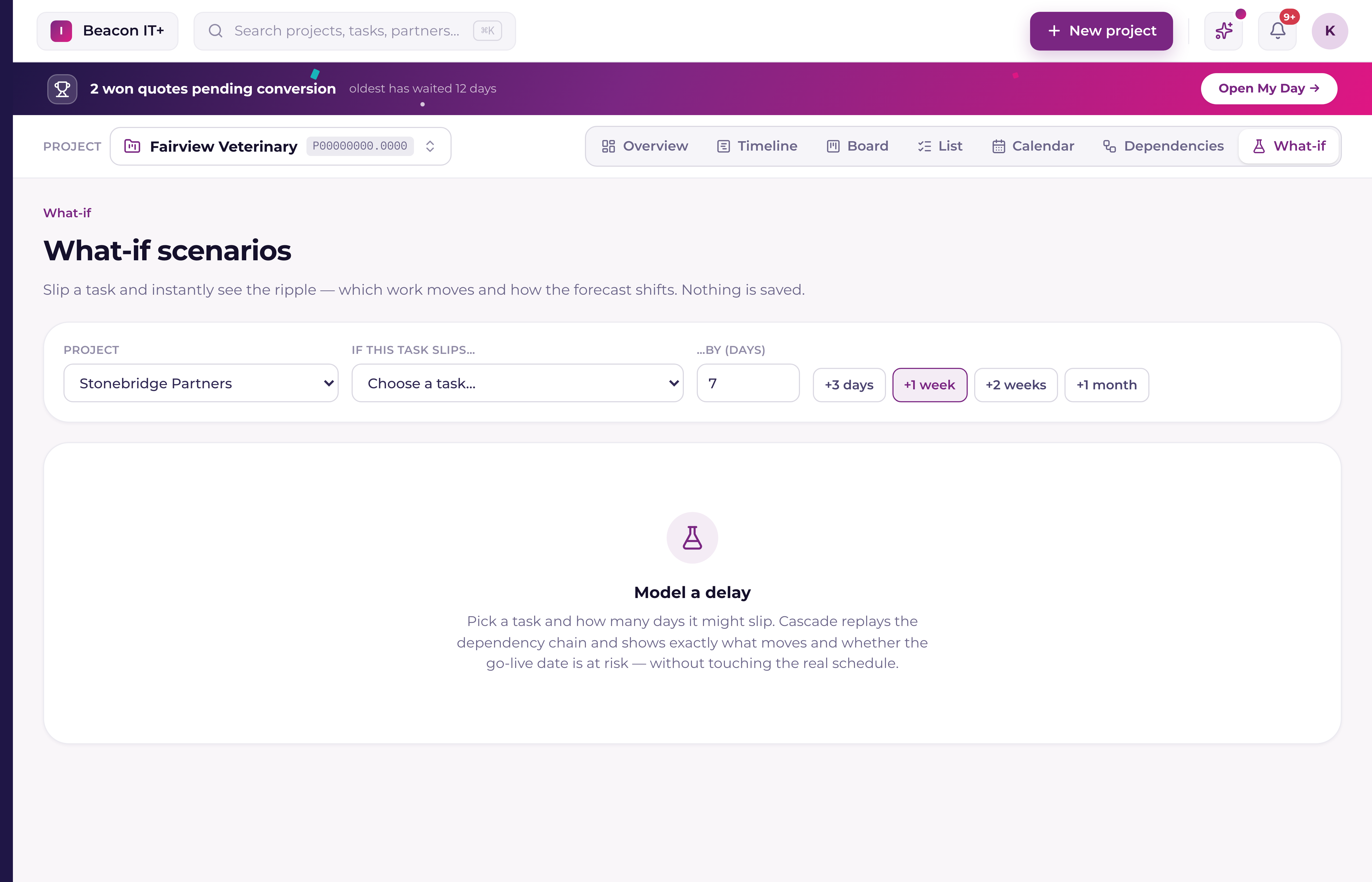
Before you tell a partner a deadline is at risk (or promise one is safe) it helps to actually see what a delay does to the rest of the project. What-if is a sandbox for exactly that: pick a task, say how many days it might slip, and Current replays the dependency chain to show what moves. Nothing you do here is saved.
How it works
What-if runs on the same scheduling engine as the Timeline, using the same holiday calendar and the same per-person PTO data (see "PTO and availability-aware scheduling in the Timeline"), so a scenario never disagrees with what the real Timeline would do if you actually made the change. It also respects links that reach into another project: a task in a different project is treated as a fixed point the scenario won't move, so a preview never pretends it can reschedule work outside the project you're modeling. The dependency map honors those cross-project links the same way.
- 1Go to What-ifFind it in the main navigation, under the same area as Timeline and Dependency map.
- 2Pick a projectTemplates and archived projects aren't listed.
- 3Pick the task that might slipThe dropdown lists every task with computed dates, and marks any task on the critical path with a star.
- 4Set the delayUse a quick preset (+3 days, +1 week, +2 weeks, +1 month), or type an exact number of days. The presets are counted in working days, so a modeled slip lines up with how the schedule would really move (weekends and holidays skipped).
- 5Read the rippleCurrent shows the project's forecast shift, how many downstream tasks move, and whether the critical path is affected.
Reading the result
Three things update the moment you pick a delay: the project forecast (old go-live date vs. new one), the count of tasks that reschedule, and whether the slip touches the critical path. If nothing downstream moves, Current tells you there's enough slack in the plan to absorb it. If tasks do move, each one is listed with its old and new end date.
For the schedule you can actually change, see the Timeline's cascade-confirm flow, dragging a task there triggers the same kind of ripple preview, then lets you apply it for real.