
Use the project overview: health, work and completion
The project Overview puts Health and work items together, with Budget, People, Files and Conversation beside them. On a phone, the supporting details follow the tasks.
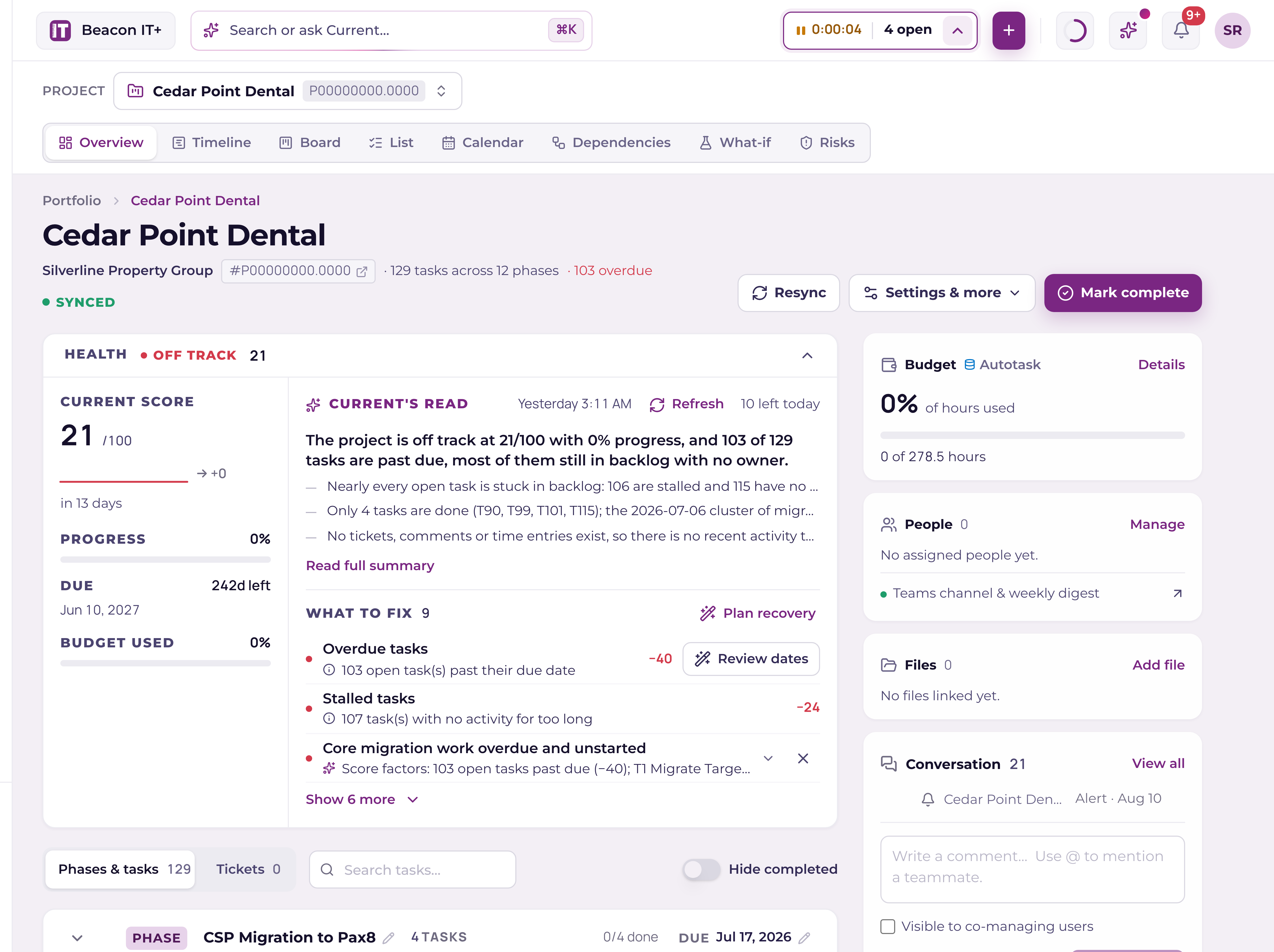
Read Health and choose a next step
Health combines Current Score, progress, the due date, budget use and the latest AI assessment. What to fix joins score deductions and AI risks in one list. The first three items show initially; Show more opens the rest. The date beside Current’s read tells you when the AI last ran.
Open a task from a risk, review a scheduling plan, assign an owner, open budget details or review sync conflicts. Dismiss applies to AI risks and offers Undo. Anyone permitted to refresh the assessment can use Refresh up to ten times per workspace-local day. Collapse Health to keep the work closer to the top; the choice follows you across projects.
Recover a slipping project
Choose Plan recovery in Health to check unfinished work against dependencies, weekends, workspace holidays and each owner’s time off. Current automatically repairs safe non-working start dates when the due date and owner can stay the same. Any change to a due date is shown for your review before you apply it.
The plan shows the current finish, proposed finish and promised project date. It keeps the promised project date and warns when the work would finish after it. Missing dates, cycles or a dependency that cannot be verified block Apply. Current checks the tasks again before saving, so a plan cannot overwrite work that changed while you reviewed it.
Use Daily dispatch for staffing decisions across projects. Recovery does not change owners. Project managers can apply reviewed dates; engineers can apply changes to their own tasks when every changed task is theirs.
Work with tasks
Use the round check beside a task to complete it through the same status rules as the task drawer. For a PSA-linked task, Current uses a complete status your PSA provides. An unfinished checklist must be finished first. The status selector, owner, due date and dependency links remain available in the row.
Hide completed removes done tasks from this view without deleting them. The setting is saved for you on each project. The done-hidden count has a Show link to bring them back. Search works together with this filter. Reordering is unavailable while filtering, so a partial list cannot change the order of hidden tasks.
Open details and project settings
The right rail opens budget and estimate details, project access, files and the full conversation. Settings & more contains Project settings, Run health check, Bulk edit tasks, Save as playbook, Archive project and Delete project. Available actions depend on your role. Project settings contains access, the weekly digest, Teams mapping and sync details.
Complete or reopen a project
Project managers and admins see Mark complete on an active project. Close the open tasks too is selected initially. Choose Leave them open if they still need work. Open tasks left behind remain assigned and available on Boards and My Day.
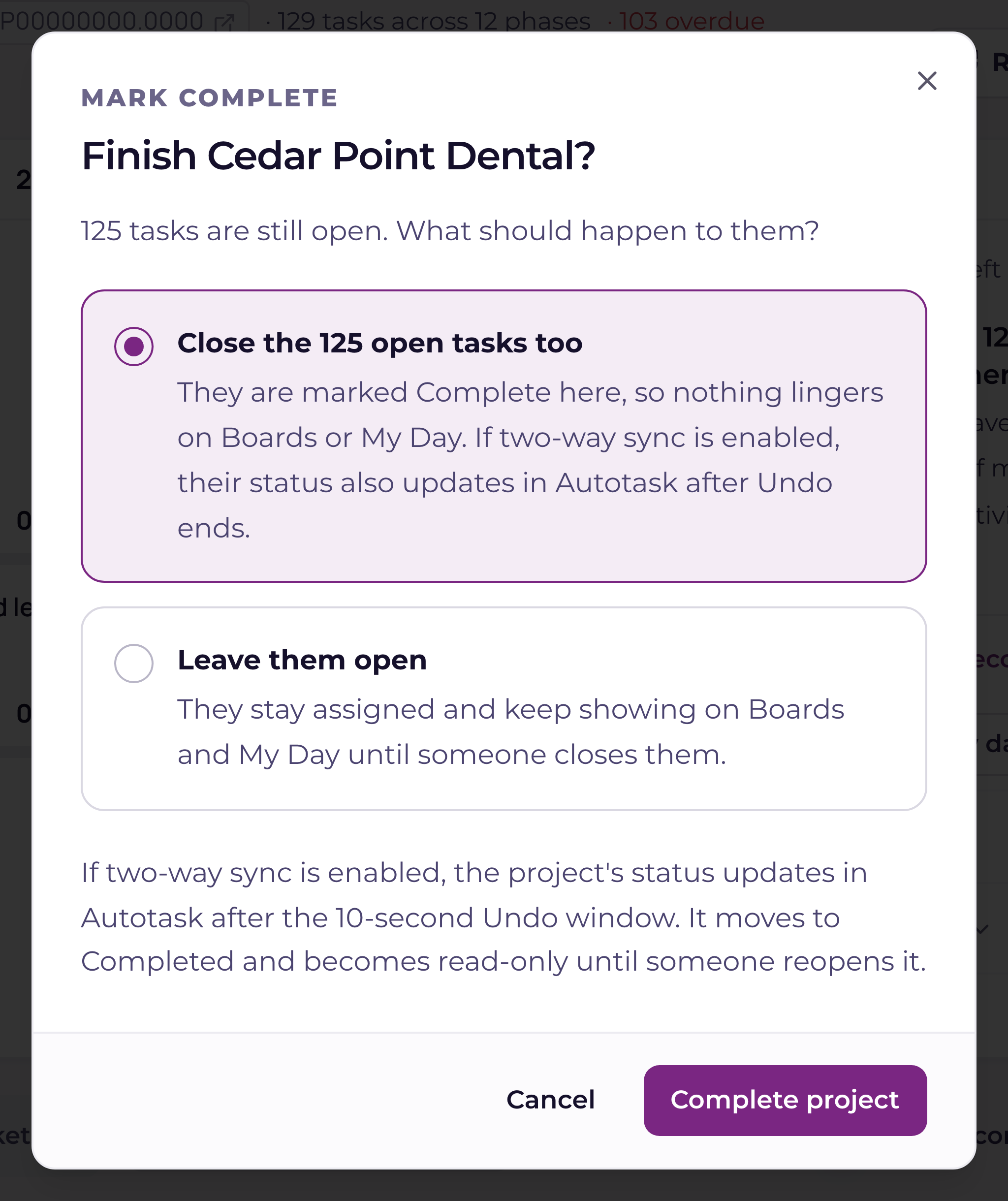
After confirmation the project moves to Completed and its close-out report opens. You have ten seconds to undo. PSA updates wait until that window ends, and delivery survives leaving the page or closing the browser. A failed task update prevents the project status from being sent ahead of it.
A completed project is read-only in Overview. Reopen restores its previous status and offers a six-second Undo. Tasks closed during completion stay closed when you reopen. Archive remains separate: it hides the project from active views and retains its history.
PSA sync follows your workspace settings. If two-way sync is off, Current tells you that the change was saved here and was not written to the PSA.