
Organize work with phases and tasks
Statuses, assignees, priority and dates; adding, renaming and reordering phases; renaming a task; dragging tasks between phases; searching a long project; and editing many tasks at once.
On this page · 13 sections
- Finding your way around the page
- Task status
- Assignees: primary and secondary
- Priority, dates, and estimates
- Add, rename, and reorder phases
- Phase due dates
- When a task runs past its phase
- Move a task, or move it to another phase
- Rename a task
- Find a task in a long project
- Collapsing phases
- What the task drawer lets you edit
- Change many tasks at once
Every project breaks down into phases, and every phase holds tasks. Phases give you the big buckets of work (Discovery, Build, Cutover); tasks are the individual, assignable units of work inside them.
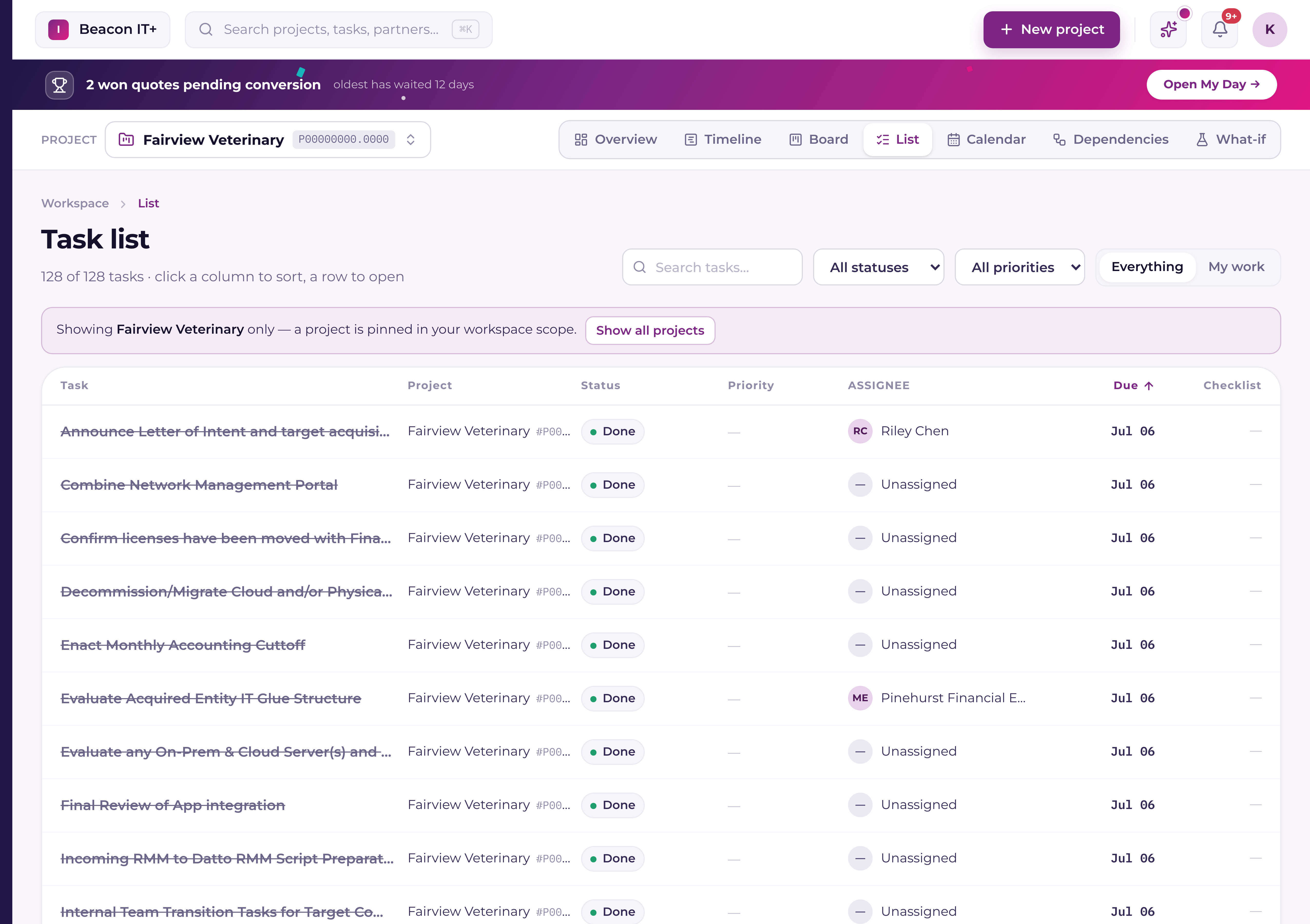
Finding your way around the page
The project page puts Health above the work items, with Budget, People, Files and Conversation in a right rail. On a phone those details follow the tasks. Settings & more opens project settings and management actions.
The rail opens the full supporting panels without scrolling past every task. Health can collapse, and Hide completed keeps finished tasks out of your working view. Both choices are remembered for you.
Task status
A task's status is a column on the Kanban board, and every project starts with the same four. If someone has added columns to your board, those count as statuses too and can be picked here, on the List, on the Timeline and in a bulk edit, exactly like the four below:
| Status | Meaning |
|---|---|
| Backlog | Not started yet |
| In progress | Being worked |
| Review / QA | Work is done and being checked |
| Done | Complete |
You can change a task's status right from the Status column under Phases & tasks on the project overview. The column is a dropdown for project managers, admins and the task's own assignee; Partner Viewers see the status but can't change it. A task linked to your PSA picks from your PSA's own statuses, and the change is sent to your PSA at once. A Current-only task picks from the project's board columns. As on the board, a task with unchecked checklist items can't be set to Done.
Assignees: primary and secondary
On a PSA-synced project, a task can carry one primary resource plus one or more secondary resources, the same distinction your PSA uses, so time logged by either shows up correctly on the ticket or task. On a Current-native project, a task simply has a single assignee.
Priority, dates, and estimates
- Priority is Low, Medium, High, or Urgent, and drives sort order on lists and boards.
- Start and end dates drive the Timeline and the critical-path calculation. See "What is a critical path (and how Current finds it)".
- Estimated hours is left blank until you set it. A blank estimate is treated differently from a 0-hour estimate, so don't zero it out just to clear it.
- Two Current-only flags (Critical and Milestone) can be set directly on a task without ever touching your PSA. See "Milestones: what they are and where they show up".
Add, rename, and reorder phases
Phases are shaped from the project Overview. Add phase sits at the foot of the phase list: click it, type a name, and press Enter, the phase lands at the bottom, and Escape backs out. The pencil beside any phase name renames it in place, the same inline editor the phase due date uses, where Enter saves and Escape leaves the old name alone. Two small chevrons at the left of each phase header move a phase up or down the list. All three are for project managers and admins.
On an Autotask-synced project, a phase you add is created in Autotask as well, and a rename is sent there and then read back to confirm Autotask stored it. The toast names which systems have the change: "Phase renamed in Current and Autotask" versus "Renamed in Current, but couldn't reach Autotask" with Autotask's own reason and a Retry button. What you saved in Current always stands, Autotask refusing a name never rolls back your edit.
Phase order is Current's own (no PSA stores one), so reordering never pushes anywhere, and your order survives every sync. A phase created in your PSA now arrives at the end of the list instead of jumping to the top.
Phase due dates
Each phase has its own Due date, shown and edited right in the phase header on the Overview, click the date and pick a new one, just like a task's due date. On a PSA-synced project the new phase date is pushed straight to your PSA; on a Current-native project it lives in Current. Only project managers and admins can change it.
When a task runs past its phase
If you set a task's due date to a day that falls after its phase's due date, Current stops and asks before changing anything: an "Extend the phase to fit this date?" confirmation that names the phase, its current end date, and the new date it would move to. Choose to extend and the phase's end date moves out to fit the task; choose Cancel and nothing changes. On an Autotask-synced project this is what keeps you from hitting Autotask's "the phase wouldn't extend, move it in Autotask and retry" wall: Current widens the phase in Autotask for you.
Date changes made anywhere else (the task drawer, the Timeline, the Schedule grid, a bulk edit) self-heal automatically on Autotask-synced projects. After every date push, Current reads the record back to confirm Autotask really stored it (Autotask can say "OK" and quietly keep its old date when the new one falls outside its phase or project window). If the date didn't stick, Current widens the window the same way Autotask's own UI would (project end first, then the phase) pushes the date again, and verifies. The toast tells you when a window was extended. When Autotask still won't store a date, the toast names the real cause: an Autotask predecessor drives the task's schedule, or the task is marked complete there, and the project's sync badge turns red so it isn't forgotten. ConnectWise pushes are verified the same way: every date write is read back, and a date the PSA didn't store is reported rather than silently assumed.
Move a task, or move it to another phase
Every task row has a grip at its far left. Drag it up or down to reorder within its phase, or drop it onto another phase (the header counts as a target, so a collapsed phase works too) to move it there. Escape cancels a drag that's already running. The Move up and Move down arrows beside the grip do the same reordering from the keyboard or a touch screen, within a phase. Reordering is for project managers and admins.
Task order, like phase order, belongs to Current and never pushes to a PSA. A move to a different phase does push on an Autotask-synced project: Current sends the new phase, reads the task back to confirm Autotask stored it, and the toast names both systems, "Moved to “Cutover” in Current and Autotask."
Rename a task
The task name in the drawer's header is editable. Click it, or the pencil beside it, and type: Enter commits, Escape restores the old name without closing the drawer. Like every other drawer edit the new name is staged as a draft, marked Unsaved, and written when you press Save. A project manager, a tenant admin, or the task's own assignee can rename it.
On a Current-native task that is the whole story. On an Autotask-synced task the new name also goes to Autotask, sent on its own rather than bundled with the rest of the save, so a name that didn't land can't hide inside a batch that otherwise succeeded. If it didn't reach Autotask you get "Renamed in Current, but the new name hasn't reached Autotask" with Autotask's reason, and no success toast beside it.
Find a task in a long project
A search box above the phases narrows the Overview to matching tasks. It reads the task name and the PSA task number, every word you type has to appear somewhere across those two, and a leading # is ignored, so #T20240137 and T20240137 both land on the same task. A count and a Clear link sit beside it, and phases with nothing left in them drop out of view while the search is on. The search is per visit rather than remembered.
Two smaller things make a long list readable. A task name too long for its column shows in full when you hover it. And a task with dependencies carries a small branch marker with the two numbers that matter (how many tasks it waits on, and how many wait on it), which turns amber while something upstream is still open. Click the marker to open that task on the dependency map with its chain already highlighted.
Collapsing phases
On a long project, click the little arrow at the left of any phase header to collapse it. That phase's tasks fold out of view so the Overview stays scannable, while the phase name, task count, and progress stay visible. Click again to expand. A collapsed phase is still a drop target, so you can drag a task onto its header to move it there. Current remembers which phases you've collapsed for each project, and that preference follows you across browsers and devices. The Timeline reads the same setting, so a phase you fold on the Overview is folded on that project's Timeline too.
What the task drawer lets you edit
Click any task to open its drawer (since September 18, 2026 a second task opens as a tab beside it; see "The task drawer: tabs, the time tile, pop out, and Open work"). From there you can change status, assignee(s), priority, dates, description, estimated hours, and checklist items (each item can carry a link to a supporting document). You can also add or remove dependencies and log time without leaving the drawer.
- 1Open the taskClick it from the board, list, or timeline.
- 2Make your editsChanges stage locally as a draft. Nothing saves until you click Save, and closing without saving discards the draft (Current asks first).
- 3Watch for the cascade-confirm promptIf you move a start or end date and other tasks depend on this one, Current asks whether to move those downstream tasks too, before saving anything.
- 4SaveYour changes write to Current and, for PSA-synced projects, push to your PSA on the next sync pass.
Change many tasks at once
Bulk edit works on every active project you can manage. Open Settings & more, choose Bulk edit tasks, then tick the tasks you want. The action bar offers status, priority, task type, department, reassign, shift dates, and set dates. Find/replace and Remove stay on templates, where a wrong click costs a draft instead of live work.
On a PSA-synced project the confirmation counts what leaves Current before you commit: "6 of the 9 selected tasks are linked to Autotask, so applying changes them there too. There is no undo." (the dialog names your own PSA). A selection survives the search box, and when a search is hiding tasks you already ticked, the dialog names how many of them are still getting the change.