
Project templates and PMI playbooks
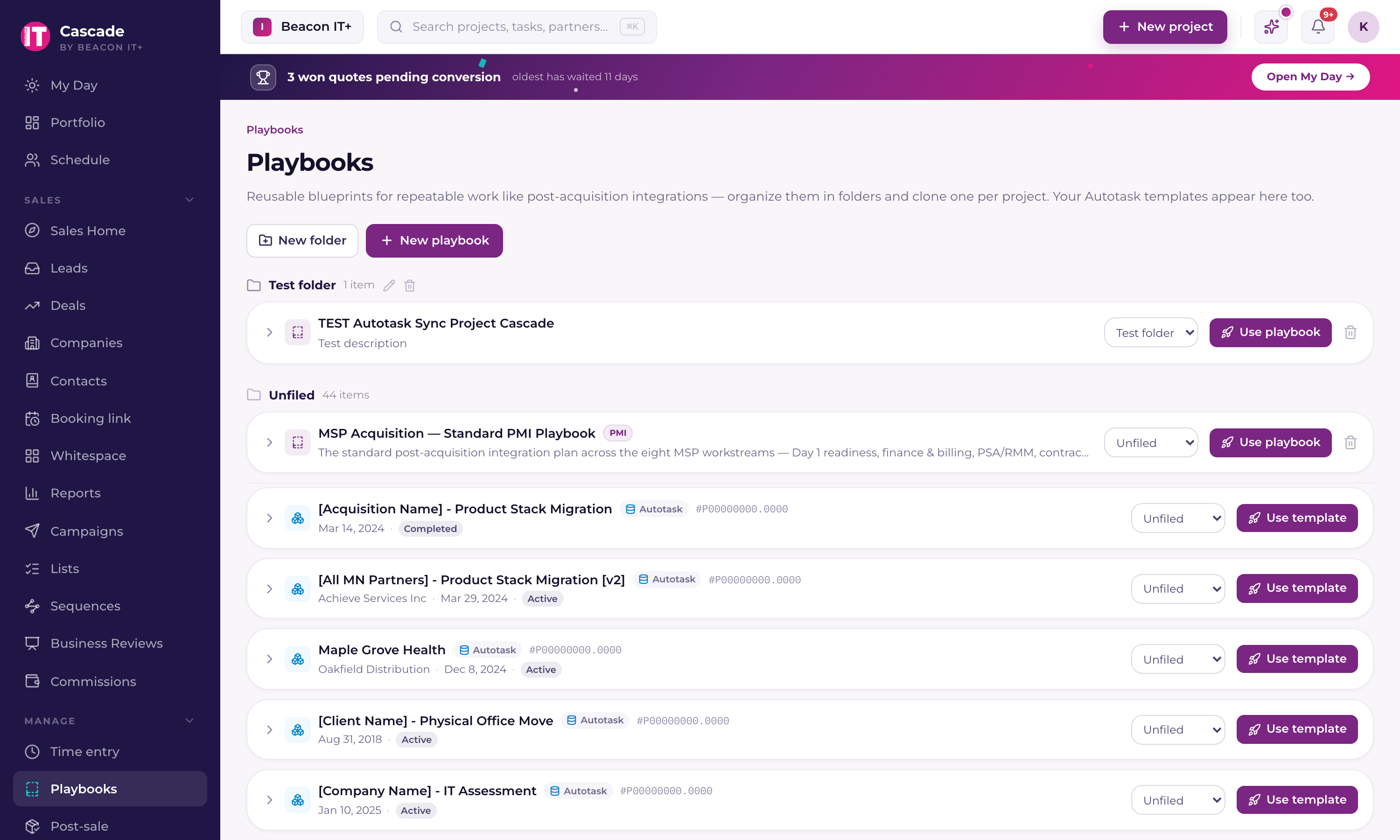
Current comes with 35 built-in playbooks: 34 delivery playbooks plus one PMI playbook. Start from one, save a project as a reusable template, clone a playbook for a new engagement, and run M&A integrations.
On this page · 4 sections
If you've run the same kind of project more than once (a standard onboarding, a Microsoft 365 migration, a post-acquisition integration) you shouldn't have to rebuild it from scratch every time. Current lets you save any project's structure as a reusable playbook, then clone it into a new project with one anchor date.
Start from the built-in library
Every workspace comes with 35 built-in playbooks: 34 ready-to-run delivery playbooks, plus one post-merger integration (PMI) playbook, MSP Acquisition, Standard PMI Playbook, which carries a PMI badge in the library (see the PMI section below). The 34 delivery playbooks are grouped into folders in your Playbooks library: Infrastructure (firewall, server and network refreshes, Wi-Fi, office moves), Cloud & Migration (Azure and Microsoft 365 tenant migrations, Google Workspace to Microsoft 365, Azure Virtual Desktop / Windows 365, Azure cost optimization, VoIP / Teams Phone, SharePoint governance), Security & Compliance (EDR/MDR, BCDR, email hardening, zero trust, risk assessments, cyber insurance readiness, SOC 2 / CMMC, ransomware incident response), Onboarding & Managed Services (new-client onboarding and offboarding, vCIO roadmap & QBR, Intune/MDM, security awareness, DR runbook), and Managed Intelligence. AI projects you can deliver to your own customers.
Each built-in template comes with real phases, tasks, working-day durations, estimated hours, a suggested owner role per task, dependencies, and checklists, so cloning one gives you a working schedule immediately. They're yours to edit, rename, move between folders, or delete like any other playbook; a change only affects your own workspace.
The Managed Intelligence folder is built for selling AI services to your clients: an AI Readiness Assessment, a Microsoft 365 Copilot Deployment, an AI Acceptable-Use Policy & Governance engagement, AI Business Process Automation, a Custom AI Assistant / Chatbot Deployment, AI Staff Enablement & Training, an AI Agent & Workflow Automation buildout, and Microsoft Security Copilot & AI-Assisted SecOps.
Save a project as a template
Turning a live project into a playbook takes a snapshot (phases, tasks, checklist items, and dependencies), and stores it as a new, independent template. Your original project is never changed by this.
- 1Open the project you want to saveAny project with the structure you want to reuse.
- 2Choose Save as playbookGive it a name, an optional folder, and a description.
- 3Find it under PlaybooksIt now appears alongside your other reusable templates, ready to clone into future projects.
A playbook remembers each task as a number of working days from the start of the project, which is what lets one template reschedule itself around any anchor date. That leaves one thing a playbook cannot store: a task whose due date falls before its start date. If any task in the project is set that way, Current lists those tasks when you save, with the two dates already the right way round for you to check. Adjust anything you want, choose Fix the dates and save playbook, and Current corrects the tasks and saves the template in one go. On a project that syncs with your PSA the corrected dates are sent there too.
Clone a playbook into a new project
Cloning takes every phase, task, checklist item, and dependency from the template and builds a brand-new project from them, scheduled relative to a single anchor date you choose.
- 1Go to PlaybooksPick the template you want to use.
- 2Choose CloneSet the anchor date and whether it's the start date (schedule forward) or the deadline (schedule backward from it).
- 3Choose the project typeCurrent-native (no PSA sync), or synced to your PSA. See "Project modes: PSA-synced or Current-native" if you're unsure which to pick.
- 4Decide on assigneesKeep the same people assigned as in the template, or leave the new project unassigned.
- 5Optionally link a client or acquisitionUseful for grouping related projects together.
- 6ConfirmCurrent builds every phase, task, and dependency into the new project and schedules it from your anchor date.
The PMI (post-merger integration) use case
When an MSP acquires another book of business, the same set of workstreams tends to repeat: Day 1 readiness, finance and billing consolidation, tooling consolidation, contract and customer reconciliation, HR and staffing, vendor cleanup, and branding and client communications. Current ships a default PMI playbook covering exactly these, ready to clone for a new acquisition.
You can also tag a group of projects under one Acquisition record, a lightweight acquisition wrapper with a name, close date, and client. This gives you a single rollup view across every project tied to that opportunity: health status, average progress, and hours vs. budget across the whole integration, not just one project at a time.
See "Building projects in your PSA from a template or won quote" for what happens after you clone a template into a PSA-synced project.