
PTO and availability-aware scheduling in the Timeline
How Current skips weekends, holidays, and a person's PTO when it schedules your project's tasks.
On this page · 3 sections
A schedule that ignores real life is a schedule nobody trusts. Current's Timeline doesn't just push a task's dates around based on its dependencies. It also checks whether the person assigned to that task is actually available to do the work. That means weekends, company holidays, approved time off, and blocked days all get skipped automatically when Current calculates start and end dates.
How availability is recorded
Each person's time off lives on their own calendar, separate from the project. There are three kinds of entries: PTO, Blocked (any day someone is unavailable for a reason that isn't formal PTO), and Busy (a calendar conflict, like a short meeting. This doesn't block the whole day). Entries are added for a date range, and only Project Managers, Tenant Admins, and the person themselves can add or remove their own entries.
- 1Open ScheduleGo to Schedule, under Delivery in the main navigation. This is the resource grid, people down one side, days across the top.
- 2Find the person and dayUse the team filter or search to locate the right row, and switch between Week and Day view.
- 3Mark the time offClick the day (or drag across a range) and choose PTO or Blocked. Add an optional note.
- 4Confirm it shows on their calendarThe cell recolors immediately and their capacity for that day drops to zero. Any tasks scheduled against them that day will be pushed automatically.
How the Timeline uses it
When Current calculates task dates on the Timeline, it does two passes: one for the whole project's calendar (weekends and company holidays, see "Holidays and employee costs"), and one specific to each task's assignee. If Alex is on PTO the week his task was going to land, Current slides just that task's placement to Alex's next available days, without moving unrelated tasks on the shared calendar unnecessarily. The critical path calculation (which tasks have zero slack and would delay the whole project if they slipped) accounts for the same PTO data, so a task doesn't get incorrectly flagged (or missed) because of someone's time off.
- Weekends and company holidays are always skipped for every task.
- PTO and Blocked days are skipped only for the specific person assigned to that task.
- A short Busy block (like a 30-minute meeting) doesn't block the day, only PTO, Blocked, and holidays do.
- The same availability data feeds the Timeline, the Dependency map, and What-if scenarios, so they never disagree with each other.
Where you'll see it
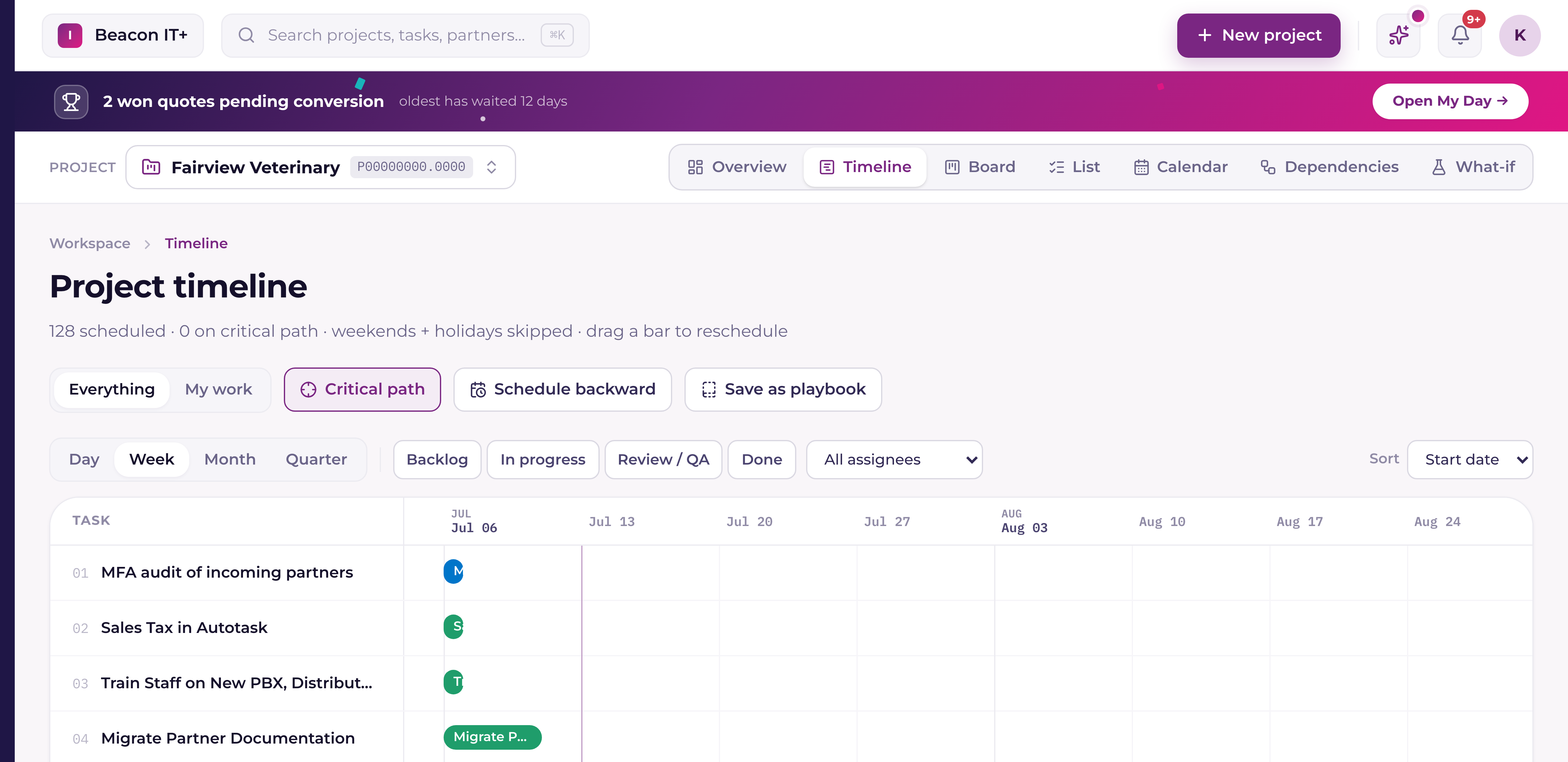
Availability shows up in three places: the Schedule grid (per-person, per-day capacity and color coding), the Timeline (task placement and the "weekends + holidays skipped" note in the header), and What-if (see "What-if scenarios: preview a schedule slip before it happens"). If your team connects Microsoft 365, Schedule can also overlay real calendar busy blocks on top of PTO. That's a live read from Microsoft 365, not something you enter in Current. An Outlook event that spans several days, or an all-day event, blocks every day it covers. And if Microsoft 365 won't return someone's busy time, Schedule and Calendar say "Calendar unavailable" for that person instead of showing them free, so an empty lane is never mistaken for an open day.