
The Calendar: work by date, and adding to a day
Calendar lays work out by date (month, week, or day) for one project or for everything you can see. It sits in the sidebar under Delivery, and it's still on every project's view switcher. Pin a project in the scope bar for just that project's work; leave the scope on All projects and the grid covers the lot.
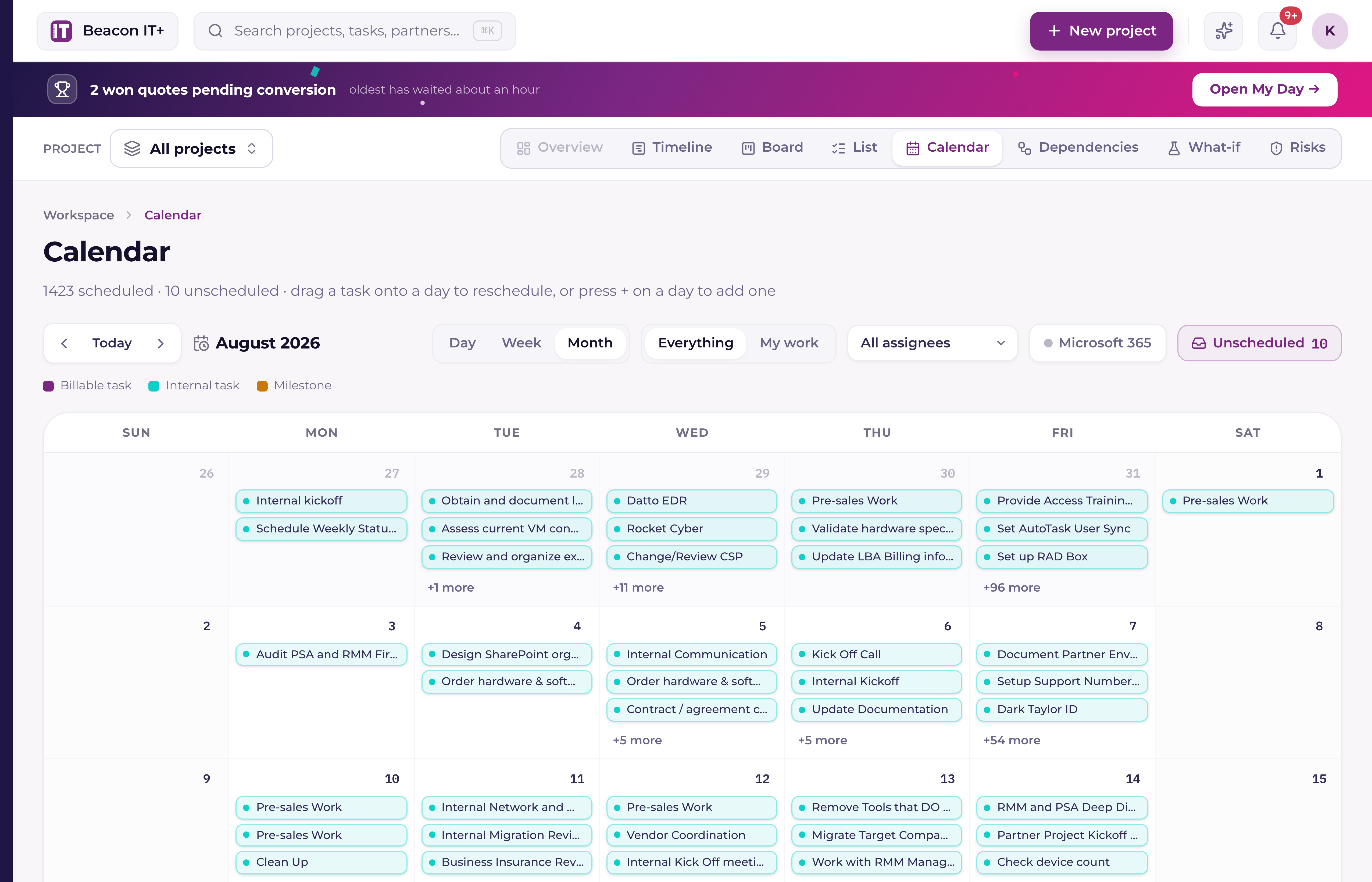
What sits on a day
- +Project tasks, colored billable or internal, with milestones marked. A task spans the days between its start and end dates.
- +Your own to-dos, if they carry a due date. They show on the day they're due, in your local time. A teammate's to-dos never appear on your calendar.
- +Your Microsoft 365 events, when you've connected your account.
- +A "busy" pill counting teammates who are unavailable that day, plus PTO and company holidays.
- +An Unscheduled drawer holding tasks with no dates yet, ready to drag onto a day.
The legend under the grid names the kinds in view, so it stays short on a quiet week.
Drag a task to a new day
Drop a task on a day and Current moves its dates there, snapping forward off weekends and company holidays the same way the Timeline does, so a task can't land on a day nobody is working, and a weekend date can't reach your PSA by accident. Dropping a task back where it already sits writes nothing. On a PSA-synced project the new dates push to your PSA, and on an Autotask-linked project you're asked afterward whether to book a service call on the day it landed.
Your to-dos, and dragging one to another day
Open to-dos of your own with a due date render on the calendar as blue chips, alongside the project work they compete with. Drag one to another day and it becomes due at the end of that day. There's no working-day snap on a to-do, because you picked the day yourself, a Saturday reminder stays on Saturday. If you use Microsoft To Do, the new due date reaches your list there on the next sync.
Add something to a day
Hover any day in month or week view and a + appears in its corner; the day view has an Add button in its header. It opens a small dialog that starts and ends whatever you create on the day you clicked, weekends and holidays included, because you chose the day.
- 1Project taskPick a project, name the task, and it's created on that day with no phase. When a project is pinned in the scope bar it's already filled in and locked, switch the scope to All projects to choose a different one. A task added here is created in Current and stays there, even on a PSA-linked project.
- 2To-doType it and it's due at the end of that day. It's yours alone, it lands in your to-dos on My Day, and it syncs to your Microsoft To Do list.
Showing one person's work
An assignee filter in the toolbar narrows the grid to one teammate. It's hidden while My work is selected, since the two would argue. Unlike the Board and List, the calendar keeps your choice when you page to a month where that person has nothing, so an empty grid means an empty month rather than a filter that reset itself.
My Day carries a Calendar tile with the same week in miniature, your own tasks, Sunday to Saturday, with arrows to page between weeks and a link through to the full grid. See "My Day: your personal cockpit".