
The Kanban board: columns, drag-and-drop, and views
How the Board view's columns map to task status, what the board shows before your first project exists, dragging cards between them, hiding a column, narrowing a view to one person, hiding completed work on the List, deleting a card safely, and the view switcher.
On this page · 7 sections
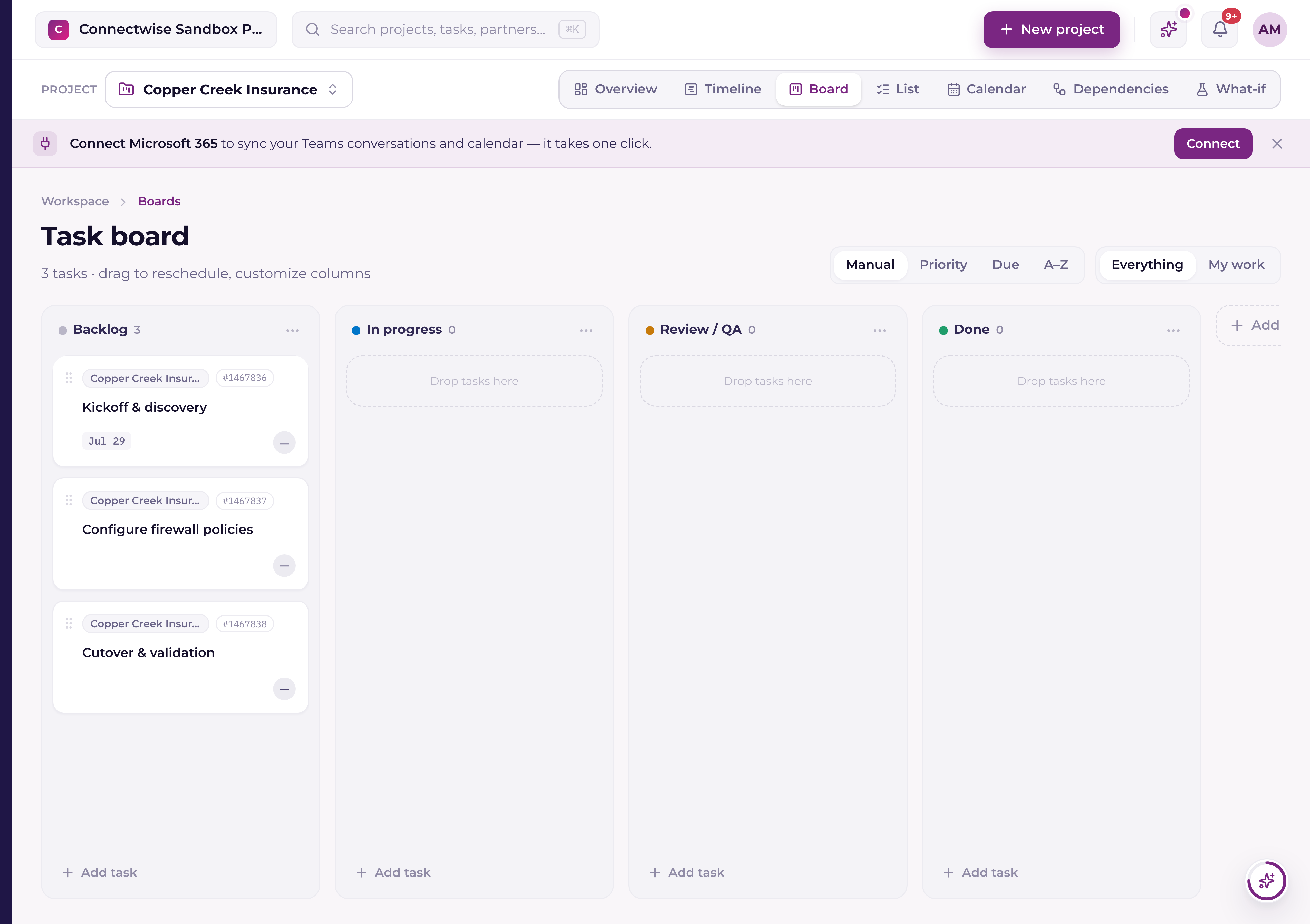
Board is Current's Kanban view of a project's tasks, one column per status, cards you drag between them as work moves along. Columns size themselves to the window; when more exist than fit, the next one peeks in at the right edge with a count of how many sit past it, and that count (or the arrow at the left edge) pages through them.
The default columns
Every project starts with four columns that map directly to task status:
| Column | Task status |
|---|---|
| Backlog | backlog |
| In progress | in_progress |
| Review / QA | review |
| Done | done |
Columns are customizable per project: you can add a new column, delete one, and set a WIP limit on any column to cap how many tasks can sit in it at once. A tenant admin can also give your PSA's own task statuses columns of their own on every synced project's board; see "Your PSA statuses on the project board".
Before your first project
Every task lives inside a project, so a brand-new workspace has nothing for the board to hold yet. Until you create one, the board shows a Create your first project panel with a New project button on it, and the Add task button on each column is switched off with the reason on hover. Make a project and the board fills in with its columns and cards. The Getting Started card in the corner and the Portfolio page both offer the same button.
Dragging cards
- 1Click and hold a cardDrag it into another column to change the task's status.
- 2Drop itThe task's status updates immediately. On a task synced with your PSA, moving it into or out of Done also changes its status in your PSA, and a column of your PSA's own statuses sets that status there; the other lanes change only Current. See "Your PSA statuses on the project board".
- 3Or use the keyboardThe board is fully keyboard-accessible, tab to a card and use arrow keys to move it between columns without a mouse.
Each card shows its dependency load at a glance (how many tasks it's waiting on and how many it blocks), so you can see why a card in Backlog might not be ready to start yet. See "Task dependencies: types, lag, and the dependency map" for the full picture.
Hide a column you don't use
The ⋯ menu on any column header carries Hide column. It changes your view of the board and nothing else: no task moves, no status changes, and your teammates' boards are untouched. Everyone gets that one menu item; rename, color, WIP limit, move, and delete above it still need project-manage rights. Current won't let you hide the last visible column.
A chip at the end of the column row counts what you've put away, "2 hidden", and opens a list of them with each one's task count and a Show every column link. Hidden columns still appear in the bulk status picker, marked (hidden), so work you move into one doesn't disappear on you. The set is kept per board and per person, and it follows you across browsers.
Narrow a view to one person
Board, List, and Calendar each carry an assignee filter beside the Everything / My work switch: pick a name and the view narrows to that person's work. It stacks with everything else. The status and priority filters, the search box, and whichever project is pinned in the scope bar. On the board, column counts and WIP badges follow the filter too, so the board answers what one person has in flight rather than the team. The filter only appears when someone in view is actually named, and on the Board and List it clears itself if the person you picked no longer has work there.
Hide completed work on the List
The List view has a one-click Hide completed toggle next to its status filter, and it's remembered for you across browsers. Set the status filter to Done and the toggle greys out (a line under the header explains why), and it comes back the moment you move the status filter off Done.
Switching views
Every project screen shares the same view switcher, so you can flip between ways of seeing the same work without hunting the sidebar:
- Overview, the project's summary page
- Timeline, the Gantt-style schedule (see "The Timeline view: drag to reschedule, and back-scheduling")
- Board. This Kanban view
- List, a flat, sortable task list
- Calendar, work by date (see "The Calendar: work by date, and adding to a day")
- Dependencies, the dependency map (see "Task dependencies: types, lag, and the dependency map")
- What-if, scenario planning