
The Timeline view: drag to reschedule, and back-scheduling
How the Gantt-style Timeline works: dragging bars, collapsing phases, the cascade-confirm prompt, scheduling backward from a deadline, and the project-scoped 'dependencies out of order' repair.
On this page · 4 sections
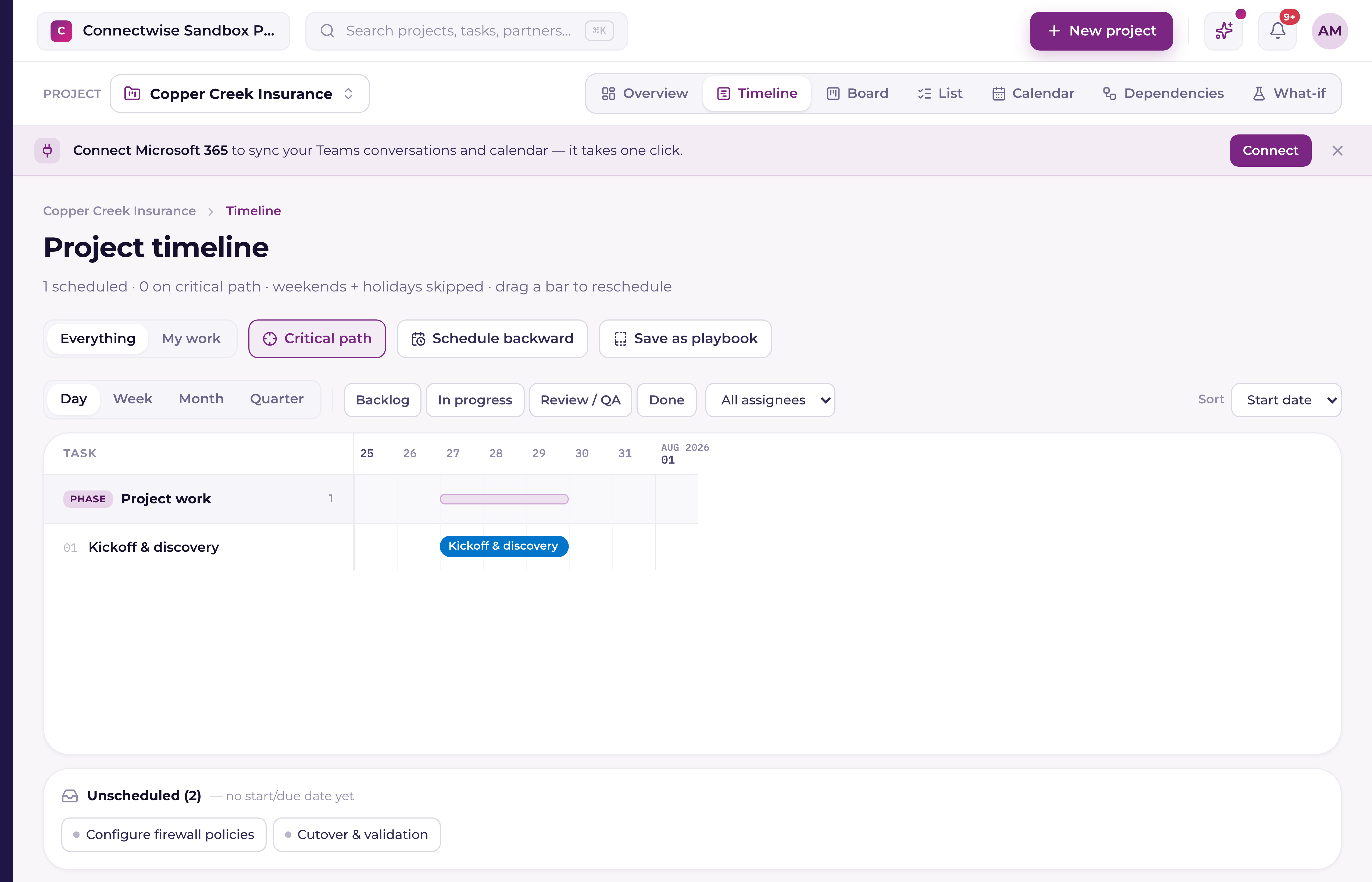
Timeline is Current's Gantt-style view. Every task in the project laid out as a bar against the calendar, so you can see the whole schedule and reshape it by dragging.
Reading the bars
Each task's bar spans its start and end date. Milestone tasks render differently from ordinary task bars so they stand out at a glance. See "Milestones: what they are and where they show up".
Collapsing phases
A project with phases gets a header row per phase, and clicking that row's label folds its tasks away. The phase's own band stays on the chart with its task count, so you keep when the phase runs without every row inside it, useful for showing a long project on one screen. Dependency lines into a folded phase aren't drawn while it's folded.
The Overview and the Timeline share one fold setting per project: collapse a phase in either and it's collapsed in the other, and that follows you across browsers and devices. Tasks with no phase sit in a General group that the Overview can fold and the Timeline shows as ordinary rows.
Drag to reschedule
If you can manage projects, you can drag any bar to move its dates. Current snaps the result so a drag never lands the bar on a weekend or holiday. The Schedule and Calendar views now snap a dragged task the same way, so a start date can't slip onto a weekend on those views either, and a weekend date can't be pushed out to your PSA by accident.
- 1Click and drag a barYou'll see a live preview of the new dates as you drag.
- 2Release to dropCurrent calculates the new start and end, adjusted to the nearest working day.
- 3Respond to the cascade-confirm promptIf other tasks depend on this one, Current shows how many downstream tasks would need to move too, and asks you to confirm before applying anything.
- 4ConfirmCurrent applies the new dates to this task and, if you agreed, the downstream chain, and pushes the change to your PSA on the next sync for PSA-synced projects.
Back-scheduling from a deadline
The Timeline also supports back-scheduling: pick a deadline and Current reverse-schedules every task to the latest dates that still hit it. It never silently violates a dependency that reaches into another project. Cross-project links are honored on both sides. See "What is a critical path (and how Current finds it)" for the scheduling math behind this.