
Send reminders and alerts to your team in Microsoft Teams
Current can send your own people their checklist reminders, hot ticket alerts and service desk alerts in Microsoft Teams. A Teams administrator signs in with Microsoft once so Current can publish your workspace's own Teams app to your organization, a Microsoft admin approves Current once, and the app reaches your team. You choose which alerts go to Teams, whether Teams replaces the email or arrives alongside it, and who gets each kind. By default Teams replaces the email. Email still goes to anyone Teams could not reach, and whenever a Teams message could not be delivered.
Before you start
- +Your workspace uses Current's service desk. This setting lives in Desk settings, so workspaces without the service desk do not see it.
- +You are a tenant admin or a service manager. Tenant admins also see a Put Current in your team's Teams step on the Setup card; service managers start from Desk settings. Other roles do not see the setting.
- +You have, or can sit with, a Teams administrator (to publish the app) and a Microsoft admin who can approve apps for your organization (to approve Current). One Global administrator can do both in a row.
- +Your team works in one Microsoft 365 organization. Current learns which one when the Teams administrator signs in on the Publish step.
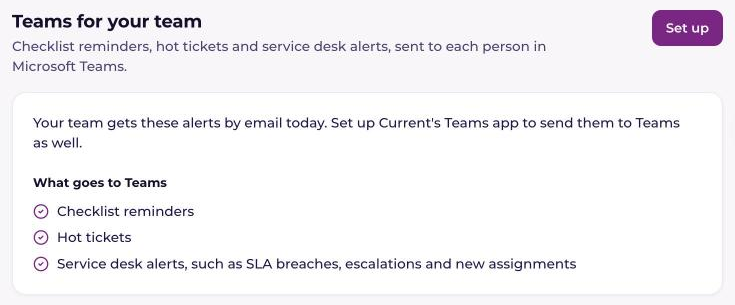
What goes to Teams
- +Checklist reminders: the morning message listing a person's checklist items that are due.
- +Hot tickets: the alert an account's owners get when one of its tickets is urgent, a security incident, unhappy or a billing complaint.
- +Service desk alerts: Assigned to you, A customer replied, Current needs your approval, SLA breach, SLA escalated and Possible outage.
Each message still arrives in the bell in Current. Service desk alerts appear in each person's Teams activity feed. Checklist reminders and hot tickets also start in the activity feed, and move into a one to one chat with the app by themselves once Current knows chat works for your Microsoft organization. In the Microsoft organization where Current's Teams bot is registered, chat works from the start.
Set it up
In the service desk, open Settings, choose Teams for your team, then Set up. The steps open in one window with three parts: Prepare (Check), Connect (Publish, Approve) and Finish (Install, Test and turn on). You can close it and come back at any point; Continue setup picks up where you stopped.
- 1CheckCurrent shows what will happen and who is needed. Choose Continue.
- 2PublishChoose Sign in with Microsoft and sign in as a Teams administrator or a Global administrator of your organization (Microsoft asks you to pick the account, so you can hand the keyboard to your admin). Current builds your workspace's own app, named after your workspace with Alerts at the end and carrying your logo, and publishes it to your organization's Teams app catalog. When it is done the step reads Published, with the app's name and version. Current uses that sign-in for the publish only and does not keep it.
- 3ApproveChoose Approve in Microsoft. A Microsoft admin signs in and approves Current for your organization. Back in Current the check runs by itself and reads Approved, or names the permission that is still missing; choose Check again after fixing it.
- 4InstallOnce Approve passes, Current installs the app for everyone it is for (the people in the alerts you send to Teams, never a partner viewer). The step shows how many are installed, how many are waiting and any problems, each with its reason and a Try again button. This can take a few minutes. You can close the window; Current carries on. If you closed it before Approve passed, choose Install for everyone when you come back. While automatic install is not switched on for your workspace, the step says so and Continue moves on: Current adds the app for nobody yet, and each person can add it themselves in Teams, under Apps › Built for your org.
- 5Test and turn onChoose Send me a test. Current sends you one message and the result says where it arrived: in the chat or in your activity feed. Then choose Turn on. Choose who gets what opens the options below.
The three presses that matter are Sign in with Microsoft, Approve in Microsoft and Turn on. Later, Send alerts to Teams in the section switches every Teams alert on or off.
Choose who gets what
After setup, Desk settings › Teams for your team has one card for each kind: Checklist reminders, Hot tickets and Service desk alerts. Each control saves as soon as you change it.
- +Send to Teams: switch a whole kind off and it goes back to email only. The bell and the email follow each person's own choices, exactly as before Teams.
- +Email: Teams instead of email, or Teams and email. Checklist reminders, hot tickets and service desk alerts all start on Teams instead of email. If your workspace already sent service desk alerts to Teams before this setup, those kept their email too, so Service desk alerts start on Teams and email there. With Teams instead of email, the email still goes when Teams could not deliver the message or cannot reach the person.
- +Who gets this in Teams: Everyone it's for, or Only these, then the roles, pods and people you pick (anyone matching any one of them). Everyone else still gets email.
- +Service desk alerts also have one switch per type under Which service desk alerts, so you can keep, for example, SLA breach and Possible outage in Teams and leave Assigned to you on email.
Each person's own Notifications settings still apply on top. In Notifications, under Microsoft Teams, each person sees a switch for Checklist items due, Hot tickets and Possible outage when your workspace sends that kind to them in Teams. "Your workspace sends this to you by email." means you are not in that kind's Teams audience. "Your Teams app isn't installed for you yet." means the install has not reached you yet; ask your admin if it stays that way.
What the approval covers
Microsoft's admin approval is all or nothing for an app. When your Microsoft admin approves Current, the approval screen lists every permission on Current's Microsoft app, not only the Teams ones: TeamsAppInstallation.ReadWriteSelfForUser.All (install the app for a person), TeamsActivity.Send (post to a person's activity feed), the mail permissions Current's other Microsoft 365 features use (Mail.Read, Mail.ReadWrite, Mail.Send and Sites.Selected), and AppCatalog.ReadWrite.All for every person in your organization. That last one only lets someone who is already a Teams administrator publish apps; Current itself publishes only during the Publish sign-in above. Current uses only what each feature asks for: approving for Teams does not switch on mailbox capture or any other feature.
If your workspace already connected Microsoft 365, nothing that works today stops working before you approve again. Until then, publishing asks for a Microsoft admin's approval first, installing waits for the approval, and alerts keep going by email.
New staff, leavers and updates
- +New staff: once automatic install is on, Current installs the app for a new member of your workspace by itself, within about ten minutes of them joining or moving into a role that gets alerts in Teams.
- +Leavers: when someone is disabled or becomes a partner viewer, Current removes the app from their Teams.
- +Someone removed the app themselves: Current does not add it back. Choose Try again beside their name if they want it again.
- +Your logo or workspace name changed: choose Update the app in Teams. It asks for the same Teams administrator sign-in, then publishes the new version, and Current upgrades everyone's app.
- +Switching Send alerts to Teams off sends every alert back to email. The app stays installed and silent; a Teams administrator can remove it in the Teams admin center (Teams apps › Manage apps).
Prefer to upload the app yourself
On the Publish step, choose Download the zip instead, then Download the zip. You get a zip file built for your workspace. In the Teams admin center: 1. Open Teams apps › Manage apps. 2. Choose Actions › Upload new app, and pick the zip you downloaded. Back in Current, choose I've uploaded it; Current looks for your app as it adds it for your team, and Approve, Install, and Test and turn on work as above. I've uploaded it is offered only once Current has confirmed your Microsoft organization: either it is the organization where Current's Teams bot is registered, or someone already signed in with Microsoft on the Publish step. Until then, someone signs in with Microsoft on the Publish step (Publish with Microsoft instead) so Current can confirm your organization.
If something does not arrive
Each message below is what the setup shows, and what to do about it.
- +"The Microsoft sign-in was cancelled. Nothing was changed." Choose Sign in with Microsoft again.
- +"A Microsoft admin needs to approve Current for your organization first." The account that signed in cannot approve the publish permission. Use Approve in Microsoft first, then publish again.
- +"That account can't publish Teams apps." Sign in as a Teams administrator or a Global administrator.
- +"You signed in to a different Microsoft organization than the one your team uses." Sign in with an account from your own organization.
- +"Most of your team signs in to a different Microsoft organization than the account you used." Sign in with an account from the organization your team uses.
- +"Current can't tell yet that this Microsoft organization is yours." Ask a Global administrator to prove it in Settings › Microsoft 365, then publish again.
- +The organization is already connected to Current as one of your customers' organizations. It can't also be used for your team's Teams app; sign in with your own organization's account.
- +"Another Current workspace already uses this Microsoft organization for Teams." Contact us so we can sort it out.
- +"An older copy of your Teams app is installed." or "Your Teams already has another app that uses Current's bot." Remove the old app in the Teams admin center (Teams apps › Manage apps), then try again.
- +"Microsoft refused the app. Nothing was changed." Try again; if it happens again, contact us. "Microsoft already has this version." Try again in a minute.
- +"A Microsoft admin needs to approve Current before it can add the app for your team." Choose Approve in Microsoft.
- +"Publish your Teams app first." Go back to the Publish step.
- +"Current could not find this person in your Microsoft organization." Their Current email may not be their Microsoft sign-in. They can connect Microsoft 365 in Settings, then choose Try again.
- +"This person does not have Microsoft Teams." Give them a Teams licence, then choose Try again.
- +"Your Teams settings block this app for this person." In the Teams admin center, allow the app in the app permission policy that applies to them.
- +"Microsoft asked Current to slow down." or "Microsoft did not answer." Nothing to do: Current carries on by itself.
- +"Current's Teams connection needs attention on our side." We are told automatically and fix it on our side.
- +"Teams setup for your team is not available yet." This setup is not open for your workspace yet.
- +"The app isn't installed for you yet. Add it for your team first, then try again." Current has not added the app for you yet. While automatic install is off, add it yourself in Teams, under Apps › Built for your org.
- +The test arrived in the activity feed, not in a chat. That is expected until Current knows chat works for your organization. Checklist reminders and hot tickets go to the activity feed in the meantime.
- +The Setup card says Teams setup is partly done, or that Teams alerts are paused. Open Desk settings › Teams for your team to see which step is waiting or what changed (for example, the approval was removed). While paused, alerts go by email.