
CrewHu CSAT: surveys, urgent alerts, and churn flags
Connect CrewHu with one token. Surveys backfill, match to companies, feed company health and SBR packs, and raise an urgent follow-up when someone is unhappy.
On this page · 6 sections
CrewHu holds your partners' own survey answers, and on its own they sit in a CrewHu dashboard. Connect CrewHu to Current and every survey lands against the right company, turns into an urgent follow-up for the person who owns the account, and becomes a permanent signal inside company health, the Relationship Health tile, the AI company read, and your SBR packs.
One token does all of it. Current imports your full survey history first, then keeps up with new surveys every 15 minutes.
Connect CrewHu
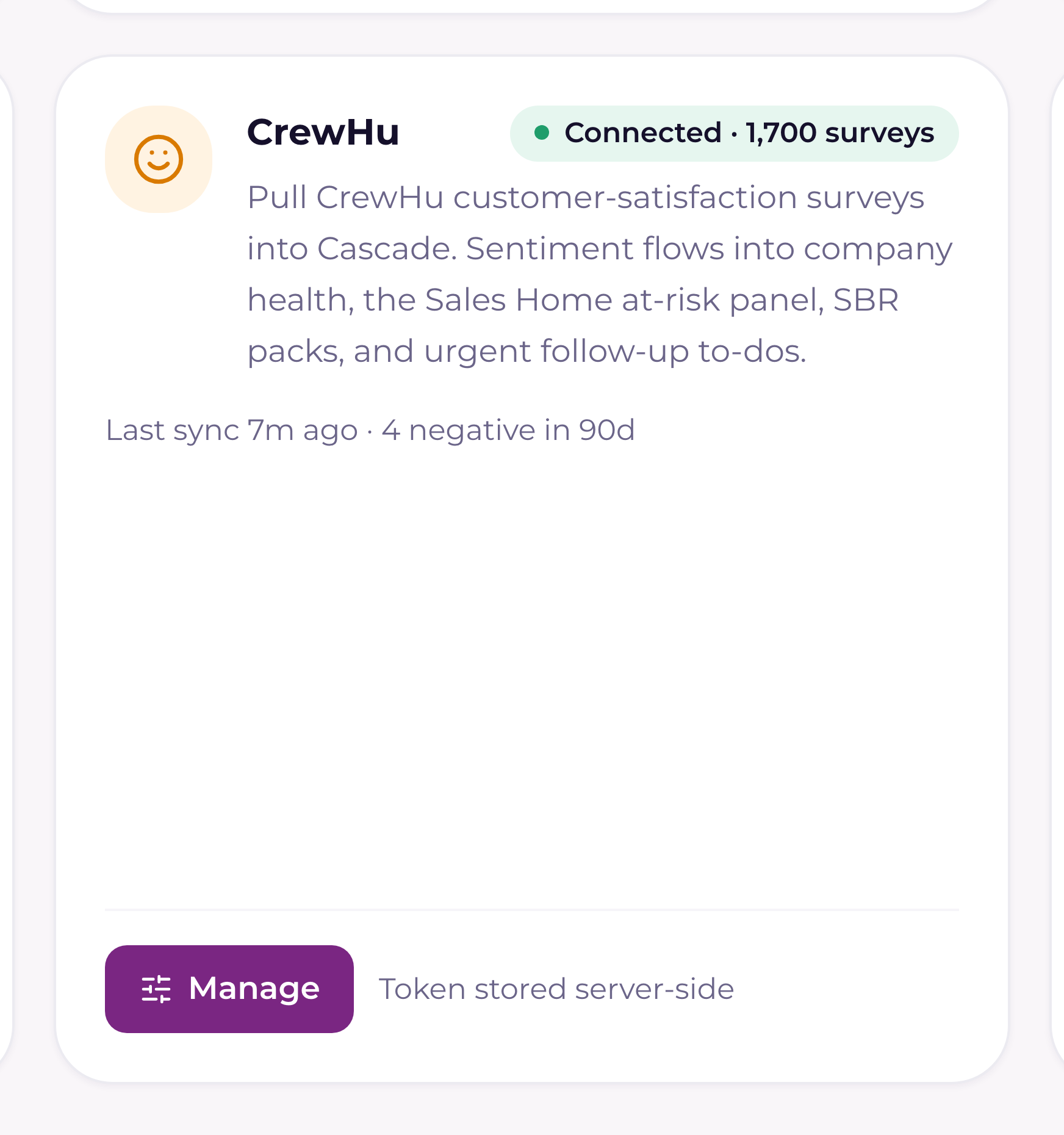
Saving the API token is a Tenant Admin action. Sales leadership runs everything else on the card: Test connection, Sync now, and the alert and churn thresholds. Anyone with CRM access can see the connection status; partners never see any of this.
- 1Copy your CrewHu API tokenIn CrewHu, go to Settings → Integrations → API and copy the token.
- 2Open the CrewHu card in CurrentIn Current, open Settings › Integrations (Tenant Admins only), find the CrewHu card, and press Manage. Two things to know: Settings › Integrations is offered to Tenant Admins and sales managers, and the next step, saving the token, is a Tenant Admin action. A sales manager who isn't also a Tenant Admin can open the card there, and Test connection, Sync now and the alert settings all work for them; Save token answers "Only a Tenant Admin can save credentials."
- 3Paste the tokenPaste it into the CrewHu API token box and press Save token. Current checks it live against CrewHu before storing anything, so a bad token fails immediately instead of silently. The field is write-only. The token is kept server-side and is never shown back to you or to the browser.
- 4Let the history import runSaving the token starts the backfill straight away. The drawer shows an "Importing survey history" progress bar with a running count; it works in the background, so you can close the drawer and keep working. Panels fill in as history lands.
- 5Confirm the connectionPress Test connection any time. Current reports how many surveys the token can see. A fast way to prove the token is still good without touching your data.
How a survey finds its company
A CSAT survey is only useful once Current knows which account it belongs to. Company names in CrewHu rarely match your PSA exactly ("ACME Inc." vs "Acme"), so Current tries five things in order and stops at the first confident answer.
| Match tier | What it uses | Why it's ordered here |
|---|---|---|
| Ticket number | The ticket the survey was sent about, matched against your synced PSA tickets | Strongest link there is. A CSAT survey is about a ticket, and the ticket already knows its company |
| PSA company id | The customer id CrewHu sends, matched against your PSA company ids | Exact when your CrewHu account carries PSA ids. Many don't, which is why the tiers below exist |
| Contact email | The responder's email, matched against your partner contacts | Only counts when every contact on that address belongs to one company |
| Company name | A normalized name match, lowercased, with Inc/LLC/Ltd/Corp/Group and punctuation stripped | Catches the "ACME Inc." vs "Acme" case. An ambiguous name (two companies that normalize the same) never matches |
| Web domain | The responder's email domain against the website on the company profile | Personal domains like gmail.com are excluded, and a domain shared by two companies never matches |
Anything that can't be matched confidently is skipped rather than guessed at, and counted. If any surveys were skipped, the CrewHu drawer says so and gives you two buttons: Run matching diagnosis, which dry-runs the matcher over the 100 most recent surveys and shows how many landed on each tier plus up to ten examples that fell through; and Re-run full sync, which re-fetches and re-matches your entire history.
Alerts: what happens the moment someone is unhappy
CrewHu scores a survey Positive, Neutral, or Negative. Under Survey alerts & churn flag you choose which of those raise a follow-up (both Negative and Neutral are on by default). When a qualifying survey lands, Current does four things in one pass:
- Sends a bell notification to the company's owner and to sales leadership.
- Emails the same people. Each person can mute that email in their own notification preferences; the bell always fires.
- Creates an urgent follow-up to-do for the account owner, due a set number of days from when the alert fires (2 by default, adjustable from 1 to 30). If the company has no owner yet, no to-do is created, the bell still goes to leadership. Because it's a normal Current to-do, it rides through to the owner's Microsoft To Do like any other, if they've connected Microsoft 365.
- Writes an entry on the company's timeline, credited to CrewHu CSAT, so the record shows what happened and when.
The churn flag
One bad survey is a bad day. A pattern is a churn signal. Current raises a churn-risk flag on a company when both of these are true inside the same window: there are at least a set number of negative surveys, and negatives make up at least a set percentage of that window's surveys. Out of the box that's 2 negatives in the last 90 days and at least 25% negative, so a company with two bad surveys out of three flags, and one with two bad out of forty doesn't.
All three numbers are yours to set in the drawer: the window (7–365 days), the negative count (1–50), and the negative percentage (0–100). The flag raises once, alerting the owner and leadership the same way a survey alert does, and clears itself automatically when the company recovers or the bad surveys age out of the window, so a relapse later can raise it again.
Where CSAT shows up in Current
| Surface | What you see |
|---|---|
| The company record | A Customer surveys card: 90-day counts of positive, neutral, and negative, a trend read, a churn-risk banner when the flag is up, and the recent surveys themselves with the partner's comment and the source ticket number. Each row names where the answer came from, so a workspace running both CrewHu and its PSA's surveys can tell them apart |
| Sales home | The Relationship Health tile. A survey churn flag or recent negative survey is one of the signals ranking a company on the churn score, alongside the AI read, contact gaps, renewals, and contracts due. An account executive sees their own book; sales leadership sees every rep's, with an owner tag per row |
| The AI company read | Survey scores are weighted most heavily of all the evidence when they exist. See "The AI company read: what it analyzes and when it refreshes" |
| SBR packs | The CSAT section of a Strategic Business Review, with survey evidence cited. See "Strategic Business Reviews: the QBR, rebuilt on evidence" |
| The integration card | Live counts: surveys synced, negatives in the last 90 days, and companies currently churn-flagged |
Using CrewHu and your PSA's surveys together
Autotask, ConnectWise PSA and HaloPSA each carry a survey feature of their own, and a workspace can read those alongside CrewHu. The switch is in your PSA drawer, and the settings above (which readings alert, the to-do due date, the three churn numbers) cover both sources from the one card.
When CrewHu and your PSA have both scored the same ticket, the ticket counts once and CrewHu's answer is the one that counts. Current drops the PSA copy and keeps the ticket and technician it carried on the CrewHu row, so the 90-day totals, the churn math and the technician leaderboard each count it a single time, and one ticket never raises two follow-ups. Full setup, the permission each PSA needs, and how each vendor's score becomes Positive, Neutral or Negative: "Use your PSA's built-in surveys for CSAT".
For how CSAT combines with tickets, email, and activity into a single risk read, see "Churn and sentiment scoring: reading the risk flags". For how the token is protected, see "How Current stores credentials and secrets".