
Settings: every setting in one place
Since October 10, 2026 every setting in Current lives on one Settings page: your workspace's settings and your own. Open it from Settings at the foot of the left menu, the row with the purple gear just above Help Center. While your workspace still has onboarding steps left, the row says how many, for example 2 left.
The categories
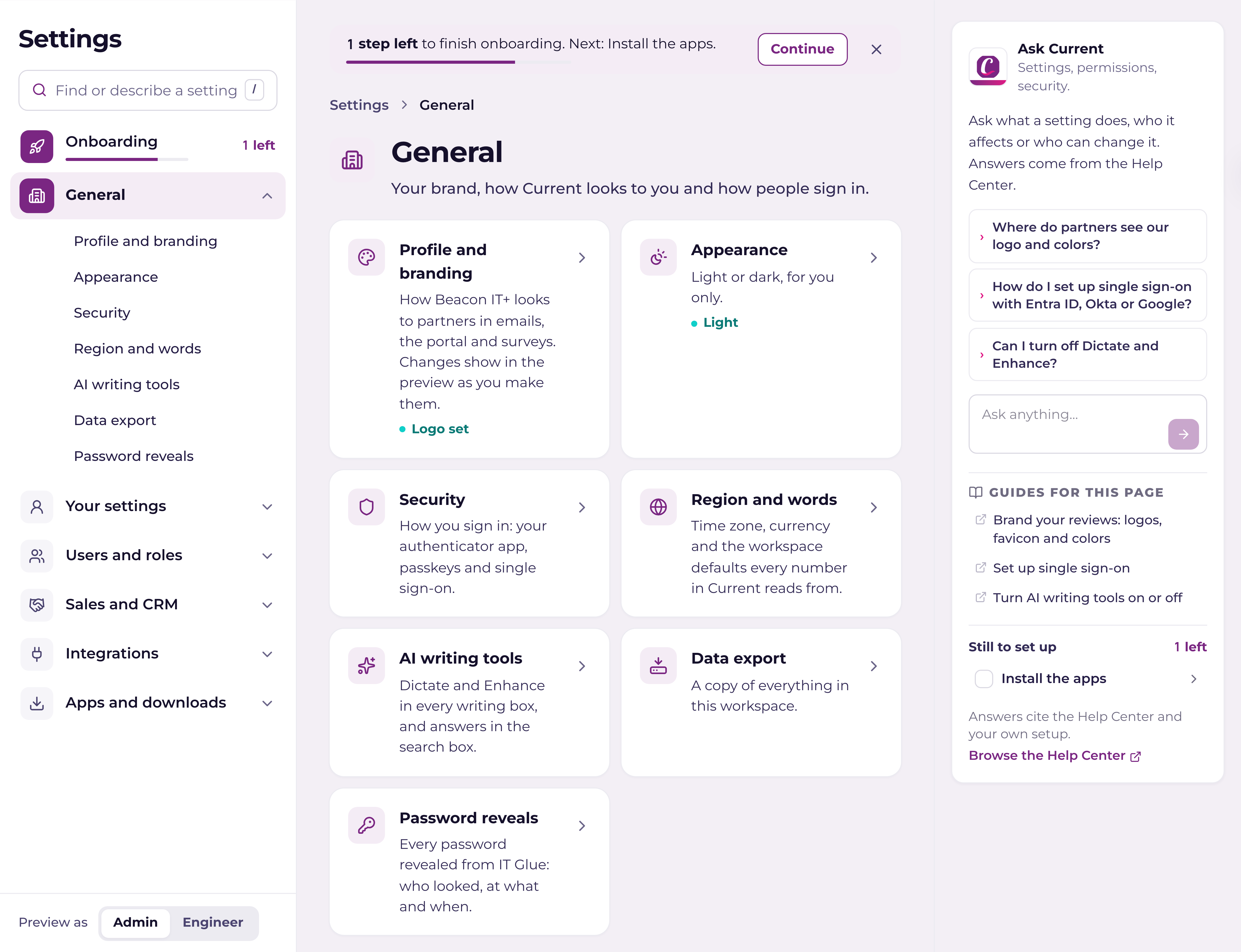
Settings is two levels deep: a category, then the sections inside it. Click a category to see a card for each section, with a short status where Current can tell, such as Logo set, Connected or Needs you. Click a card, or a section's name under the category in the left rail, to open it. Inside a category, sections can sit under bold group titles. The breadcrumb at the top says where you are, for example Settings › Users and roles › Billing.
| Category | What is in it |
|---|---|
| Onboarding | The steps that get your workspace ready, and the readiness checks for each part of Current. Workspace admins only. See "Getting started checklist: your first afternoon". |
| General | Profile and branding (logos, colours, Your story, the value ledger), Appearance, Security, Region and words (time zone, currency, the word you use for the businesses you serve, fiscal year, celebrations), AI writing tools, Data export and Password reveals. |
| Your settings | Your profile and email signature, Notifications, your own Microsoft 365 connection, To Do lists and MCP access. Anyone who is not a workspace admin finds Appearance and Security here too. |
| Users and roles | People (invite, roles, sign-in, pending sign-ins, staff mailboxes), Roles and permissions, Billing and Cost rates. |
| Sales and CRM | Lost reasons, Lead source, Billing owner, Ticket alerts, Tags, Roadmap approvals and Send-as addresses. |
| Integrations | Overview, which shows what your connected tools let Current do, and All integrations, where you connect and manage each tool. |
| Apps and downloads | Current in your browser, in Microsoft Teams and in Outlook. An app that is not out yet says Coming soon and offers Join the waitlist. |
Onboarding: the steps to get ready
While your workspace still has steps left, Settings opens on Onboarding for a workspace admin. Onboarding is one button at the top of the rail, with how many steps are left and a progress mark. It opens an overview of the onboarding areas: Your workspace, People and Apps, each a card with its own ring, how many of its steps are done and its checklist. Press a card to work through that area from its first unfinished step. Each step ticks itself when Current can see it is done (a logo, a teammate, a connected PSA) or when you confirm it. Steps marked Required must be done before Current is ready: connecting your PSA, or choosing to run without one, is one of them. Every other step has Skip for now, which takes it off the count and keeps it on the list to come back to.
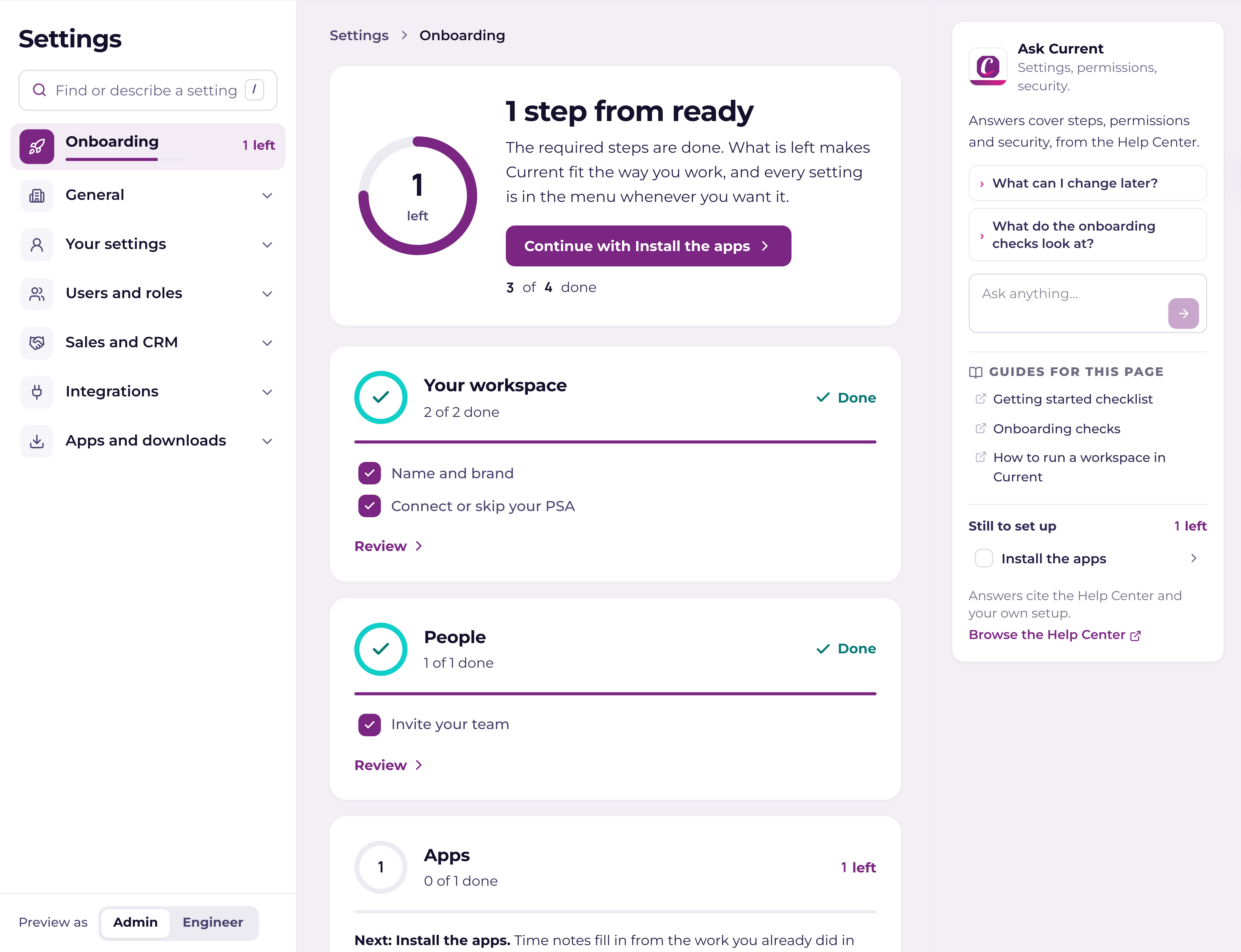
On every other Settings page a strip says how many steps are left, with Continue; its X hides it for now. When nothing is left the page says Your workspace is ready. The readiness checks for each part of Current open from the card at the foot of the page.
You see what you can use
Settings shows each person only the sections they can open. A section your role can't use is not greyed out: it isn't there, and a category with nothing left for you disappears from the rail. A few sections can be read by more people than can change them; those say so at the top, for example You can read this. A workspace admin can change it. Workspace admins can switch Preview as at the foot of the rail from Admin to Engineer to see Settings the way an engineer does. Nothing can be changed in preview.
Find a setting
Type in Find or describe a setting at the top of the rail, or press / when you are not typing in a box. It matches section names and the plain words people use, so dark mode finds Appearance, invoice finds Billing and signature finds your profile. Each result says where the section lives. Use the arrow keys and Enter, or click.
Needs attention
When something needs a person, a strip at the top of the category says what and offers one button to fix it: a connection that stopped working, say, or a payment that is due. General also lists every broken connection, wherever it lives. A red dot beside a category in the rail means the same thing.
Ask Current beside every page
Every Settings page carries Ask Current: a few questions about the page you are on, answered from this Help Center, and a Help Center link at the foot that opens the matching shelf in a new tab. While your workspace has onboarding steps left, it lists the next ones too. It is always open: in a column on the right when the screen is wide enough, otherwise below the page's own settings.
Where the old pages went
| You used to go to | Now it is |
|---|---|
| Settings → Workspace basics | Settings › General › Region and words |
| Settings → Branding | Settings › General › Profile and branding |
| Settings → Sign-in security | Settings › Security (under General for workspace admins, Your settings for everyone else) |
| Settings → My connections | Settings › Microsoft 365 (under Integrations for workspace admins, Your settings for everyone else) |
| Users & roles | Settings › Users and roles › People |
| Integrations | Settings › Integrations › All integrations |
| Billing | Settings › Users and roles › Billing |
| Settings › Onboarding (the checks) | Settings › Onboarding › Readiness checks |
| The Workspace row in the left menu | The Settings row. Holidays, alert routing (Notifications) and the Audit log are in All pages: press / and look under Workspace. |