
Onboarding checks: set up each part of Current
Each part of Current has a short onboarding check: a list of what that part needs before its numbers are right, each with one way to fix it. The checks are Workspace basics, Projects (which covers time), Sales (which covers what you sell and whitespace) and Integrations. Tenant admins work through them; everyone else can see whether setup is finished.
When a check opens
The first time a tenant admin opens Projects, Sales or Integrations, that part's check opens full screen. Workspace basics opens the first time a tenant admin opens Current at all, on My Day. Close it whenever you like. A check opens on its own once per workspace for each part, never in a demo workspace and never while Current support is inside your workspace helping you.
Until the check is finished or ignored, a banner sits at the top of that part, for example Projects is 4 steps from ready, with Continue setup and Ignore this check. Tenant admins also see a dot beside that part in the left menu and on Settings, and a card at the top of My Day that names the next step.
What each check looks at
| Check | What it looks at |
|---|---|
| Workspace basics | Your PSA connection and its last sync, whether everyone who logs time is linked to their account in your PSA, your workspace time zone, the word Current uses for the businesses you serve, your logo, and how your team signs in. |
| Projects | What your PSA lets Current do with projects and time, your PSA's project and task statuses, two-way sync, the work types and roles time entry needs, timer rounding, who approves time, cost rates, holidays, project templates, the project type new projects are created with (where your PSA has one), and Microsoft 365. |
| Sales | Who can open Sales, your pipeline and lost reasons, what your PSA lets Current do with opportunities, companies, contacts and quotes, whether each pipeline stage is matched to a stage in your PSA, whether Sales writes to your PSA, email sending, signatures and mailbox capture, website lead forms, booking links, HubSpot, quoting, commissions, sales goals, your offerings, and whether every service on your contracts is matched to an offering. Whitespace reads from that last one. |
| Integrations | Whether your other tools are connected (RMM, backup, security, documentation) and, for each connected tool, whether it is syncing and whether its accounts are linked to a partner. |
A workspace that runs Current without a PSA sees its PSA lines as Nothing to do, so they never hold a check open.
What each line's state means
| State | What it means | Counts as done |
|---|---|---|
| Ready | This is set up. | Yes |
| Nothing to do | It doesn't apply to your workspace, for example a PSA line when you run without a PSA. | Yes |
| To do | Required and not set up yet. | Once it is fixed |
| Optional | Useful, not required. | Once you set it up, or press Not using this or Keep as is |
| Check this | Set up, but a person should look at it, for example a pipeline stage matched to your PSA by name only, or Sales writing to your PSA in test mode. | Once you fix it, or press I checked this |
Fixing a line
Every line has one action. Some lines are fixed right there in the check. The rest take you to the exact page where the setting lives, and when you come back the check opens again where you left off.
Three lines are fixed in place. In each one Current fills in a suggestion for every row, and nothing is saved until you confirm that row:
- +Linking people to your PSA. For each person who logs time without a linked account in your PSA, Current suggests the account with the same email, then the one with the same name. Press Link on each suggestion that is right. A person with no match stays on the list until you add them in your PSA and run a sync, because their time has nowhere to go until then.
- +Matching pipeline stages. Each column of your pipeline needs an opportunity stage from your PSA, so a deal lands in the right place there. Current reads your PSA's stages, suggests one for each column and says how close the match is (Close match, Likely match, or A guess, check it). Press Confirm on each row. A stage a sync matched by name only shows as Check this until you confirm it.
- +Matching services to offerings. Each service on your contracts should belong to one of the offerings you sell, which is what lets whitespace show who buys what. For each service Current suggests an existing offering, a new offering, or Not something we sell. Press Confirm on each row. For example, a service called BDR Server Plan might go to your Managed backup offering. A new offering asks for its name first, filled in with Current's suggestion.
Optional lines: Not using this
An optional line asks once. When it doesn't apply (you don't use website lead forms, say, or you don't pay commission), press Not using this and the line passes for good. Keep as is does the same where the current setting is what you want, such as keeping emailed sign-in codes instead of single sign-on. The line shows who answered and when, and you can change the answer later from Settings › Onboarding.
The PSA check only reads
The Projects and Sales checks each offer Run the PSA check. It connects to your PSA as Current's API user and reads. It never creates, changes or deletes anything in your PSA. Only a tenant admin can run it, and a workspace without a connected PSA doesn't need it.
- +Projects: whether the API user may create and update projects, phases, tasks and time entries, and which of your PSA's project and task statuses Current can't place.
- +Sales: whether the API user may create and update opportunities, companies, contacts and quotes. It also reads your PSA's opportunity stages, which the stage matching uses.
When a permission is missing, the line names it, so you know what to grant on the API user's security role before you run the check again. Some PSAs don't publish what their API user may write. There the line says the first change Current sends will prove it, and asks you to tick it once you've checked the security role yourself.
Ignoring a check
If a part of Current isn't for you, press Ignore this check on its banner (or Ignore on Settings › Onboarding) and type IGNORE to confirm. That part's banner goes away for good, and the other checks are not affected. Current records who ignored it and when in the audit log. Reopen it any time from Settings › Onboarding.
What the rest of your team sees
Only tenant admins work through the checks. While a check is unfinished, everyone else who opens that part sees one quiet line, for example Your admin is still setting up Projects, so some numbers may be incomplete. They can see each check's state on Settings › Onboarding but can't change it. Partner viewers see none of it.
After a check is finished
When every line is done, the check marks itself ready, and its banner and dots go away. Current keeps checking. If something changes later (a new hire who isn't linked to your PSA, a tool that stopped syncing), the big banner doesn't come back. A tenant admin sees one small amber line at the top of that part, for example Projects needs a look: 1 thing changed since setup finished, and a red dot beside that part and on Settings in the left menu. Settings › Onboarding shows the part as Needs a look until the line is fixed.
Settings › Onboarding
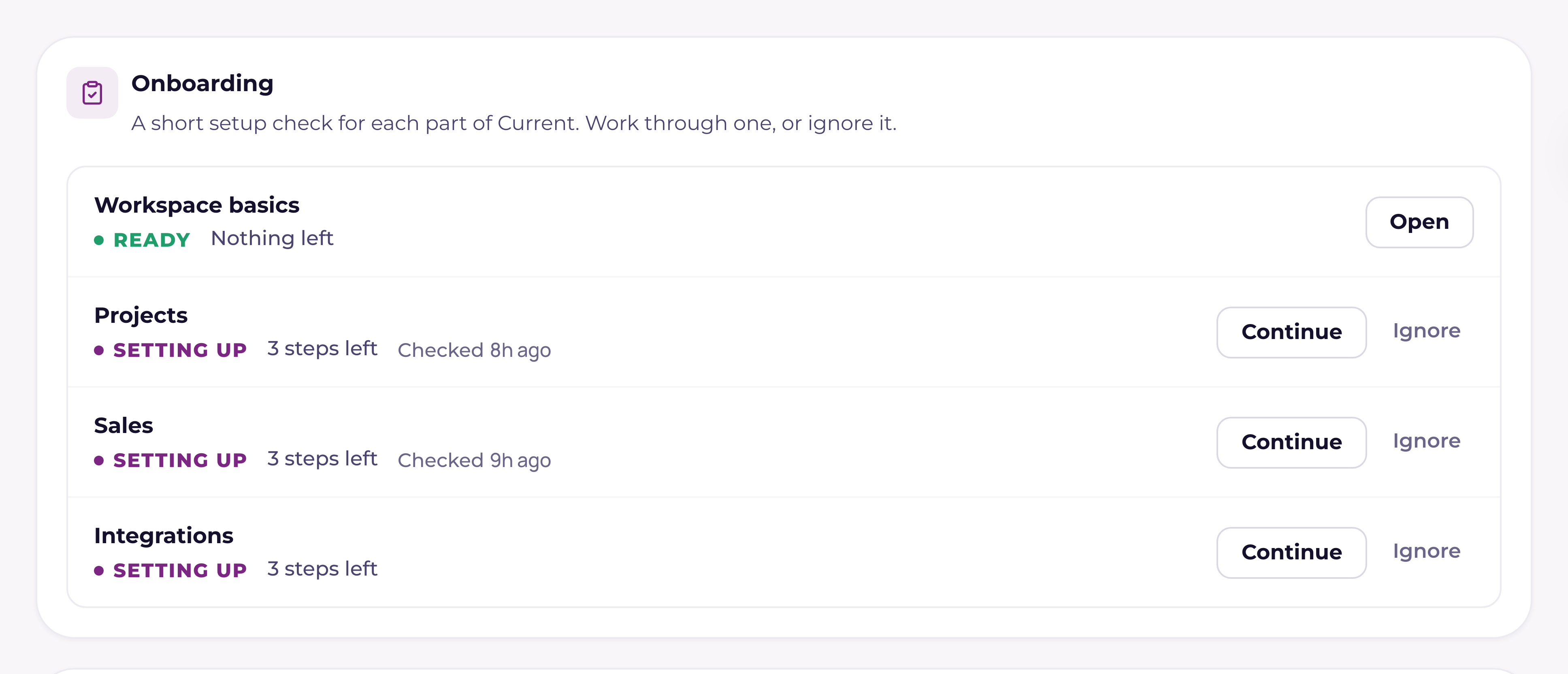
Settings › Onboarding sits first in the Workspace group. It lists every check with its state (Setting up, Needs a look, Ready, Ignored, or Off when that part isn't switched on for your workspace), how many steps are left and when it was last checked. Open or Continue goes into a check, Ignore ignores it, and Reopen brings back one you ignored.
New projects sync to your PSA by default
When your PSA is connected and ready to build projects (a partner is linked to a company in your PSA), the New project dialog now starts on the synced mode, named for your PSA, so a new project is created in your PSA as well. You can still choose Current-native for any project you want to keep in Current only, such as internal work. Without a connected PSA, new projects start as Current-native as before. See "Project modes: PSA-synced or Current-native".