
Onboarding sessions with our team
How we onboard you: setup in Settings, a free live setup session, email help from our onboarding team, and live remote sessions you book yourself.
On this page · 9 sections
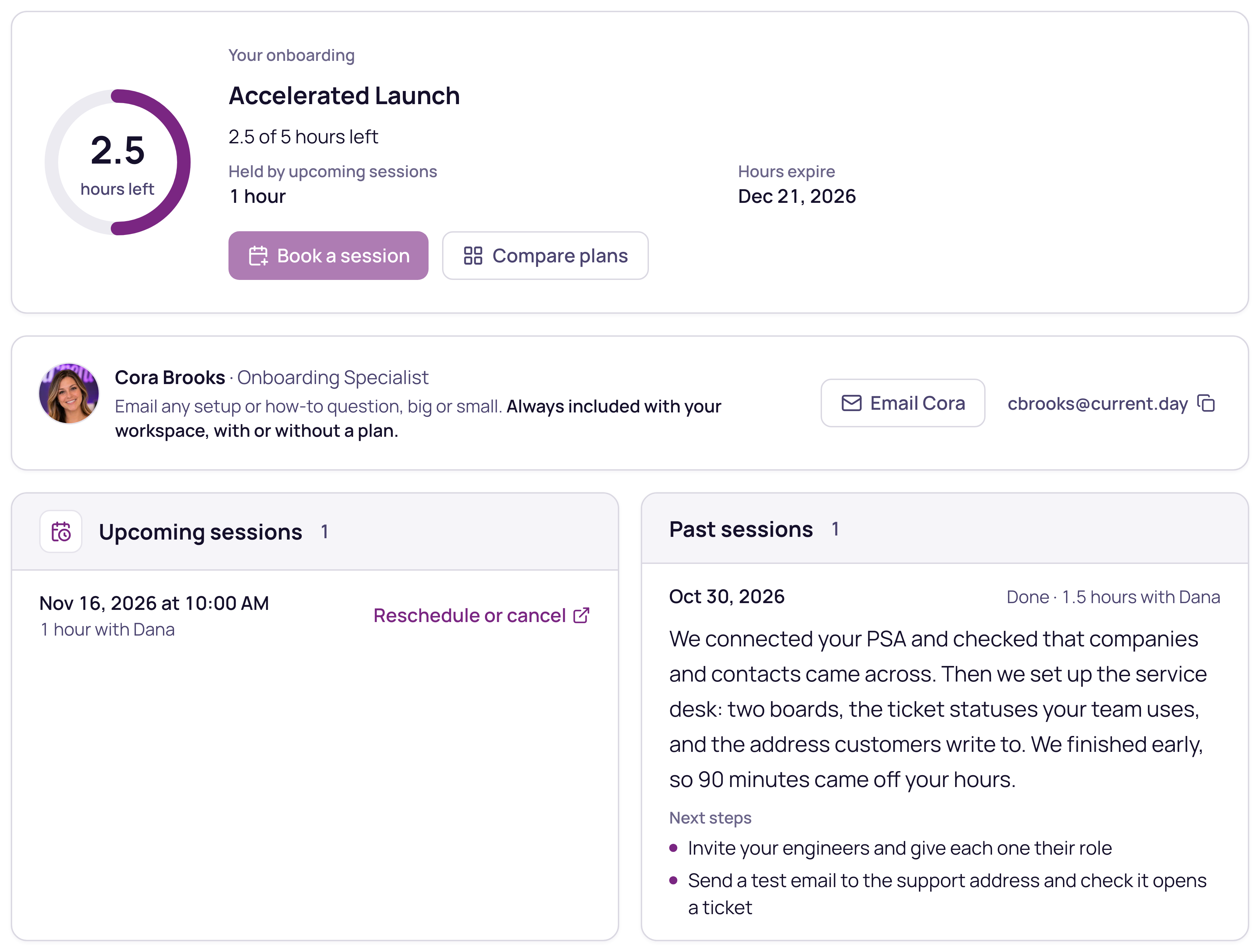
Every workspace gets help setting up Current at no charge: step-by-step setup inside the product, email help from our onboarding team, and one free live setup session. When you want more time with us, an onboarding plan adds more live sessions.
Every session is a live video call with screen sharing: we guide, and you click in your own workspace, so what you set up is yours from the start.
How we onboard you
- 1Start the setupOpen Settings › Onboarding. The setup steps there walk you through connecting your tools, inviting your team and turning on what you need, and the readiness checks show what is left.
- 2Add your free setup sessionA tenant admin adds the workspace's free live setup session with one press. Nothing is charged.
- 3Book a timePress Book a session, tick what you would like to cover and pick a time that suits you. Current suggests the setup steps you have not finished yet.
- 4Work through it liveJoin the video call. Our onboarding team guides you while you click through the setup in your own workspace.
- 5Read the recapAfter the session your host writes a short recap with next steps, which appears under Past sessions.
- 6Keep goingUse Learn Current for your role, email our onboarding team with any question, and book more sessions whenever you want more time with us.
Included with every workspace
- One free live remote setup session with our onboarding team. A tenant admin adds it with one press, with or without a plan, and you book it like any other session.
- Email help from our onboarding team for any setup or how-to question, for as long as you use Current.
- Step-by-step Current setup in Settings › Onboarding, with readiness checks that show what is left.
- Learn Current, a Day 1, Week 1 and Month 1 path for your role, with walkthroughs and screen tours.
- The Help Center, with step-by-step articles and an Ask box for how-to questions.
- What's New, so you see every improvement as it ships.
Email our onboarding team
Our onboarding team answers a wide range of setup and how-to questions by email. Press the email button on the Onboarding Specialist card in Settings › Onboarding or on the Learn page. Email help is always included with your workspace, with or without a plan, for as long as you use Current.
Your free setup session
- 1Find itOpen Settings › Onboarding. Without a plan, press See plans: the Included row on top has Book my free setup hour. With a plan, the line under your hours card has Add my free setup hour.
- 2Add itRead what it is and press Add my free session. Nothing is charged.
- 3Book itPress Book a session right away, or later from the hours card, which shows when your hours expire.
Each workspace can add its free session once, with or without a plan. Without a plan, it becomes your onboarding hours, to use within the number of days the confirm shows, counted from the day you add it, and a plan you add afterwards puts its full hours on top. With a plan, its time joins your plan's hours and expires with them, on the date your hours card shows.
A purchase that is still waiting stops the free session from being added. If you have a plan purchase open, choose the same plan again to finish it, or press Close my open purchase and then add the free session. If a purchase our team set up for your workspace is waiting, pay it from the invoice we emailed, or reply to that email and we'll cancel it. If your current onboarding hours have just ended, try again in about an hour and the free session will start fresh. While your workspace is read-only until its billing is settled, the free session can't be added: settle billing in Settings › Billing first.
More live sessions with a plan
An onboarding plan adds a bank of live session hours with our onboarding team. In Settings › Onboarding, press See plans to compare them: each plan shows its hours, how long the hours last and what it includes. A tenant admin chooses a plan and adds it right there, and the confirm shows exactly what will happen before anything is charged. The hours are ready as soon as it goes through.
Settings › Onboarding is for tenant admins. Everyone else on your team finds the Onboarding Specialist card on the Learn page, and once there are hours, the hours left and Book a session there too.
Book a session
- 1Open the pageOpen Settings › Onboarding, or the Learn page if you are not a tenant admin, and press Book a session.
- 2Choose what to coverTick what you would like to cover. Current suggests the setup steps you have not finished yet, and you can add your own.
- 3Pick a timeChoose a length, from 30 minutes up to 2 hours, and a time. Only lengths that fit the hours you have left are offered.
Anyone on your team can book from the shared hours, and a tenant admin sees who booked what. People who don't sign in to Current can book too: Copy booking link gives you your workspace's own link to share. Keep it inside your company, because anyone with it can book against your hours. If it ever goes further than it should, ask us for a new one and the old link stops working.
How the hours come off
When you book, the session's length is set aside, so the hours you see are always what is free to book. When the meeting ends, the time comes off. If a session runs shorter or longer, your host corrects it afterwards. Your host also writes a short recap with next steps, which appears under Past sessions.
Cancelling and rescheduling
Cancel or move a session 24 hours or more before it starts and nothing comes off. Inside 24 hours, a cancelled session or one nobody joins uses the time that was booked. You can move a session inside 24 hours once without using the time. If our side cancels, nothing ever comes off.
More hours, upgrades and expiry
Buy more hours adds hours to your plan, and Compare plans shows the bigger plans you can move up to, with your hours already used carried over. While your free setup session is the only thing on your hours card, a plan you choose adds its hours on top. Hours last for the time shown on your plan. Current emails your tenant admins two weeks and three days before unused hours expire, so there is time to book.