
Your first 15 minutes: the setup wizard
What the setup wizard asks a brand-new workspace for, in order: two defaults, the PSA step (Autotask, ConnectWise, HaloPSA, Syncro, Rev.io, SuperOps, connect it later, or none), keeping noisy queues out of health scores, the first sync, who gets a login, then the card and trial with your seat count, and finally inviting your team.
On this page · 8 sections
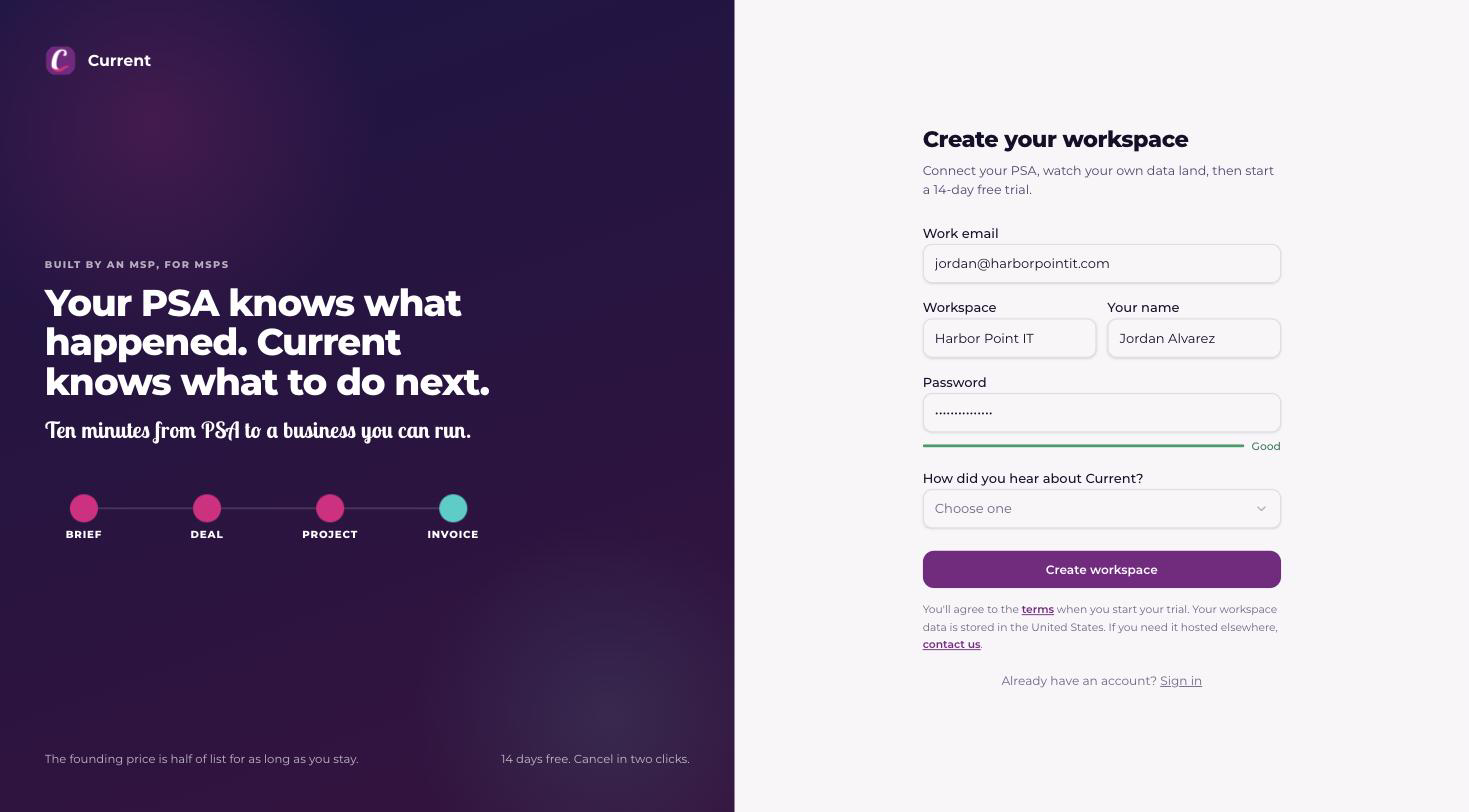
The moment you create a Current workspace, a short setup wizard takes over, and the app itself stays out of reach until it's done. It takes about 15 minutes: which PSA you run (if any), a first look at your own data, how you'd like to pay, and who's on your team. The card comes after your data on purpose, so you see Current working before you start the trial. Your progress is saved at every step, so closing the tab and coming back tomorrow picks up exactly where you left off. Teammates who sign in before you finish see a "your admins are still setting up Current" note rather than a half-configured workspace.
A new workspace starts from a work email. The signup form refuses a personal mailbox address, such as Gmail, Yahoo, Outlook.com, Hotmail, iCloud, Proton, GMX or an internet provider's mailbox, and asks for your work address instead. This applies only to creating a workspace: a teammate invited to an existing workspace can join with any address, including a Gmail one, by opening the link in their invitation, and signing in with single sign-on is unaffected.
Step 1: two defaults
The first screen asks for two things and nothing else, both pre-filled from the time zone you signed up in and both changeable here or later in Settings › General › Region and words: the currency your workspace keeps its books in, and your time zone, which is what Current means by today, this week, this month and this quarter. The time zone shows what the clock reads there, so you can check the guess before you carry on. A progress rail on the left groups everything ahead into three chapters (your workspace, your business, your team) and each step's button sits in a bar at the bottom of the card, always in view. Your workspace was named at signup, where the form also asks how you heard about Current (a referral or "somewhere else" can carry a name or a place). If your email is on your own domain, Current pulls your site's icon once and shows it beside your workspace name from here on; you can replace it or pull it again from Settings under Branding.
Step 2: choose your PSA (or none)
The PSA step is a picker. Autotask, ConnectWise PSA, HaloPSA, Syncro, Rev.io, SuperOps, or "We don't use a PSA", and everything after it follows your choice: the prep checklist, the credential form, the mapping step, and the first sync are all shaped by the provider you pick. See "Autotask, ConnectWise, HaloPSA, Syncro, Rev.io, or SuperOps: choosing your PSA" for how to decide.
- 1Run the prep checklist for your providerAutotask: an API-only user, the right security level, resource emails that match your team's Current sign-in emails, an active project type, and a billing code, each item links into "Prepare your Autotask before onboarding: the setup checklist". ConnectWise: an API Member with a least-privilege security role, the key pair, and your company ID and site URL, each item links into "Prepare your ConnectWise before onboarding: the setup checklist". A missed item here usually surfaces as an empty or errored entity at first sync.
- 2Enter credentials and testAutotask: the API user's username, secret, and tracking identifier (under API Tracking Identifier, choose Custom (Internal Integration) and copy the identifier Autotask shows). Current discovers your Autotask zone automatically. ConnectWise: site URL, company ID, public key and private key; if your ConnectWise is on eu.myconnectwise.net or aus.myconnectwise.net and you typed the North America address, Current tries the other regions with the same keys and tells you which one it used. Either way, a test connection runs before anything is saved, and a failure names the field to change.
- 3Know what the test does and doesn't proveFor Autotask, HaloPSA and Syncro, a passing test proves the credentials are right. It can't prove the API user has permission to see everything, so a permission gap sometimes only shows up at first sync, as an entity that comes back empty or errors. That's a permission gap, not a broken connection: the first sync names the area, and "Reading the sync health dashboard (and fixing a stale sync)" covers the rest. For ConnectWise, the test also reads every area the first sync needs and lists any security-role line that is missing in one go; fix the role and test again, or press Connect anyway and fix the role later.
No API user at hand? The PSA step has two ways forward that keep your PSA in the plan.
- 1Connect it laterThe button in the bar at the bottom of the PSA step records that you run a PSA and will connect it from inside Current. The wizard carries on to the card and your team exactly as it does without a PSA, and nothing is imported yet. Inside the app, the setup check and the PSA banner keep asking you to connect it, until you do, from Integrations.
- 2Send the setup steps to whoever has the admin keys"Someone else has the admin keys? Send them the steps" asks which PSA you run and your teammate's email address, then emails them the three steps to create the API user for that PSA and a link to its full setup checklist in this help center, which needs no sign-in. It creates no account and invites nobody. The email asks them to hand the values back through a password manager, never in an email reply. Each credential form has the same link, with its PSA already picked. A tenant admin can send up to five of these an hour.
Under the choices, three small pictures show what a connected workspace looks like: My Day's ordered list of tickets and tasks, a project board and a project timeline.
Step 3: keep the noise out
If you connected a PSA, one short review stands between the connection and the first sync. Your PSA's ticket queues (Autotask) or service boards (ConnectWise) hold more than the work your customers ask for: alert and monitoring tickets, RMM automation, backup and BDR jobs, and spam or internal-IT chatter. Current badges those four kinds "Recommended off", because they're machine noise rather than customer demand, but it only ever recommends. Current never turns a queue or board off for you; you decide.
Turning a noisy queue or board off hides its tickets from Current immediately, so they stop skewing support history, sentiment, SBR stats, and AI insights. Nothing is deleted: flip it back on later and every ticket Current already synced reappears instantly, with new activity syncing again right away (tickets created while it was muted only return once an admin with CRM access runs a full ticket re-sync). You can do all of this here, or any time later from your PSA's Manage drawer under Integrations, and change your mind as often as you like. See "Ticket-queue noise: which queues and boards to sync, and which to mute".
This step also carries your won-quote settings, how a won quote gets fulfilled in your PSA: the default project type or board, the post-sale ticket queue or board, the waiting-on-order status, and the default procurement person. On Autotask it additionally carries industry mapping, which lines your company industries up with Autotask's Market Segments (ConnectWise has no Market Segments equivalent, so that panel simply doesn't appear for ConnectWise workspaces). Ticket-queue and board settings need no CRM access, so any tenant admin can manage them; industry mapping does need CRM access, and if whoever is running setup doesn't have it, the wizard says so and lets you defer that mapping to Integrations later.
Step 4: the first sync
If you connected a PSA, Current now pulls in the record types your PSA supports, such as companies, contacts, tickets, people and time entries. SuperOps projects and opportunities stay in Current. The sync screen shows them arriving: one ring per record type, and a count of the records that are actually in your workspace right now. It does not wait for you. After a few seconds the screen moves itself on, and from then a small indicator in the header keeps the progress in view on every later step; click it to come back. The import carries on server-side whatever your browser does, and it resumes exactly where it stopped if you close the tab. A very large first pull finishes through the background sync that runs every five minutes, so the counts keep climbing after the wizard's own pass ends. If a record type stops on a permission your API user does not hold, that type says so by name, the screen waits for you instead of moving on, and everything else still lands.
Step 5: who gets a login
Everyone your PSA knows about, in one list, and one decision: who needs a login. Three different numbers are named out loud at the top, because they are easy to confuse and only one of them costs money. People IMPORTED is everyone the sync found. LOGINS is who you tick here. SEATS is what you pay for, which is the number of logins or the three-seat minimum, whichever is larger. Current pre-ticks you, anyone who already has a Current login, and anyone whose PSA title reads as a project manager or project engineer; every one of those can be unticked before you reach the card. Your choices are saved to the workspace, not to the browser, so finishing setup on another computer or phone shows the same people ticked and the same seat count.
Set each person's role here too. The PSA's own job title sits beside them as a hint with a "Use hint" link, and it is only ever a hint: Current never assigns a role from a title on its own. Administrator, project manager, project engineer, technician and account executive are the five choices, and all of them can change later in Users & roles. Anyone whose PSA email does not match a Current sign-in can be linked by hand at the bottom of this step, or simply invited on the last step, where they match themselves.
Step 6: the card and the trial
The card is the last thing setup asks for, after your PSA, your first sync and your logins, and it is required before you can enter Current. The step reads as a receipt: what is due today (nothing), what the first charge is and on what date, and the seats and price that add up to it. Starting the trial is also where you agree to the Terms of Service, the Privacy Policy and the Data Processing Addendum: the signup form said the ask was coming, and this is it. Nothing is charged today and the first charge lands on day 15 (day 31 when another MSP referred you, because a referred workspace gets a 30-day trial); Current emails the exact amount again three days before it happens. Cancel any time during the trial (a one-line reason is all we ask) and you are never charged. If you press Start free trial before ticking the terms box, Current scrolls to the box and says so beside it. No card yet? You can leave setup and come back: it stays open for 7 days after you sign up, and after that the workspace becomes read-only until the trial is started on this step. Nothing is deleted. See "Cancelling your subscription (and what happens after)".
This step is also where you pick a plan and seats. For Round 1 founding workspaces (the first 100 MSPs) the rate is $50 per user monthly, or $45 per user billed yearly, locked for as long as your subscription stays active (list price is $149 / $134 after Round 1). The toggle shows the live math for your team size. Seats are a pool you buy (minimum 3): buy what you'll actually deploy, because adding more later is a two-click prorated charge, not a negotiation. Seat changes during the trial are free, and the first charge bills whatever you settled on. There's a billing-email field here too, so you can point invoices at accounting@ right from the wizard. Current's own subscription is billed in one of six currencies, chosen here and shown on the receipt, whatever currency your workspace runs its books in. The full pricing picture is in "Seats, pricing, and what counts as a user".
Step 7: invite your team
The people you ticked on step 5 are already listed here, with their roles and the email addresses your PSA holds, so most workspaces only have to press Send. Anyone with a missing address gets an amber box to fill in. A seat meter sits beside the button. If an invitation is created but its email doesn't go out, the row says Not emailed and tells you what to do: copy the link from Users & roles, or, when the person already has a Current account in another workspace, email support@current.day to move them. This step is skippable, and invitations are free while the trial runs. Roles decide what each person sees; see "Invite team members and assign roles" and "Roles & permissions: who sees what".
After the wizard: where everything lives
- Settings › Integrations. Your PSA, Microsoft 365, and every other connector, including the one you may have skipped.
- Billing (your initials menu, top right, or Settings › Users and roles › Billing, admins only), plan, seats, invoices, card, and the trial countdown. See "Manage your subscription: seats, plans, cards, and invoices".
- Help. On a computer, the How do I… tab on the right of every page opens answers from this help center beside the page you are on; Get Help ↗ in the same menu (or /help) opens the full help center in a new tab.
- The in-app getting started checklist takes over from here, see "Getting started checklist: your first afternoon" for the rollout order that works.