
For you: what needs your attention
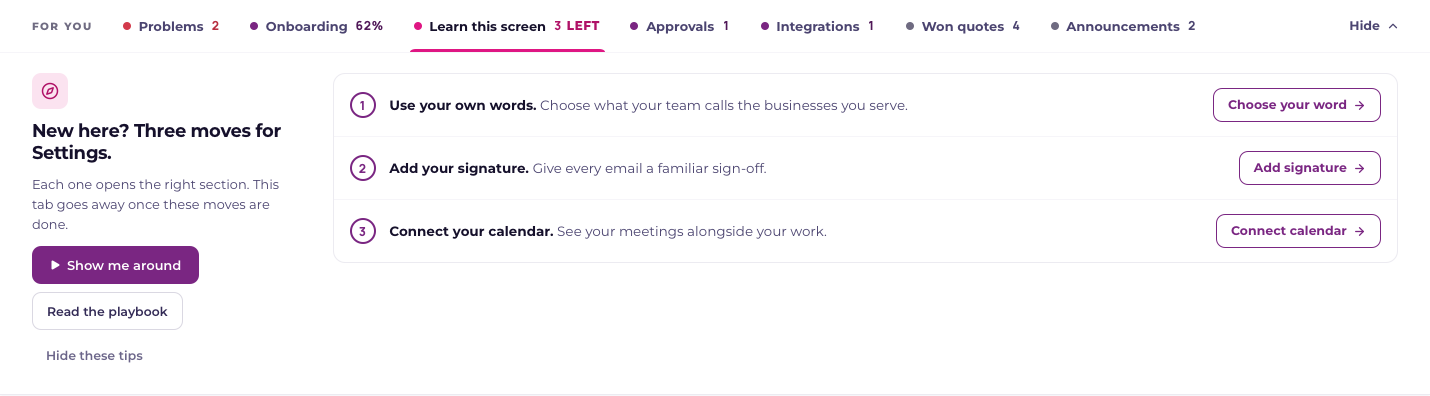
For you sits below the top bar in your workspace. Its tabs gather the things that need your attention. A tab appears only when it has something to show, and the whole panel disappears when nothing is waiting.
Choose what to work on
| Tab | What you can do |
|---|---|
| Problems | Reconnect a tool or review a sync that stopped working. |
| Billing | See why the workspace is read only. Admins get a link to Billing; everyone else sees who can help. |
| Onboarding | Admins continue the workspace setup checks. Other staff can finish their own first steps, such as opening a project and connecting their calendar. |
| Learn this screen | Try three useful things on the page. Each task checks off when Current can see it is done. Show me around replays the guided tour; Read the playbook opens the help article in a new tab. |
| Approvals | Workspace admins review waiting sign-ins, permissions and their Microsoft 365 connection. |
| Integrations | Link accounts from a connected tool to the matching record. |
| Won quotes | Go to My Day to turn a won quote into a project. This tab shows counts and age, with names and amounts kept on My Day. It is absent on My Day and the service desk. |
| Announcements | Read releases, planned maintenance and vendor updates that apply to your workspace. A new version of Current offers Refresh to return to the same page on the latest build. |
Hide the panel or dismiss one item
Hide folds the panel to its tabs. Show opens it again, and picking a tab opens that tab. Current remembers your choice for this workspace in this browser. A new problem or billing issue opens the panel again so it does not get missed.
An item’s dismiss button follows that item’s own rule. A stopped connection returns after 24 hours if it is still broken. A permission or account-matching reminder stays hidden until its situation changes. Pending sign-ins return when someone new arrives. Some announcements can be dismissed; a new-version reminder stays until you refresh.
Finish a task
Use the action beside a task to open its setting or start its guided lesson. Changing a setting checks off a task when the saved value is available. A guided-lesson task checks off when you finish the lesson; skipping it does not count as finishing. Once all the tasks are done, Learn this screen goes away. You can still replay tours from Learn Current.