
Project modes: PSA-synced or Current-native
Three project modes (Autotask-synced, ConnectWise-synced, or Current-native) how to choose, and the one path back.
On this page · 5 sections
Every project in Current has a sync mode, chosen when you create it. It decides one thing above all: whether this project talks to your PSA at all. Get it right at creation and everything downstream (time, billing, budgets, the sync badge) behaves the way you expect.
There are three modes: Autotask-synced, ConnectWise-synced, and Current-native. Because a workspace connects one PSA at a time, in practice you're choosing between two: synced (named for your provider) or Current-native. When your PSA is connected and ready to build projects, the New project dialog starts on the synced mode; choose Current-native for work that stays in Current. Without a connected PSA, Current-native is the default.
The modes, side by side
| PSA-synced (Autotask, ConnectWise, HaloPSA, Syncro, or Rev.io) | Current-native | |
|---|---|---|
| Source of truth | Your PSA for time, billing, and financials; Current for scheduling | Current for everything |
| Time entry | Allowed, entries post to your PSA's billing | Blocked on a project that isn't linked to a PSA. Current can't reach billing |
| Budget | Pulled from your PSA (budgeted hours and labor revenue) and refreshed on every sync, tagged with the provider's name | Whatever you enter in Current, and it stays yours |
| PSA API calls | Yes, pull and push | None, unless you explicitly confirm a build |
| Resync button | Yes, pull this project's latest phases and tasks | Not shown. There's nothing to pull from |
| Best for | Partner work you bill through your PSA | Internal projects, presales, cross-department and ops work |
| Mode field (project panel) | Autotask-synced or ConnectWise-synced | Current-native (purple) |
Choosing the mode when you create a project
- 1Start a new projectNew › Project from the top bar (available on any page), or clone a playbook or template from Playbooks.
- 2Pick the modeThe new-project dialog offers two cards: the synced card, named for your connected PSA ("Bidirectional sync. Your PSA stays the source of truth for time, billing, and financials."), and Current-native ("Lives entirely in Current. No PSA sync, ideal for internal or cross-department work."). Current-native is preselected, and with no PSA connected it's the only card.
- 3Give it a PSA-linked partnerIn the new-project dialog the Partner field is optional. You can pick the synced mode without one. The requirement bites later. In the playbook/template deploy dialog, choosing to sync makes Partner required and it must be linked to a company in your PSA, or you'll be told to pick a partner that's linked first. And a project created synced without a PSA-linked partner simply fails at Build time with a message asking you to give it a client that's linked to a PSA company first.
- 4Build it in your PSAA project set to the synced mode but not yet created in your PSA shows a banner, "Not built in Autotask yet" or "Not built in ConnectWise yet", with a Build button (project managers and admins see it). Press it and Current creates the project, its phases, then its tasks in your PSA.
Turning a Current-native project into a PSA project
A project that started life in Current can be built into your PSA later. There are three deliberate doors into that conversion, and each of them makes you say so explicitly:
- The playbook or template deploy dialog. "Where should this project live?" → sync to your PSA, which builds the project there first, then creates all its tasks. A PSA template project always builds in the PSA; that's the point of it.
- The won-quote wizard, when you choose to deploy the resulting project to your PSA, see "ScalePad Quoter: turn won quotes into projects and charges" (Autotask), or "ConnectWise CPQ: turn won quotes into projects and charges" (ConnectWise). Its Billing step decides how the project's labor bills; see "Labor billing on won quotes: fixed fee, time and materials, or already covered".
- The Build banner on a project already set to the synced mode.
The one path back to Current-native
If a project is deleted on the PSA side, Current notices, verifies it, and archives its copy. Nothing here is deleted, and nothing syncs anymore. The archived banner then offers "Restore as Current-native": because there's no PSA project left to sync against, restoring brings the work back as a Current-native project so task edits don't keep trying to push into a project that no longer exists. A project restored as Current-native keeps its old PSA links, so edits on tasks that were already synced may still try to reach the PSA (and will error, because the PSA project is gone).
Where the mode shows up around the app
- The project detail panel has a Mode field reading Autotask-synced, ConnectWise-synced, or Current-native (purple). The project header carries a live sync badge, Synced, Sync error, Awaiting sync, or Current-only.
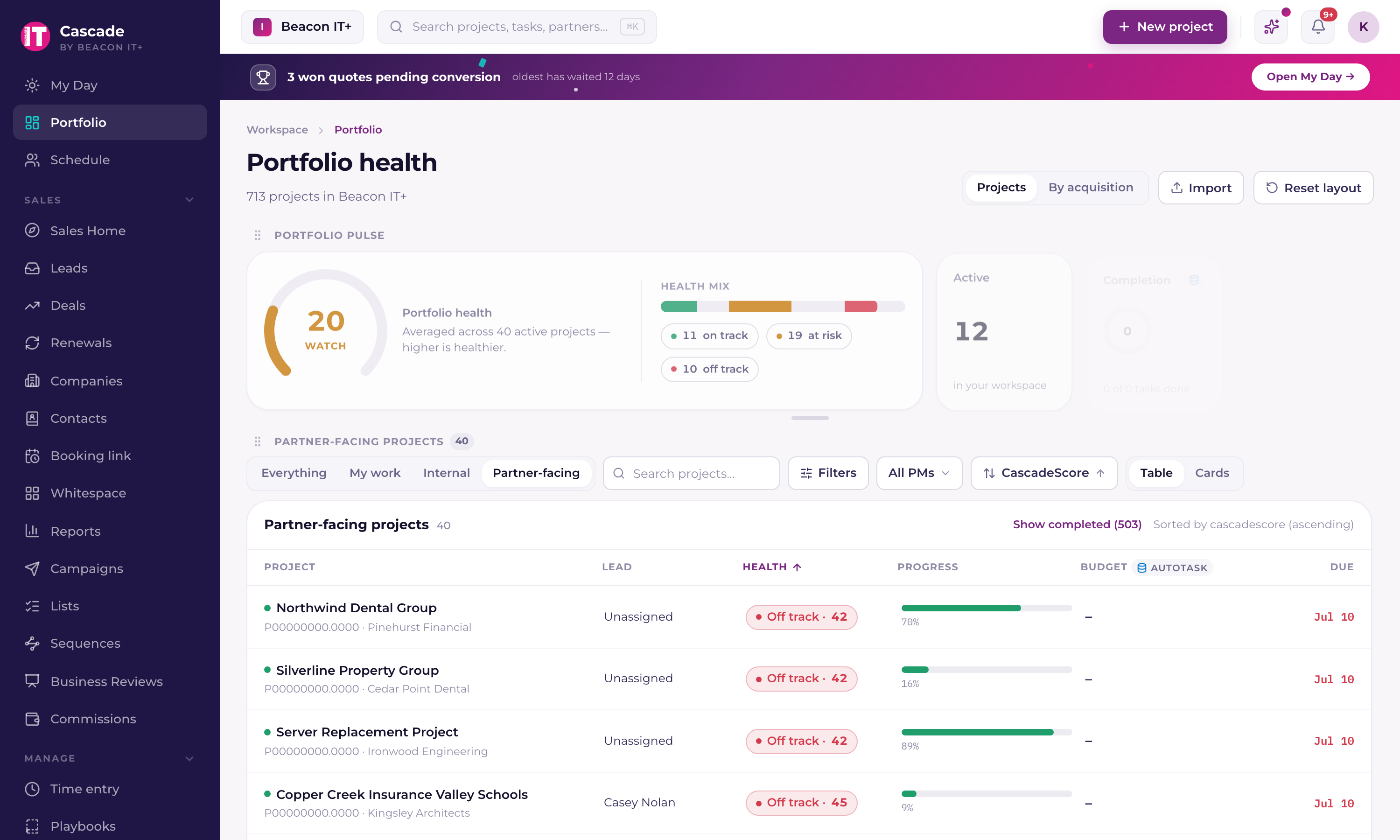
- The portfolio's Sync filter lets you slice by synced, Current native, Sync conflict, or Stale (7d+). The fastest way to find projects that think they're syncing but aren't. (Conflict and Stale are filter options, not badge states.)
- Reports exports carry a column that names the project's provider (or Current) per project.
- Task assignment differs: a synced task carries a primary PSA resource plus optional secondaries, while a Current-native task simply has a single assignee.
For the reasoning behind the split, read "Our methodology: your PSA stays the source of truth". For what Current does and doesn't write back on a synced project, see "What Current writes back to Autotask (and when)" or "What Current writes back to ConnectWise (and when)". For the build flow in detail, see "Building projects in your PSA from a template or won quote", and if a synced project looks wrong, start at "Reading the sync health dashboard".