
Contacts: find, tag, verify, and email your people
The Current contacts directory and the contact page behind every name: filter by company, tag, or the kind of company someone works for, flip tags on or off from the contact page header, read the verification badge, open a person's email history and reply from it, edit their details, and enroll them.
On this page · 16 sections
- Where contacts come from
- Find the right people: search, filters, and tags
- Finding people by the company they work for
- Your columns, and saving a view
- Sorting
- Contact pages
- Tagging a person from their page
- Following up on a person
- Editing a contact
- The email verification badge
- Email history for one person
- Reply without leaving the panel
- Write a new email from a record
- Enroll a contact in a sequence
- Who can see a contact
- When the list looks wrong
Contacts is the people layer of the Current CRM. Open it from the sidebar under Partners → Contacts. It lists every person you're allowed to see across every company (with their title, email, phone, whether they're the primary contact, and whether they're still active), and it's where you tag them, check whether their address is still deliverable, read the mail you've exchanged with them, and drop them into a sequence.
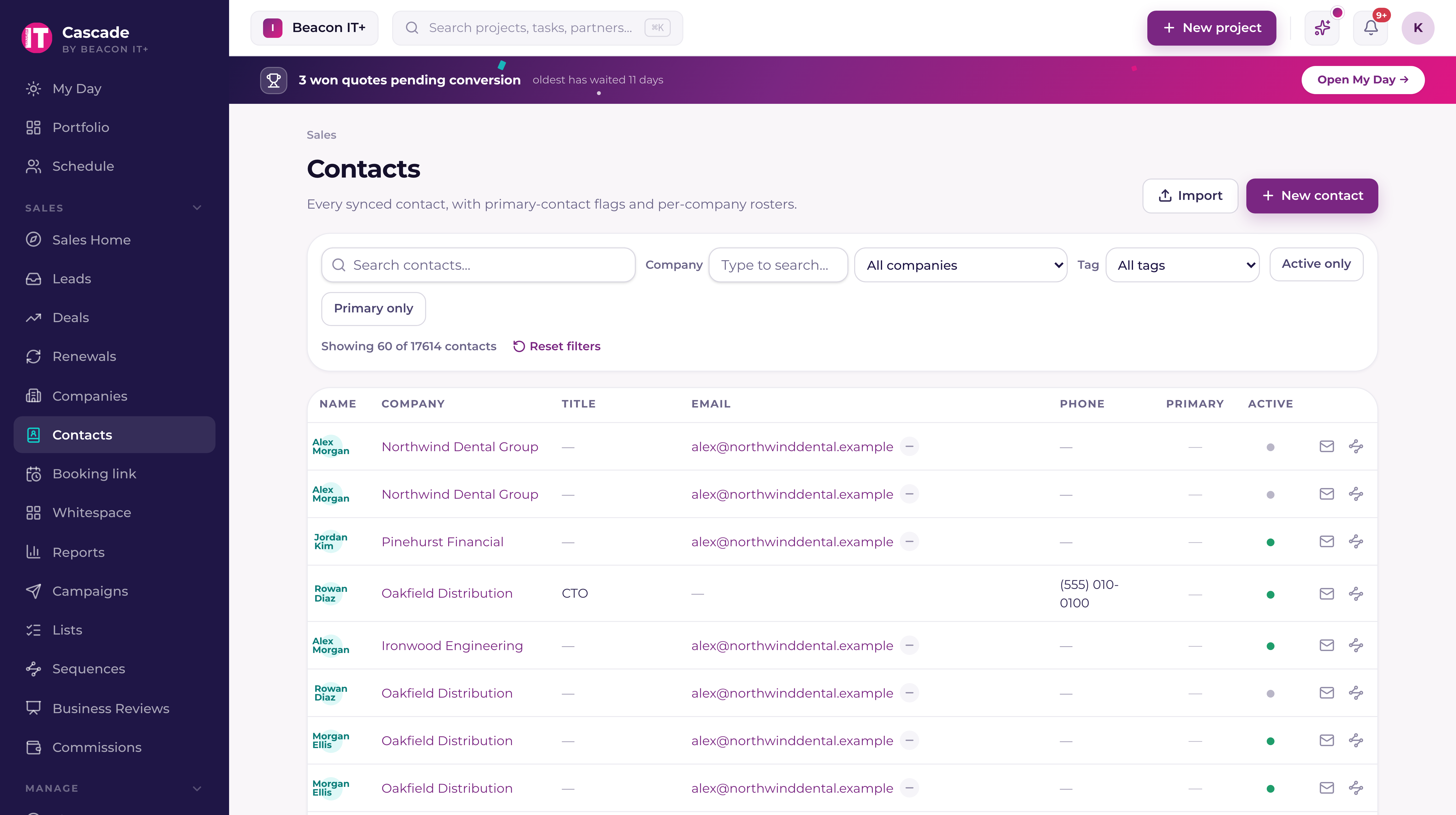
A contact is also the join key for the rest of the CRM: synced email attaches to a contact, sequences enroll a contact, and campaign audiences are built from contacts. A clean, well-tagged, verified list is what makes everything downstream work.
Where contacts come from
| Source | What it does |
|---|---|
| PSA sync | The anchor. Contacts pulled from your PSA keep updating on every sync, name, title, email, phone, primary and active flags. |
| HubSpot import | Contacts brought over from HubSpot, carrying their HubSpot identity so later runs match instead of duplicating. |
| CSV import | The Import wizard on this page. Available to sales leadership (tenant admins and sales managers). See "Import contacts by CSV: mapping, dedupe, verification". |
| New contact | The New contact button on this page. Account executives, sales managers and tenant admins with CRM access, and anyone with Full CRM, can create one under a company. |
- 1Go to Partners → ContactsThe Sales area is enabled per person. If you see "Sales is off for your account", ask a tenant admin to turn on CRM access for you under Users & roles.
- 2Search by name, email, title, or companyType in "Search contacts…". The search runs on the server and includes the company name, so searching "Northwind" finds Northwind's people. One caveat: company-name search works on the unfiltered list. With a Tag filter active, the search matches only the contact's own fields (name, email, title), clear the tag to search by company.
- 3Narrow to one companyThe dropdown always starts with an "All companies" option and, before you type, already lists the first page of companies alphabetically. Typing in the "Type to search…" box narrows that list to server-searched matches; the currently selected company is always kept in the list even when it doesn't match the search.
- 4Filter by tagThe Tag dropdown appears once your tenant has at least one tag. Pick a tag to see only the contacts carrying it, a trade-show batch, a segment, an import list.
- 5Toggle Active only and Primary onlyActive only is on by default, so inactive people are hidden until you turn it off. Primary only leaves just the primary contact at each company.
- 6Narrow by the kind of company they work forCompany type and Company classification are multi-selects: tick Prospect, or tick two classifications, and the directory keeps only the people at companies carrying one of them. Both read the same lists as the Companies directory, so the two screens always offer the same vocabulary.
- 7Read the count, and reset when you're lost"Showing X of Y contacts" counts the whole filtered set, not just the rows on screen. Filters are remembered between sessions. That's why a "Reset filters" link appears whenever one is set.
The list loads 60 contacts at a time; "Show more" pulls the next page. Clicking a row opens that person's contact page. The company name in the Company column still opens the company record, so both are one click away. Tags render as coloured chips beside the name: the first two, then a "+n" marker you can hover to see the rest.
Finding people by the company they work for
The question sales actually asks here is rarely about the person. It is "who do I know at the kind of company I'm targeting", and the filter bar answers it. Alongside Company type and Company classification sit two more controls that read the company behind each name.
- Open opportunity keeps the people at companies with an opportunity still in play, or only the ones without. An open opportunity is any opportunity before won or lost, in any pipeline.
- Company fields opens the same condition builder Companies has, over the fields your workspace defined, EBITDA, annual revenue, headcount, and the rest. Choose a field, choose a condition, type the value, and stack up to eight.
- The conditions read the way the field does: Over, Under, Equals and Is not on a number or a money field, Contains on text, After, Before and On for a date, and Has a value or Is empty on any of them.
- They are labelled "Company" on purpose. Every one of them is a property of the account, not of the person, so a contact matches when their company does.
All four filter in the database across every contact matching the rest of your filters, so the count and your sort still hold when you press Show more, and a saved view brings them back with everything else. They pair with a Tag filter one at a time rather than together: the tag path reads a different index, so while a tag is set these controls switch off and say so. Clear the tag and they come back.
Your columns, and saving a view
Open Columns at the right of the filter bar to untick anything you never read, move the rest into the order you work in, and keep the first column or two in view while the rest scroll sideways. Every change lands as you make it. The name column and the row's action buttons are always shown. Once the list looks the way you want it, choose "Save view…" to keep the filters, the arrangement, and your sort under a name you can click back to, or hand to a teammate. Export CSV sends the rows you have loaded, in the columns you can see.
There are more columns here than the table starts with: Mobile phone, Email health, Created, Last activity, City, and State. They begin switched off, so a table you never touched looks the way it always has. Last activity and the City and State pair come from the contact's company. Last activity says "(company)" in its header for that reason, since it's the company's most recent activity, ticket, or synced email, worked out overnight rather than a record of when you last spoke to this person.
Sorting
Click any column header to sort by it, and click again to flip the direction. The sorting happens in the database across every contact matching your filters (not just the ones your browser has loaded), so the order still holds after you press Show more. Contacts with nothing in the column you sorted by go to the bottom either way, so sorting by Title doesn't open on a screen of blanks.
Name, Company, Title, Email, Phone, Primary, Active, Email health, Created, Last activity, City, and State all sort. Sorting by Phone uses whichever number the Phone column shows, so the separate Mobile phone column doesn't sort on its own.
Contact pages
Every contact has a page of its own. Click a name in Contacts, or a name in a list's members table, and you land on that person rather than on the company they work for. It's the place to look before you pick up the phone.
| Section | What it holds |
|---|---|
| Header | Name, title, and company (the company name links to its record), with Primary, Billing and Inactive markers and their tags, plus a + Tag button to flip tags on or off right here. The action row carries Email, Email history, Enroll in sequence, Verify email, Follow up, and Edit. |
| Contact details | Email with its verification badge, email health, phone, mobile, title, status, when the record was created, and when it was last edited in Current. Where the person is (city, state and country on one line), a link to their LinkedIn profile, and a lost reason all appear here too, each one only when there is something on file for it. Edit sets all five: city, state, country and LinkedIn are yours to type, and the lost reason is a dropdown fed by your workspace's own list, which a sales manager or workspace admin edits under Settings, Lost reasons. |
| Sequences | Every sequence this person is walking, which step they're on and how many there are, when the next step fires, and why they exited if they did. |
| Campaigns | The campaigns that reached this person, the address each one went to, and whether it was delivered, opened, bounced, or held back. |
| Activity | Notes, calls, and meetings logged against this person, newest first, up to the 50 most recent. |
| Company | Their employer at a glance: customer or prospect, city and state, who owns the account, the company's last activity, and a link to the full company record. |
| All details | Every field Current stores for this person, grouped, including the PSA and HubSpot sync plumbing. Empty fields show a dash rather than disappearing. |
Tagging a person from their page
The + Tag button in the header opens the workspace's tag list: search it, and click a tag to flip it on or off. The change applies as you click, the chips update in the header and in the directory, and the tag is immediately a filter in the directory's Tag dropdown and a stackable condition in campaign, sequence, and list audiences. Tagging follows the company edit rule: account executives tag people at accounts in their own book, anyone with Full CRM tags people at any account, sales leadership tags anyone, and a tag you can't apply says why instead of appearing to work. The tag list itself is curated, sales managers and admins create new tags from the New tag row at the bottom of the picker, and everyone else picks from what exists. Companies tag the same way from the company record's header; see "The company record: your single view of every account".
Following up on a person
Follow up in the action row books a to-do about this contact, the same dialog the company record uses, with the person and their company both filled in. Give it a title, a due date, and optionally hand it to a teammate. Unlike Email, Verify email and Enroll in sequence, it needs no address on file, so it works for someone you only have a phone number for.
The follow-up lands in Your actions on My Day with a To Do tag, and the reminder brings you back here when it fires. It syncs to your own Microsoft To Do like every other Current to-do. See "Microsoft To Do two-way sync: your to-dos and project tasks".
Editing a contact
Edit opens their first and last name, title, email, phone, and mobile, plus switches for primary contact, billing contact, and active. Only what you actually changed is saved. Account executives, sales managers, and tenant admins can edit; the database enforces that, not the button.
The email verification badge
Every contact with an email address carries a small pill next to it, whether or not ZeroBounce is connected. It just reads "Not verified" (a muted dash icon) until that address has actually been checked. Hover the pill for the plain-English meaning; click it to open the Email verification dialog, which shows the verdict, when it was last checked, and a Re-verify button. The same dialog opens from Verify email on a contact's own page.
| Badge | What it means |
|---|---|
| Valid | The address accepts mail, safe to send. |
| Accepts all | The mail server accepts every address, so it can't be confirmed. Usually still deliverable. |
| Unknown | No clear answer from the mail server, inconclusive. |
| Bad email | It bounced or doesn't exist. Held back from sends until it's fixed. |
| Disposable | A throwaway or temporary inbox. Held back from sends. |
| Not verified | Nobody has checked this address yet. |
For bulk verification, the fix-it queue of bad addresses, and suggested corrections, see "ZeroBounce: verify email deliverability before you send".
Email history for one person
The envelope button on a row opens that contact's email history: every synced message with them, grouped into threads, newest first, with expandable full bodies. It loads the newest 200 messages. When Microsoft 365 is connected, a "Sync now" button at the top of the panel pulls on demand.
- Current ingests a message only when a counterpart address matches a known CRM contact address, OR the address's domain matches a known company email domain (the website domain, or the company's most common contact domain as a fallback. One contact on a real business domain is enough). Everything else is dropped in memory and never stored. Domain-only matches file onto the company, not onto a specific contact, so they show on the company record, not in this contact's history.
- If Microsoft 365 isn't connected, the panel says so and links to Settings.
- If the contact has no email address on file, there's nothing to match mail against, add their address to start building a history.
- Anyone who can view the company reads its whole synced history, whichever teammate's mailbox it came from (that is what makes an inherited account workable). Project managers and engineers never see email history.
For how mail gets in and how to keep a mailbox out of it, see "Which mailboxes sync to the CRM, and how to exclude one" and "How Current sends email, and why two mail paths, not one".
Reply without leaving the panel
Every message in a thread carries a Reply button. Click it on the message you want to answer, most often the latest one, and a reply box opens right under it. What you type is sent from your own Microsoft 365 mailbox as a proper reply: it stays in the same thread, quotes the message above it the way Outlook does, lands in your Sent Items, and your Current email signature is added under it if you have one set. Cmd+Enter (Ctrl+Enter on Windows) sends.
- 1Open the threadOpen the contact's Email history, or on the company record either the Emails card or an email card on the activity timeline, and expand the message.
- 2Click Reply under the message you want to answerThe box opens right there and shows exactly who the reply goes to.
- 3Choose who gets itOn a message you received, Reply goes to the sender only; switch to Reply all to include everyone else who was on it. On a message you sent, a reply goes back to the people you wrote to, so there is nothing to switch.
- 4Type and sendClick Send (or press Cmd+Enter). The reply appears at the top of the thread within a few seconds, and an Email sent activity lands on the company timeline.
- Reply is live only on a message that was synced from your own mailbox (an alias address of it counts). On a message a teammate's mailbox captured, the button is greyed out and says so on hover: a reply can only be built from the mailbox that holds the message, so answer that one from your own Outlook. A shared or team mailbox you look after shows Reply, but sending says the message lives in that mailbox and asks you to reply from Outlook.
- If you haven't connected Microsoft 365, the button is greyed out too, and a reply box that can't send tells you which Settings step is missing.
- If an admin has switched your own mailbox off for CRM email sync, the panel says so at the top: nothing from your mailbox is captured, Sync now has nothing to pull, and Reply stays off everywhere until it is switched back on under Users & roles → Staff mailboxes. Pressing Sync now on a switched-off, disconnected or unapproved mailbox now tells you which of those it is instead of quietly doing nothing.
- The box is plain text: paragraphs and line breaks carry through, formatting and attachments don't. For a formatted reply or an attachment, reply from Outlook.
- Sending needs two permissions on your Microsoft 365 connection, Mail.ReadWrite and Mail.Send. Both are on the Current app; if your organization approved Current before they were added, the box tells you, and a Microsoft 365 global admin fixes it with Re-approve on Integrations → Microsoft 365, after which you reconnect.
- If a message was moved out of the folder it was synced from, Current looks for it once by conversation and timestamp; if it truly can't be found, the box says so rather than replying to a different message.
Write a new email from a record
Press Email at the top of a contact, or click their email address, to write a new email from your own Microsoft 365 mailbox without leaving the record. See "Write an email from a record" for the whole panel: suggestions, formatting, files, Draft with AI, Undo and the reminder.
Enroll a contact in a sequence
- 1Click the sequence icon on the rowIt's the second icon in the actions column, next to the envelope. The dialog opens with this contact already fixed, the only choice is which sequence.
- 2Pick an active sequenceOnly active sequences are listed, each with its step count and how many people are currently enrolled. Paused or draft sequences don't appear.
- 3Click EnrollThe first step fires within a few minutes. If the contact has no email address, Current warns you up front: email steps will pause until you add one.
If the person is already walking that sequence, Current refuses the second enrollment and tells you: "That contact is already enrolled in this sequence." Unsubscribed or suppressed addresses are handled by the engine itself, see "The sequence engine: enrollment, caps, and exits".
Who can see a contact
| Role | What they see on Contacts |
|---|---|
| Tenant admin / Sales manager | Every contact in the tenant. Leadership also gets the Import wizard. |
| Account executive | Only contacts at companies they can see, their book plus the unowned prospect pool. Another AE's people are invisible, right down to the duplicate check. |
| Project manager / Engineer (with CRM access) | The Sales chrome is limited to Sales home, Companies and Contacts, and the New contact / Import buttons are hidden. Note this is an interface restriction for project managers. They still hold contact-write rights at the database layer through the project-manager write policy. Engineers cannot write contacts. A Tenant Admin can give either one Full CRM, which shows the New contact button and lets them work contacts at every account. |
| Partner viewer | Nothing. The Sales area does not exist for partners. |
When the list looks wrong
- "No contacts match these filters". A filter is still on from a previous session. Click Reset filters.
- "No contacts yet". Nothing has synced. Contacts arrive with your first PSA sync; see "Connect Autotask and choose what syncs" or "Connect ConnectWise PSA and choose what syncs".
- A person you expected is missing, check Active only. Deactivated contacts are hidden by default.
- "Couldn't load your contacts". The page shows the underlying detail instead of pretending you have zero contacts. Refresh; if it persists, send that detail to support.
- Every badge is the muted "not checked" pill (hover it and the tooltip says "Not verified"). ZeroBounce isn't connected yet, or those addresses have simply never been checked.