
The Schedule board: workload, capacity, rebalancing
Review daily project work and staffing in Daily dispatch, or use the resource grid to plan workload across days.
On this page · 7 sections
Schedule has two views. The resource grid puts each person on a row and each day in a column. Daily dispatch gives project engineers and dispatchers a day’s work list, with what is ready, what needs attention and which teammates may have room.
Use Daily dispatch
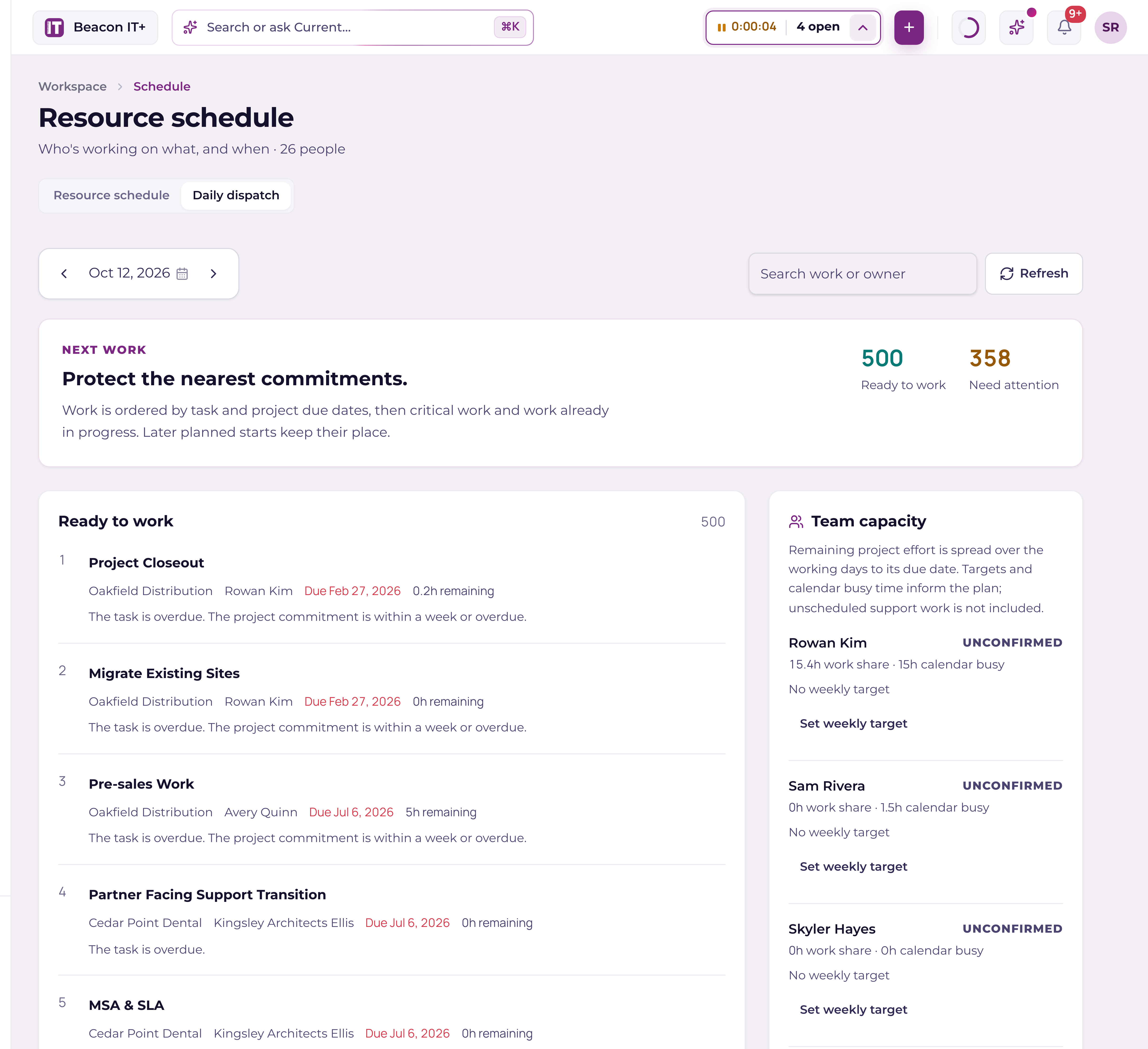
Choose Daily dispatch at the top of Schedule, then pick a day. Ready work has enough date and dependency information to proceed. Needs attention calls out blockers such as an overdue task, missing owner, time off or unavailable capacity data. Open any task to review or update its details.
Daily dispatch uses remaining effort, the owner’s recorded weekly capacity, weekends, holidays, time off and Microsoft 365 busy time. Overlapping calendar events count once. Missing effort, capacity or calendar data is shown as unconfirmed. Unscheduled support work is not included, so check it before committing an engineer.
If a teammate has no target, a project manager can choose Set weekly target in Team capacity. Enter working hours per week explicitly. Saving a target refreshes the dispatch plan; a zero-hour target leaves the person unavailable for assignments.
Assignment suggestions protect the earlier of the task due date and promised project date, keep current owners where possible and look only within the next seven days of known availability. They do not promise a feasible plan when information is missing or a commitment has already been missed. Task skills and service desk workload need your review.
A project manager can review an assignment suggestion, confirm the staffing decision and apply it. Current checks the task, teammate and time off again before saving. It changes the owner only; dates and commitments stay the same. PSA delivery follows your workspace’s two-way sync setting.
Use the resource grid
Each person's row shows a load bar, hours committed versus hours available for the visible window, spelled out underneath as "32h of 40h · 6 tasks". It goes red when they're over. Click the row to expand an hour-by-hour detail strip.
The one rule that makes the numbers make sense
A task's whole estimate lands on its due date, in a single bucket. It is not spread across its start-to-end span. A 12-hour task that runs Monday to Friday shows up as one 12-hour chip on Friday, not 2.4 hours a day. That keeps long tasks from smearing across the grid, and it means dragging a chip visibly moves it. The load bar, the over-capacity tint and the rebalance suggestions all use the same rule, so the numbers always agree.
| Ingredient | How Current counts it |
|---|---|
| A task with an estimate | Full estimated hours on its due date, on the assignee's row |
| A task with no estimate | Shows as a chip, adds 0 hours to the load |
| A finished task | Excluded from the dispatch tray; done work isn't dispatchable |
| Daily capacity | The person's weekly target ÷ 5, 40 hours a week by default, so 8h/day |
| Weekend or company holiday | Capacity 0 |
| A day marked PTO, holiday, or blocked | Capacity 0, anything scheduled there reads as over capacity |
| Microsoft 365 busy time | Added to the day's used hours when the overlay is on. A meeting that runs over several days, or an all-day event, counts on every day it covers, not just the first |
Reading and filtering the board
- Week / Day toggle, with Previous · Today · Next to move the window. Week view shows Monday to Friday.
- Weekends, turn the toggle on to add Saturday and Sunday columns (they carry zero capacity either way).
- Team filter. Everyone, My teams (if you're on one), or a specific team.
- Microsoft 365, overlays real calendar busy time on top of Current work. It's on by default, and turning it off sticks in that browser. Your own events keep their subjects; everyone else's arrive as an unlabelled "Busy" band, so nobody's calendar is exposed. A multi-day or all-day event blocks every day it covers, so a week of vacation booked in Outlook shows up as busy all week.
- The legend stays short. Billable task and Internal task always appear; Milestone, Microsoft 365 busy, PTO/out and Holiday/weekend show up only when something on screen actually uses them.
Only staff appear as rows. External partner viewers and deactivated members are excluded from the grid, the head count, the capacity math and the drop targets, so you cannot drag internal work onto a partner. Partners don't get the Schedule link at all.
Dispatching work: the tray and the drag
"To dispatch" holds every open task that can't be placed on the grid, no assignee, or no due date, or neither. Dated ones sort first, earliest due at the top. Drag one onto a person × day cell to schedule it; the cell tints when the drop would push that person over capacity, so you see the cost before you let go.
- 1Open Schedule and land on the right weekUse Week/Day and the arrows. "Today" jumps back to the current week.
- 2Drag a chip onto someone's dayDropping on a different person reassigns it; dropping on a different day reschedules it. Both at once works too.
- 3Duration is preservedIf the task already had a start and an end, both dates shift by the same number of days. If it only had one date (or none), it becomes a single-day task on the day you dropped it.
- 4Answer the service-call prompt (Autotask-synced tasks only)Current offers to book an Autotask service call (Autotask's own calendar booking, which Autotask then puts on the technician's Outlook calendar) when the drop actually changes the DATE of an Autotask-synced task whose project is linked to Autotask. Moving such a task to a different person on the day it is already due reassigns it without prompting. The reschedule is already saved either way; saying no just skips the booking. (Service-call booking is an Autotask feature. ConnectWise workspaces simply don't see this prompt in this release.)
- 5Drag back to the tray to unscheduleThis clears the task's dates in Current so it leaves the grid. It deliberately does not push to your PSA, so it can never wipe the PSA's dates.
Rebalance suggestions
The Rebalance suggestions tile answers "who's drowning, and who could take something off their plate?" It looks ten days ahead and proposes concrete moves: "Move 'Migrate mailboxes' (~3h) from Alex → Jordan on Thu Jul 16." Only project managers and admins see the tile. Apply is a task write, and the database (RLS) independently enforces who may reassign a task, but the tile's visibility itself is a UI gate.
| The rule | What it means |
|---|---|
| Overloaded | Load exceeds that day's capacity by more than half an hour (a little grace, so noise doesn't nag you) |
| Movable task | Open, has an estimate, and is NOT on the critical path |
| Smallest first | It proposes the smallest movable tasks, the least disruption per hour freed |
| Receiver | Must have at least 2 free hours that day, and taking the task must not put them more than half an hour over capacity, the same half-hour grace used to decide who counts as overloaded |
| Preference | A teammate already working that project wins, then whoever has the most room |
| Volume | Up to 10 suggestions, and each accepted move is counted so it never double-books the same receiver |
Apply reassigns the task (and, on a PSA-synced task, pushes the new owner as the PSA's primary resource). The X dismisses a row for the rest of your session. If nobody is over, the tile says so. The three tiles on this page can also be dragged into any order and resized, and the arrangement saves to your account.
PTO, holidays, and time off
Days a person is out carry zero capacity, so any work sitting there reads as over capacity, exactly the signal you want. People add their own time off from the account menu in the top right → My availability (PTO or Blocked, over a date range). Company holidays come from your tenant's holiday list. For how the scheduling engine pushes work off those days, see "PTO and availability-aware scheduling in the Timeline" and "Holidays and employee costs: where the numbers come from".