
Logging time and how it reaches your PSA's billing
The time entry dialog, its PSA-aware defaults, time rounding, the fail-closed sync guard, and the approval flow, for Autotask, ConnectWise, HaloPSA, Syncro, Rev.io and SuperOps alike.
On this page · 7 sections
See your logged day
On the weekly Time page, Logged day shows the entries already logged for a day in the selected week. Pick another day to see its work. On a wider screen, entries with recorded start and end times appear on a timeline; overlapping entries use separate rows. The list below includes entries without recorded clock times too. Select an entry to use the existing edit form. Removed, rejected and written-off entries stay visible but do not count in the total.
Log meetings, training and internal work
You do not need Service desk to log internal time. In Log time, leave the project and task empty and pick a category such as Internal meeting, Training or Internal task. Use the summary to describe development or work toward a goal. A workspace admin can add more specific categories under Settings, Projects and time, Time capture. This work stays in Current unless your workspace has separately enabled sending internal time to its PSA. Existing billed-time and role restrictions still apply.
Time you log in Current is the same time that shows up on your PSA's invoice, so the Log time dialog is built to match what your PSA actually requires, catch problems before you submit, and never silently lose an entry if the sync hiccups. The dialog speaks your provider's language: on Autotask the billing fields are billing code, work type, contract, and role; on ConnectWise they're work role, work type, and agreement. The flow is identical.
Logging an entry
You can log time three ways: start a timer and stop it when you're done, log it straight from a task's drawer, or fill in a weekly timesheet grid. All three open the same Log time form and go through the same checks. The form was rebuilt on September 18, 2026 for people who log time twenty times a day: hours first, one line for the date and the start and end times, the summary with Dictate and Enhance built into its box, then the billing row, with the rarely touched fields folded away.
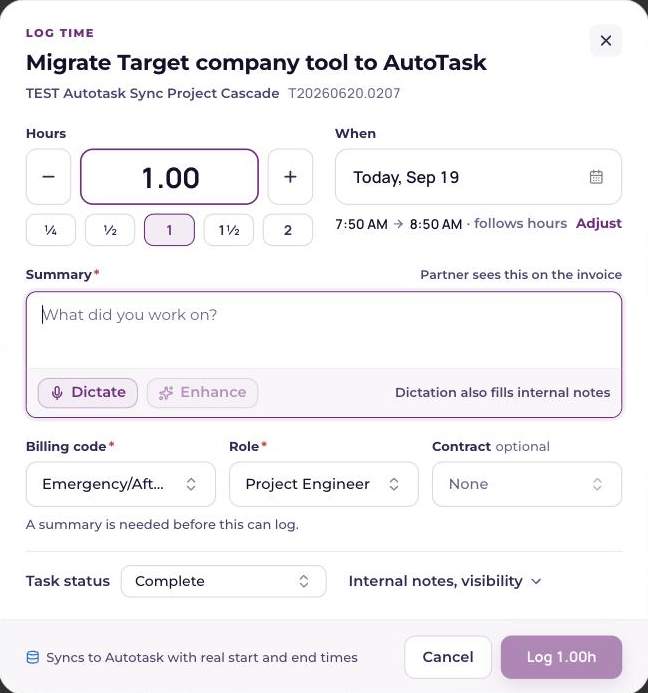
- 1Pick what you worked onFrom a task or ticket the form already knows it, and the header names the project and the number. From the timesheet, choose the project, then the task or ticket; anything not yet synced to your PSA is shown disabled, labeled "(not synced)." Change task swaps the pickers back in.
- 2Set the hoursTap the minus and plus buttons, pick a preset chip (¼, ½, 1, 1½, 2), or type a number. The steps follow your workspace's rounding setting, and the button at the bottom shows the live value, "Log 1.00h", so you can see what you are about to bill. Under When, the line "4:15 PM → 5:15 PM · follows hours" shows the window Current will send; click Adjust to set the start and end times yourself, and the hours recalculate either way. Times are in your own time zone (the one in your Outlook settings, or your computer's when Outlook has none), and its short label, such as EDT, sits beside them.
- 3Fill in billing detailsThe billing fields for your provider, billing code, work type, contract, and role on Autotask; work role, work type, and agreement on ConnectWise. Current pre-fills what it can from your PSA (see below), and warns you if the lists haven't synced yet.
- 4Add a summaryRequired on time that goes to your PSA, because your PSA requires a summary on every time entry. The line above the box says who reads it: the partner sees it on the invoice. Time that stays in Current (Other time, or a workspace with no PSA) can leave it blank. Dictate and Enhance sit inside the box; dictating here also fills Internal notes when that box is empty.
- 5Add internal notesOptional, as in your PSA. Internal notes sit right under the summary and are for your own team: they never appear on the invoice and are never shown to partners. Dictate and Enhance sit inside this box too.
- 6Status and visibility, when you need themThe row under the billing fields holds the task status (it defaults to the task's current status; change it to update the task in your PSA when you save) and a visibility disclosure with the "Visible to co-managing users" checkbox. Leave that off to keep your internal notes internal, or turn it on to share them with a co-managing partner; they're never shown in the partner portal either way.
- 7Log timeCurrent saves the entry and, for a PSA-synced project, immediately tries to push it to your PSA.
Once saved, an entry with a start and an end recorded shows them beside its hours in every time list, for example "9:05 to 10:20 AM", or "11:30 PM to 1:15 AM, next day" when it ends on a later day: the task's Time tab, the Week rows on the Time page, the Timesheet day, and the day an approver opens. They are the times recorded on the entry, read on the same clock as the form. An entry logged as hours only shows just its hours, and nothing about the hours or what reaches your PSA changes.
Smart defaults
Where your PSA already has an answer, Current uses it instead of guessing: the contract or agreement defaults to the exact one your PSA has on that project (matched by the contract's own id, not by picking a same-named contract that might belong to a different client), and the role defaults to your assigned role on that task if you're the assignee. Anything the PSA doesn't provide falls back to whatever you used last on that project, and if you've never logged time on that project, the billing code or work role defaults to the one you used most recently anywhere, so it's rarely blank. On an Autotask project task, the billing code comes from your last entry on that task first, then from the billing code the task itself carries in Autotask, then from your last entry for the same company. Picking a code on one entry never changes other tasks or entries. Every default stays editable.
Time rounding is a workspace setting
How Current rounds logged hours is a workspace-wide setting a Tenant Admin controls in Settings. Round up, round to the nearest, or don't round at all, in quarter-hour or tenth-hour steps. It applies to everyone's entries so the whole team bills the same way. It ships defaulted to exactly how Current has always rounded, so nobody's numbers change unless an admin deliberately changes the setting.
In the top bar’s Open work tray, every row has an X. On an untimed record it closes that record after a second press on the red X. On a timer row it removes the timer without logging, with five seconds to Undo. Use Stop & log to keep the tracked time as an entry. Service desk tickets use the same controls when Service desk is enabled for your workspace.
Since September 19, 2026 one timer runs at a time and any number can wait. Starting a timer while another runs asks first, then pauses the running one with its time kept. The timesheet lists your paused timers beside the running one, each with Resume, Stop & log and a discard, and a paused timer stays until you act on it.
Why an entry might be blocked
Current checks before you can log time against something that can't actually accept it, and shows you the specific reason rather than a generic error:
- The project is Current-native, time here stays in Current and never tries to sync.
- The task or ticket hasn't synced to your PSA yet.
- The ticket's type doesn't accept time entries in your PSA.
- Your Current account isn't linked to a PSA resource or member yet.
From logged to approved
An entry moves through Draft, Submitted, Synced, and Approved (or Rejected). Approved and Rejected are read back from your PSA itself. Current doesn't guess at approval status. If a push fails, the entry stays as a local draft with the reason shown, so it's never silently lost; a manager can also retry other people's stuck drafts in bulk.
See "Project modes: PSA-synced or Current-native" for how project type determines whether time syncs at all, and "The partner financial firewall" for how time-entry data is kept away from partner viewers.