
The task drawer: tabs, the time tile, pop out, and Open work
How the redesigned task drawer works since September 2026: several tasks and tickets open as tabs, one timer tile, Overview / Details / Time / Comments, a pop-out window, and the Open work control in the top bar.
On this page · 14 sections
- Tabs
- Click away, and the edge keeps your place
- The header and the time tile
- Logging time from the drawer
- Overview, Details, Time, Comments
- Reading time entry notes
- Start and due dates stay in order
- Checklist items: due dates and owners
- Checklist reminders
- Checklist items on My Day
- Leads
- Opportunities, accounts, contacts and quotes
- Pop out
- Open work, in the top bar
Use the copy buttons beside a task number, project number or company name to paste the displayed value into notes or other tools. Ticket drawers also offer copying for the ticket number and company name. A value that is not available has no copy button. If your browser refuses clipboard access, select and copy the displayed text yourself.
Click a task on any board, list, timeline, calendar or My Day and it opens in the task drawer on the right, as it always has. Since September 18, 2026 the drawer is a workspace: it holds several records at once as tabs, shows your timer in one tile at the top, splits the long scroll into four views, and can send a task out into its own browser window.
Tabs
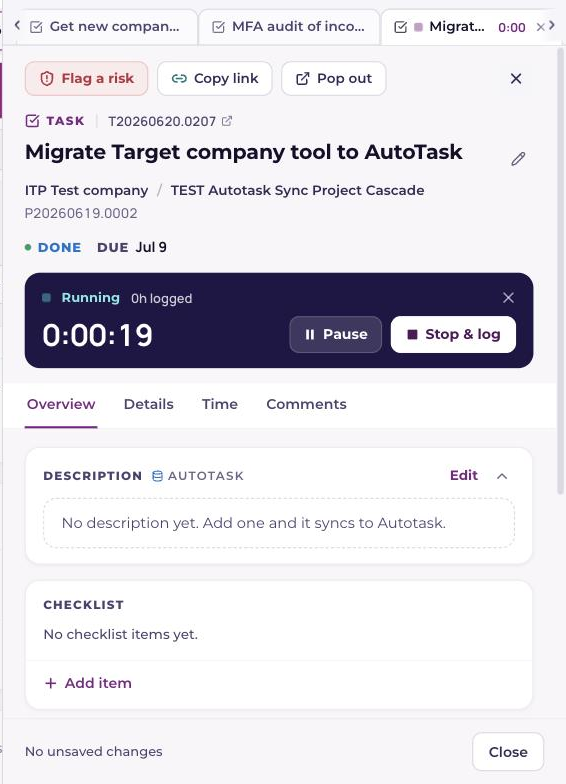
Opening a second record while the drawer is open adds a tab instead of replacing what you had. Since September 19, 2026 that is not only tasks: opportunities, accounts, contacts and quotes open as tabs too, from an Open in drawer action on their rows, and since September 21 a website lead does as well. Support tickets from your PSA open here as well, from a company's activity feed or its Support history: a Support ticket tab is the read-only copy of a ticket your PSA owns, with Overview (the description, status, priority, queue and dates, and a link to the ticket in your PSA) and Notes & time (the notes and time entries read live from your PSA, where that read is available). Tabs are a fixed width on a strip that scrolls sideways, with a small icon saying what kind of record each one is. Drag a tab sideways to reorder; drag it down and let go to pop it out into its own browser window. Click a tab to switch, press its ✕ or middle-click to close it, and use Cmd/Ctrl+1 to 9 to jump. Fifteen tabs is the limit. Open a sixteenth and the oldest tab you are not working in closes to make room, and a note says which one went, with an Undo that puts it straight back. A tab holding unsaved edits or a timer is never the one that closes. If all fifteen are holding something, the sixteenth does not open and Current asks you to close one yourself. The note carries a Don't remind me again if you would rather this just happened quietly.
Click away, and the edge keeps your place
A click anywhere on the page behind the drawer closes it. Nothing you had open closes with it: the records park on the right edge of every screen as pages, like the edge of a book, with a badge for how many. They sit in short stacks of five, so fifteen open records read as three small books rather than one long run you have to count. Rest your pointer on the stack and it fans out; the page under the pointer shows its name and a card with the essentials, and a click reopens the drawer on that record. The ✕ at the head of a page closes just that one. The Open work control in the top bar lists the same records.
The header and the time tile
Flag a risk is a button in the header now, beside Copy link and Pop out. Under the task's name sits one tile for time. When no timer runs it shows the hours logged against the estimate with a Timer button and a Log time button. When the timer runs on this task it turns dark and counts up, with Pause, Stop & log and a small ✕ that discards the timer after a confirmation. A paused timer keeps the dark tile with an amber pause mark, the time it has kept and how long ago it paused, with Resume and Stop & log. One timer runs at a time, and any number can wait: press Timer on a task while another timer runs and Current asks first, then pauses that one with its time kept and starts this one. A timer running or paused on another task is named on the tile.
Logging time from the drawer
Log time and Stop & log both open the Time view with a log panel at the top: the hours stepper and presets, the summary with Dictate and Enhance, the internal notes, and the billing row, right there in the drawer. Stop & log pauses the timer and fills the hours from it, rounded by your workspace's rounding setting, and the timer is cleared only once the entry saves; Cancel, keep timing resumes it, and Discard timer throws the tracked time away after a confirmation. Open full log opens the full Log time form with every field when you need the start and end times or the task status. A saved entry rises into the Logged list below.
Overview, Details, Time, Comments
- Overview: the description first, collapsible with the chevron; then Recent time, the newest three time entries with their notes (see below); then the checklist (progress, a due date and an owner on each item, hover a row for move and delete, + Add item), the dependencies it waits on and the ones waiting on it (a row opens that task as a new tab), and the project card (customer, phase, contract, schedule, project hours).
- Details: every field the old drawer had, in the same order: status, assignees, priority, your PSA's status, type and department, start and due dates, the estimate, the conflict banner, the PSA notes, signed quotes and attachments. One line at the bottom says the task syncs to your PSA.
- Time: the log panel when you asked for it, then every logged entry on this task, newest first, each with its notes showing and each editable.
- Comments: the internal thread, with the count on the tab.
Reading time entry notes
Since October 21, 2026 the notes on a task's time entries show as soon as you open the task. Overview has a Recent time card under the description with the newest three entries: the hours, the date, who logged it, the summary, and the internal notes under their own Internal notes label. Show all opens the Time view, where every entry lists its notes the same way, newest first. A long note is cut at four lines with more to read the rest, and the arrow on an entry still folds it to one line if you want a shorter list. Entries that were voided in your PSA, rejected or written off stay off the Recent time card and are still listed, labelled, on the Time view.
You see the entries you can already see anywhere else in Current: a project manager, service manager, tenant admin or finance user sees everyone's time on the task, and an engineer, dispatcher or vCIO sees their own. Internal notes show to the same staff who can see the entry. Partner viewers never see time entries or internal notes.
Start and due dates stay in order
Since October 9, 2026 a task's start date can never end up after its due date, and Current fixes it for you instead of refusing the change. Every place you set a date behaves the same way: the task drawer, the due date on the project page, the Schedule and Calendar, the Timeline, a recast and a follow-on chain.
- Pick a due date earlier than the start and nothing is saved yet. A short prompt says "The due date is before the start date." with one button, for example Move start to Oct 13, which moves the start back so the task keeps the same length. Cancel leaves both dates as they were.
- Move the start past the due date and the due date moves forward by the same amount, so the task keeps its length. Both dates are saved together and sent to your PSA together, and a message says, for example, "Due date moved to Oct 24 to keep the task 5 days long." Press Undo on it to put both dates back.
- When the two dates come from different places, for example you changed the due date in Current and someone changed the start in your PSA, the date changed most recently stays and the other one moves to fit, keeping the task's length when Current knows it. The drawer then says "Dates adjusted so the start isn't after the due date." until someone edits the dates. On a project that syncs with your PSA the corrected dates are sent there on the next sync.
Checklist items: due dates and owners
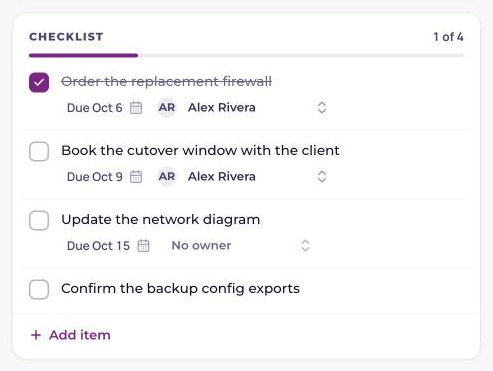
Since October 3, 2026 each checklist item on a task can carry its own due date and its own owner, so a five-step task can say who does each step and by when. Set them on the item's row in Overview, or as you add the item: the + Add item row has an optional due date and owner beside the name. Any staff member in your workspace (an engineer, a project manager, a service manager or a tenant admin) can add, tick, rename, date, reassign or delete checklist items on any task, including one they are not assigned to. That opens the checklist only; the task's own fields keep their usual rules. Partner viewers can't change a checklist.
- An item can never be due after its task. The date picker only offers days up to the task's due date, and Current refuses a later date wherever it comes from.
- An item needs its task to have a due date. Until the task has one, the date picker is off and says "Give the task a due date first."
- When the task's due date moves earlier, any item dated after the new day moves to that day too. Before you save an earlier task date, the drawer tells you how many items will move (for example, "3 checklist items move to Oct 14 too."). The same happens when your PSA sync moves the task's date. Moving the task later leaves the items where they are.
- Clearing the task's due date clears its items' due dates as well.
- The owner can be anyone on your staff. The people on the task are listed first, then the rest of the team. Partner viewers and sales roles are never offered.
- A late item reads Overdue with its date, and one due today reads Due today.
Checklist reminders
Current reminds people about dated checklist items that are still open: on the working day before the item is due, on the morning it is due, and once on the first working morning after, if it is still not ticked. Then it stops. Reminders go to the item's owner; an item with no owner reminds the people assigned to the task instead. They arrive mid-morning on weekdays only, in your own time zone (your Microsoft 365 time zone when Current knows it, otherwise your workspace's), and you get one message each morning listing all your items, grouped by task, with a link to each.
Each reminder shows in the bell in Current. It also arrives as a Teams chat from Current when your workspace has Current's Teams bot connected and it can reach you there, and by email otherwise or whenever Teams can't deliver it. To stop them, open Notifications from your account menu, switch off Checklist items due, then save. Switching off email in the same dialog stops the emails but keeps the bell and Teams.
Checklist items on My Day
Dated checklist items show on My Day under the task they belong to, with their due date, and you can tick an item done right there without opening the task. A task sits in the bucket of whichever comes first: its own due date or the earliest open item due date that concerns you. So a task due next Friday with a step due tomorrow shows under tomorrow. If you own an item on a task you are not assigned to, that task still appears on your My Day, with only your items under it.
Leads
Since September 21, 2026 a lead opens as a tab too, from a funnel card, a list row or a pasted lead link. It used to open in a panel of its own, which meant you could only work a lead while you were standing on the Leads board. Now a lead sits in the strip beside whatever else you have open, and everything you do to a lead travels with it: Convert, Disqualify and Restore all work from the tab, wherever you opened it. A tile under the header shows who owns the lead and how long is left on the response clock, and lets you route it to someone or set its heat without scrolling. Overview holds how to reach them, what they answered on your form, and the customer the lead is linked to; Details has where the lead came from and the milestones it can prove; Notes is the lead's own thread, which stays with the lead and is never pushed to your PSA; Activity shows the customer's timeline once the lead has one. Popped out into its own window, Details becomes a rail down the right.
Opportunities, accounts, contacts and quotes
Since September 19, 2026 a click on an opportunity opens it here, wherever the click lands: a board card, a list row, the cross-pipeline All view, the renewals-to-defend feed, a company's Quotes & opportunities rail, or a pasted opportunity link. Quotes on that rail open the same way, and a quote tab links to the quote in the system it came from (Quoter, Kaseya Quote Manager, HaloPSA, Syncro or your PSA); a Quoter quote that was pushed into your PSA carries both links. Quoter and Kaseya Quote Manager need their web address typed once on their Integrations card; until then a tenant admin sees a one-line reminder on the quote instead of a dead link. The opportunity tab has the task tab's shape: a stage tile under the header, always visible, with the pipeline's stages as buttons (tap one to move the opportunity; the stage's checkpoint questions and movement rules apply exactly as on the board) and Mark won and Mark lost, which open the same dialog the board uses. Overview shows the two fill-in strips an opportunity can carry (a won opportunity with no close date, an opportunity with no lead source), the next step, contacts, linked quotes, the MRR economics strip and recent activity. Details is the editable form: the opportunity name, New or Current MRR, hardware and one-time, Renewed MRR on a renewal, win probability, projected close, forecast, contract term, owner for sales leadership, and lead source. The forecast, a preset contract term, the owner and a lead source picked from the list save the moment you choose them, with a short green confirmation; the typed fields save together with the Save changes button in the footer; below it the pipeline's custom fields (those save on their own), the PSA opportunity link, and on a renewal the dossier link and defense breakdown. Activity holds the timeline with the note composer, the company's email history, Follow up and the renewal save plays. Quotes lists the linked quotes and their filed documents. Edits stay on the tab while you look at another one, and closing a tab or the drawer with unsaved changes asks whether to save or discard them. An account or contact tab still shows the record's essentials with Details and Notes views; those two keep their pages, and the icon on their list rows opens them here.
Pop out
The Pop out button in the header, or tearing a tab off the strip, opens the record as a full page in a new browser tab with no sidebar: for a task at /t/T-number/window, with the same cards side by side, a read-only Details rail and the timer tile. A popped-out opportunity, account, contact or quote uses the whole window too: its Details view moves into a rail on the right, beside the other views, so there is far less scrolling. Back to drawer hands it back to the drawer in your main window and closes the tab. The copy-link button copies the ordinary /t/T-number link teammates paste in Teams, and that link still opens the task inside the project page as it always has.
Open work, in the top bar
The Open work control shows the running timer, how many records you have open, and how many timers run or wait, and a chevron that opens a tray listing every open record, in the drawer or popped out, with today's tracked time and a link to your timesheet. Click a row to bring it to the front, pause, resume or stop a timer from its row, or use Close all. To remove a timer without logging it, click the small X at the end of its row: the row slides aside onto a red X, and a second click removes it. Wait three seconds or click anywhere else and the row slides back untouched. For five seconds after a removal, Undo brings the timer back, paused, with its time. A paused timer also shows its amber mark on its tab and on the parked stack.
Every row has an X, including records with no timer. Press it once to reveal the red close area, then press the red X to close that record. Clicking elsewhere, closing the tray or waiting three seconds cancels the close. Unsaved changes still need your attention before the record closes. A popped-out record closes in its own window; save or discard any edits there first. Closing a record does not delete the task, ticket, opportunity or other saved data.
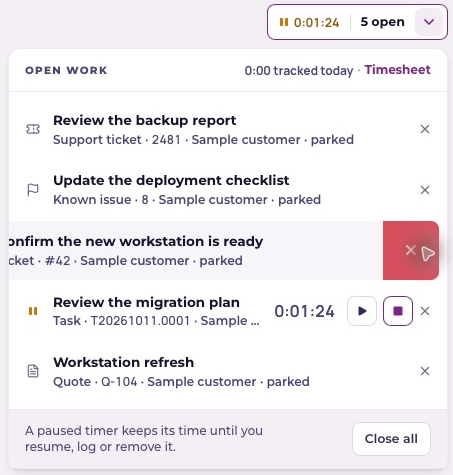
When Service desk is enabled for your workspace, its tickets follow the same rule. An untimed ticket's X closes the open record; a timed ticket's X removes the timer through the existing five-second Undo. Removing a timer does not log its time. Use Stop & log when those hours should become a time entry.