
Finding completed projects and their history
When a project is marked complete, it leaves the everyday views so they load quickly. Nothing about it is deleted: every task, time entry, comment and document is still there. This page shows where to find it.
The Completed view on the Portfolio
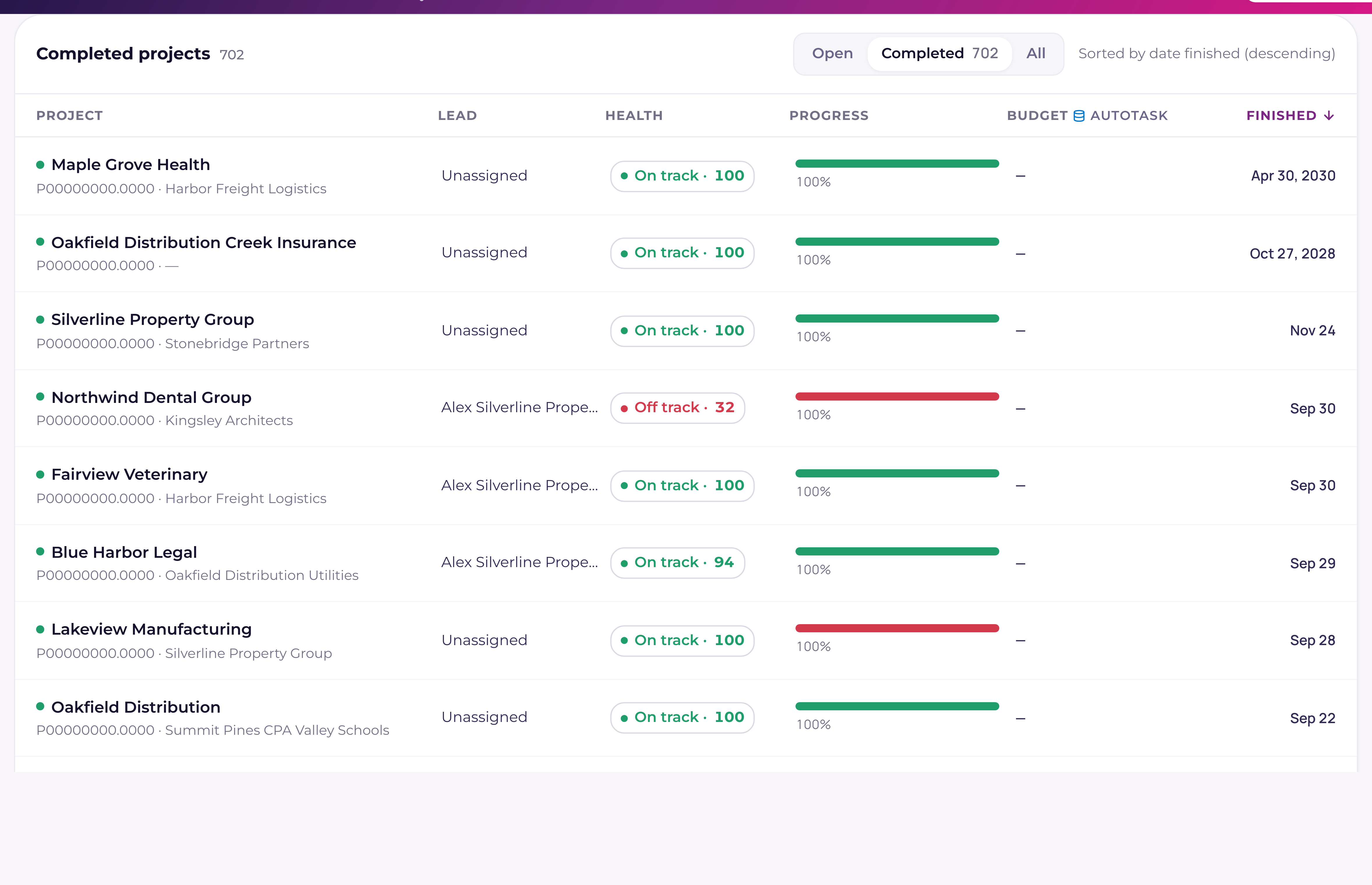
- 1Open PortfolioPortfolio is in the left sidebar. The projects table lists Open projects by default.
- 2Switch to CompletedAbove the table, pick Completed to list only finished projects, newest first by the date they finished. Pick All to see open and finished projects together. The count beside Completed tells you how many there are.
- 3Search, filter and openSearch, the filters and the sort menu work the same way here. The last column shows the date each project finished instead of its due date. Click a row to open the project: its page shows every task, finished or not, and the close-out report.
The view you pick is saved in the page address (for example ?show=completed), so you can bookmark it or send the link to a teammate and it opens the same way.
Completed projects on Boards, List, Timeline and Dependencies
With no project pinned in the top bar, Boards, the List, the Timeline and the dependency map show the tasks of open projects only. Turn on Completed projects in the view's toolbar to bring the tasks of completed projects back in. A short line above the view then says how many tasks and projects were added, with Hide completed projects to turn it off again.
- +Your choice is remembered for you across all four views, and follows you to another computer.
- +It is also saved in the page address (?completed=1), so a link you share opens with finished work showing.
- +The open tasks appear first and the completed ones join a moment later, so the view never waits on the history.
- +Up to 10,000 tasks from completed projects are shown at once, starting with the most recently finished projects. If there are more, the line above the view says so; open a project from the Portfolio to see every one of its tasks.
- +Archived projects, templates and projects your admin hid by PSA status stay out either way.
Search
The ⌘K search finds a completed project by its name, its PSA number or its company, marked Completed and listed just after any open project that matches as well. Open it and its page shows every task. ⌘K also finds a task by its name or PSA number whatever state its project is in, including tasks on completed projects, and opens it on its project's page. The project picker in the top bar lists open projects only. To browse finished projects, or to find one when you only half remember its name, use the search box on the Portfolio's Completed view.
Time on a completed project
The time pickers list open projects only. Time entries already logged on a completed project stay on the Time page and can be edited there as before. To log new time on a task of a completed project, open the project from the Portfolio, open the task and use Log time in its drawer.