
Connect Syncro and choose what syncs
Create the Current user and its API token in Syncro, switch parent/child tickets on, paste the subdomain and token in Current, and see what the first sync pulls.
On this page · 9 sections
Connect Syncro and its customers, tickets, estimates, recurring invoices and time land in Current. An approved estimate becomes a project with its charges, each company page shows its tickets and monthly recurring revenue, and business reviews are drafted from the tickets your team closed.
What it does for you
| Where in Current | What you get |
|---|---|
| Service desk tickets | Syncro tickets appear in ticket search beside your desk tickets, open and closed. Once a tenant admin turns on Ticket and time sync, each desk ticket shows its matching Syncro ticket (or lets you link an existing one), and desk tickets, their notes and their time are kept in step with Syncro, so billing still happens where it always has. |
| Company page | Each customer's Syncro tickets, its contracts with monthly recurring revenue read from the recurring invoice schedules, its estimates as quotes, and the invoice lines behind account profitability, so an account manager sees service load and revenue in one place. |
| Alerts | An urgent ticket, a security incident or an unhappy customer on a company alerts its account owner by bell and email, and a stalled or failing sync rings a tenant admin's bell with a link to Sync health. |
| My Day | The Syncro project tasks assigned to you sit in today's work (with the service desk on, your Syncro tickets too), approved estimates wait in Won quotes to convert, and the time you log goes to Syncro as a timer entry against a Labor product. |
| Reports and dashboards | Tickets opened, closed and still open, with close times, on dashboards and in the Service report, read from the same Syncro tickets your team works. |
| Business reviews | Tickets, projects and contracts fill the service delivery part of each review, so it is drafted from the work your team closed. |
| Sales | Syncro Leads in a sales status become opportunities in your pipeline, approved estimates turn into projects and charges in a few guided steps, contracts feed the whitespace grid, and urgent or unhappy tickets on your accounts show in Hot tickets on Sales home. |
| Ask Current | Ask about a customer and Ask Current answers from its Syncro tickets and contracts, with a link to each ticket it used. Contract values show only to people allowed to see money. |
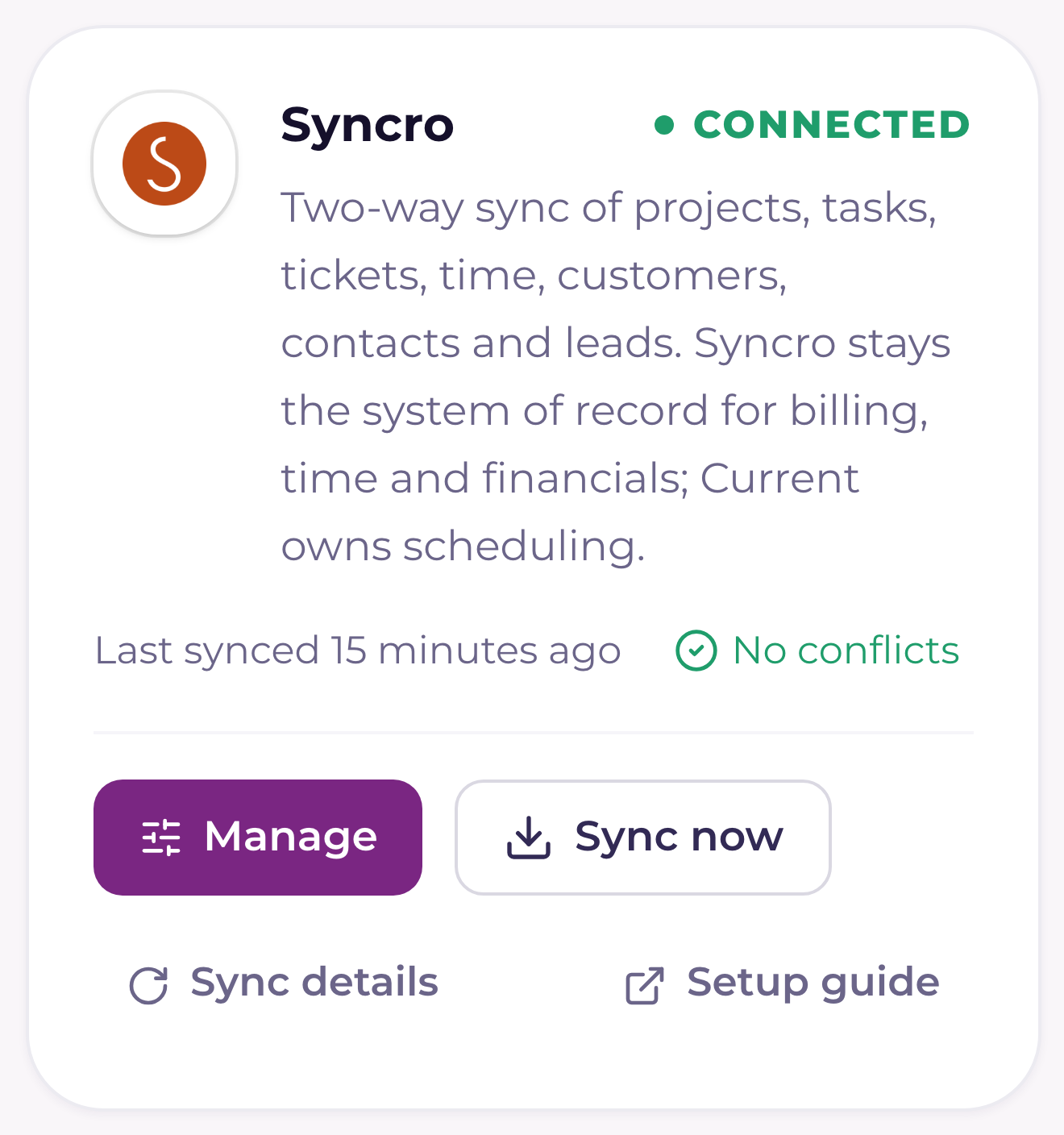
Syncro stays the source of truth for time, billing and invoicing; Current owns scheduling and the views your team works in. Customers, contacts, leads, tickets, estimates, contracts, recurring invoice schedules, users and time all flow in, and the writes you allow flow back.
Before you start
- A Syncro administrator login, so you can create a security group, a user and an API token.
- Your Syncro subdomain: the first part of the address you sign in at, as in yourcompany.syncromsp.com.
- Tenant Admin role in Current. Integrations are an admin-only action.
- Ten minutes in Syncro first if you want the smoothest first sync. "Prepare your Syncro before onboarding: the setup checklist" walks the whole list.
Create the API token in Syncro
- 1Make a security group for CurrentIn Syncro, go to Admin, Syncro Administration, Security Groups and create a group named Current. This group is what the token can reach, so it is where you decide how far the sync sees.
- 2Give the group Ticket Parent-Child, EditCurrent builds a project as a parent ticket with child tickets under it, so this permission is required. Without it every project and task create comes back as a permission error rather than a project.
- 3Switch parent/child tickets on for the accountAdmin, Tickets, Preferences. Turn on parent/child tickets and ticket due dates. This is an account-wide setting, separate from the permission above, and both are needed.
- 4Create a user named Current in that groupEvery Syncro API token belongs to a person, so the work Current does is attributed to whoever owns the token. A dedicated user keeps your technicians' names off records Current wrote, and keeps the permissions in one place.
- 5Create the token as that userSign in as the Current user, open Profile, API Tokens, New Token, and choose Custom Permissions. Tick the permissions listed below, create the token, and copy the key straight into a password manager. Syncro shows the key once.
The permissions to tick
| Area | Permissions |
|---|---|
| Customers | List/Search, View Detail, Create, Edit |
| Tickets | List/Search, View Details, Create, Edit |
| Ticket Parent-Child | Edit |
| Ticket Timers | Overview |
| Estimates | List/Search, View Details, Edit |
| Contracts | List/Search |
| Recurring Invoices | List |
| Invoices | List/Search, View Details |
| Leads | List/Search |
| Appointments | View All |
| Products | List/Search |
| Assets | List/Search, View Details (only if you want the Syncro Assets feed) |
| RMM Alerts | List (only if you want the Syncro Assets feed) |
Connect in Current
- 1Open Settings › Integrations and press the Syncro rowThe drawer opens with its card. Only Tenant Admins can connect it or change its keys; anyone else who opens it sees a short summary.
- 2Enter your subdomain and API tokenThe subdomain is not a secret. The token is, and once stored it is kept server-side only and never sent back to the browser.
- 3Run Test and saveCurrent reads the token owner and one page of customers to prove the credentials are real before anything is stored.
- 4Nothing has synced yet, and that is deliberateConnecting stores the connection only. No data moves until the first sync runs, so you can connect, review the sync switches, and pull when you are ready.
- 5Start the first syncCustomers, contacts, users, tickets, estimates, contracts, recurring invoice schedules, invoices and time come across. Large accounts take a while, because Syncro's API budget is shared across every workspace connected to it, so Current paces itself and resumes where it stopped.
The delta poll, and why Syncro can be slower
After the first pull, Current polls Syncro for changes on a schedule, and pushes go out as they happen rather than waiting for the poll. Syncro's rate limit is 180 calls a minute per address, shared by every workspace Current syncs with Syncro, so Current works to a fair share of that budget instead of racing for it. A minute where the budget is spent is not an error: the sync picks up where it left off on the next run, and the card says so rather than showing a failure.
Projects are parent tickets, and they are opt-in
Syncro has no project record. A project in Syncro is a parent ticket with child tickets under it. Current tracks the parent tickets it created, plus the ones you pick from the "Projects from Syncro" list on the card. Nothing is adopted for you, because plenty of shops use parent and child tickets for grouping that is not project work. There is an optional rule that adopts new parent tickets whose issue type is Project, and it is off until you turn it on.
Who owns which field
The field-ownership map keeps the two systems from fighting. Current never overwrites a Syncro-owned field on push, and a Syncro pull never clobbers a Current-owned field.
| Syncro owns | Current owns |
|---|---|
| Ticket subject, status, assignee and due date | Task scheduling and dependency dates |
| Time entries, billing status and invoicing | Critical path and milestone flags |
| Customers, contracts, recurring schedules and estimates | Project health, phases and estimated hours |
For the field-by-field detail, see "Syncro sync: the complete field-mapping reference".
Disconnecting, and switching PSAs
- Disconnect lives in the Manage drawer's danger zone and asks you to type DISCONNECT. It stops all syncing and deletes nothing already pulled.
- Projects that were syncing to Syncro freeze rather than break: they keep their data, show a synced-to-a-disconnected-PSA state, and make no Syncro calls until you reconnect.
- Switching to Autotask, ConnectWise, HaloPSA, Rev.io or SuperOps is disconnect then connect, from the other provider's own card.
- Switching is free on a fresh workspace. Once you have synced a real book from Syncro, connecting a different PSA is blocked at connect time so the two providers' records cannot collide on their ids. Email support@current.day and we will run a guided migration first.