
Your first week with roadmaps
A day-by-day path into the Roadmap module: open one, take a suggestion, write the goals and the budget down, and take the first decision in a review.
On this page · 8 sections
The Roadmap module gives every partner a standing plan: the goals they gave you, the budget the work has to fit, and a board of quarters holding what you have proposed. It is a lot to meet at once, so Current teaches it the way it teaches everything else, a walkthrough that ends on something real, a short tour the first time you land on each screen, and steps on your own journey at Learn Current. This is the order that works, spread over five days of ordinary work.
Before you start: one admin setting
If you are a workspace admin, set Settings › General › Region and words → "Fiscal year starts in" first. Every quarter label, every budget year and every column on every board follows it, and a card filed under the wrong quarter is tedious to move later. Leave it on calendar quarters if that is how you run the year; the point is to decide once, before anyone plans work into a quarter. While you are in Settings, open the Value ledger card on Branding and fill in the replacement cost of a workstation, a laptop, a server, a firewall, a switch and an access point: a lifecycle suggestion is priced at those figures, so a ledger nobody has filled in prices next year's refresh at nothing.
Day 1: open one and read it
- 1Start at Sales → RoadmapsOne row per partner you look after, with the state of their plan and the money on it. The first time you land there a short tour runs; afterwards the "New here?" card at the top carries the three things worth knowing, a replay, and a link to the full guide.
- 2Open the partner you know bestClicking a row takes over the screen with that partner's plan. Read the five views left to right and close it again. Nothing here needs to be right on day one.
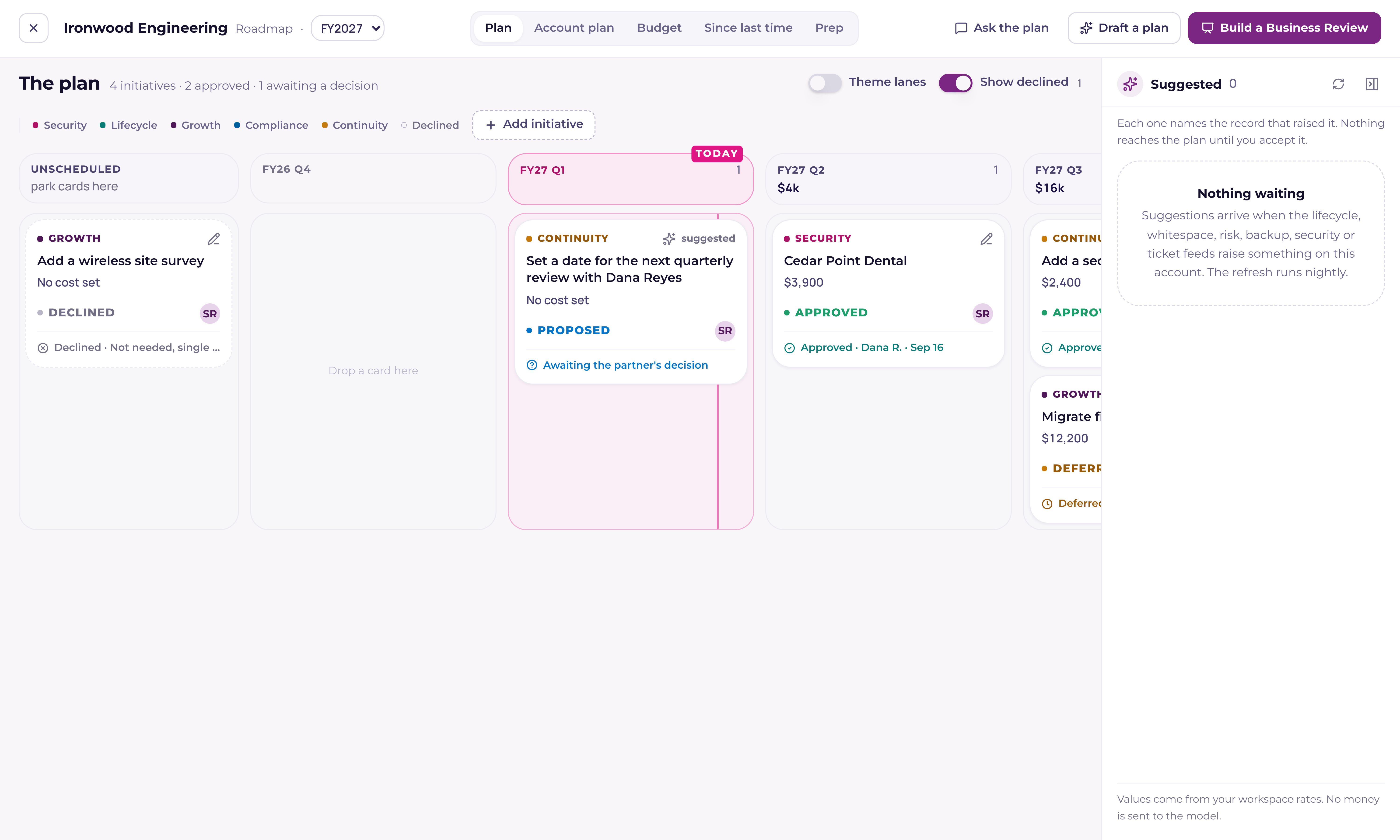
- 3Notice what is already thereLifecycle, whitespace, risks, ticket themes, backup, security and ScalePad have all been putting candidates in the Suggested tray since the module was switched on. Every one of them names the record it came from.
Day 2: run the walkthrough
Open Learn Current from the menu behind your initials, find "Build a roadmap" under Walkthroughs → Sales depth, and press Start. It walks you from the portfolio into a plan, waits while you check the feeds and accept one suggestion, and then shows you where the goals, the budget and the Business Review live. It ends on a real card, so there is nothing to undo afterwards and nothing to pretend you did.
Day 3: write down what they told you
- 1GoalsUp to five, in their words, each with a status and the quarter it is aimed at. Add them on the Account plan view. If you have run a review with them before, the goals and budget from it are already there, seeded the first time the plan was opened.
- 2This year's budgetThe figure, what it covers, and the sentence they actually said if there is no figure yet. Saving it stamps the date you last confirmed it, which is what makes the plan go stale on its own later.
- 3Cadence and the next reviewHow often you meet and when the next one is. A plan older than the cadence becomes a to-do for its account manager rather than a surprise in the meeting.
Day 4: fill the quarters
Work the Suggested tray properly now. Accept what belongs on the plan, and dismiss the rest with a reason (already covered, not a priority, wrong for this partner), so it stops coming back. Drag each accepted card to the quarter you actually mean to do it in, and open the Budget view to see the year take shape: renewals, refresh, one-time work and recurring work against the figure they gave you. A year you have not set a figure for draws no rule at all rather than a zero.
- Every card carries its status at the top, with a small arrow. Press it for the whole set: Suggested, Proposed, Approved, Scheduled, In progress, Done, Deferred and Declined, each with a line saying what it means. A change offers Undo. Approve, Defer and Decline open the decision panel, so the record names who decided.
- Picking Scheduled on a card that has no quarter asks which quarter. In a card's detail sheet, Schedule for picks the quarter, or Unscheduled.
- The amount a card asks for reads as Investment, on the card and in its detail sheet.
- On the Budget view, Export downloads the year as an Excel file (.xlsx) or saves it as a PDF with your logo, ready to hand to the partner.
Day 5: take it into a review
Build a Business Review from the plan and run it in Live mode. Act 2 reads the goals and the budget back and takes a Yes or an Update per line, so you confirm what they already told you instead of asking again. Act 3 is the road ahead: Approve, Defer or Decline each card while they are watching, or drag a card to another quarter. The budget against the figure they gave you updates as you go, and the review's roadmap pages follow, with a short Updated in the meeting note. An approval is stamped with the date and who decided, and opens an opportunity on your Expansion board the same moment.
What good looks like after a week
- One partner has a plan with goals, a budget and a next review date, all stamped this week.
- Their Suggested tray is empty or everything left in it has a reason for being there.
- At least one card sits in a quarter with a figure on it, and one has been decided in front of them.
- Your Week 1 and Month 1 roadmap steps on Learn Current have ticked themselves, whichever of the three journeys you carry: account executive, sales manager or workspace admin.
- If you are an admin: the fiscal year is set and the Value ledger holds real replacement costs.
Where to go next
"Roadmaps: the account plan and the board" is the full guide: the board and its themes, where each suggestion comes from, Draft a plan and Ask the plan, the decisions, the budget view, Since last time, Prep, and who can change what. Read it once you have a plan of your own to read it against.