
Notification routing: who gets alerted for what
The alert routing page decides which roles, teams, or people hear about each platform event, and what happens when you configure nothing.
On this page · 6 sections
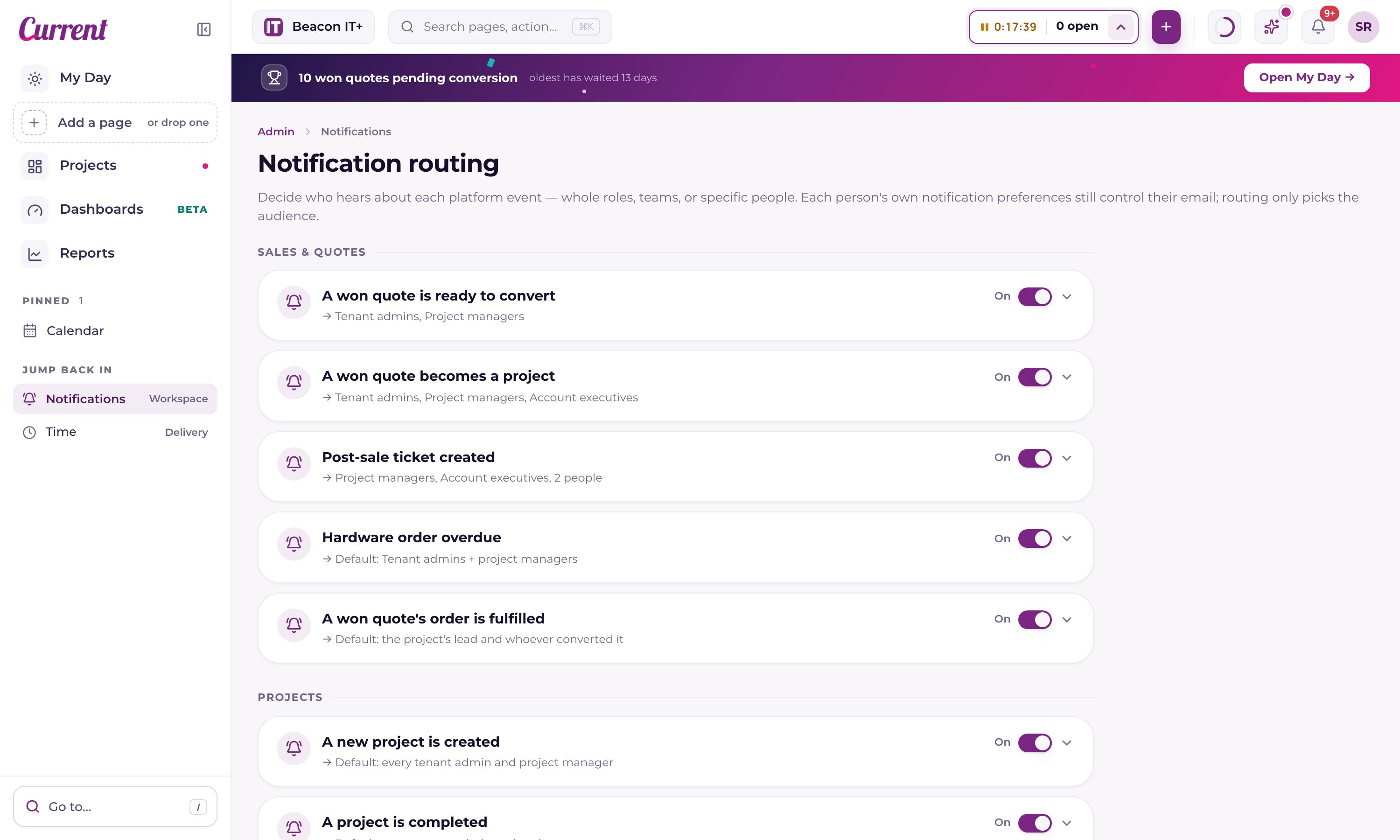
If you want your sales managers told when a quote is won, or you want integration failures to stop pinging everyone, the page you're looking for is alert routing: open Settings › Your settings › Notifications and press Open alert routing, or press / and pick Notifications under Workspace in All pages. It's a tenant-admin-only console that decides the audience for each platform event: whole roles, whole teams, or named individuals. Anyone who isn't a tenant admin sees a "Tenant admins only" panel instead.
Routing vs. your own notification settings
These are two different layers, and mixing them up is the most common source of "why didn't I get that?" Routing picks who is in the audience. Each person's own notification preferences then decide how it reaches them. Routing never overrides a personal preference, and a personal preference can't add you to an audience you aren't routed into.
| Layer | Who controls it | What it decides |
|---|---|---|
| Notification routing (Open alert routing, in Settings › Your settings › Notifications) | Tenant admins, for the whole workspace | Which roles, teams, and people are the audience for an event, or that nobody is. |
| Notification preferences (your account menu → Notifications, or Settings › Your settings › Notifications) | Each person, for themselves | Whether an alert also reaches your inbox, and which types you've muted. |
For the personal side (the bell, the email toggles, the weekly digest and Teams) see "Notifications in Current: the bell, email, and Teams".
The events you can route
Each event is a card. If you have never saved a routing for it, the card shows a "Using default" badge and the event uses its built-in default audience, the same audience the server uses when no route exists. So a workspace that has never opened this page is still fully wired; nothing is silently off.
| Event | Default audience if you configure nothing |
|---|---|
| A quote is won | Every tenant admin and sales manager, plus the rep who sold it. Project managers and service managers get a bell without an email so they can turn the quote into a project. |
| A won quote becomes a project | Every tenant admin and project manager |
| Hardware order overdue | Tenant admins + project managers |
| A new project is created | Every tenant admin and project manager |
| A project is completed | Every tenant admin and project manager |
| An integration starts failing | Every tenant admin |
Two of these exclude the person who caused them, so you're never told about your own action: the creator of a project isn't notified that the project was created, and whoever runs the convert wizard isn't notified that the quote became a project.
Change the audience for an event
- 1Open alert routingOpen Settings › Your settings › Notifications and press Open alert routing (tenant admins see it), or press / and pick Notifications under Workspace in All pages. Cards are grouped into Sales & quotes, Projects, and Platform health, and start collapsed with a one-line summary of who currently hears the event.
- 2Expand the card you want to changeClick the card. It opens to show exactly what fires the event, plus three recipient pickers: Roles, Teams, and Specific people.
- 3Pick your audienceThe role chips are Tenant admins, Project managers, Engineers, and Account executives. The Teams row only appears if your workspace has teams. Specific people has a search box across staff names and emails. The three lists are added together and de-duplicated. A person in two of them is notified once.
- 4Check the live previewThe footer counts the real audience: "Will notify 7 people" with their avatars. If the count is zero, the Save button stays disabled and the card tells you to pick at least one role, team, or person.
- 5Save routingClick Save routing. The "Using default" badge disappears, from now on this event uses your list, not the built-in default. Disabled accounts are dropped at send time when they're in the audience via a role chip or as a named individual, so you don't have to prune those lists when someone leaves. A disabled person who is still a member of a routed team is not currently dropped, remove them from the team.
Where a routed alert actually lands
Every routed event lands as an in-app bell notification for everyone in the audience. Email is deliberately narrower: of the routed events, the won-quote alert is the one that also goes out by email, and it still honors each recipient's own "Won quotes" email preference. Someone who muted that type gets the bell and no email. The rep who sold the quote is always told, even when you route the alert elsewhere. Each person hears about a win once, whichever tool reported it: the rep gets a congratulations, everyone else gets "<rep> sold <opportunity>", and a rep who is also in the audience gets only the congratulations. A quote won in HaloPSA or Syncro tells only the rep who sold it. When more than five wins arrive at once, each person gets one summary with a line per win instead. Everyone sees the contract term. The monthly recurring revenue, the one-time revenue and the total contract value show only to people who can see the opportunity's amount in Current; everyone else gets the same email without those figures. A figure Current doesn't have shows as a dash. The rest of the routed events are bell-only today.
The Teams channel announcement for a won quote is a separate thing: it's driven by the Microsoft Teams mapping on the Integrations page, not by this routing table. See "How Teams channels work inside projects".
Edge cases worth knowing
- Any staff role you select on a card receives that event's bell, including Account executives. There is no filter that limits AEs to sales events: an AE selected on a project or integration card will hear it. If you don't want AEs hearing those events, don't select the Account executives chip on those cards.
- Partners can't be selected as a role chip, and a named individual is re-checked against their current role at send time, so a person who was routed as staff and later became a partner stops receiving internal alerts automatically. One gap to know about: a partner who is a member of a routed team is NOT currently filtered out and would receive the internal bell. Route teams with care. See "What partners can see, and what they never can".
- Routing fails open, not silent. If the routing can't be read, the event falls back to its built-in default audience rather than being dropped.
- These scans only run on weekdays. Completed-project, integration, and hardware-order alerts that occur over the weekend are picked up on Monday. A project created over the weekend, however, falls outside the new-project window (see below) and will not generate a "new project" alert at all.
- Integration alerts are rate-limited to one per connection per 24 hours, so a flaky afternoon doesn't flood your admins.
- The hardware-order nudge fires once, after the order has gone unplaced for more than 3 business days. It also goes to the ticket's procurement person. Provided their PSA resource or member is linked to a Current user. If that person isn't mapped to a Current profile, they are silently skipped and only the routed audience hears it.
- New-project alerts only cover projects created in the last several hours, so turning an event back on doesn't replay a backlog at your team.
Nobody got the alert, what to check
- 1Is the event On?Open the card on the alert routing page. A silenced event shows "Silenced. Nobody is notified" in amber on the collapsed row.
- 2Is the person actually in the audience?The footer preview lists the exact people who will be notified. If they aren't in it, they aren't routed, check their role, or add them under Specific people.
- 3Is the person's account still active?Disabled accounts are dropped from every audience they're in by role or by name, and partners (read_only) are never routable by role or by name. They're re-checked by role at send time even if their id is still saved on the route. Every other staff role, including account executives, receives whatever it is routed.
- 4Did they get the bell but no email?That's the personal layer, not routing. Only the won-quote alert emails, and only when that person's own "Won quotes" preference is on and their master email toggle is on.
If you're deciding which roles should exist in the first place before you route anything to them, start with "Roles & permissions: who sees what".