
My Day: your personal cockpit
Your day on one page: today's meetings with a plan for the time between them, and everything that needs you, in the order Current suggests.
On this page · 10 sections
My Day is one page about you: today's meetings with a plan for the time between them, and everything assigned to you from every project and every ticket list, in the order Current suggests working it. Where your workspace uses Scorecards, your numbers sit at the top.
What's on the page
- Your scorecard, only where your workspace uses Scorecards: up to three numbers your manager set for you, each with its goal, a status (On track, At risk or Off track) and a small chart of the last four periods.
- Today: your Microsoft 365 meetings laid out across your working day, the time you logged today, and Plan my day. It starts minimized to one line with your next meeting and the free time Current found.
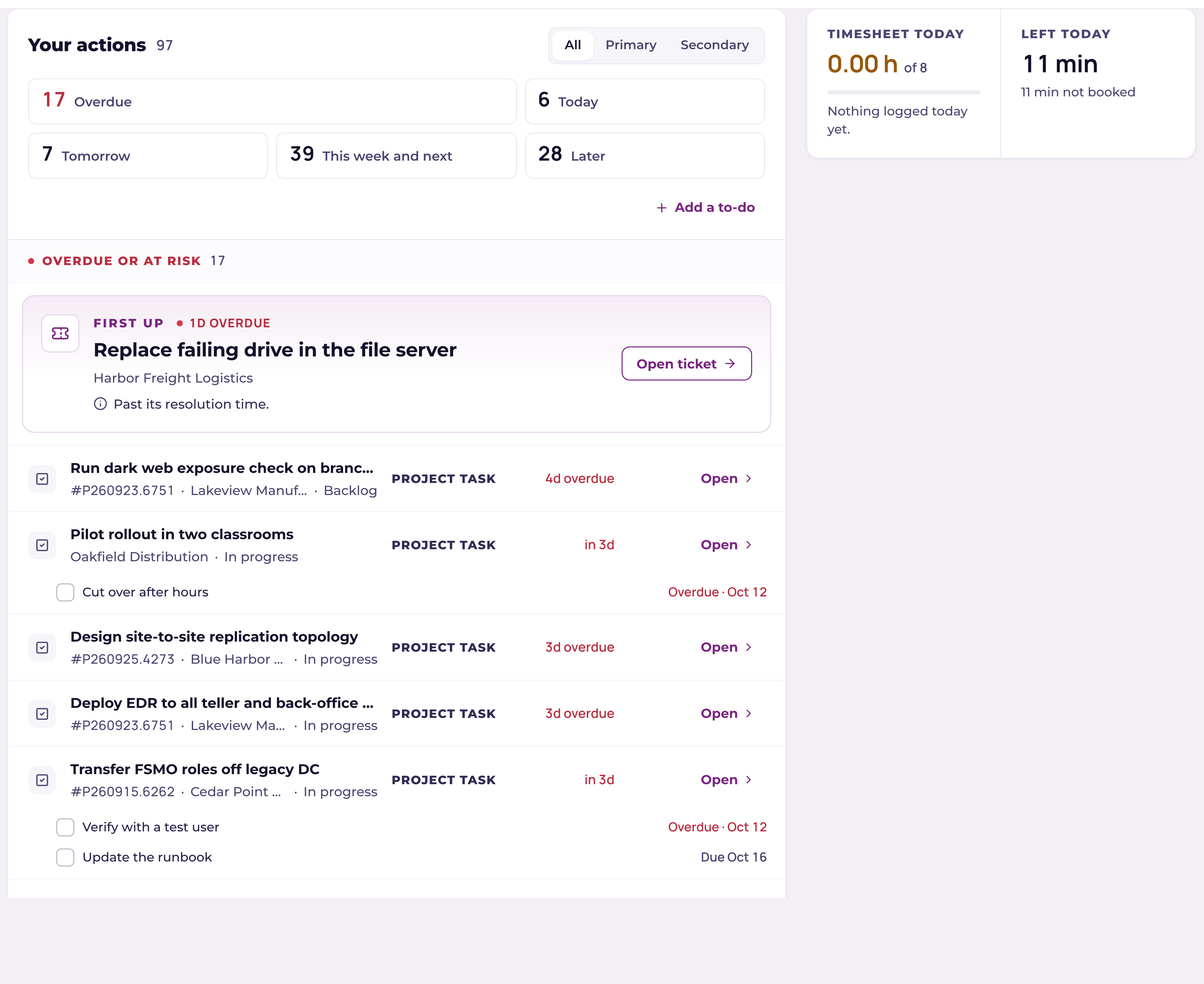
- Your actions: every task, ticket and to-do that needs you, in one list. Current orders it: anything late or about to breach first, then what is due today, then the rest by date. Each row is tagged Service desk, Project task or To Do.
- Day stats: the hours you logged today against 8 and the time left in your working day. Sales and finance roles see today's meetings in place of the timesheet.
- Waiting on you: tickets where somebody replied, a proposal needs your approval, or a ticket was reopened. It only shows when something is waiting.
- Won quotes to convert: quotes won in your quoting tool and waiting to become contracts and projects. The monthly recurring amount is in green and the one-time amount beside it, never added together. Convert opens the convert wizard for that quote, and Convert all walks through every one in turn. Rest the pointer on Convert to read what it creates in your PSA.
- Your quarterly goal, only where your workspace uses Scorecards: the goal, its milestones and how many are done.
- Needs a decision: device matches and time over the cap that only a desk manager can settle, decided right on the card.
- Your role's view, below the list: cards chosen for your role, such as Team pulse and Escalations for a service manager, Project health for a project manager, Pipeline by stage for an account executive, or Unbilled time for finance.
A card whose source your workspace does not have simply is not there. Nothing is drawn empty.
Your scorecard
Where your workspace uses Scorecards, rest the pointer on a number for a moment to read what it counts. Click it to open its details beside the page: the number against its goal, who set the goal, a chart of the last four periods, and What's moving it, the records on your list that feed the number, biggest first, each with the button that acts on it. Copy link gives you a link that opens the same details. Press Esc or click outside them to close. On a phone the details open as a sheet you drag down to close.
Minimize the scorecard and its header keeps all three numbers, each with its status and value, and its goal where there is room. Click one to open its details without opening the card.
Your actions, by date
Across the top of Your actions, five counts say what is due: Overdue, Today, Tomorrow (Next workday on a Friday), Later this week or Next week, and Later. Click one, or press its number, to jump to that group. Service desk, Project tasks and To Do narrow the list to one kind. All, Primary and Secondary narrow it to the work you are the Primary resource on, or to the tasks and PSA tickets you are a Secondary resource on. A PSA ticket where you are a secondary resource shows under Secondary within about an hour of being added; a service desk ticket always counts as Primary. The most urgent item sits on top as First up, with why it is first and the button that starts it. Tomorrow and everything after stays folded at the foot of the list until you press Unfold. Dated checklist items show under their task with a box to tick them done.
Tasks on a project your PSA cancelled are left off My Day. When your PSA marks a project Cancelled (or Canceled), its open tasks no longer show in Your actions or the planner, because nobody is going to work them. A project your PSA marks Complete keeps its open tasks here so you can finish them. Nothing is closed or changed: the tasks are still on the project's page in Current and in your PSA.
Your to-dos
Your Microsoft To Do items and flagged emails sit in Your actions with a To Do tag, each under the day it is due; one with no date waits in the folded band at the foot. Tick the round box to complete it in Microsoft To Do too, with Undo for a few seconds. Add a to-do, at the right of the kind buttons, adds one to your Tasks list: type it and press Enter, and the folded band opens so you see it arrive. Connect Microsoft 365 in Settings to see your to-dos here.
Arranging the page
Today and, where your workspace uses Scorecards, your scorecard sit at the top. Each one minimizes with the arrow at its right end, or a click on its header: the scorecard starts open and Today starts minimized, and My Day remembers your choice on every device. Customize, at the top right, orders the cards beside and below Your actions and folds the ones you check less to a single line. A folded card keeps one line of what it holds, and where your workspace uses Scorecards, a folded quarterly goal also shows its state: On track, At risk, Off track or Done. Nothing can be removed, and Reset in Customize puts your role's default back.
On a phone everything stacks in one column, in your order, and Plan my day sits in a bar at the bottom of the screen.
Plan my day
Plan my day is on the Today card, whether it is open or minimized. Press it and Today opens, then Current proposes blocks for what is left of your day, around your meetings: the items it would pick first, sized to the time it found. The blocks are dashed while they are a suggestion, and nothing reaches Outlook yet.
- 1Add to OutlookPuts the blocks on your own Outlook calendar as Busy events. They turn solid, and the message that follows offers Undo.
- 2Not todaySets the suggestion aside. Current plans your day again tomorrow, and the message offers Undo.
- 3Edit in plannerOpens the week planner with today's picks, to change what is in the plan or plan the rest of your week.
Plan your week
Plan your week, on the Today card when there is no plan yet, and Edit in planner open the planner beside My Day. Nothing is planned until you choose: on the left is everything you could work on, and on the right your week fills in as you tick.
- 1Pick what to work onThe list holds your tasks and tickets in the order Current suggests (Overdue or at risk, Due today, Waiting on you, This week, Later), then your to-dos, your checklist items and, if you work opportunities, your opportunities closing in the next two weeks. Current ticks what matters most and says why on each one, for example Due today, SLA breaches at 3:00 PM or Ana waiting 2 days. Untick anything you won't get to, tick anything you will.
- 2Check the time and the next stepEach row shows how long it should take and where that figure comes from: the task's own estimate, your estimate, or Current's guess. Change it with the time menu. Each row also shows the customer and a concrete next step.
- 3Watch the week fill inThe week covers your next five working days, today first. Current places each item on the earliest day it fits, around your meetings and lunch, and never after the day it is due. Above the week it says how much you planned of the time you have free.
- 4Add to OutlookPuts every planned block on your own Outlook calendar as a Busy event in the category "Planned by Current". Each event says why it was planned, the customer, the time it should take and the next step, with a link back to the record. The message after it offers Undo. Nobody else's calendar is touched.
Close keeps your plan on My Day without adding it to Outlook; Add to Outlook on the Today card adds it later. Edit in planner opens the planner again with your picks.
When it doesn't all fit
If you tick more than you have time for, the planner says so, for example This is 2 h 15 min more than you have free this week, and marks the lowest-ranked items Won't fit. Shorten one to the time that is free before it is due, or take it off this week with Not this week. Nothing is dropped without you seeing it.
Your preferences
- Working hours and lunch: the planner only uses the time between them.
- Buffer: minutes left unplanned each day for tickets that come in.
- Meeting prep: a short block right before each meeting of 30 minutes or more, with a brief, when that time is free.
- Focus blocks: put work in long uninterrupted stretches first and leave the short gaps between meetings free.
- Days you work: the planner plans only these days, and skips your workspace's holidays.
Preferences are yours alone and are saved to your account. Open them with Preferences at the top of the planner; the week changes as you change them.
Once the plan is on your calendar you can still drag a block on the Today card to a new time. It snaps to 15 minutes, never goes before now, and the event in Outlook moves with it. A block that lands on a meeting is allowed, and the message says which meeting it overlaps.
Changes you make in Outlook come back to My Day: move a block there and My Day moves it too, delete it there and it is off that day's plan. My Day reads your calendar every half hour while it is open, and straight away when you reload the page. If a meeting lands on a planned block, Current suggests a new arrangement of the same work and asks before changing anything.
Keys
- 11 to 5Jump to a date in Your actions.
- 2J and KMove to the next or previous row.
- 3EnterOpen the first row when nothing else has focus.
- 4Enter, E and XOn the Today card, after you click its background so the card itself has focus, and while nothing is open in front of the page: Enter plans your day or adds the plan to Outlook, E opens the planner, X sets the plan aside for today.
- 5EscClose what is open in front of the page: a number's details, Customize, the planner or the Add a to-do field.
- 6?List every key on the page.
For the same view across everyone's work, built for managers, see the Portfolio page.