
Finding anything fast: global search with ⌘K
How the search box (⌘K) jumps to any project, task, company, contact, ticket, or opportunity, and how the same box answers questions with Ask Current.
On this page · 5 sections
You almost never need to click through a menu to find something in Current. Press ⌘K on a Mac (Ctrl+K everywhere else) from any page, or click Search or ask Current… in the top bar, and a single search box opens over everything else. Start typing and results appear across your whole workspace under Go to.
What it searches
One search covers companies, projects, tasks, tickets, contacts, opportunities, people, and documents in a single pass, typo-tolerant so a slightly misspelled company name still finds its match. Results respect what you're allowed to see: an account executive only sees their own book of business, a partner viewer sees no CRM data at all, and anyone without CRM access simply won't see opportunity or contact results, quietly, with no error message.
How results are ordered
- 1Companies leadCompanies always show first, with current partners badged and listed ahead of prospects, followed by project-related results, then the rest.
- 2Strong matches rise to the topIf you type something close to an exact company or contact name, that name-level match always sorts above fuzzier, looser matches, so typing a real company's name never buries it under six unrelated fuzzy hits.
- 3Classification badges tell you what you're looking atA current partner shows its PSA classification (for example, "Managed" or "Essentials") on a green badge. A prospect shows its classification too when it has one, "M&A Prospect", say, and falls back to its PSA company type ("Prospect", "Lead") when it doesn't. Either way a prospect's badge is muted grey, so you can tell at a glance whether you're clicking into an existing partner or a pipeline lead, and which kind of lead it is.
If you have CRM access, the palette can do a few things beyond jumping to a page, start typing an action like logging a call or moving an opportunity stage, and it opens a quick company or opportunity picker right there instead of making you navigate to the record first.
Pages, actions and settings
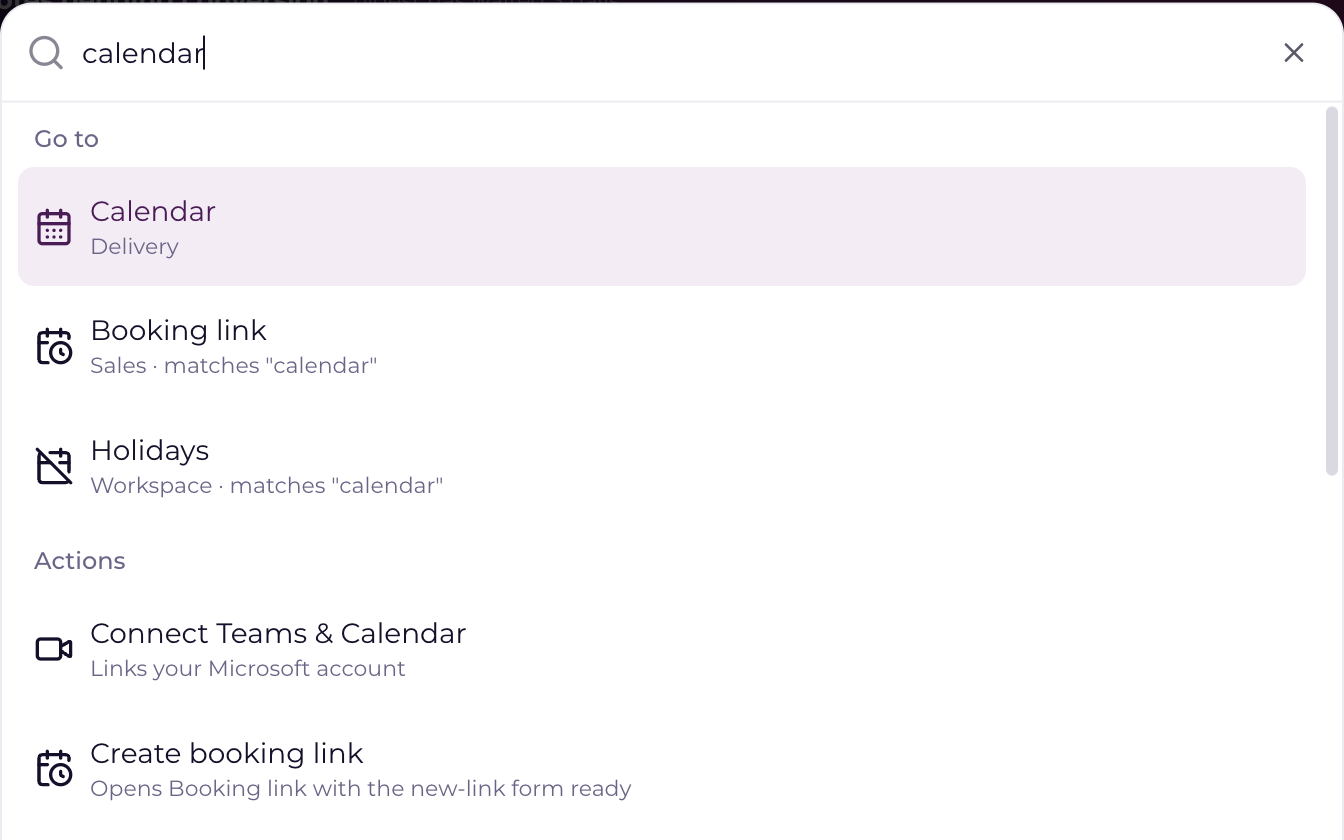
Since September 18, 2026 the palette knows the whole app, not just records. Every row in your left menu is a Go to result, the buttons inside pages are Actions (New project, Invite a user, Create booking link, Log time), and the fields people hunt for in Settings are their own group (Time zone, Brand kit, Email signature, Sign-in security). Press Enter and you land on the page, with the section scrolled into view for a setting, or with the form open for an action that has one.
It matches the words you would actually type, not only the page's name. Typing "calendar" lists Calendar, then Booking link and Holidays, and each of those rows says why it is there: "Sales · matches 'calendar'". A page you cannot open is never listed, because the list is built from the same menu your role sees.
When the box is empty, Go to lists places you can jump to, so ⌘K also doubles as a fast way to move between core views without touching the mouse.
Ask a question in the same box
The same box answers questions. Type a question and press Enter (or press ⌘Enter to ask whatever you typed), and Current answers in the middle of the window from the records your role can open, with a link to every source. Record search, its ranking and the actions above work exactly as before. How answers, follow-ups, notes and the daily limit work is in "Ask Current: search, or ask a question, from one box".