
Which mailboxes sync to the CRM, and how to exclude one
Current can capture partner email from colleagues' mailboxes, even people who never log in. What it covers and how to exclude one.
On this page · 8 sections
Current's CRM mirrors partner email onto company pages so whoever owns the account can see the full conversation history. When staff-mailbox capture is on, it reaches past the people who log in: Current reads your colleagues' mailboxes too. Which ones it covers is worth knowing. Everyone in your workspace, plus staff from your PSA whose email address is on one of the domains Microsoft has verified for your organisation. If some of your staff use a second domain, verify that domain with Microsoft and they come in with the rest. The reason is continuity. If an account manager leaves, the partner's history has to stay with the partner, not walk out with the person. Capture turns on once a Microsoft 365 global admin approves Current from inside your workspace (Settings › Integrations: on the Microsoft 365 card at the top, open Mail capture), and Microsoft confirms your organisation owns the email domain of the Tenant Admin who started it; each of those mailboxes then brings in its last 12 months of partner email. The Staff mailboxes panel in Users & roles says whether it's on for yours, and tells you if Microsoft has not granted the mail permission yet. That one is easy to get wrong, because Microsoft offers a delegated version of it and capture needs the application one. Until it is, email comes from each person who connects Microsoft 365 in Settings.
What is stored, and what is never stored
Only mail to or from a company's own email domain is stored. Current works out that domain from the company's website, and where the website gives nothing, from its most common contact domain. One contact on a real business domain is enough, so prospects and quieter accounts are covered as well as the partners you bill. A message must match to be kept. Personal hosts like gmail, your own staff domain, site-builder hosts and role addresses such as noreply@ can never identify a company, and a domain carried across several unrelated accounts identifies none of them. Internal mail between colleagues, personal mail, newsletters and vendor alerts are discarded as they're read: they are never written to the database and never appear on a company page. Reading more mailboxes does not mean storing more mail.
The mailbox list builds itself
Users & roles has a Staff mailboxes panel listing every mailbox Current knows about. It's assembled automatically from your PSA's resources and your Current users. When staff-mailbox capture is on, a new hire starts being captured without anyone adding them, including mailboxes marked "Not a Current user". When it's off, a person's mail syncs once they connect Microsoft 365 in Settings (the panel shows "Not connected" until they do), and a mailbox with no Current user behind it reads "Not captured".
Who can read synced partner email
Anyone who can view the partner's record can read the email synced against it. That's what makes an inherited account workable, the person taking it over sees the history, not a blank page. Partners themselves never see any of it, and people without CRM access see none of it.
Where the switch lives
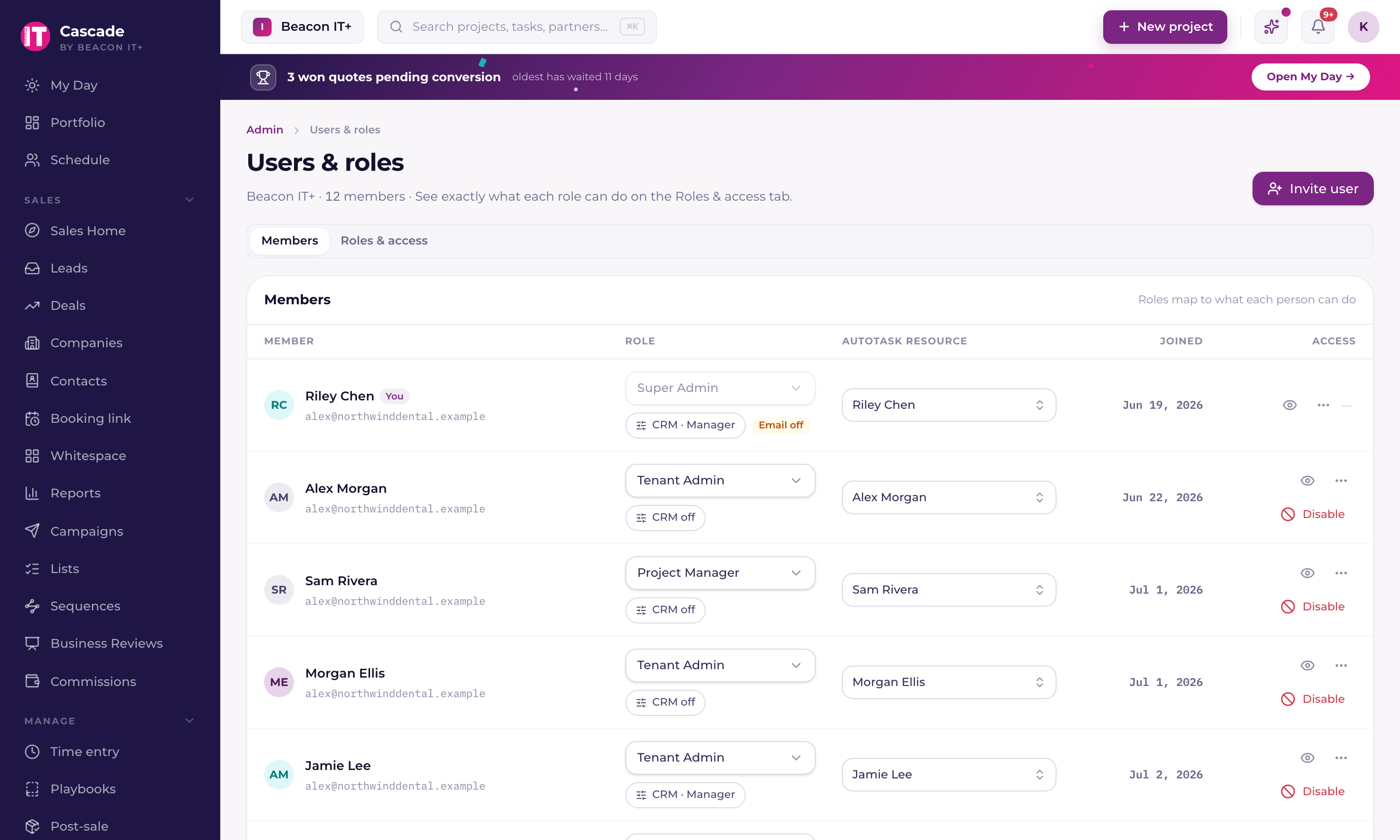
This is an admin-only setting. Nobody can exclude their own mailbox, by design. A tenant admin (or super admin) manages it for everyone else. There are two places to do it, and they stay in step with each other: the Staff mailboxes panel (any mailbox, including non-Current staff), and the CRM permissions panel on a Current user's row.
- 1Open Users & rolesGo to Users & roles from the sidebar.
- 2For any staff mailbox: use Staff mailboxesScroll to the Staff mailboxes panel, search for the person, and switch their mailbox off. This is the only way to exclude someone who isn't a Current user.
- 3For a Current user: use CRM permissionsOn their row, click the CRM permissions button. It shows a compact summary like "CRM off," "CRM," or "CRM · Manager", and turn off the Email sync switch. It lists CRM access, Sales manager, and Email sync as three switches, each labeled "Always" or "Via role" where a setting is fixed by that person's role.
- 4ConfirmEither route asks you to confirm, because excluding a mailbox also deletes what it already contributed. There's no accidental toggle here.
What happens the moment you turn it off
Two things happen together, immediately: Current stops pulling any more email from that person's mailbox into the CRM, and it permanently deletes everything already synced from their mailbox off every company page. The confirmation dialog says so: "[Name]'s already-synced emails will be permanently removed from all company pages, and their mailbox will no longer sync. Only this user's emails are affected. You can turn sync back on anytime."
Teammates' copies are untouched
Email in the CRM is tracked by whose mailbox it came from, not just which company or contact it's about. If a thread was shared and also synced from a colleague's (non-excluded) mailbox, that colleague's copy stays exactly where it is. Excluding one person's mailbox never touches anyone else's synced mail, only what came from theirs.
Re-enabling: a fresh start, not a restore
Turn Email sync back on for that person and their mailbox resumes syncing on the normal schedule. Because the purge also clears that person's sync history, the next sync run treats it as brand new. It does a fresh lookback of roughly the past year rather than picking up where it left off. Nothing from before the exclusion comes back; you're starting that person's CRM email history over.
The "Email off" chip
Wherever that person's role shows in Users & roles, an amber "Email off" chip appears next to it so it's obvious at a glance whose mailbox is currently excluded. You don't have to open the panel to check.