
Review, submit, and download your commission statements
Your monthly statement assembles itself from your won opportunities, quotes, and goals, no data entry. On My statements you review this month's lines, submit with an optional note, and open every past statement to download its PDF or CSV. Near month end, Current reminds you if you haven't submitted.
On this page · 6 sections
You don't build your statement. It builds itself. Each month, the module pulls your won opportunities, your linked quotes, and your goal attainment, applies your assigned plan, and lays out every line it produced. There is no data entry and no spreadsheet: your job is to read it, make sure it's right, and submit it.
Where to find your statements
Open Sales, then Commissions, then My statements. It is one page with two parts:
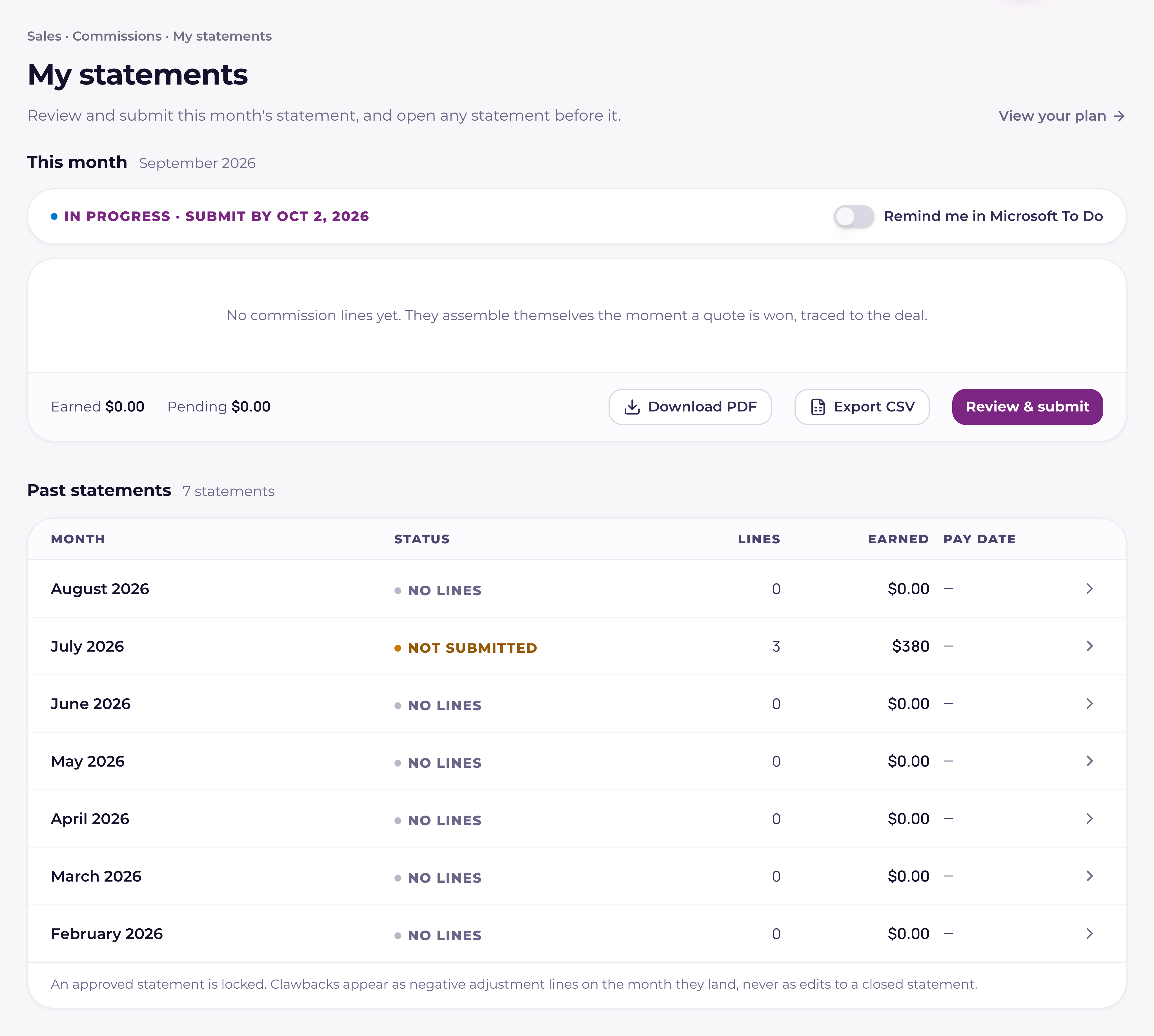
- This month, at the top: the statement's status, every line, and Review & submit. As your statement moves, the status reads In progress, Submitted (waiting for approval), Returned, or Approved.
- Past statements, below: every statement you have had, newest first, each with its status, line count, earned amount, and pay date. Paid means the statement was approved and its pay date has arrived. Not submitted means a past month still has lines you never sent. No lines means there was nothing to submit that month.
- Click a past statement to open it. You see its lines, the note you sent with it, and two buttons: Download PDF (the printable statement, the same one your manager's approval produces) and Export CSV (one row per line, the same columns payroll imports).
When it's due, and when you get paid
- Statements are monthly. Each one covers a calendar month.
- It's due the first Friday of the following month. So July's statement is due the first Friday in August.
- Near the end of each month, if you haven't submitted that month's statement and it has lines on it, Current rings your bell and sends you one email: "Submit your [Month] commission statement." It comes once a month, on a weekday during working hours in your workspace's time zone, in the last four days of the month. To stop the email, open Notifications from your account menu and switch off Commission statement reminder under Sales. The bell still rings.
- You can also turn on an optional Microsoft To Do reminder that lands in your to-dos a week before it's due (the Friday before) titled "Submit [Month Year] commission statement." It's off unless you switch it on.
- The default pay date is the 7th of the following month. Your workspace can change that; whatever it's set to, it's the same day for everyone.
Reviewing your lines
Every line shows the opportunity or spiff it came from, how much it pays, and where it sits on the recognition ladder, Quote won, Pending kickoff, Pending invoice, Earned, Payable, or Paid. A line that's still Pending isn't a problem; it just hasn't met your plan's earn trigger yet. See "How commission gets recognized: the earning ladder" for what each state means.
You have three tools while you review, and none of them change the money:
- Flag a discrepancy. If a line looks wrong (a missing opportunity, a margin line that says it needs a quote, an amount that doesn't match your read) flag it. The flag is visible to your manager, so it becomes part of the conversation on the statement.
- Keep a private note. A private note on a line is yours alone. Nobody else, not even your manager, can see it. Use it to jog your own memory before you submit.
- Ask your manager. Send your manager a message about a specific line right from the statement.
Ask over Teams, or email until Teams is turned on
"Ask your manager" sends a real message. If your organization has granted Current permission to send Teams chats, it arrives as a genuine 1:1 Teams direct message. Until that permission is in place, the same ask goes out as a real email from your own mailbox, so the path always works, and it quietly upgrades to Teams the day an admin flips the permission on. See "Turn on Teams direct messages for commissions" for the one-time admin step.
Submitting, and what happens after
- 1Review every line and clear your flagsMake sure the statement reads the way you expect. Anything you're unsure about, flag it or ask your manager before you submit rather than after.
- 2Open Review & submit and tick each lineThe review lists every line with its math and amount. Tick each one that looks right, or use Mark all as right. A line you flagged counts as reviewed, because the flag goes with the statement. Submit stays off until every line is reviewed.
- 3Add a note if you want, then submitThe note box is optional and takes up to 2,000 characters. Your manager sees the note on the Team tracker beside your statement, and you see it on the statement afterwards. Submitting hands the statement to sales leadership and its status changes to Submitted. When your manager approves or returns it, your bell tells you.
- 4There's no take-backs. Unless it's returnedOnce you submit, you can't pull it back yourself. If you need to change something, your manager can return the statement to you with comments; only then can you edit and resubmit.
Your My commission page
Separate from the formal statement, My commission is your running view of where you stand: what you've earned, an accelerator watch showing how close you are to your next tier, and your next payout. It also carries an earnings estimator, labeled "an estimate, not a promise," because a line only pays once it climbs the ladder and a statement is approved.