
Connect your AI tool to Current
Connect Claude or ChatGPT by signing in, or Claude Code, Cursor, VS Code and other MCP clients with a personal key, and choose what each one can reach.
On this page · 10 sections
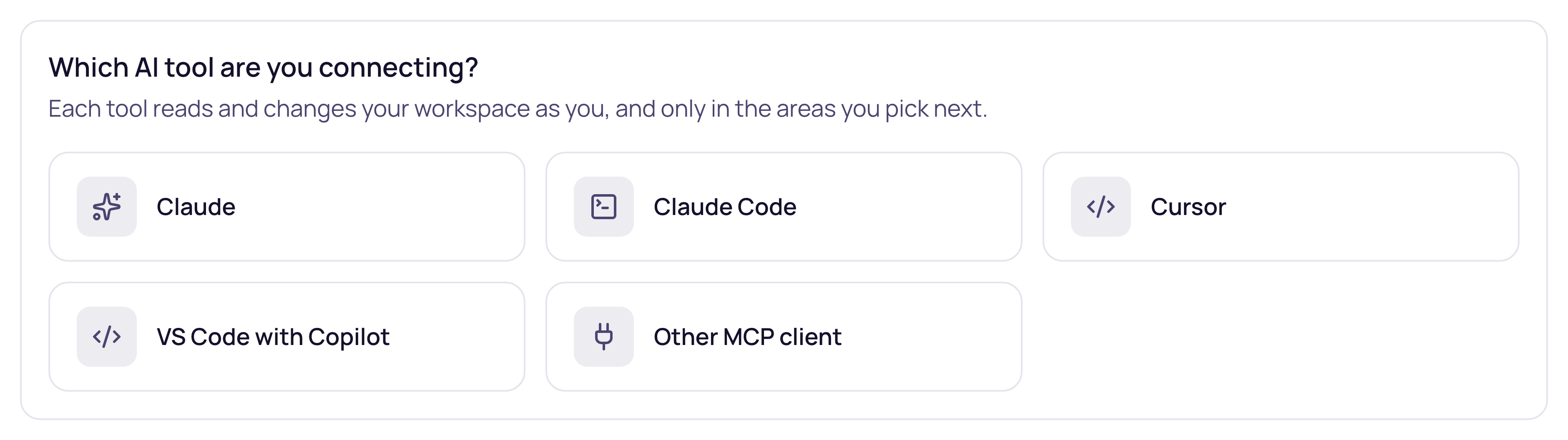
Your AI tool can read and work in Current for you: find a ticket, summarise a company's open work, add a note or tick off a checklist item. Open Settings › Integrations › API & MCP and choose Connect your AI tool. Claude and ChatGPT connect by signing in to Current. Claude Code, Cursor, VS Code and other MCP clients connect with a personal key that Current makes for you.
What a connection can reach
Each connection and each key reaches four areas, each set to None, Read, or Read and write:
| Area | What it covers |
|---|---|
| Tickets | Service desk tickets, their messages and boards. Needs the service desk. |
| CRM | Companies, contacts, opportunities and notes. Never money. |
| Projects and tasks | Projects, tasks, checklists and comments. Hours, never money. |
| Time entries | Your time entries. One a tool adds is saved as a draft you send yourself. |
What a tool can actually do is the lowest of three things: what you pick for it, what your workspace allows (a tenant admin sets that on the Access tab), and what your role allows. It acts as you, so it never sees more than you can see in Current yourself. Where you can't give an area, the grid says why.
Claude
- 1Copy the addressIn Current, choose Connect your AI tool, then Claude. Copy the server address, https://api.current.day/mcp. You choose what Claude can reach later, on Current's approval screen.
- 2Add the connector in ClaudeIn Claude, open Settings, then Connectors, and choose Add custom connector. Name it Current and paste the address. On a Team or Enterprise plan, an owner adds the connector for the organization first.
- 3Connect and approveChoose Connect. Claude opens Current's approval screen: sign in, pick what Claude can reach in each area (it starts at what Claude asked for, and you can only lower it), and approve. The approval screen names the app, the workspace it will read and what it may do as you.
ChatGPT
- 1Copy the addressIn Current, choose Connect your AI tool, then ChatGPT. Copy https://api.current.day/mcp. You choose what ChatGPT can reach later, on Current's approval screen.
- 2Add it as a connectorIn ChatGPT, add a connector with that address. Your ChatGPT plan decides whether you can add connectors yourself or an admin of your ChatGPT workspace adds them.
- 3Connect and approveChoose Connect and sign in to Current. On Current's approval screen, pick what ChatGPT can reach in each area (you can only lower what it asked for), and approve.
Claude and ChatGPT are approved by Current, so nobody else has to review them. A connection made by signing in reads only for now: changes through it come in a later release. When signing in is not available yet, Current offers Claude a personal key instead, with the lines for Claude Desktop's configuration file.
Claude Code
Choose Connect your AI tool, then Claude Code, then what it can reach. Current makes a personal key and shows it once, with the one command to run in your terminal:
claude mcp add --transport http current https://api.current.day/mcp --header "Authorization: Bearer $CURRENT_API_KEY"
Put the key in the CURRENT_API_KEY environment variable first, or paste the command exactly as Current shows it.
Cursor
Choose Cursor and what it can reach. Current makes a personal key and shows the lines to add to ~/.cursor/mcp.json:
{
  "mcpServers": {
    "current": {
      "url": "https://api.current.day/mcp",
      "headers": {
        "Authorization": "Bearer <your key>"
      }
    }
  }
}VS Code with Copilot
Choose VS Code with Copilot and what it can reach. Current makes a personal key and shows the lines for .vscode/mcp.json in your project. Keep that file out of source control, because it holds the key.
{
  "servers": {
    "current": {
      "type": "http",
      "url": "https://api.current.day/mcp",
      "headers": {
        "Authorization": "Bearer <your key>"
      }
    }
  }
}Other MCP clients
Any tool that speaks MCP over HTTP can connect with a personal key. Choose Other MCP client, then give the tool the server address (https://api.current.day/mcp) and one header, Authorization: Bearer followed by the key.
Check it works
Keep the page open after you connect. Current watches for the tool's first call and says when it arrives. If nothing comes, check that the whole key was pasted (it starts cur_live_), and that the address ends in /mcp.
Keys that can change things
A personal key that can change anything (any area set to Read and write) works only from the addresses you list when you make it, each a /16 range or narrower. That is why Connect your AI tool makes read keys, and Create key on the same page makes a key that can change things. A key lasts 30, 60 or 90 days.
Take access away
- Your keys and Your connections, on the Keys and Apps tabs, list everything you made. Revoke or Remove stops it at once.
- A key or connection stops by itself when you leave the workspace, are disabled, or become a Partner Viewer. If you move to another staff role, it keeps working but narrows to what the new role allows.
- A tenant admin can switch API access off for one person on the Access tab. Their keys and connections stop working until it is switched back on, and nothing has to be made again.
- A tenant admin sees every live key and connection in the workspace and can revoke any of them. Nobody can see a key again once it has been shown.