
What is Current Score? Project health, factor by factor
Current Score is 100 minus ten deductions computed from your own project data. Here are the exact factors, points, caps, and health bands.
On this page · 6 sections
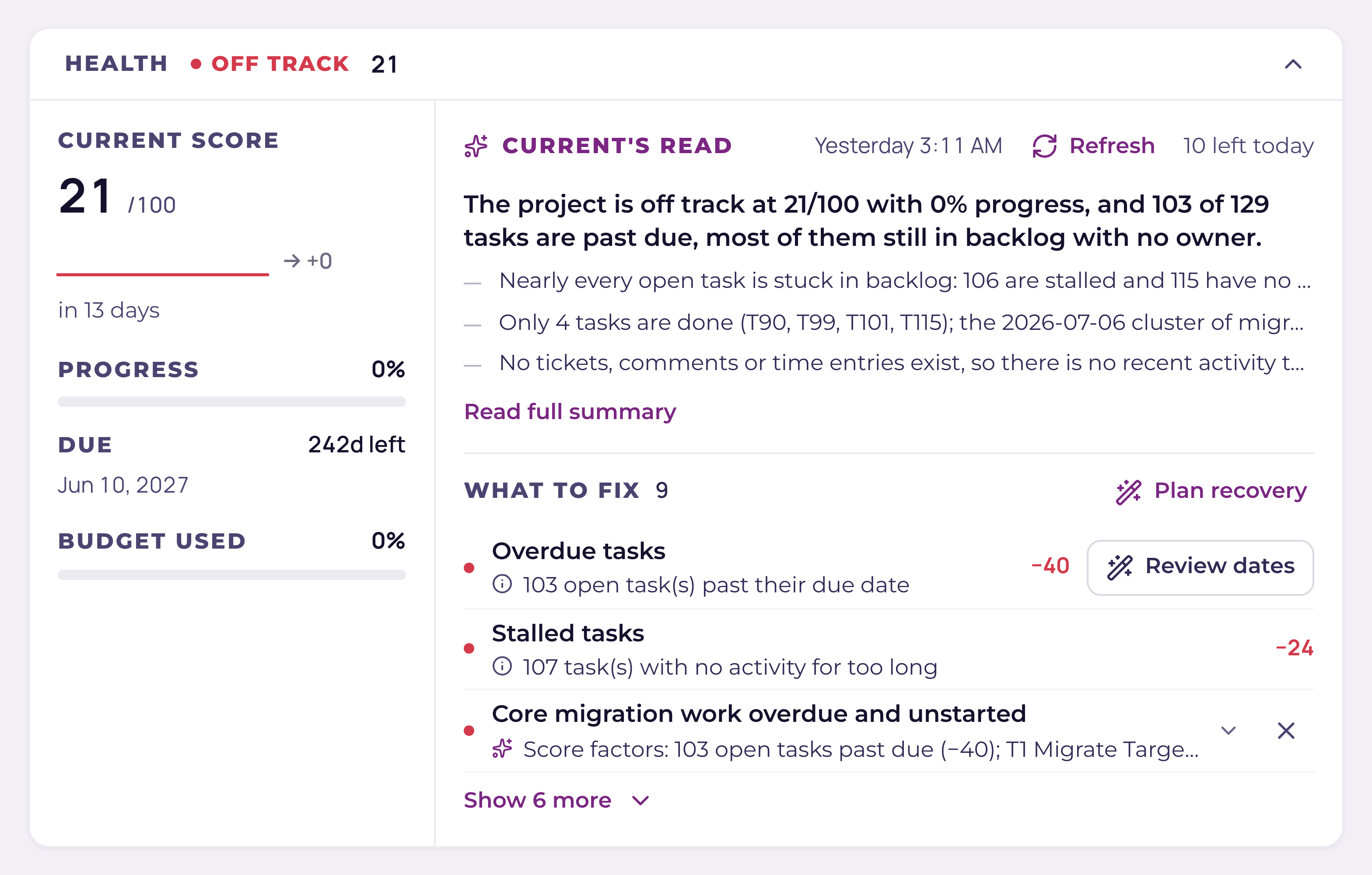
Current Score is a 0–100 health number for a project. It starts at 100 and subtracts points for ten specific problems it can see in your data. Overdue tasks, unassigned work, unscheduled tasks, open PSA sync conflicts, budget burn, a project that is past its own due date, open red risks, risks nobody has reviewed, stalled tasks, and work that has stopped. Nothing else moves it.
The score uses a fixed arithmetic formula. Every deduction is itemized. Completed tasks and archived or orphaned task history are excluded from task deductions. Task changes refresh the score, including changes arriving from another tab or a PSA sync. Refreshing the AI assessment also refreshes the score.
The three health bands
| Score | Band | Chip color |
|---|---|---|
| 80–100 | On track | Green |
| 55–79 | At risk | Amber |
| 0–54 | Off track | Red |
The band is derived purely from the number. A project sitting at 79 is "At risk" by one point, meaning one fixable item stands between you and green.
The ten factors, with their points and caps
Each factor has a per-item cost and a ceiling, so no one problem sinks the whole score by piling up. "Open" always means a task that is not yet done. Work stopped is the exception to the per-item shape: it is a single flat 50, and it only fires on hard evidence that the plan has stopped moving.
| Factor | What triggers it | Points | Cap |
|---|---|---|---|
| Overdue tasks | An open task whose end date is before today | −8 each | −40 |
| Unassigned work | An open task with no Current assignee and no PSA assignee | −3 each | −15 |
| Unscheduled tasks | An open task missing a start date or an end date | −2 each | −10 |
| PSA sync conflicts | An unresolved sync conflict on this project | −5 each | −15 |
| Budget burn | 90–100% of budget consumed: −10. Over 100%: −20 | −10 or −20 | −20 |
| Project past due | The project's own due date has passed and progress is under 100% | −15 | −15 |
| Open red risks | A risk in the red lane on the Risks board, still open or being mitigated | −10 each | −30 |
| Risks past review | An open risk whose review date has gone by | −3 each | −9 |
| Stalled tasks | An open task the schedule watcher has marked orange or red for going quiet | −6 each | −24 |
| Work stopped | A critical task stalled red, or a critical task more than a week overdue, or the project itself more than a week past due and unfinished | −50 | −50 |
Worked example. A project with 3 overdue tasks (−24), 2 unassigned tasks (−6), and 1 unresolved sync conflict (−5) scores 100 − 35 = 65, which lands it in the At risk band. Fix the three overdue dates and the score jumps to 89 (On track) on the next page load.
Where the score shows up
- Project page, the Current Score tile in the Health card at the top, showing the band word and the number ("At risk · 65"). Read What to fix in the same card for the deductions.
- Project page, a trend sparkline under the tile, drawn from the nightly snapshots. It appears once there are at least two snapshots and shows the change since the first one.
- Portfolio, a score chip on every project card and row. The default sort is worst score first, so the projects that need attention rise to the top, and the portfolio health gauge is the average score across active projects.
- Reports, the Overview lens shows an "Avg Current Score" tile and a "Needs attention" list of the lowest-scoring projects. The Reports CSV export includes a Current Score column.
Fix a low score from Health
The Health card on a project combines score deductions with AI risks in What to fix. Items are ordered by severity and deduction, with actions for scheduling, owners, sync conflicts and budget details. Show more opens the remaining items.
- 1Open the project and read HealthOpen a project from Portfolio or the project picker. What to fix appears under the latest assessment. A clean score has no deductions.
- 2Work the top row firstRead the most severe findings first, then the deductions costing the most points. Each action stays connected to the affected work.
- 3Overdue or unscheduled tasks: Review datesChoose Review dates to build a recovery plan from the dependency graph, working days and time off. Safe start-only corrections can be applied during planning; due-date changes need your review. Current shows the projected finish beside the promised project date and checks for newer edits before saving.
- 4Unassigned work → Assign ownersExpands the list of ownerless open tasks, with chips showing who has free hours this week. Click a task to open its drawer and pick an assignee.
- 5PSA sync conflicts → Review conflictsJumps to the Sync Health page to resolve them. See "Fix a sync conflict between Current and your PSA".
- 6Budget burn → View budgetOpens the budget details sheet. If the project is past due, review its schedule or complete it when its work is finished.
The nightly health check and its alerts
The score itself is always live. It is recomputed from current data every time you load a page. What runs on a schedule is the health monitor, daily at 06:00 UTC. It takes a snapshot of each project's score (at most one per project per 12 hours. That snapshot series is what draws the trend sparkline), and alerts the project lead when something turns.
| Alert to the project lead | When it fires |
|---|---|
| Project is now at risk / off track | The project is at risk or off track AND either this is its first snapshot, or it was on track before, or it slipped from at risk to off track. Only while progress is under 100%, and not more than once per 20 hours. |
| Health dropped N points | The score fell 15 or more points since the last snapshot |
| Project is due soon | The due date is within the next 7 days and progress is under 100% |
| Project is over budget | Budget consumption has passed 100% |
Project managers and admins can also open Settings & more and choose Run health check. This re-runs the monitor now instead of waiting for 06:00 UTC. It writes a snapshot only if the project has none from the last 12 hours, and it sends only alerts that are not already recent duplicates (an at-risk or score-drop alert is suppressed for 20 hours, a due-soon or over-budget alert for 6 days). It reports how many alerts went out, often zero.
Edge cases worth knowing
- A project that has never synced to a PSA has no sync conflicts, so that factor sits at zero. The formula does not check sync_mode, though. If a project is switched to Current-native (for example, restored after its PSA project was deleted) any still-unresolved conflicts from its synced era keep costing points until they are resolved on the Sync Health page. See "Project modes: PSA-synced or Current-native".
- A task counts as assigned if it has either a Current assignee or a PSA assignee name. A synced task owned in your PSA does not cost you unassigned points.
- If a project has no budget percentage recorded, budget burn deducts nothing. The percentage comes from the PSA side of a synced project.
- A factor with a zero deduction is not listed at all, the breakdown only shows what actually cost you points.
- Partner viewers and account executives never see Current Score. The score exposes budget burn and internal task counts, so the data layer returns nothing for those roles, the partner portal shows status, progress, and dates only. See "The partner financial firewall".