
Invite team members and assign roles
Send an invite, assign a role up front, approve SSO sign-ins, change someone's sign-in email, and what happens when you deactivate someone.
On this page · 5 sections
Every person who works inside Current needs a role, and the role decides what they can see the moment they sign in, so it's worth getting right at invite time rather than fixing it after the fact.
Sending an invite
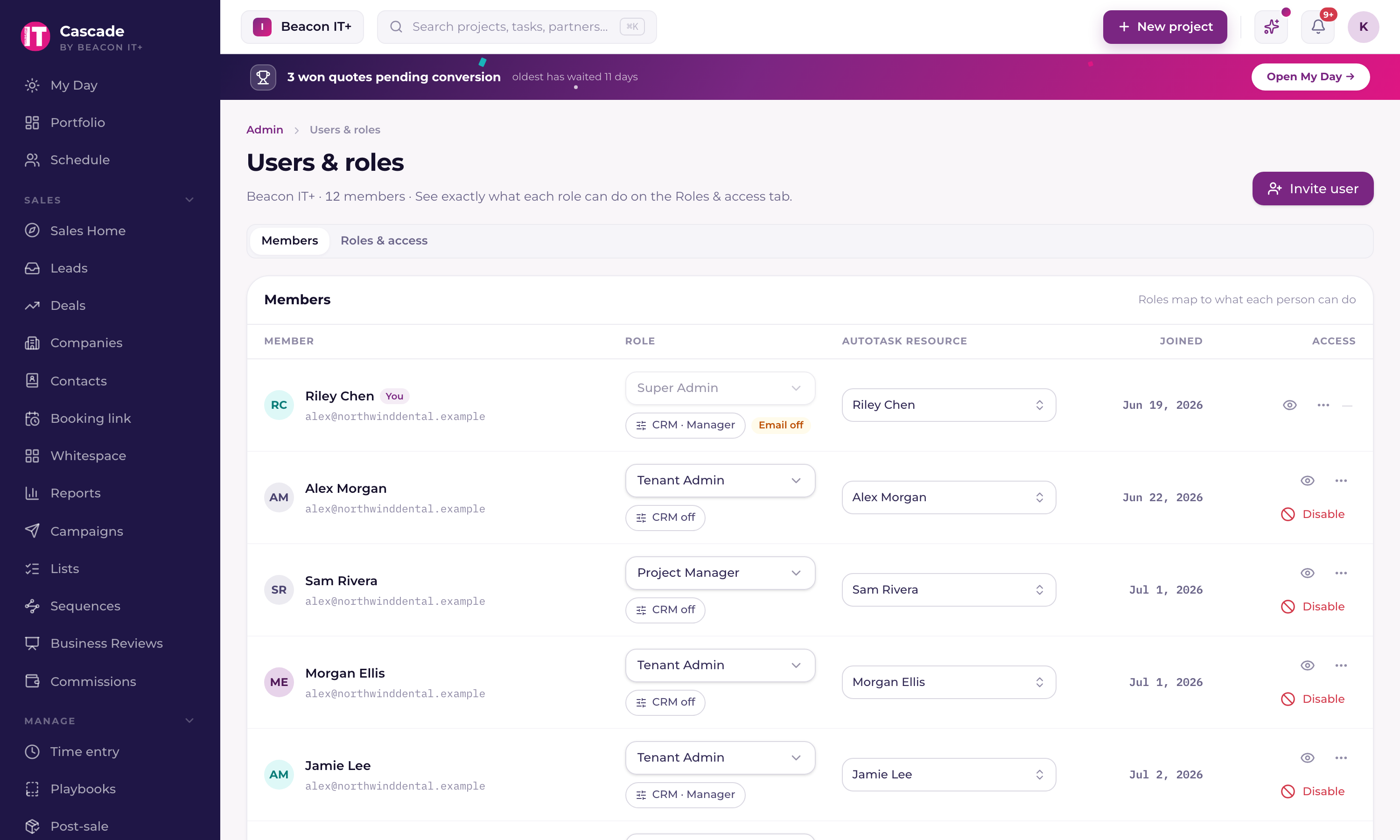
- 1Open Settings › Users and roles › PeopleOnly Tenant Admins can invite, change roles, or deactivate members.
- 2Click Invite and pick a roleChoose from Tenant admin, Project manager, Engineer, vCIO, Finance, Account executive or Read-only, plus Service manager and Dispatcher where your workspace runs its tickets in Current. Sales Manager isn't assigned as a base role. It's a separate leadership toggle you add to any CRM member afterward. See "Roles & permissions: who sees what" for what each one can do.
- 3Send itThey get an email invitation to set up their sign-in. Until they accept, they show up under Pending invitations, with options to resend or revoke.
Grouping people into teams
Below the members list, the Teams panel groups people into named teams. A role sets what someone can do; a team sets who they work with, the two are independent. There are two kinds. A project team is a lead plus the engineers under them: it powers the "My teams" filters on Portfolio, Reports, Schedule, and Calendar, and projects follow the people automatically. A sales team is a sales manager plus their reps (people with CRM access): when a manager runs a sales team, their sales dashboard, the sales reports, and opportunity views open focused on just that team instead of everyone with CRM access, with "Everyone" still one click away. Teams change defaults and filters, not permissions: a sales manager without a team, and everyone not on a team, sees exactly what they did before. A person can be on one sales team and one project team, but not two of the same kind, so a manager's "My team" view is never ambiguous. When you build a team, anyone already on another team of that kind (whether as its lead or a member) is greyed out in the picker with a note showing which team they're on. The list itself is one line per team (name, kind, lead or manager, how many people, how many projects), and every column sorts. Click a team to see who is actually on it, each person with the role they hold, and to edit or delete it from there.
Approving SSO sign-ins
If your workspace signs people in through an identity provider (Microsoft Entra ID, Okta, Google Workspace), anyone on a domain you verified can reach Current's sign-in screen before you've ever added them as a member. They authenticate, but Current holds them at a pending screen with no data access until a Tenant Admin approves them, no role, no visibility, nothing synced. Registering that provider is also what makes single sign-on the only way in for everyone on those domains, Tenant Admins included: it is not a switch you flip afterwards and there is no exemption to grant. See "Set up single sign-on (Microsoft Entra ID, Okta, Google Workspace)".
- 1Open Settings › Users and roles › People → Pending SSO sign-insAnyone who's signed in via SSO but hasn't been assigned a role shows up here. Each row carries a "Last attempt" line with the date that person last tried to sign in, so you can tell someone actively waiting on you from a login left over months ago.
- 2Approve with a roleApproving assigns a role and activates them immediately.
- 3Deny, or Delete. They're not the sameDeny blocks that sign-in from reaching the pending screen again but keeps the record, so it's reversible. Delete permanently removes the login altogether, use it for a genuine orphan, like a stray login left behind by an old, torn-down test tenant. Current refuses to delete anyone who already has a real profile in your workspace, so you can't remove an actual member this way.
Changing someone's sign-in email
Nobody can change their own sign-in email. A Tenant Admin changes it for them, and the person confirms the new address from its inbox before anything changes. Use it when someone's address changes, for a new company domain or a new name.
- 1Open Settings › Users and roles › People and click the person's nameTheir panel opens. Press Change sign-in email under Access to this workspace. You can't change your own, a super admin's, or a disabled member's: another Tenant Admin, or Current support, changes yours.
- 2Type the new address and send the linkCurrent emails a confirmation link to the new address. It works once and expires in 24 hours. Current also tells the current address that a change was asked for, with the new address partly hidden.
- 3They press Confirm my new emailThe link opens a page with one button, and nothing changes until they press it. From then on the old address no longer signs them in, every device they had remembered asks for a sign-in code once more, and you get a notification. The change is written to the audit log.
Deactivating a member
People leave, or roles change enough that starting fresh is cleaner than reassigning.
- 1Open Settings › Users and roles › PeopleFind the person, click their row, and choose Disable member at the foot of the panel.
- 2ConfirmThey lose access to every piece of your workspace's data immediately and land on an "access turned off" screen the next time they load the app. Nothing is deleted, their logged time, comments, and history stay intact and attributed to them.