
The audit log: what's recorded and who can read it
A record of every role, project, integration, and CRM configuration change. Tenant Admin visibility only, and no one can edit an entry from inside Current.
On this page · 6 sections
When something changes in your workspace (a role, a project, an integration, a pipeline stage, a sales setting) the audit log is where you go to see exactly who did it and when. It exists so that "who changed this?" is never a guess, and so that a compliance review has something to point at.
Open it at the Audit log (press / and pick Audit log in All pages). Entries show newest first, with an "Append-only · immutable" badge on the panel header. That badge describes how the log behaves in Current: entries are added and never rewritten. An entry does leave the log when it turns 365 days old, and every entry goes when the workspace itself is deleted. You can search and filter the whole history, and page through it with a Load more button rather than being stopped at a fixed window.
What each entry tells you
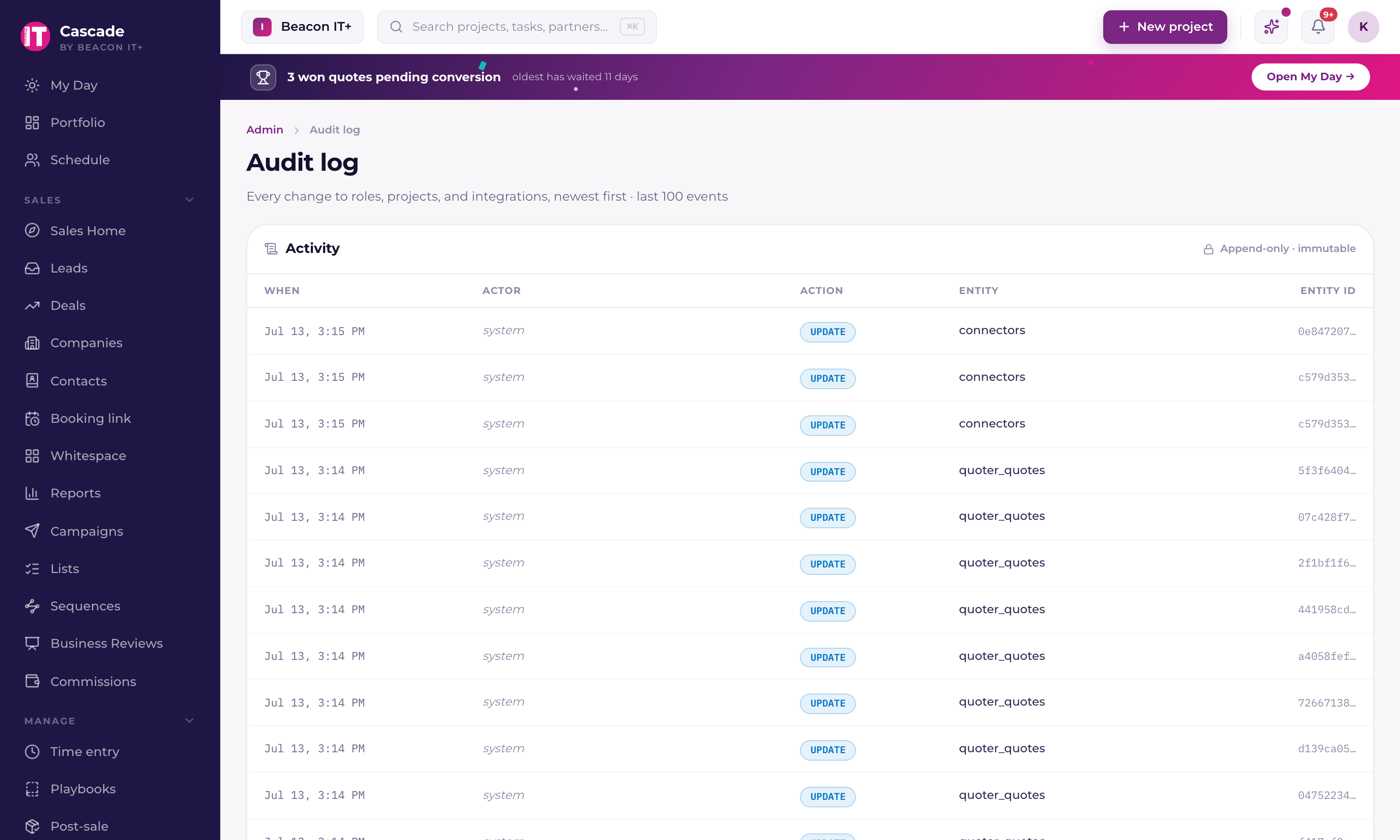
| Column | What it tells you |
|---|---|
| When | The moment the change was committed. |
| Actor | The member who made it, by email. Background jobs and scheduled syncs show as "system" in italics. That's normal, not a gap. |
| Action | Most entries are INSERT (created), UPDATE (changed), or DELETE (removed), colour-coded green / blue / red. Some are named events instead (crm_write_mode_changed, lead_sla_minutes_changed, invitation_created), and those render in neutral grey. |
| Entity | The kind of record that changed, a project, a profile, a connector, an opportunity, a time entry, and so on. |
| Entity ID | The specific record, shortened for readability. Hover it to see the full identifier. |
Search, filter, and open an entry
The log is built for a real review, not just a scroll. Narrow it down, then click straight into the change you care about:
- Search by the actor's email (who made the change), the entity type (the kind of record), or a specific entity ID.
- Filter by action (created, changed, removed, or a named event), and by a date range.
- Page through the results with Load more; there's no hard 100-event ceiling on what you can reach.
- Click any entry to open its full before-and-after detail, the exact values a field held before and after the change.
What gets recorded
The log deliberately covers the records that carry privilege, money, or configuration, not every routine edit in the app. Broadly:
- People and privilege, profile changes, including role changes and enabling or disabling a member.
- Projects and money, projects, project charges, and time entries.
- Integrations and sync, connectors, sync conflicts, industry and stage mappings.
- CRM configuration and records, opportunities, pipelines and pipeline stages, offerings and their rules, company profiles, company ownership changes, activities, contact lists, audience segments, campaigns and campaign recipients, email suppressions, lead stages, sales insights, contracts, SBR packs, and ticket-queue settings.
- Workspace settings, sales-lead SLA changes, CRM write-mode changes, notification routing, and email-sync exclusions.
Who can read it
Tenant Admins only, plus a Current Super Admin during a support session. The start and end of a support session are kept in Current's own platform records rather than in your workspace's log. Project Managers, Engineers, Account Executives, Sales Managers, and partners cannot open it, and this is enforced at the data layer, not by hiding a menu item, so there is no URL to guess your way to. A non-admin who reaches the page sees an "Admins only" panel. Entries are scoped to your workspace; no other workspace's activity is ever visible, and yours is never visible to them. See "Roles & permissions: who sees what".
Using it for a review
- 1Start from the change, not the personScan the Entity column for the kind of record that surprised you, a profile if someone's access changed, a connector if a sync started behaving differently, an opportunity or pipeline if a CRM number moved.
- 2Match the actor to what you approvedAfter onboarding a batch of new members, walk the profile entries and confirm every role assignment matches what you actually signed off on. This is the fastest privilege review you'll ever run.
- 3Confirm the timingLine the timestamp up against when the problem first appeared. A configuration change an hour before a sync went sideways is rarely a coincidence.
- 4Pair it with the sync tools when the change was an integrationSee "Reading the sync health dashboard" and "Fix a sync conflict", the audit log tells you who changed the connector; sync health tells you what it did next.
Known limits, read these before you rely on it
- Entries are kept for 365 days. A full year of history is always available to search and page through; older entries age out, so for anything you need to retain beyond a year, capture it during the year it happened.
- The page loads a batch at a time, use search, the action and date filters, and Load more to reach older events rather than scrolling from the top.
- Not every table is audited. Everyday task edits, comments, and Kanban drags are not in the log. It tracks privilege, money, and configuration, not routine work. Use the project's own views for who moved what task.
- An "actor: system" entry is a background job (a sync, a scheduled brief), not a mystery person.
- If the panel shows "Setup isn't complete yet", the workspace is still finishing provisioning. Wait a moment and reload rather than assuming the log is empty.