
Invite people to a customer portal
Invite the people at a customer by email. They sign in with a 6-digit code we email them, with no password to set or forget.
On this page · 5 sections
Invite the people at a customer straight from their company's Portal tab. Each person gets an email with one button, opens the invite, and signs in with a 6-digit code we email them. Nobody sets a password, and the first sign-in creates their account.
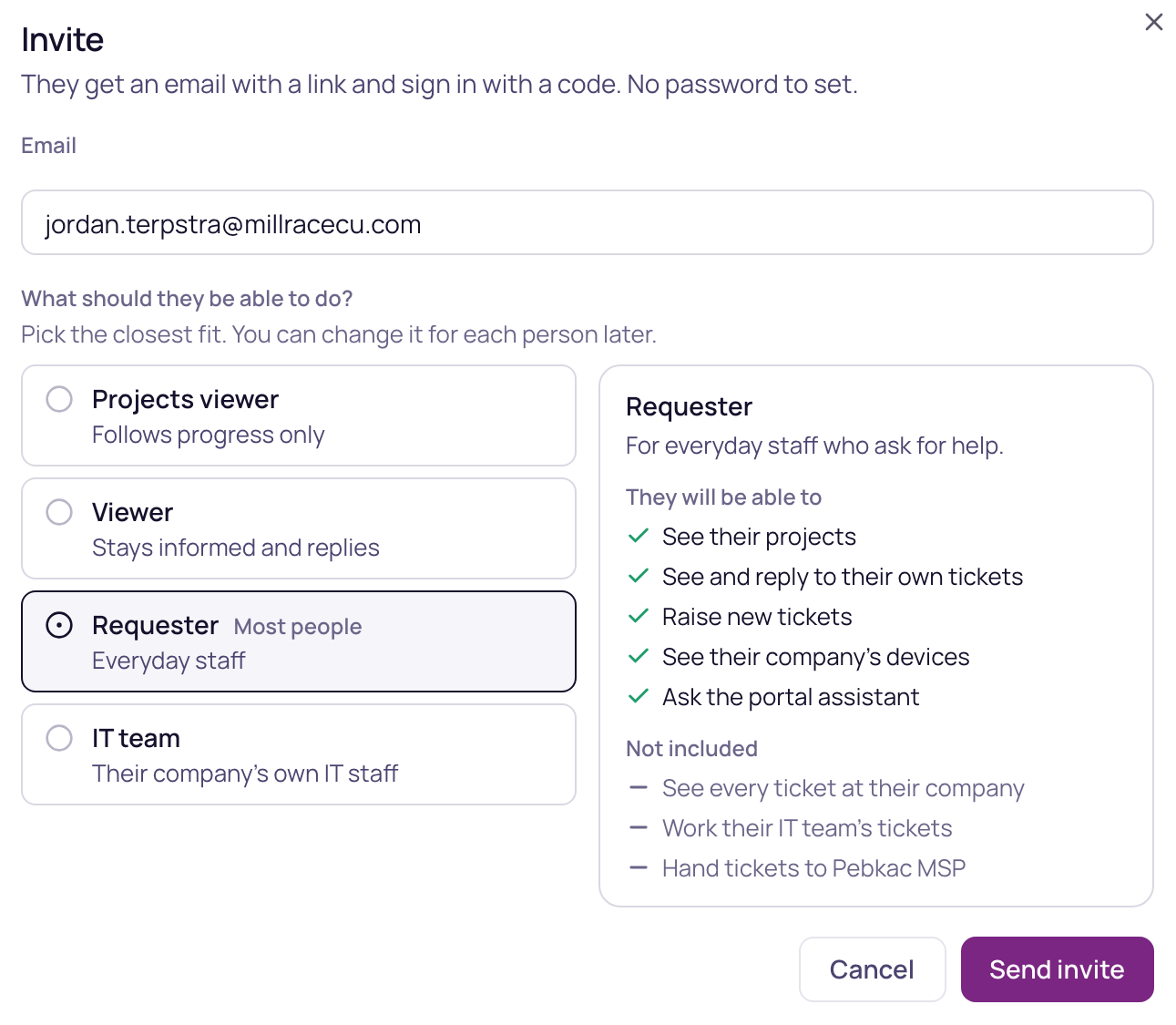
Invite someone
- 1Open the companyGo to the company's page and open its Portal tab. The portal must be switched on for that company.
- 2Press InviteWith nobody in the portal yet and the company allowed to have an IT admin, the button reads Invite the first IT admin. Otherwise it reads Invite. Type their email address.
- 3Pick what they can doUnder What should they be able to do?, pick the closest fit, such as Requester or IT admin. Each choice says who it is for, and the panel beside the list shows what that person will be able to do and what is not included. Requester suits most people. The company's ceiling still applies, so nobody gets more than the company allows. A choice the company's portal doesn't allow can't be picked, and says what to turn on first.
- 4Send itPress Send invite. The email comes from your workspace's name, with your brand at the top, and says who invited them.
A company's portal doesn't allow an IT admin until you turn on Add, change and remove people at their company under What people at the company may be given, on the same Portal tab, and press Save.
An IT admin at the customer can invite their own colleagues too, from People in the portal. They can give only the switches they hold themselves, inside the company's ceiling, and up to 20 invites a day.
How they sign in the first time
- 1Open the inviteThe button in the email opens a page with your name and logo and the start of the address the invite was sent to.
- 2Type the emailThey type that same address and press Send my code.
- 3Type the codeWe email a 6-digit code. It ends 10 minutes after we send it. They type it and land in the portal.
Signing in again
Later they sign in from Sign in to a customer portal, the link under the sign-in form. They type their email and the code we send. The page answers the same way for every address, so it never tells anyone whether an email has an account.
Five wrong codes in a row stop sign-in for that address for 15 minutes. A sign-in stays on for up to 30 days, and turning a person off in the portal ends it at once.
Pending invites
Invites nobody has accepted yet are listed under Pending invites, on the company's Portal tab and on People in the portal. Each shows the email, the preset it starts as, who invited, when it was sent and when it ends, and whether the email went out.
| Button | What it does |
|---|---|
| Resend | Sends a new link and a new email. The old link stops working. You can resend once a minute, and one invite can be sent up to 5 times. |
| Revoke | Stops the link at once. You confirm first. You can invite them again later. |
Not delivered means we couldn't email this address, often because mail to it bounced before. Check the spelling, then invite again or Resend. Not sent yet means the email couldn't be sent at that moment. Press Resend to try again.
If the person signed up with a password before using the invite, their row says This person signed up before using the invite. Remove that sign-up so the invite works. Press Remove sign-up and confirm: only that account is removed, and their invite works again. Until then, the person sees that their invite is waiting and is asked to have you send it again.
Addresses that can't be invited
- An address already used on Current, in another workspace or by one of your own team.
- An address on a domain that signs in with single sign-on.
- Someone with a staff invitation waiting in your workspace: revoke that invitation in Users & roles first.
- Someone who already has a customer account in your workspace: use Add someone on the Portal tab instead. No email is sent.
An IT admin at the customer sees one sentence for every address that can't be invited, so the portal never tells them why.