
Invite a partner to the client portal
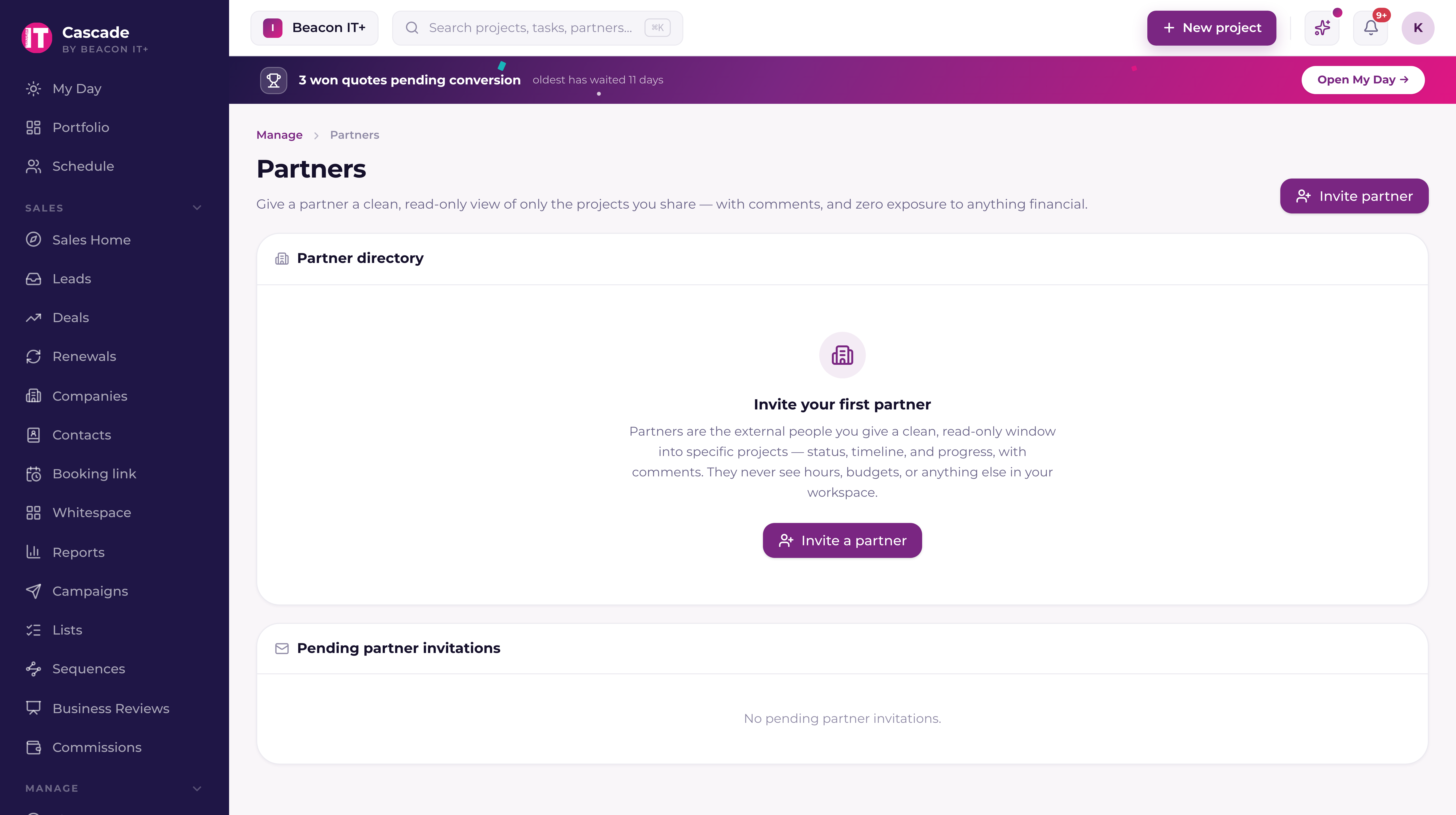
Share specific projects with a client in a read-only portal: send the invite, choose projects, manage or revoke access. Free and unlimited.
On this page · 5 sections
A partner is an external person (your client), who gets a slim, read-only window into only the projects you choose to share. They see status, timeline, milestones, task progress, shared documents, and a conversation thread with your team. They never see an hour, a rate, or anything else in your workspace. Portal viewers are free and unlimited: they never count toward your bill.
This is the answer to the two emails every MSP gets every week. "where are we on the migration?" and "what's left?". Without giving a client a login that could reach your numbers.
Send the invitation
- 1Open Portal access in the left menuYou'll see the partner directory. The page is limited to admins and project managers. Anyone else gets an access-denied screen.
- 2Click Invite partnerEnter the partner's email address, the one they'll sign in with.
- 3Choose the projects to shareYou get a searchable checklist of every project in the workspace (templates are excluded). Tick one or more. At least one is required. An unscoped partner account would sign in and see nothing at all, so Current won't create one.
- 4Check the visibility summary, then Send invitationThe panel below the checklist spells out exactly what they will see and what they will never see, so you can read it back to the client before you send.
- 5Copy the join link if you'd rather send it yourselfCurrent emails a branded invitation with an "Accept invitation & set password" button. Delivery is best-effort, so once the invitation is created the dialog also shows the join link with a Copy button. If email isn't configured yet, that link is your guaranteed path, paste it into your own message.
When the partner accepts, they set a password, sign in, and land straight in the portal with every project on the invitation already shared with them. Staff never see the portal by accident, and partners never see the staff app: the two shells are separate.
Invitations expire, and can be revoked
Every invitation is good for 14 days from the moment you create it. Until it's accepted, an admin sees it in the Pending partner invitations panel on the Portal access page, showing the invited email, how many projects it carries, and the expiry date.
- Not accepted in time? Create a fresh invitation, expired links stop working on their own.
- Sent to the wrong address, or the contact changed jobs? Click Revoke. The link stops working immediately and they can't sign up with it.
- Revoking is not destructive. You can invite the same person again at any time.
Change what a partner sees, later
Sharing is per project and completely reversible. Nothing is "all projects" for a partner. If there's no membership on a project, the project does not exist as far as their session is concerned.
- 1Open Portal access and click the person's rowThe row shows their name, their email and domain, and how many projects they currently see. The row action reads Manage access.
- 2Toggle projects on or offTick a project to share it; untick to remove it. Each toggle saves immediately. There's no Save button to forget.
- 3Confirm the effectUnsharing cuts their access off right away, at the data layer. If they still have the project open, their next load shows "This project isn't available. It may not be shared with you, or the link is out of date."
The weekly digest (optional)
Once a project has partners on it, you can have Current email them a short weekly update so they don't have to remember to log in. Open the project, choose Settings & more › Project settings, and switch on the weekly digest for that project (it is named for your workspace's word, for example Weekly client digest). It goes out every Monday. Only project managers and admins can change it.
Documents stay internal until you share them, one at a time. Open the project, open Files in the right rail, and click the eye icon beside a document to share it with your clients; click it again to keep it internal. Shared documents appear in the portal's Shared documents panel for every partner on that project. Project managers and admins see the eye icon.
- It goes only to partner members of that specific project, never to a list you don't control.
- It carries project status and overall progress, milestones reached in the last 7 days, the next few milestones, done-vs-total task counts, and the next few tasks by name, no assignees, no hours, no money, ever.
- "Send me a preview" emails the digest to you and only you, so you can see exactly what the client will get before you turn it on.
For the exact contract of what the portal exposes, read "What partners can see, and what they never can". It's written to be shown to a client. For how the restriction is enforced, see "The partner financial firewall".