Run your team's weekly rhythm
Connect accountability, three primary scorecard numbers, team goals and weekly meetings in Current.
On this page · 30 sections
- Find the guide for your task
- See where the team needs you
- Give each person three clear numbers
- Open a number from My Day
- Keep accountability clear
- Use one Goals workspace
- Print your vision and plan
- Print a quarterly working pack
- Ask about your team’s work
- Run a weekly meeting
- Review suggested meeting actions
- Share a message in Teams
- Share an issue review
- Prepare for 1:1s and reviews
- Link a goal to its numbers and work
- Follow up when finished work did not move the number
- Get suggestions for goals, numbers and issues
- Import from Strety
- Connect your Microsoft directory
- Transcription setup
- Saved Teams transcript availability
- Previously imported transcripts in sales meetings
- Check Microsoft Work IQ access
- Remind planning participants
- Build a planning pack
- Company plan print preview
- Published responsibilities
- Shared room display
- A goal and its milestones
- Set a target for a scorecard number
Find the guide for your task
Open the Team (Beta) category in Help for short guides to getting started, scorecards, goals and Direction, people and accountability, meetings, messages, 1:1s and reviews, planning and printing, and Microsoft setup. This page keeps the full reference in one place.
In Current’s left menu, expand Team to open its pages. The Beta label appears beside Team once, not beside every page. The compact page bar keeps the current page, team scope and actions together. On a phone, use the page chooser. Right-click actions also have a visible More menu.

See where the team needs you
Overview brings the selected team’s scorecard, goals, to-dos, issues, meeting ratings and available 1:1 context together. Booked time appears only where a source is available. Select a signal for its evidence or open the person’s window. Needs you puts available follow-up work in order; For you shows your own next steps. Missing or restricted information stays distinct from a zero. Use the section navigation to jump between goals, scorecard trends, signals, follow-ups, meeting ratings and people. On a phone, open the Overview section menu.
Give each person three clear numbers
Open Team, Scorecards. A manager can assign numbers to direct reports, and a tenant admin can manage the workspace. Choose Assign numbers beside a person. At three primary numbers, choose the one to replace; its earlier values remain in history. Scorecards open grouped by published team, with your teams first. Group by owner, category or no grouping, and sort by needs attention, number name, owner or cadence. These display choices keep your existing access and are saved for your account in this browser.
- For this seat offers the scorecard catalog. Automatic data sources are offered only when connected and available to your role.
- All metrics uses the same metric definitions as Dashboards. Some charts cannot become a single scorecard number.
- From a dashboard preserves a supported single-number tile's settings. It saves a snapshot; later edits to that tile do not change the assigned number.
- Sales numbers use the person's existing sales target rather than a second target.
Open the team picker to see the current week’s readable primary numbers for each published team. Summary means individual results are outside your reporting permissions; unavailable and missing readings are never counted as zero. Restricted figures are excluded. Open Scorecard for the full history or for teams above the picker’s 200-person limit.
In Team Overview, select a week on the pulse to see how many eligible numbers had a reading. In Scorecards, Assign numbers shows usable seat choices first. A manager can choose End assignment beneath a current number to free its slot and retain its earlier readings.
Open a number from My Day
Select a scorecard number to see its target, source and available history. Move across the chart, or focus it and use the arrow keys. Escape or the back button returns to My Day. Where a weekly meeting is linked, Add as an issue puts the number in its discussion list.
Keep accountability clear
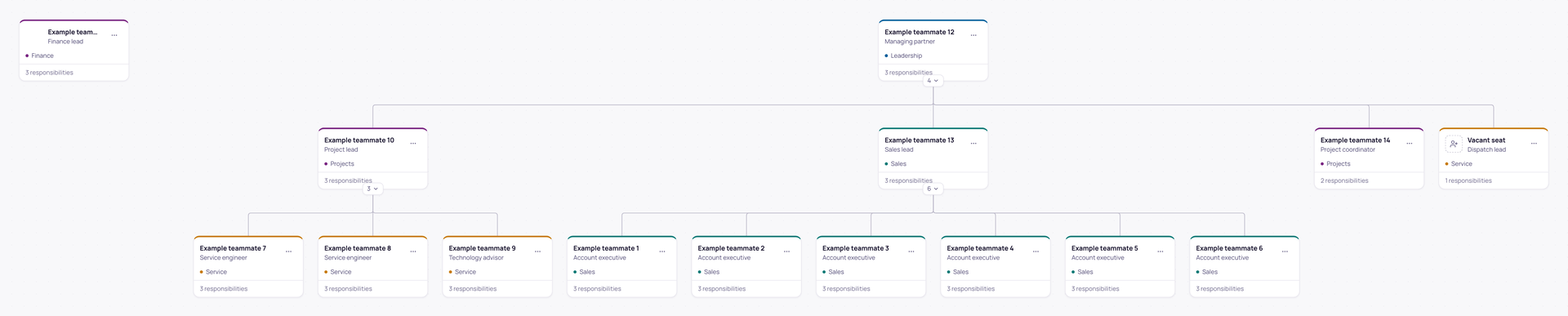
People shows the published organization chart. Use a playground to propose changes without changing the published chart. Add a role, department or person, change reporting relationships and review the impact before publishing. External people can hold a seat without receiving a Current sign-in.
A tenant admin publishes a reviewed chart. Publication changes reporting relationships used by team features; it does not grant an application role. Microsoft directory setup, when available, supplies suggestions to review rather than silently placing people.
Select a person to open their record. Shared seats can hold several people; add or remove one without replacing the others. Each person has one primary seat, which determines their manager when the chart is published. Additional seats describe responsibilities. They do not grant application permissions.
Set a seat backup and name cover for each responsibility. Choose active Current staff or members of your connected Microsoft directory. Linked Current and Microsoft identities appear as one person. Add required skills, certifications, a hiring stage and target dates in the seat’s playground. Private candidate details are kept separately for the published branch’s leaders and workspace owners.
Use the Coverage, Skills and Capacity chart lenses to find gaps. Personal skills and capacity are visible only to the person and their reporting leaders; direct managers and workspace owners record skill progress. Capacity shows the configured weekly hours target, not booked hours or free availability. History shows published revisions and their changes; private playgrounds and recruiting notes are excluded.
Profile pictures use Current’s synced Microsoft 365 photos, with your uploaded profile photo taking precedence when present. Initials appear when a photo is unavailable. Photos follow people across the chart, scorecards, goals, meeting rosters and development conversations.
A person’s record also brings together their meeting commitments and recent or upcoming conversations. These are separate from private 1:1 and review content. The list shows only meetings you can read, and Current rechecks access when you open it. Use the available evidence to ask about their work without treating missing records as a performance score.
Use one Goals workspace
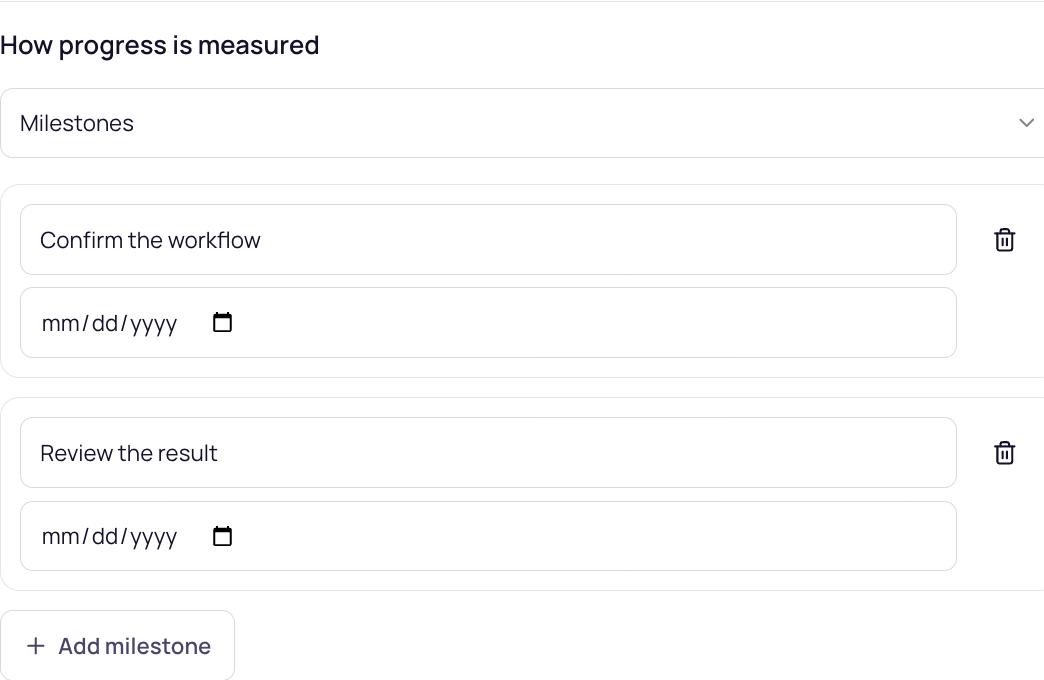
Goals brings quarterly priorities, team goals, company direction, alignment, planning and existing sales targets together. Choose the owner and quarter when you create a goal; they stay fixed after saving. You can edit its title, type, due date within that quarter, parent and measurement in one form. Choose milestones, a percent check-in, an assigned scorecard number or an existing Sales target. The Sales targets filter shows permitted targets in the same workspace; Manage all periods keeps monthly, quarterly and yearly management available. Sales remains the canonical target record, so a linked goal does not create another target or primary number. Alignment connects company, team and individual outcomes. A counted goal shows target attainment for its scorecard reporting period, including lower-is-better and range measurements. Add a check-in as work changes, or ask the owner for one. Development goals are visible to their owner, management chain and administrators, and are kept out of shared meeting and review views.
If you can manage sales targets, choose A counted number and open Counted from to select New sales target, then set Sales measure, Target period and Target. For an existing editable target, turn on Update this sales target. Saving the goal also saves the shared Sales target; other linked goals and scorecards use the same target.
Print your vision and plan
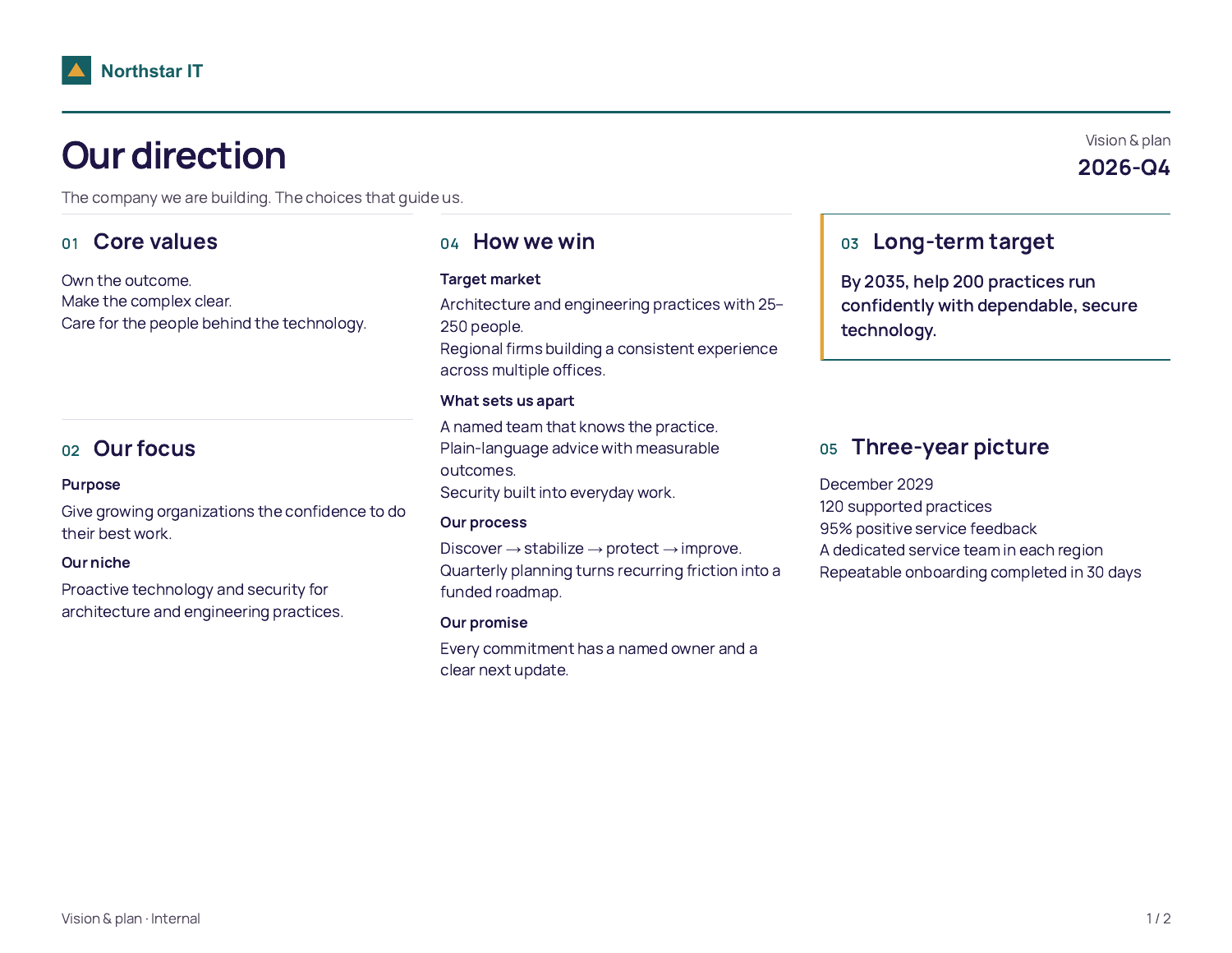
In Team, Goals, choose the quarter and open Review pack. Vision & plan gives you a concise company document with core values, purpose, niche, a long-term target, market and service strategy, a three-year picture, the annual plan and company priorities. A tenant administrator saves the strategic sections under Company direction. They are visible to staff in the workspace.
Choose Portrait or Landscape in the print view. The print uses your workspace’s logo and colors from Settings, Brand kit. If no logo is saved, it uses the workspace name. Long content continues onto another page without shrinking the text or cutting it off. Page numbers are included. Long-term meeting issues are optional; check the audience before including them.
Company direction also offers Download Word. Choose portrait or landscape for an editable document with your workspace’s logo, colors, direction and company priorities. Current refreshes the permitted records before creating it. Personal goals, private coaching notes and individual ratings are excluded.
Company direction keeps saved versions. Choose History to read an earlier version; the goals, long-term issues and processes alongside it remain current context. Workspace administrators can edit and save a new version. Other staff can suggest selected field changes with a reason. A suggestion’s author and workspace administrators can read it; an administrator reviews the original, current and proposed wording before accepting or declining it. If someone changes the direction while you are editing, review the latest values before applying your draft.
Print a quarterly working pack
Choose Quarterly working pack for a full-day agenda, saved priorities and milestones, business direction, the selected quarter’s recorded scorecards, next-quarter priorities, open issues and to-dos, and space for decisions and messages. Select the sections you need, then choose Print pack. Use your browser’s Save as PDF destination to keep a copy, and turn off browser headers and footers.
The scorecard section includes reporting periods that overlap the selected calendar quarter, including assignments that ended during it. Current targets are labeled as current; sales targets are read for each period. Missing values stay marked as not recorded. Restricted figures, live-only numbers, private development goals, 1:1 notes and individual ratings are excluded. Paper decisions are working notes: save agreed changes in Current afterward.
Planning leaders can share the pack’s Current link in Teams. Choose the team and channel, review the notification and approve Send. Teams receives a generic notification and a link, not the pack’s private text or a PDF attachment. Each recipient must sign into Current and still have access to the planning meeting. The link opens the latest permitted content.
Ask about your team’s work
Ask Current searches the published accountability chart, goals, business direction, completed meeting recaps and shared notes, issues, permitted conversation metadata and shared content, and team messages. Type a name or topic to find a record, or ask a question and follow its citations. Try “Who is responsible for sales?”, “Who do I report to?” or “What actions did we agree in the last meeting?” Current answers from the records you can read and checks access again when you reopen a saved answer. Select a named reporting source to open that person’s record with the details your role can see. Goal relationships, private measurements, sales targets and actuals keep independent source checks; access to a goal or target alone does not reveal a restricted figure.
Private notes, raw peer responses and unsubmitted review contributions are excluded. A manager can search only conversations in which they are an explicit participant. Supporting metrics provide their definitions and source context; Ask does not invent live values or infer performance from missing readings. A message acknowledgment means receipt, not agreement.
Run a weekly meeting
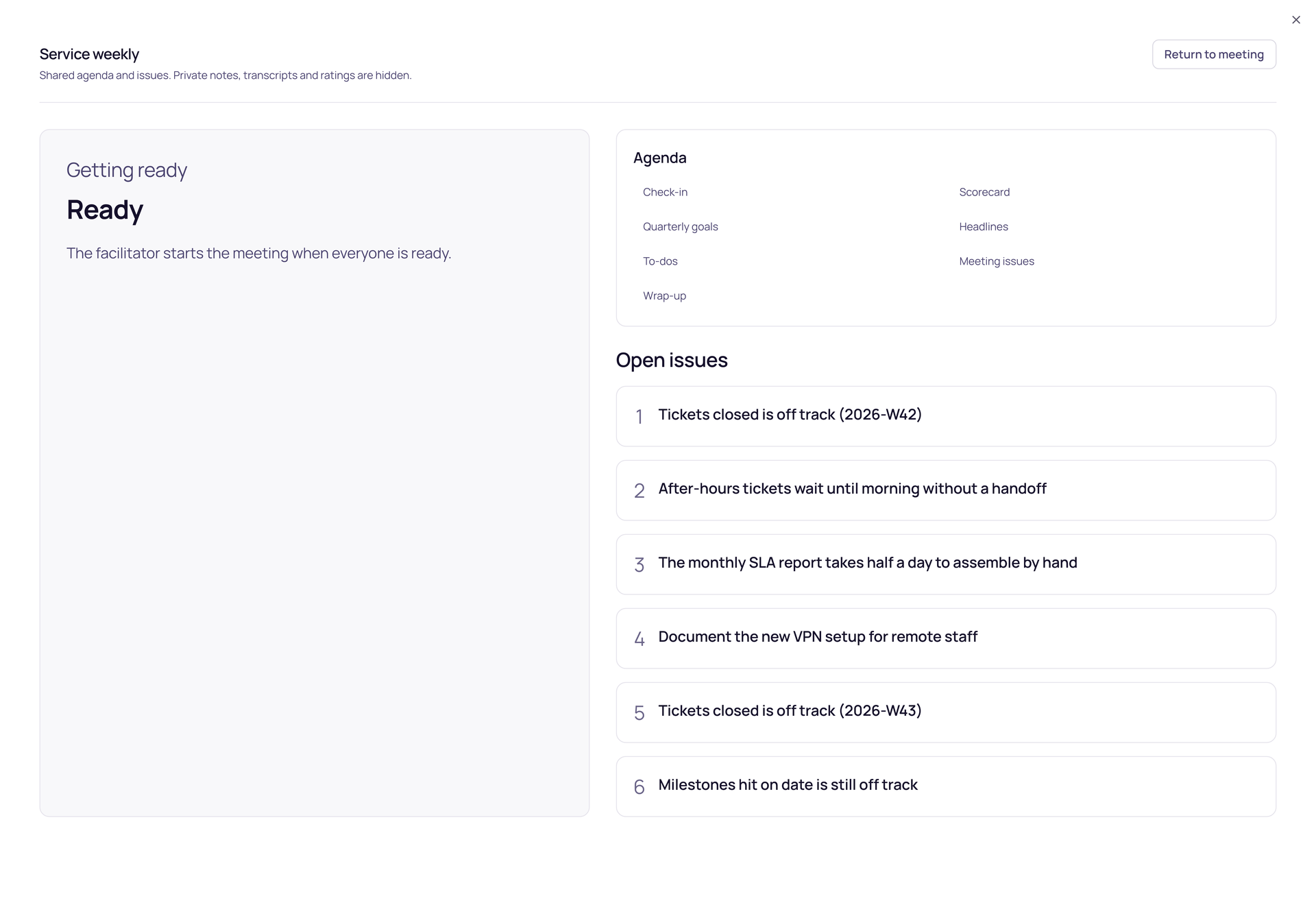
Use the meeting agenda to review numbers, goals, to-dos, headlines and issues. Organize issues by category, assign an owner and merge duplicates while keeping their evidence. Right-click records for quick actions; the visible More button offers the same actions.
Meetings in this view shows up to 50 readable meetings per page, with their team, scheduled time in the workspace’s timezone, recent ratings, open issues and to-do completion. Ratings cover up to six ended sessions in the last six weeks. To-dos count current linked tasks created in the last 28 days. An unavailable average or a list with no to-dos shows an unavailable mark. A past scheduled time alone does not mark a meeting as held. If a meeting was archived or your access changed, Current refreshes the meeting list once. If the overview still cannot load, select Refresh facts to try again.
Before starting, arrange the agenda, rename sections, add discussion blocks or apply a saved template. During a meeting, the current presenter can choose Edit live agenda to change that session’s order, discussion labels and minutes. Check-in stays first and Wrap-up stays last. Confirm the listed current and proposed minutes before saving a time change, including Add 5 minutes. A live edit keeps the current section, elapsed time and recorded work intact and does not change future meetings or templates. Drag the middle sections by their handles or use their move buttons. The running section shows elapsed progress. When Wrap-up has five minutes to spare, Review taking 5 minutes from Wrap-up opens the proposed change for approval.
If the meeting changes while the agenda is open, your draft stays in the editor. Read the latest agenda, then choose whether to review your draft against it or replace the draft. A save that could not be confirmed is checked before another attempt. The phone editor opens as a bottom sheet with the same review and save controls.
Press / in the meeting room to capture a to-do, issue, headline or decision. Choose a participant as its owner and review the type before saving. Captured items keep their source meeting and appear in its history. A to-do keeps the due date you approved in your workspace’s time zone. You see that date in Wrap-up, on the person’s meeting to-dos and in the quarterly pack. An untouched headline or decision can be undone by its author while the meeting is live. Every AI proposal requires approval.
Review suggested meeting actions
Review suggestions groups pending to-dos, issues, decisions, messages and headlines. Filters keep your draft edits; the counts describe the loaded list. Show history includes approved and dismissed suggestions. Check the source excerpt, proposed owner and due date. A speaker label does not confirm who should own the work. Every action needs your approval.
If the source changes while you are reviewing it, approval stops and your draft stays visible. Choose Load latest suggestion, compare the new source and review your edits again. Approving a message adds it to the chosen Current meeting; sending it in Teams is a separate review.
Use the calendar action to review dates, recurrence and recipients before sending an Outlook invitation through your existing Microsoft connection. Current reports uncertain delivery and offers a recheck. Cancelling an invitation has its own review; archiving a meeting does not silently cancel its calendar event.
At wrap-up, each person can rate the meeting privately. A rating below eight needs a short explanation. After the meeting ends, shared averages appear with at least three ratings; distribution needs at least five. The facilitator can review the permitted rating history.
Meeting leaders can share a completed recap in Teams through its own review. Company direction has the same Post to Teams action for workspace administrators. Choose the channel and approve the notification; the recap or direction stays in Current behind its existing access checks. If delivery is uncertain, use Check this request. Current keeps the same delivery reference and does not automatically send it again.
From a meeting message, choose Review Teams delivery. Read the text, review the destination and recipients, and choose whether they need to acknowledge it. Send creates a delivery record. Teams receives a link; the message itself stays in Current. An internal headline alone never sends a Teams message.
Team, Meetings, Team messages shows Received and Sent. Open a message to read it or acknowledge it. Acknowledgment records receipt, not agreement. Senders can review delivery and acknowledgment separately. A correction is a new linked message; it does not silently change what someone already received. An unconfirmed send is not retried automatically.
Your My Day page lists messages awaiting acknowledgment. Right-click a row for quick actions. In notification settings, Team messages in Teams controls the Teams notice; the message remains in Current. This feature does not send email.
From Issues, select the records and choose Export. Review the exact selection before making a PDF. For meeting-shared issues, you can also preview a Teams channel post, review its destination and send it through your existing Microsoft connection. Private leadership issues remain PDF-only. A missing Microsoft permission opens connection setup; no post is sent automatically.
Prepare for 1:1s and reviews
Open Team, 1:1s and reviews. Managers can start a conversation for a direct report, schedule recurring 1:1s or create a review cycle from a shared template. Sales coaching remains available in its own view. Upcoming preparation and released reviews appear in My Day.
A conversation is visible to its explicit participants and workspace owners. An owner who has not participated can read private notes and submitted review responses in their own workspace through an audited read-only owner view. Participating owners keep their normal participant access; leaving a conversation does not grant broader access to its private content. Unsubmitted drafts stay with their author. A manager releases the employee's review only after both have submitted; the employee can then acknowledge the released version.
Open a person’s 1:1s or Reviews tab and choose a participant conversation to prepare and review it in the person window. Owner-only access opens the separate audited record. Unsaved changes are protected when switching conversations, closing the drawer or moving a record to another window. Use recurring topics to carry an agenda into the next 1:1, inspect earlier conversations and add follow-up to-dos. If a reporting relationship changes, the recurring series pauses. Previous conversations keep their original audience rather than transferring private history to the new manager.
Link a goal to its numbers and work
Open a goal in Team, Goals. Under Numbers this moves, choose up to three of the owner's or the meeting's scorecard numbers. Under Linked work, search for the projects and PSA tickets doing the work. The goal shows how much of that work is done and when it last updated. The status stays yours to set: linked work only suggests one.
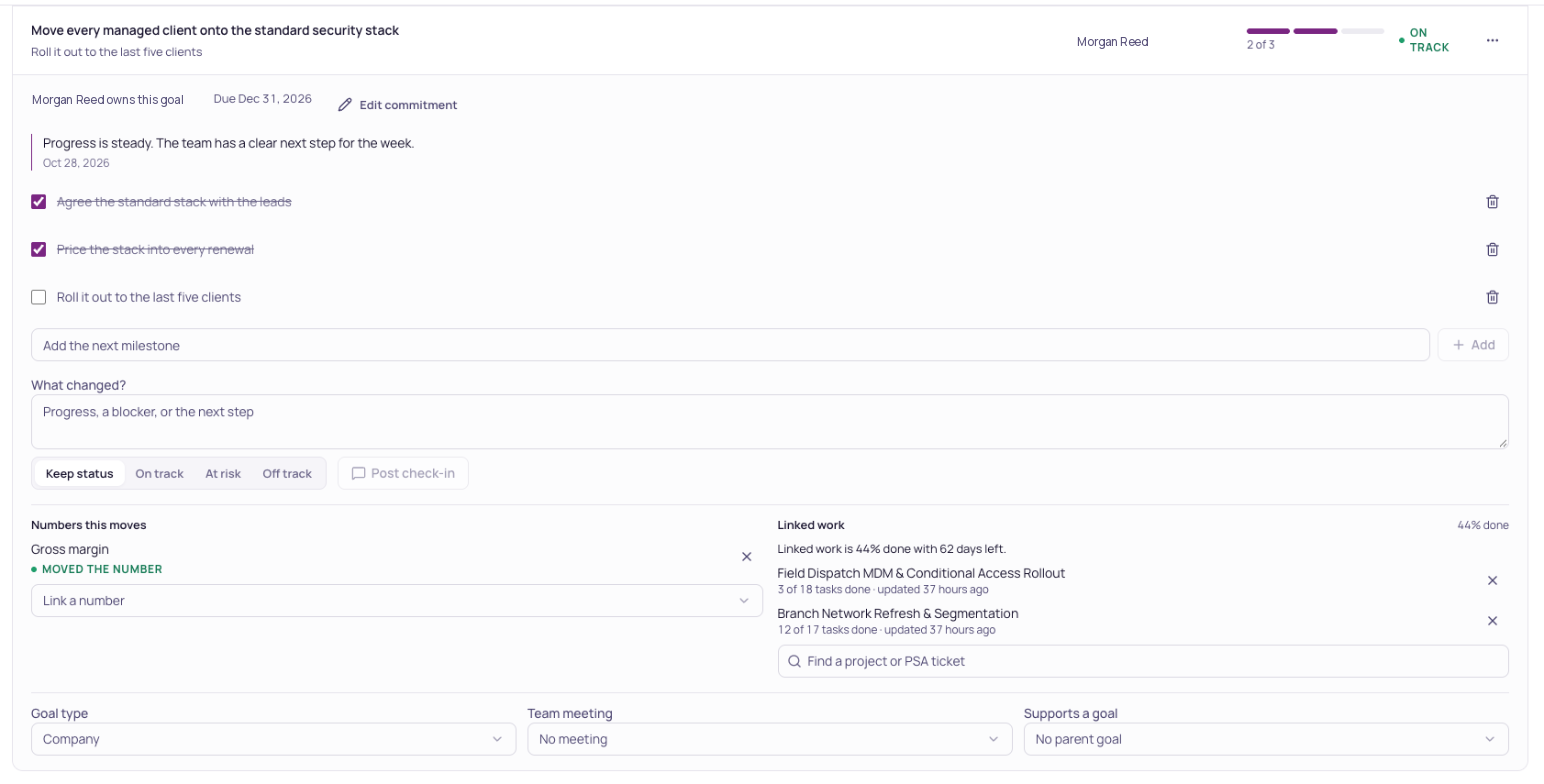
You see only the projects and tickets you can already open. Linked work you cannot open is counted, never named, and it is left out of the progress figure. A project cancelled in your PSA is left out too.
Follow up when finished work did not move the number
When a linked goal or a meeting to-do is marked done, Current waits until the end of the number's next full period. If the number is back on track, the goal shows Moved the number. If it is still off track, Current adds an issue to the number's weekly meeting, or reuses the open one, and tells the owner in their notifications. The issue says which finished work it follows.
- Reopening the goal or to-do cancels its follow-up.
- A self-reported number is judged by the same rule the scorecard uses. A number calculated by Current waits for its final value.
- Current cannot check a live dashboard number on its own. Those show Can't check, and the follow-up stays with the team.
Get suggestions for goals, numbers and issues
In a meeting's preparation step or the Goals planning view, choose Suggest. Current reads the team's off-track numbers, open issues, goals and the roles in your published accountability chart, then suggests meeting issues, next quarter's goals and scorecard numbers. Each card shows what it is based on.

Nothing is created until a person chooses Add, and you can edit a suggestion first. Adding uses the same permissions as creating the record yourself, so a suggested goal for someone else needs their manager or a tenant admin. Dismiss hides a suggestion for this meeting. Money figures restricted in your workspace are never sent to the AI.
Import from Strety
A tenant admin can choose Import from Strety on Team, People, or open Strety under Imports in Settings, Integrations. First export from Strety: press the export icon on each list you want to bring over, and Strety emails you a CSV file for each one. Add those files: scorecard numbers with past values, goals with milestones, issues, to-dos and the accountability chart. Current matches columns by their names and lets you match any it does not recognize. People are matched by email first, then by exact full name; pick anyone left by hand.
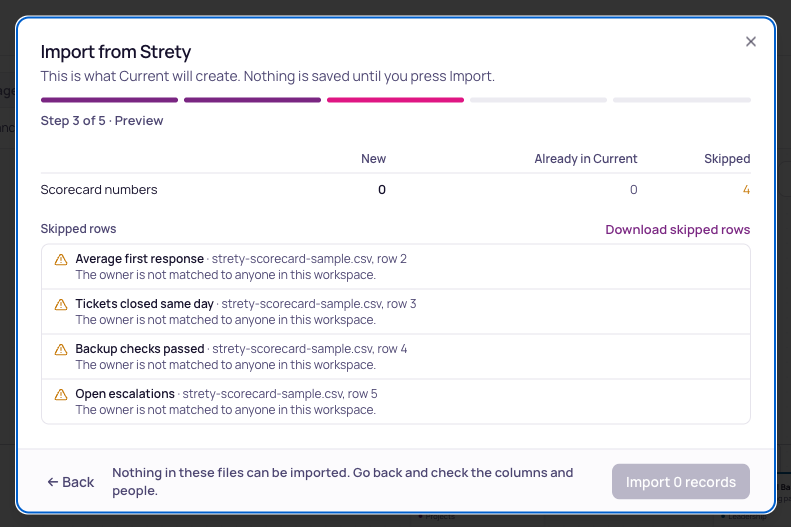
- The preview lists what will be created and every row that will be skipped, with the reason, such as an unknown person or a fourth number for someone who already has three.
- Records that already exist are matched, not duplicated. Solved issues and finished to-dos are left out.
- The accountability chart arrives as a draft. Publish it through the usual review.
- Past values are added only to self-reported numbers and never replace a value already recorded.
- Undo removes what the import created, for 24 hours, and keeps anything someone has changed or linked since.
- Recent imports lists your imports from the last 24 hours with Undo, in the Strety panel on Integrations and on the import's first step.
Connect your Microsoft directory
A workspace administrator can connect the organization's Microsoft directory from People or the Microsoft 365 settings. Microsoft may ask an administrator to grant permission to read people and their manager relationships. Directory setup supplies suggestions for your accountability chart; publishing those relationships still requires review in Current.
Connecting the directory does not enroll staff mailboxes in email capture. A Microsoft directory keeps one owning Current workspace. Another workspace can read scoped people and manager suggestions only after both administrators approve an explicit, expiring directory-read grant in Microsoft setup. Each administrator uses their own Microsoft connection. The demo workspace keeps fictional people.
Transcription setup
You can save shared notes during a meeting and ask Current to suggest to-dos, issues, decisions, headlines and messages for other teams. Review and approve each suggestion before it creates a record. To send a message in Teams, use the separate Review Teams delivery action.
Saved Teams transcript availability
When imports resume, the facilitator or a workspace administrator will review the Current meeting audience before importing through their own Microsoft connection. The import must match one Teams call within the meeting session’s start and end times. Missing or ambiguous timing stops the import, and Stop import prevents further attempts; a read already in progress may finish.
Participants in the Current meeting, including finance participants, and workspace administrators can read its imported text. Current support can also read it during a workspace support visit. Read transcript opens the imported text in sections. Choose Find actions in this excerpt to look for possible follow-ups. Each suggestion includes its source text. Choose its owner, check the title and due date, then approve it. Follow-ups from a completed call keep that call as their source and do not change its saved recap. A message goes to the chosen Current meeting; Teams delivery has its own review.
Your Microsoft administrator may need to approve the delegated OnlineMeetings.Read and OnlineMeetingTranscript.Read.All permissions, then reconnect your Microsoft account. Microsoft's transcript export policy still applies. If speaker names are unavailable, Current leaves them unresolved. Importing never joins or records a call. The separate media-host option is under Advanced audio capture and requires its own verified setup and recording acknowledgment. A provider choice alone does not enable it. Fireflies transport and spoken AI are not connected.
Previously imported transcripts in sales meetings
New saved Teams transcript imports are also paused in Sales meetings. Previously imported transcripts remain available to the person who imported them and authorized workspace administrators. A workspace set to read-only can show saved transcripts but cannot save notes.
Choose Read transcript, select useful excerpts and open Draft CRM note. You can edit the title and summary before checking the review box and choosing Save CRM note. Editing the text requires a fresh review. The note follows your existing company permissions and normal PSA sync settings. No note is created automatically, and the original meeting activity is preserved. If a save is uncertain, retry the same draft to avoid a duplicate.
Check Microsoft Work IQ access
In the meeting room or the Microsoft 365 integration settings, a workspace administrator can choose Check Microsoft access under Live Microsoft transcripts. This uses the existing Current Microsoft app and a separate WorkIQ.Read permission. The explicit check inspects API capabilities, not meeting content, and may use existing Copilot Credits. Current never enables a billing plan from this control.
Read-only check passed means the read connection and API discovery worked. It does not mean a live transcript is connected or that saved-transcript processing has resumed. Live delivery stays unverified until Microsoft’s supported connection can be confirmed. Keep using manual notes while setup is incomplete and saved imports are paused. A support session cannot check or borrow another person’s Microsoft connection.
Remind planning participants
A planning facilitator or workspace owner can choose Remind for an incomplete step or Review reminders under Who is ready. Select participants, review the short message and missing steps, then separately approve Send to Teams. The notification contains a protected preparation link; the message and checklist details stay in Current. No automatic reminder is scheduled. Teams reminder status distinguishes queued, sent, blocked and uncertain outcomes. Microsoft accepting a notification does not mean preparation is complete. Only an unattempted blocked delivery can be retried, by its original sender, after the setup and source checks pass. Current never automatically repeats an uncertain provider attempt.
Build a planning pack
Choose the sections your planning meeting needs: company direction and values, recorded scorecards, current and next-quarter goals, issues, the published accountability chart and open seats, and documented processes. The pack reads complete permitted records before enabling print. In this pack jumps directly to a selected section; the native print preview shows the final page breaks and page count. If source records change after the preview, review the new version before printing. Use portrait or landscape with your saved logo and Brand kit colors. The optional budget worksheet is blank for your finance team to complete. A planning participant with permission to read financial information can download an attached budget separately. Uploading, replacing or removing a budget also requires permission to lead that planning meeting. Files can be PDF, XLSX or CSV up to 10 MiB. Current verifies the file before making it the current attachment. Uploads, replacements and removals recheck the meeting and your access; an uncertain upload offers a recheck. The attachment is not embedded into the printed pack, and Current does not infer its numbers.
Company plan print preview
Published responsibilities
A goal and its milestones
Set a target for a scorecard number
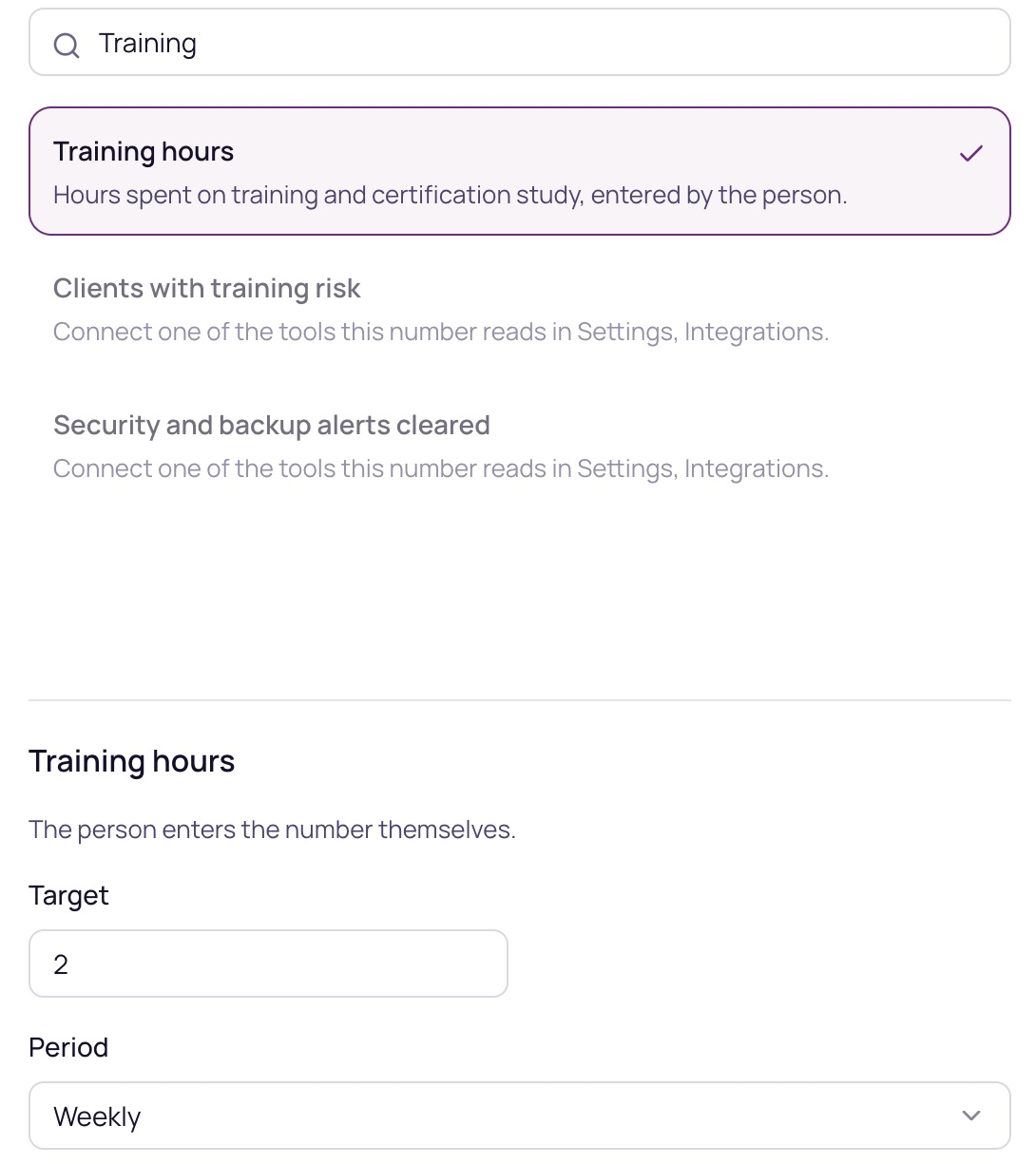
In Assign numbers, search for a measure and select it to see who supplies the reading. Enter the target and choose how often it is measured. For example, a training target of two hours weekly appears on the employee’s My Day scorecard.