
Connect Slack to Current
Connect Slack and your team's messages from Current arrive in Slack instead of Microsoft Teams. Alerts reach each person as a Slack direct message, each new project gets its own private Slack channel where comments flow both ways (and a project manager can link a channel to any existing project), and a comment you write in Current is posted in Slack from your own Slack account once you connect it.
One chat tool per workspace
A workspace sends its messages through Microsoft Teams or Slack, never both. While Slack is connected, Current sends no messages to Teams. The rest of Microsoft 365 keeps working with Slack: email, calendar, SharePoint folders on projects, Microsoft To Do and email capture are not affected.
| With Teams today | Once Slack is connected |
|---|---|
| Project comments post to the project's Teams channel | They post to the project's Slack channel |
| Replies in the Teams channel come back as comments | Replies in the Slack channel come back as comments |
| A mention reaches someone in the channel, then by Teams chat, then by email | A mention reaches someone in the Slack channel, then by Slack direct message, then by email |
| Alerts from Teams for your team arrive in Teams | The same alerts arrive as Slack direct messages |
| New projects get a Teams channel automatically (if turned on) | New projects get a private Slack channel automatically (on by default) |
| Project alerts (a task assigned or unblocked, a score drop) post to the Teams channel | Not posted in Slack; the bell and email work as before |
| The morning standup posts to a project's Teams channel | Not sent |
| Won quote and leaderboard posts go to a Teams channel | Not sent, to Teams or to Slack |
| A commission message to a rep goes by Teams chat | It goes by email |
Your Teams set-up is kept, unused, while Slack is connected: project channel links, Teams for your team and its choices stay as they were. Teams for your team is paused (its settings say so instead of offering set-up), and the per-alert Teams switches in each person's Notifications are hidden, because the Slack card's alert kinds decide what goes to Slack. Disconnect Slack and Teams picks up where it stopped. While Slack is connected, Teams messages cannot be turned back on; Current answers "Disconnect Slack before turning on Teams messages."
Connect Slack
Connecting takes two roles at once: a Tenant Admin in Current who is also an admin or owner of your Slack workspace. Current checks with Slack when you press Allow, and refuses anyone else with "Only a Slack workspace admin or owner can connect Slack to Current. Ask a Slack owner to make you a Slack admin, or ask a tenant admin who is one to connect it." That stops someone who is not in charge of your Slack from attaching it to a Current workspace. Slack also asks to post messages as you, so the person who connects posts as themselves from the start. Slack can't be connected in the demo workspace.
- 1Open Slack in IntegrationsOpen Settings › Integrations and choose Slack.
- 2Press ConnectPress Connect on the Slack row (Connect Slack on the card). Current lists what moves from Teams to Slack and what stays in Microsoft 365. Press Continue to Slack to carry on.
- 3Allow Current in your SlackSlack opens and asks you to allow Current in your Slack workspace, listing what it asks for (see "What Current asks Slack for" below). Pick the right Slack workspace at the top if you belong to more than one, then press Allow.
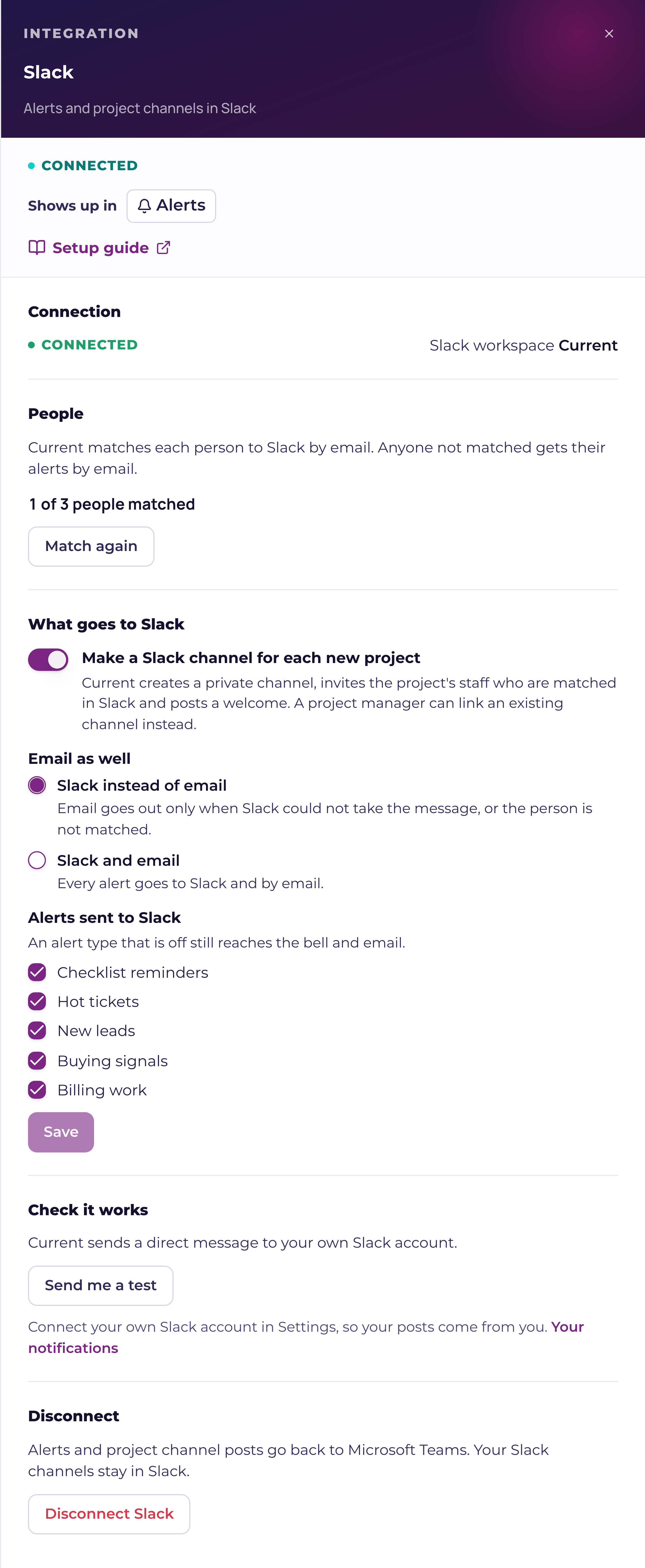
- 4Back in Current, people are matchedYou return to Integrations with Slack connected, and the Slack card's Manage drawer opens. Current matches each person in your workspace to a Slack account with the same email address and shows how many it matched (for example, 14 of 16 people matched). Anyone not matched keeps getting email; the drawer lists them under Not matched yet.
One Slack workspace serves one Current workspace. If the Slack workspace you picked is already connected to another Current workspace, Current refuses it and nothing changes.
Connect your own Slack
Once your workspace has Slack, each person can connect their own Slack account so the comments they write in Current are posted in Slack as them. Open Settings › Your settings › Notifications, find the Your Slack card and press Connect my Slack. Slack asks you to allow Current to post messages as you; press Allow. Your own Slack must be in the same Slack workspace your Tenant Admin connected.
Until you connect, your comments are still posted in the project's Slack channel by the Current app, under your name and photo. Connecting your own Slack also matches you if the email address on your Slack account differs from the one you sign in to Current with. You can disconnect your own Slack from the same place at any time; your comments then go back to being posted by the Current app.
Project channels
Each project can have one Slack channel. Comments your team writes on the project are posted there, and messages your team writes in that channel (replies in a thread included) come back into the project's conversation in Current as comments, marked via Slack. Edit or delete a message in the channel and the comment in Current changes or goes with it. Someone who posts in the channel but isn't matched to anyone in Current shows as their Slack name with (Slack) after it. Messages from people outside your Slack workspace are ignored, and a channel shared with another company (Slack Connect) can't be linked at all, so internal comments stay inside your team. If a linked channel is later shared with another company, Current stops posting to it.
- +Each new project gets its own private channel. While "Make a Slack channel for each new project" is on (the default once Slack is connected), every new project gets a private channel named proj-<number>-<name>, in lower case and at most 80 characters, for example proj-1042-northside-dental-server-refresh. If that name is taken, Current adds a number to the end. Only the project's staff who are matched in Slack are invited, and Current posts one welcome that names them. Anyone else who needs it can be added in Slack. Current also removes people from the channels it created when they are disabled in Current or change to a role that can't read project comments. Someone who simply leaves the project stays in the channel until a person removes them in Slack. About once an hour Current also checks each channel it created, invites project staff added since, and invites back a project member who left the channel.
- +Link a channel to any existing project. A project manager opens the project, chooses Settings & more › Project settings and, under Slack channel, presses Link existing channel. The list shows every public channel, then under Private channels the private ones you and @Current are both in; to link a private channel, you must be a member of it and invite @Current to it in Slack first (type /invite @Current in the channel), and Current must have matched you to your Slack account. Channels come a page at a time; press Show more channels to load the rest. A channel already linked elsewhere can't be linked twice. Unlink asks first, then stops the posts; the channel and its messages stay in Slack.
- +Open in Slack, under Slack channel in the project's settings, opens the channel in the Slack app.
- +Current never archives or deletes a Slack channel. If someone archives a project's channel in Slack, Current stops posting to it, and the project's Slack channel shows it was archived. Link another channel, or unarchive it in Slack.
Who posts a comment, and how a mention reaches someone
A comment is posted in the channel from its author's own Slack account when they have connected it and are a member of the channel. Otherwise the Current app posts it with the author's name and photo. Each @mention of a person matched in Slack becomes a Slack mention.
- 1Tagged in the project's Slack channelWhen the person is a member of the channel, the post tags them there.
- 2A Slack direct messageWhen they aren't in the channel, or the project has no channel, the Current app sends them a direct message with the comment and an Open in Current link.
- 3An emailWhen Slack can't reach them (they aren't matched, or Slack didn't confirm the message), the alert goes by email, with their own email preferences applied.
The bell in Current always rings, and you're never alerted about your own comment. Messages the Current app posts are never brought back as comments, so nothing loops between Slack and Current. A comment that came from Slack rings the bell in Current but sends no Slack message or email of its own: the people in the channel have already seen it there.
The line under each comment says who it reached and how, for example "Tagged in Slack: Danny Smith · Slack message: Lauren Ortiz · Emailed: Sam Lee (no Slack account matched)". When Slack didn't reach someone, the reason is in brackets after their name:
| Reason | What it means |
|---|---|
| not in the Slack channel | They aren't a member of the project's channel, so they got a direct message or an email instead of a tag |
| no Slack account matched | Current hasn't matched them to a Slack account, so the alert went by email |
| the Slack post didn't go through | Slack refused the channel post, so the alert went by direct message or email |
| the Slack message didn't go through | Slack refused the direct message, so the alert went by email |
| Slack didn't confirm it | Slack didn't answer in time; Current never sends the same message twice, so it sent the email instead |
Alerts as Slack direct messages
The alerts Current already sends your own staff reach each matched person as a Slack direct message from the Current app, with a button that opens the record in Current. A Tenant Admin chooses which kinds of alert go to Slack: on the Slack card press Manage, then What goes to Slack:
- +Checklist reminders: checklist items due today.
- +Hot tickets: an urgent or unhappy ticket on a company you look after.
- +New leads: a new lead routed to you.
- +Buying signals: the morning list of new buying signals on your companies.
- +Billing work: a won quote's billing step assigned to you.
Each kind is on by default. For the email, choose Slack instead of email (the default) or Slack and email. With Slack instead of email, the email is skipped only after Slack has accepted that message for that person; if Slack refused it or didn't answer, or the person isn't matched, the email goes as before. A kind switched off goes by email only. Each person's own alert switches in Notifications still apply.
Under Manage › Check it works, Send me a test sends you a direct message from the Current app, so you can check Slack reaches you before your team relies on it.
What Current asks Slack for
When you press Allow, Slack lists these permissions. This is what Current does with each one.
| Permission | What Current does with it |
|---|---|
| chat:write | Posts comments, the welcome and alerts in channels the app is in, and sends alerts as direct messages from the Current app |
| chat:write.customize | Posts a teammate's comment under their own name and photo when they haven't connected their own Slack |
| channels:manage | Manages the public channels the app works in |
| channels:join | Joins an existing public channel you link to a project |
| channels:read | Lists public channels so you can pick one, and checks a linked channel and its members |
| channels:history | Receives the messages posted in public channels the app is a member of, so replies in a project channel come back as comments |
| groups:write | Creates the private channel for a new project, invites the project's staff, and removes people who are disabled or can no longer read project comments |
| groups:read | Lists the private channels @Current was invited to, so you can link one, and notices when one is archived |
| groups:history | Receives the messages posted in private channels the app is a member of, so replies there come back as comments |
| users:read | Shows the name of someone who replies in Slack but isn't matched to anyone in Current |
| users:read.email | Matches the people in your workspace to their Slack accounts by email address |
| team:read | Shows your Slack workspace's name on the card |
Connect my Slack asks for one permission on your own account, chat:write, so Current can post your comments as you. It cannot read your messages or direct messages.
What Current reads and keeps
- +Current keeps only the messages written in channels linked to a project, as comments on that project. Slack sends Current the messages of every channel the app is a member of; any message from a channel not linked to a project is ignored and not stored, and so is a message from someone outside your Slack workspace.
- +Current never reads direct messages between people, or channels the app is not a member of. A private channel is read only after someone invited @Current to it.
- +A message from your Slack workspace can only ever land in your Current workspace: Current recognises your Slack workspace by its id and checks that every message really comes from Slack before reading it.
- +The app's access token and each person's own token are stored encrypted on Current's servers. They are never shown in a browser, in a log or on the card.
Disconnect Slack
A Tenant Admin opens the Slack card, presses Manage, then Disconnect Slack. Current asks first, and says that Teams comes back. Disconnecting removes the app's access, clears every person's own Slack connection and stops every Slack post and alert. Your Slack channels and their messages stay in Slack, and each project keeps its channel link, so connecting the same Slack workspace again picks the channels back up. Teams messages resume with the links and choices you had before.
Something not arriving? See "Slack: fixing common problems".