
Set up single sign-on (Microsoft Entra ID, Okta, Google Workspace)
The SAML setup end to end: add Current to your identity provider, verify your email domains, register the provider, and save your recovery codes. Registering enforces SSO for everyone on those domains.
On this page · 7 sections
Single sign-on is the way we recommend you sign a workspace in to Current. Your identity provider owns the account, so its MFA, its conditional-access rules and its offboarding all reach Current: nobody types a code, and disabling a person in one place ends their access here. Current speaks SAML 2.0, so Microsoft Entra ID, Okta, Google Workspace, JumpCloud and Ping all connect the same way.
Before you start
- An identity provider that speaks SAML 2.0, and an account there that can create an enterprise application (in Entra ID that is Application Administrator or Global Admin).
- Tenant Admin in Current.
- A way to prove you own each email domain you claim: access to its DNS, or to its postmaster@ or admin@ mailbox.
- Somewhere to keep the ten recovery codes Current shows you once at the end: a shared password manager entry your other admins can reach, or your existing break-glass envelope.
Step 1, add Current to your identity provider
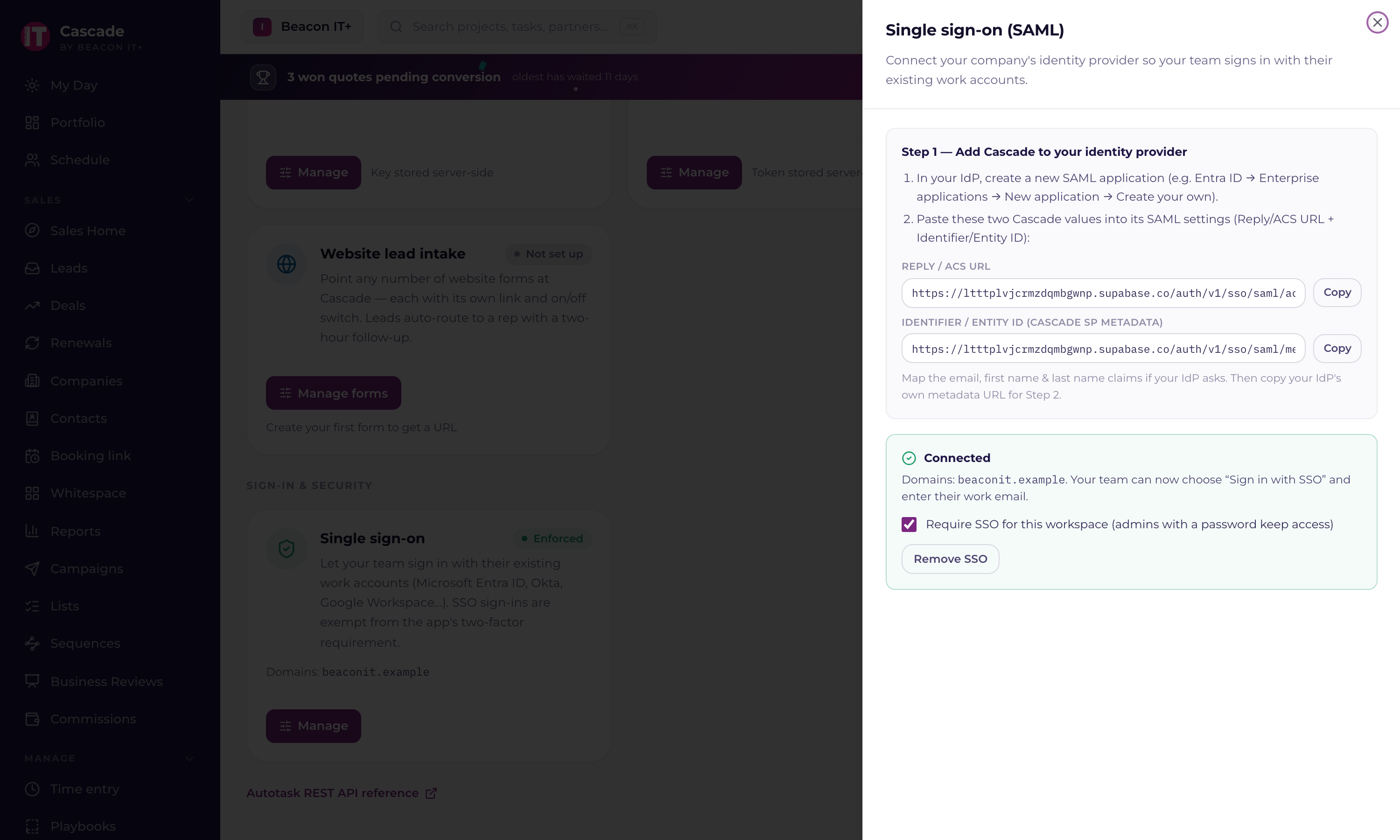
- 1Open the single sign-on cardSettings › Integrations → Single sign-on → Set up single sign-on. Step 1 of the drawer holds the two values your identity provider needs, each with a copy button.
- 2Create a SAML applicationIn Entra ID: Enterprise applications → New application → Create your own → Integrate any other application, then Single sign-on → SAML. In Okta: Applications → Create App Integration → SAML 2.0. In Google Workspace: Web and mobile apps → Add app → Add custom SAML app.
- 3Paste Current's two valuesThe Reply / ACS URL goes in the field your provider calls Reply URL, Assertion Consumer Service URL, or ACS URL. The Identifier / Entity ID goes in Identifier, Audience URI, or Entity ID. Copy them from the drawer rather than retyping: a trailing slash is a mismatch, and a mismatch is the error you will spend the afternoon on.
- 4Map the email and name claimsCurrent reads email, first name and last name. Entra ID sends all three by default; Okta and Google ask you to add them. The email claim must carry the person's real work address, because that address is what ties the sign-in to their Current profile.
- 5Copy your provider's metadata URLCurrent needs a URL it can fetch, not a downloaded file. Entra ID calls it the App Federation Metadata Url. Okta calls it the Metadata URL, on the app's Sign On tab. Google Workspace shows an IdP metadata link on the custom SAML app screen. Use the link, not the XML you can download beside it.
Step 2, verify each email domain
A domain routes sign-ins to exactly one workspace, so Current makes you prove you own one before it is claimed. This gates new domains only; anything you already route keeps working.
- 1Type the domain and press VerifyIn the Verify domain ownership box in the drawer, enter the domain (acme.com) and press Verify. Current picks whichever check it can actually run from where it is hosted.
- 2Add the DNS record, or read the emailed codeFor the DNS check, add a TXT record at the host Current shows (it starts with _current-sso) carrying the value beside it, then press Check DNS once it has propagated. If Current cannot resolve DNS, it emails a code to postmaster@ and admin@ at that domain instead, the two addresses only the domain's real operator can read. Paste the code and press Confirm.
- 3Repeat for every domain you plan to claimEach one needs its own verified claim. A started challenge expires after 7 days and a completed verification counts for 30, so register while they are fresh.
Step 3, register the provider
- 1Paste the metadata URL and the domainsStep 2 of the drawer: your identity provider's metadata URL, then your email domains, comma separated. Public mail domains (gmail.com, outlook.com and the rest) are refused.
- 2Press Register identity providerCurrent registers the provider, mirrors the domains onto your workspace, and shows your ten recovery codes. Single sign-on is enforced for those domains from that moment, so tell your team before you press it rather than after. If your own account is on one of those domains and you signed in with a password, Current sends you to sign in with single sign-on as soon as you have saved the codes, and your other open Current tabs follow.
- 3Save the recovery codes before you close the drawerThey are shown once and never again. See the block below.
- 4Sign in through the provider yourselfOpen a private window, choose Sign in with single sign-on, and enter your work email. If your account already existed with a password, Current merges it into the SSO identity on that first sign-in, so your role, your history and your time entries stay on one profile. It only does that on an unambiguous match: two accounts at the same address, or a deactivated one, are held for an admin to sort out instead.
- 5Approve anyone newSomebody on your domain who has never been a member authenticates but reaches a waiting screen rather than your data. Give them a role at Settings › Users and roles › People → Pending SSO sign-ins. See "Invite team members and assign roles".
Who keeps a password
- Everyone on a claimed domain signs in through your identity provider, tenant admins included. There is no per-person exemption to grant.
- Accounts on other domains keep a password plus a second factor: a Partner Viewer at their own company, a contractor on their own address, anyone you invited at an address you do not own. Your provider cannot authenticate them, so the mandate would only lock them out.
- A tenant admin who cannot reach the identity provider redeems one of the recovery codes for 12 hours of password sign-in.
- Current support can open a password window of 1 to 24 hours for a whole workspace when the codes are gone too.
Common errors
| What you see | What it means and how to fix it |
|---|---|
| Current can't read that metadata URL | The URL has to be reachable from the internet and return SAML metadata XML. A file saved to your machine, a URL behind a login, or one that only resolves on your internal network will not work. Open it in a private browser window first: if you can read XML there, Current can fetch it. |
| That domain isn't verified yet | Finish the ownership check for every domain in the list before you register. DNS takes its own time; press Check DNS again rather than starting the challenge over, which resets the record. |
| That domain is already claimed | Another workspace routes it, often an old trial of your own. Two workspaces can never catch the same domain's sign-ins. Contact Current support with the domain and we work out which workspace keeps it. |
| AADSTS50011, or a SAML audience/destination error | The Reply/ACS URL or the Entity ID in your provider does not match Current's exactly. Copy both again from the drawer, including the scheme and any trailing character. Entra reports it as AADSTS50011; Okta and Google word the same mismatch differently. |
| SAML isn't enabled yet | The SAML service has to be switched on for Current's platform before any workspace can register a provider. Tell Current support rather than retrying; it is a one-time platform change, not something in your workspace. |
Living with it afterwards
- Offboarding: disable the person in your identity provider and their next sign-in fails there. Deactivating them in Settings › Users and roles › People as well is what frees the seat and cuts any session they still hold.
- New starters: create them in your identity provider, have them sign in once, then approve them with a role from the pending list.
- Certificate rollover: Current holds your metadata URL rather than a pasted certificate, so a scheduled rollover needs nothing here. If sign-in does break right after one, a recovery code gets an admin in to re-register the same URL.
- Changing providers, Okta to Entra ID say: register the new metadata URL from the same drawer. Your verified domains stay claimed.
- Partner Viewers you invited at their own company keep their password sign-in and their emailed code, so nothing about the partner portal changes.