
One-press fixes in ticket plans
Run a step of a ticket's plan through a connected tool with one press, then see what it reported: fixed and checked, did not work, or can't tell yet.
On this page · 4 sections
When your workspace has one-press fixes switched on, a step in a ticket's plan can carry a button. The button runs that step through a tool you have connected, such as your RMM, on the ticket's own device. You press it, Current sends the fix, reads the result back from the device and tells you whether it worked. A step Current cannot run stays a written step for you to do by hand.
What a one-press fix is
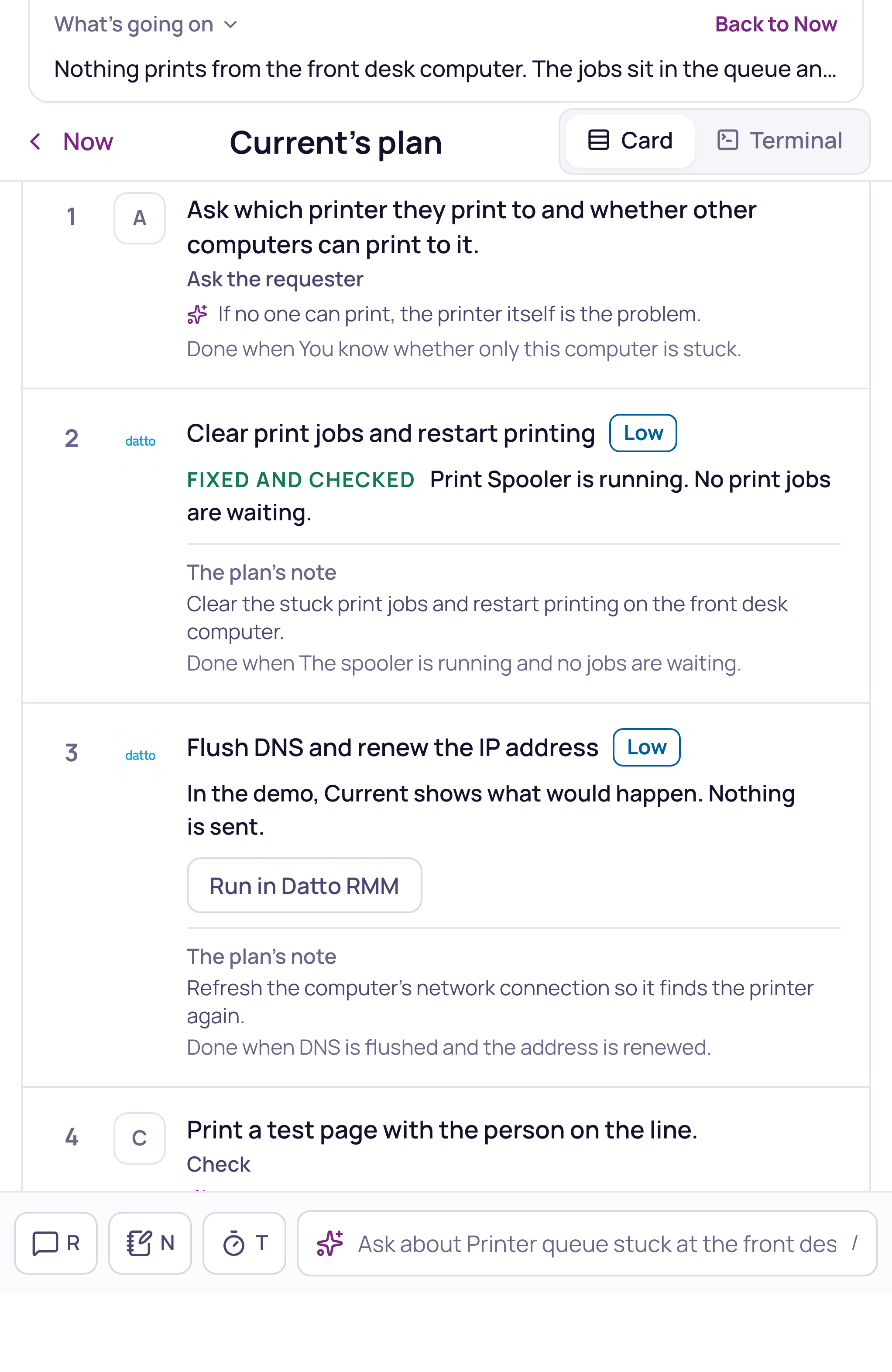
Press See the plan on a ticket. Current writes the plan from what is on the ticket and offers a fix only where a connected tool can do that exact step on the ticket's own device: for example clear the print jobs and restart printing, flush DNS and renew the network address, restart an approved service, or scan for threats. The fix comes from Current's own reviewed list, never from text on the ticket, and it names the device and the tool it will use before you press. On a Mac managed through Addigy, Current offers a short fixed list: restart printing, clear the print queue, flush DNS, restart Finder and restart the Mac.
- A person always presses. Nothing runs by itself, and each fix runs once.
- Current runs a fix only on the device linked to the ticket, and only when that device belongs to the ticket's company.
- A step with no tool that can do it says Do this by hand. It never shows a button that cannot work.
Run a fix
- 1Open the planOpen the ticket and press See the plan (or G). Steps that can run from Current show a line naming the fix, the device and the tool, and a Run in <tool> button.
- 2Press Run in <tool>Current checks again that the device is online and nothing blocks the fix, then sends it. A fix that changes something important asks you to type the device's name and pick a reason first.
- 3Read the resultThe step shows RUNNING while the tool works, then the result Current read back from the device.
What each state means
| What you see | What it means |
|---|---|
| Run in <tool> | Ready. Nothing has been sent yet. Press to run it. |
| RUNNING | Current sent the fix and is waiting for the device to answer. |
| FIXED AND CHECKED | The fix ran and the check Current read back passed. The line says what the device reported, for example that printing is running with no jobs waiting. |
| DID NOT WORK | The fix ran, but the check says the problem is still there. Do the step by hand or look further. |
| FAILED | The tool could not run the fix. When the fix is safe to repeat and nothing reached the device, Try once more runs it one more time. |
| UNKNOWN | Current sent the fix but cannot tell whether the tool ran it. Check the device in the tool before you try again. Check now reads it again and never sends the fix twice. |
| BLOCKED | Something stops the fix right now: the device is offline, marked Do not automate, or changes are frozen. The line says which. |
| NOT RUN | One-press fixes were switched off before this ran, so Current cancelled it. |
A step that already ran says Current already ran this step. Press Rebuild for a fresh plan if you need to run it again. If the plan changed since you opened it, the step asks you to look at the new step before you run it.
Switching one-press fixes on
One-press fixes are off until your workspace switches them on. A tenant admin turns on One-press fixes in plans in Settings, in the service desk's Actions section, once the service desk readiness check (Settings, Readiness) is complete; until then the row says Finish the service desk readiness check to turn this on. Each tool also needs its own write access set up and its writes switched on after a passed setup test. Every change to the switch is recorded in the audit log.
Turning one-press fixes off takes the buttons away on the next read and cancels any fix that is waiting to run. A fix the tool has already started finishes and is recorded.